
Applies to: Jiwa 8.0
Requirements: Access to Sales Order Entry with permission to create and edit sales orders.
When a customer is to be invoiced in a foreign currency (FX), check the currency and exchange rate on the sales order before entering the items. Review the selling prices, tax and totals in both the order currency and local currency before processing.
Before you begin
-
The customer’s debtor account is set up.
-
The required currency and exchange rate are available.
-
You are familiar with the general sales-order procedure.
Contact your Opal Logic Jiwa Consultant if the required currency is unavailable.
Follow Creating Sales Orders for the general order-entry procedure. Use the additional steps below for the currency, exchange rate and pricing checks.
Select the customer and currency
-
From the menu, select Sales > Order Entry.
-
Select New > New Sales Order.
-
Select the customer’s debtor account. The new order uses its default currency, or local currency if no default is set.
-
Check Currency in the order header.
-
If another currency is required, select it using the Currency lookup before entering items. This changes only the order, not the debtor account.
Check the exchange rate
-
Check that Rate in the order header is the rate required for this order.
-
If a different rate is required, enter it in Rate before adding the items.
Jiwa supplies a default rate when the currency is selected. Dated Transaction Rate entries are maintained separately under System Settings > Foreign Exchange > Currencies.
In this example, the USD rate is 0.690000. A USD selling price of 2.00 excluding tax has a local AUD equivalent of 2.90 after rounding.
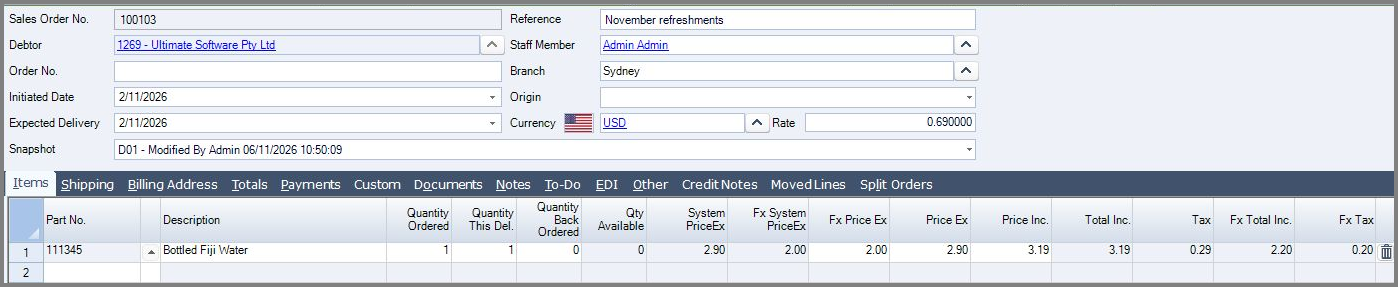
If you change Initiated Date on an existing unprocessed order, check the exchange rate again. Changing that date does not automatically replace the rate already on the order.
Check prices, tax and totals
-
Enter the required items and quantities using the general sales-order procedure.
-
Review the foreign selling price in Fx Price Ex and any discounts.
-
Compare the local selling price in Price Ex with the foreign selling price.
-
Check the tax code and amounts on each line. Fx Tax shows foreign tax; Tax shows local tax.
-
Review any freight charges in the Cartage tabs.
-
Check the order-currency totals in the Totals tab and compare the local AUD totals.
Foreign currency does not make a sale tax-free. Check the tax settings separately; do not assume that the order currency determines the tax treatment.
This example shows USD 2.00 excluding tax, USD 0.20 tax and USD 2.20 including tax. The corresponding local totals are AUD 2.90, AUD 0.29 and AUD 3.19. Check the displayed totals and rounding rather than converting an already-rounded value by hand.
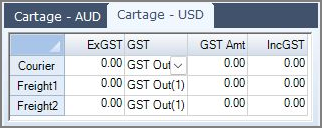
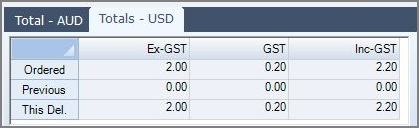
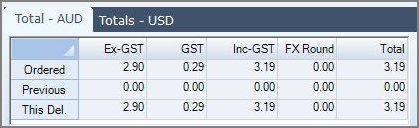
Changing currency or rate after entering items
When you change the currency or rate on an unprocessed order, selling prices are recalculated based on which price you edited last:
-
If you last edited the foreign currency selling price, that amount is retained and local currency selling prices are recalculated.
-
If you last edited the local currency price, that amount is retained and foreign currency selling prices are recalculated.
-
If neither selling price has been edited, the default is to retain the foreign currency selling price and recalculate the local currency selling price.
These rules apply only to the lines you edited. For example, if you edited one line on a 10-line order, the other nine lines follow the default recalculation rule.
Local price retained
In this separate example, changing the local selling price in Price Ex to AUD 2.50 on the populated USD order recalculates Fx Price Ex to USD 1.73. Changing the currency to GBP retains AUD 2.50 and recalculates the foreign selling price to GBP 1.30 at a exchange rate of 0.520000.
Currency selected before or after items
This comparison starts with no manual selling-price edit. It is separate from the local-price-edit example above.
Changing the populated USD order to GBP retained a selling price of 2.00, now GBP 2.00. At a GBP rate of 0.520000, the local price became AUD 3.85 excluding tax. By comparison, selecting GBP before adding the same item produced GBP 1.51 excluding tax, with an AUD 2.90 local equivalent.
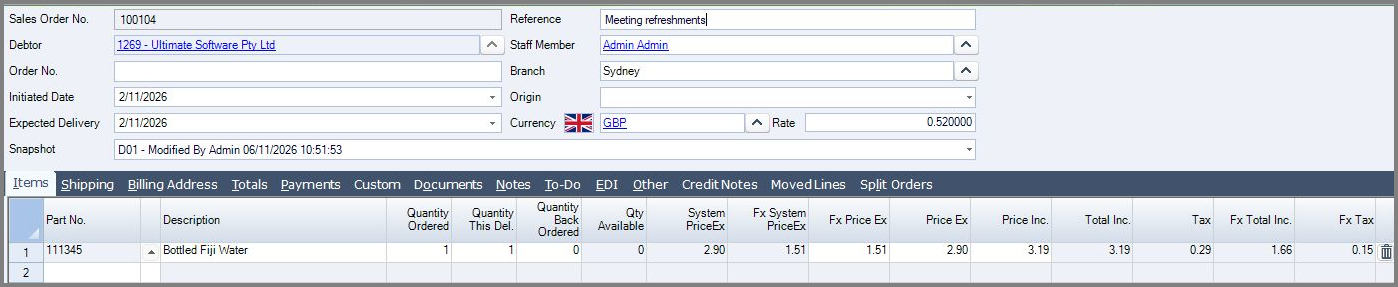
Exchange rate changed after items
Changing only the exchange rate follows the same last-edited-price rule. The foreign selling price is retained when it was edited last or when neither selling price has been edited. If the local selling price was edited last, the local amount is retained instead.
The following separate examples use USD as the order currency and AUD as the local currency. Each starts at a rate of 0.690000 and changes to 0.800000. All prices below exclude tax; these examples are separate from the currency comparisons above.
-
No manual price edit: USD 62.17 is retained; AUD 90.10 changes to AUD 77.71.
-
Foreign price edited last: USD 70.00 is retained; AUD 101.45 changes to AUD 87.50.
-
Local price edited last: AUD 100.00 is retained; USD 69.00 changes to USD 80.00.
After either change, review the agreed selling prices, discounts, tax, cartage and both sets of totals before saving or processing. Correct the selling prices where required.
Check and save the order
-
Confirm the customer, currency, rate and order date are correct.
-
Check the final selling prices, tax, cartage and totals in both currencies, including the quantities for the current delivery.
-
From the menu ribbon, press Save.
The order is now saved for the next stage of your normal sales-order process. Complete the FX checks before processing; entering and saving the order does not process it.