
Back-to-back orders, also referred to as B2B orders in Jiwa, are used when stock needs to be purchased specifically to fulfil a sales order.
This article explains how to generate a purchase order from a sales order using the back-to-back order process. When stock is received through this process, it is allocated to the originating sales order.
Before using this process, it is important to understand that stock received for a back-to-back order cannot be released or reallocated to another order. If the stock needs to be made available for other non-B2B orders, the originating sales order must be cancelled first.
For details on cancelling sales orders please refer to our article Cancelling an Order .
Creating B2B Sales Orders
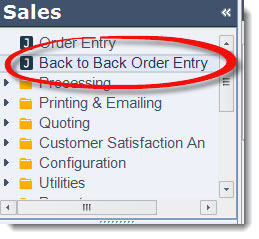
From the Sales menu select Back to Back Order Entry
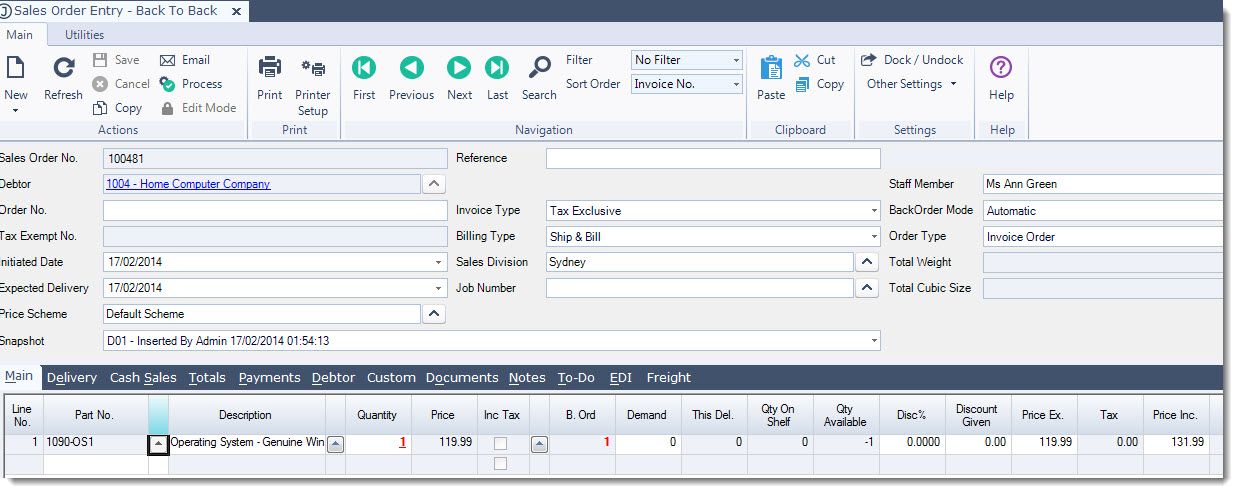
Create your sales order as normal and Save
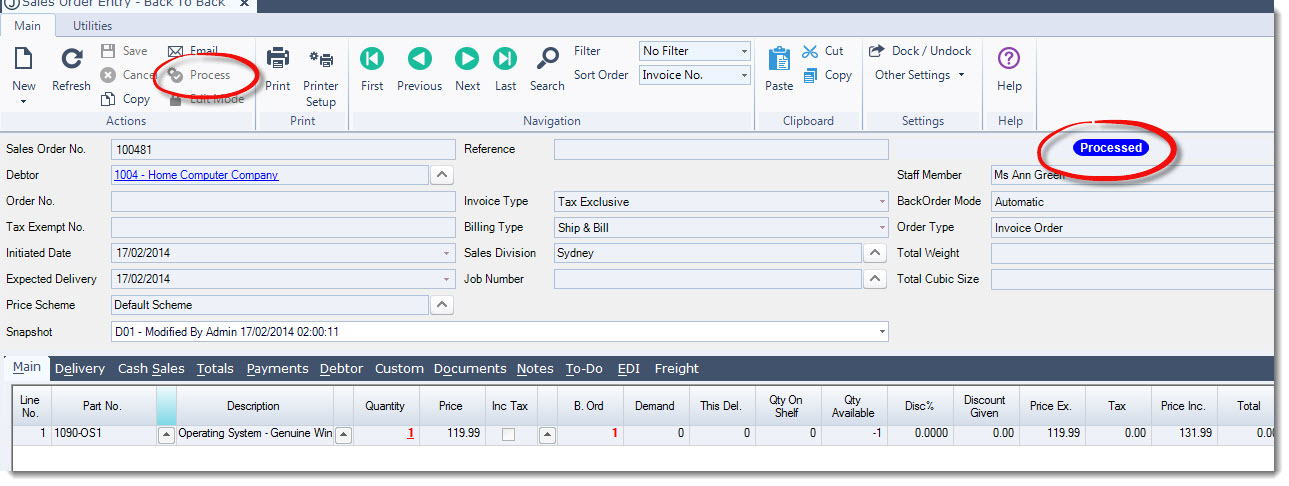
Process the sales order. You will not be able to generate a purchase order/(s) if the sales order does not have a status of Processed
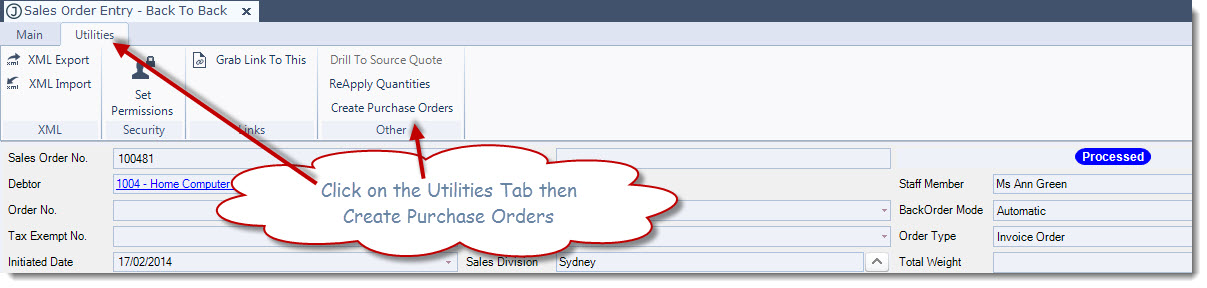
Click on the Utilities tab then Create Purchase Orders to generate the required purchase orders.
In Jiwa6 you will need to select Record | Utilities | Create Purchase Orders
Back to back purchase orders will be created for the items on the purchase order on the default supplier/(s) for the items being ordered.
The supplier can be changed before the purchase order is first saved
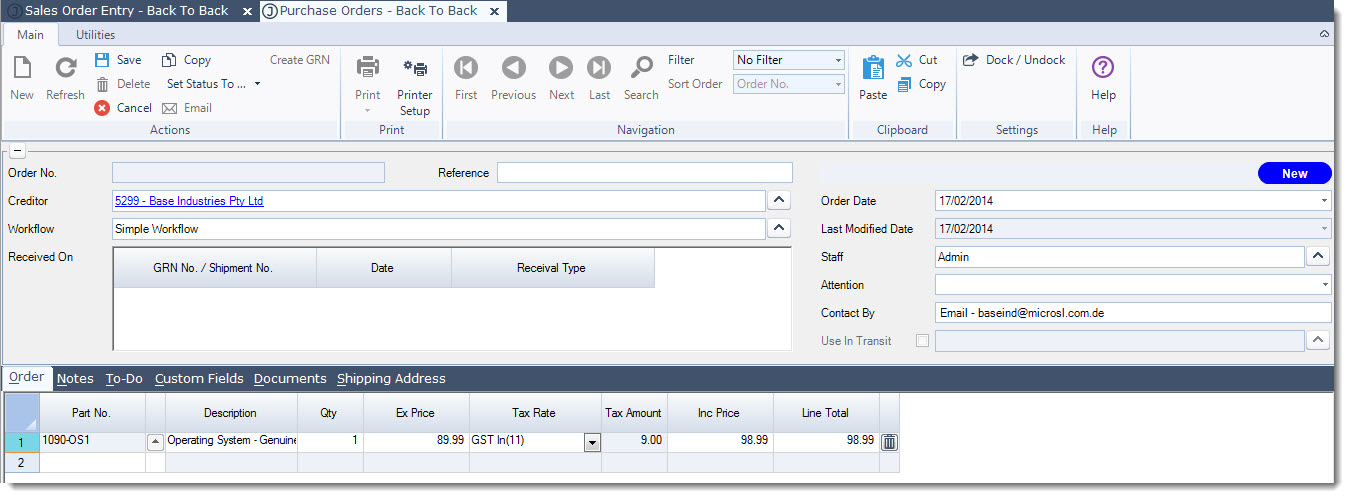
Make any necessary changes required to the purchase order then Save and send to the supplier.
Repeat the steps for each purchase order that is created.
Allocating Stock to B2B Sales Orders
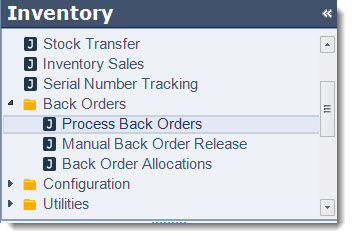
Once stock has been received in for the back to back purchase orders, stock is allocated to the originating sales orders through Process Back Orders.
Select Inventory | Back Orders | Process Back Orders
In Jiwa6 you will need to select Sales Order Entry | Back Orders | Process Back Orders
Select to process Back to Back Sales Orders then Select Process
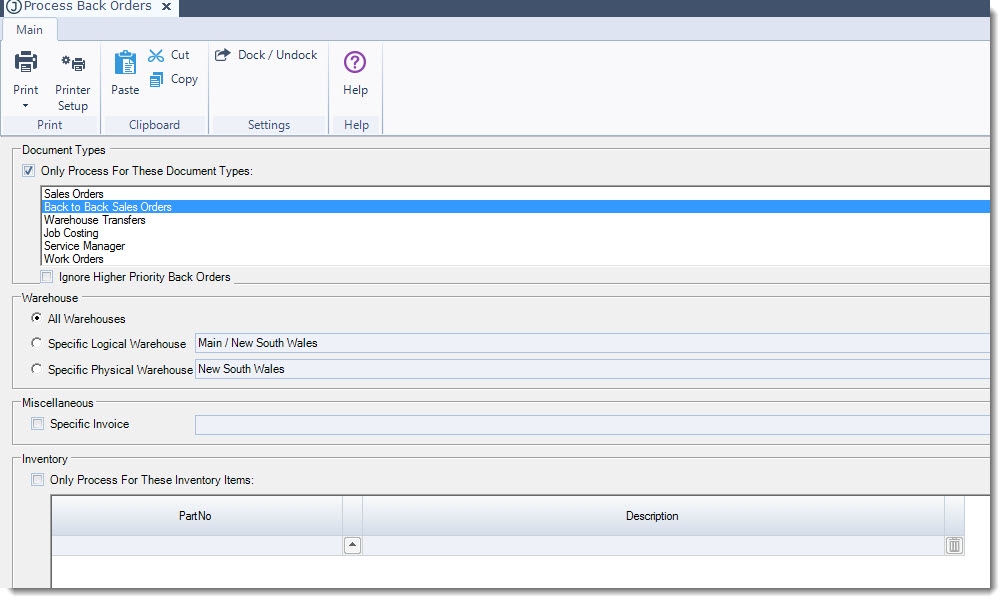
Once stock has been allocated to the Back to Back Sales Orders the orders can then be processed as normal.