In this article we will look at how sales orders can be consolidated into a single invoice using the Sales Order Grouping function in Jiwa 7.
Overview
Sales Order Grouping allows you to group sales orders for a specific customer into one or more parent sales orders. This is useful if your customer has many deliveries during a week or month but only wants to receive a single consolidated invoice for all orders delivered.
Only sales orders with a billing type of Ship & Bill can be grouped.
All sales orders are grouped based on their status of either Open or Processed.
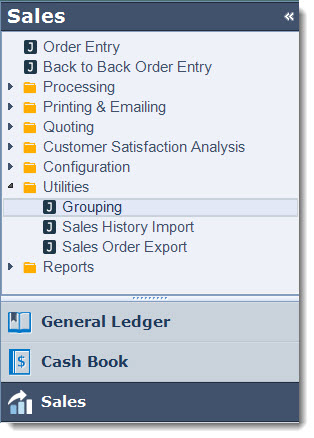
From the standard Jiwa menu select Sales | Utilities | Grouping
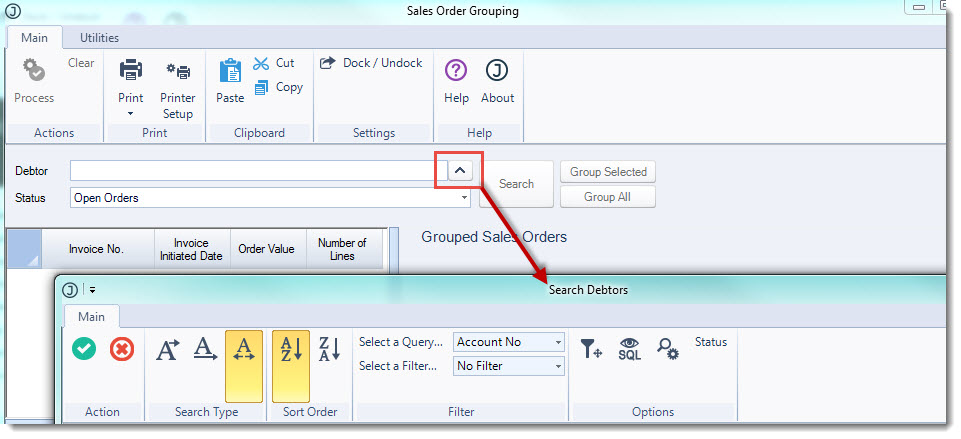
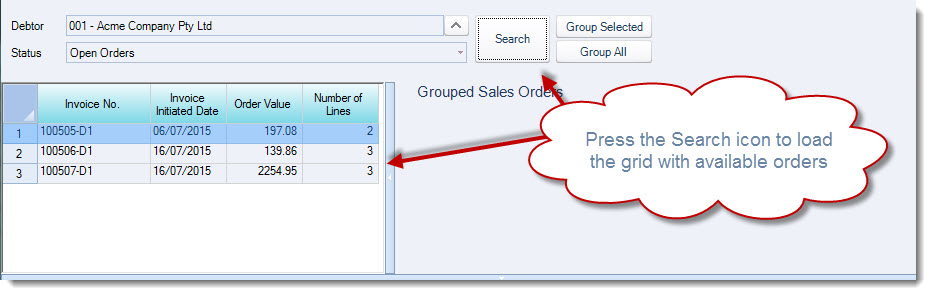
Select the customer you want to group orders for by clicking on the Debtor search icon next to the Debtor field.
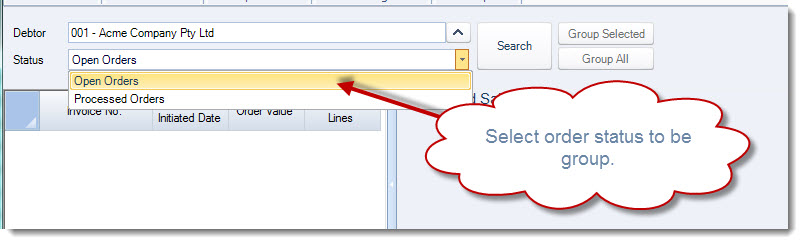
Select the order status to be group
Press the Search icon to load the available orders grid
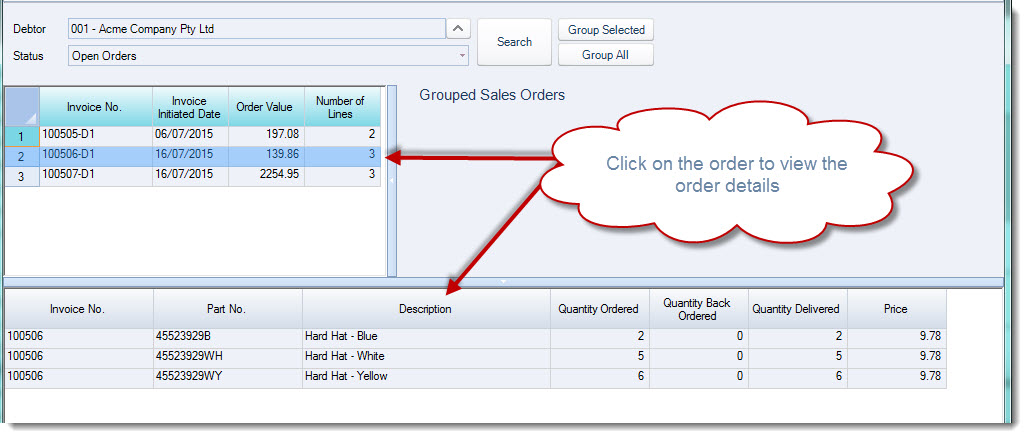
To view the parts within each order simply click on the required sales order this will then update the order grid detail.
Grouping Orders
There are a number of ways in which sales orders can be grouped for consolidation;
-
Group All,
-
Group Select, and
-
Manual Grouping
Group All
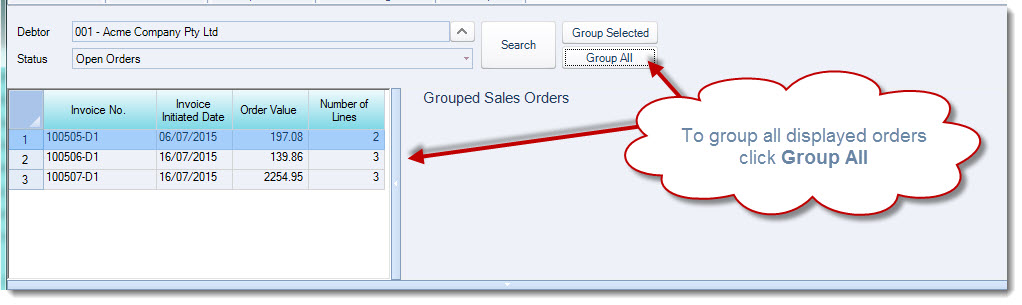
To group all the orders that have been returned in your selection simply click on the Group All icon.
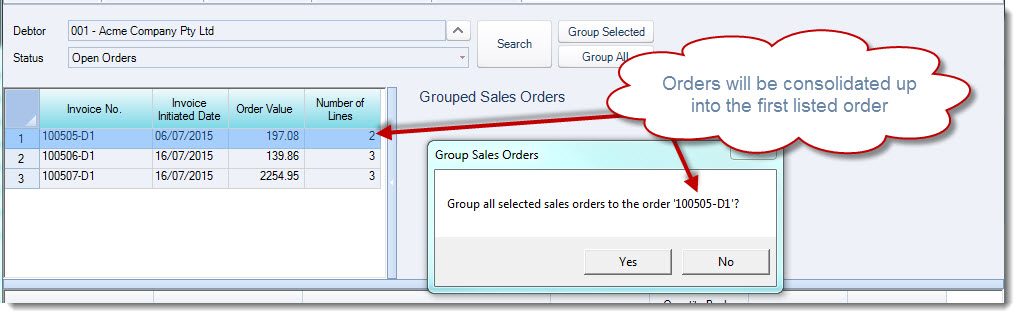
Jiwa will group all orders up to the first listed order, select Yes at the Group Sales Orders prompt.
The Grouped Sales Orders tree display is updated with the grouped orders
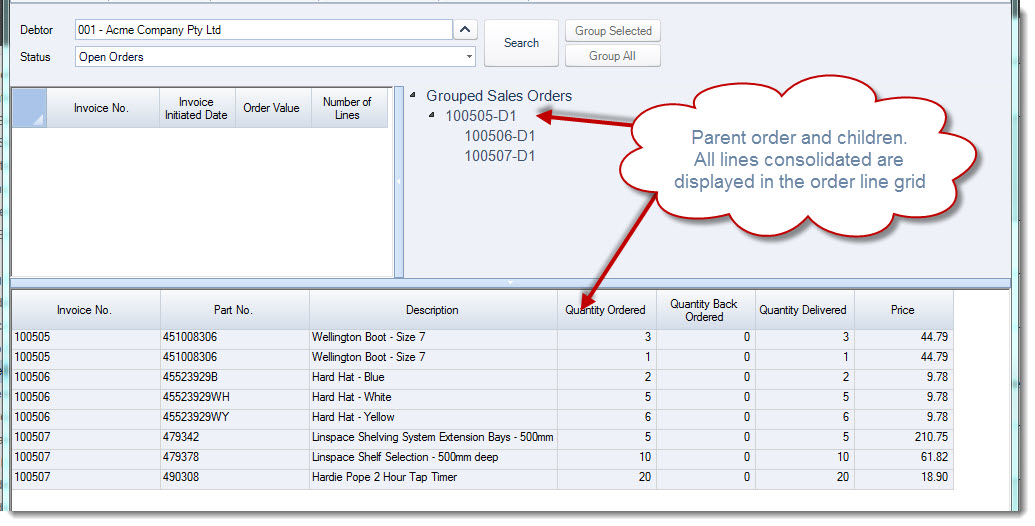
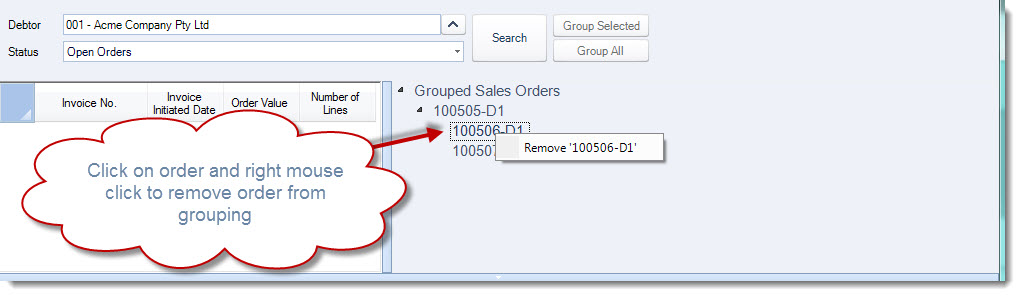
To remove an order from the grouping click on the required sales order, right mouse click and select Remove
Group Selected
Only relevant orders can be selected for grouping by using the following keys;
-
Shift + Left click to select the first and last sales order for block selection; or
-
Ctrl + Left click to select individual sales orders; or
-
A combination of both
Select the orders that need to be group and then press the Group Selected icon.
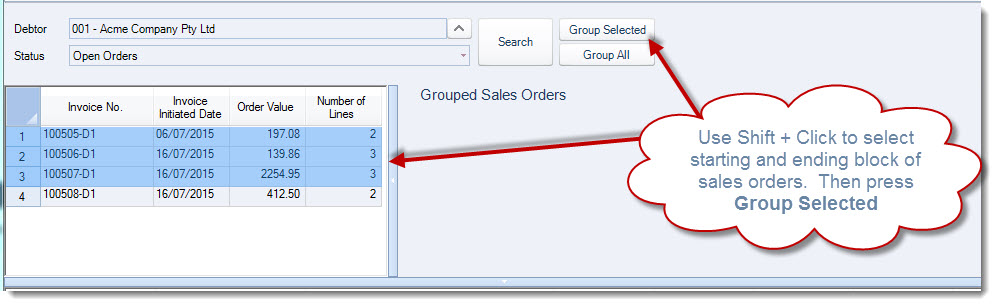
The sales orders will be consolidated up to the first listed sales order.
At the Group Sales Orders prompt select Yes
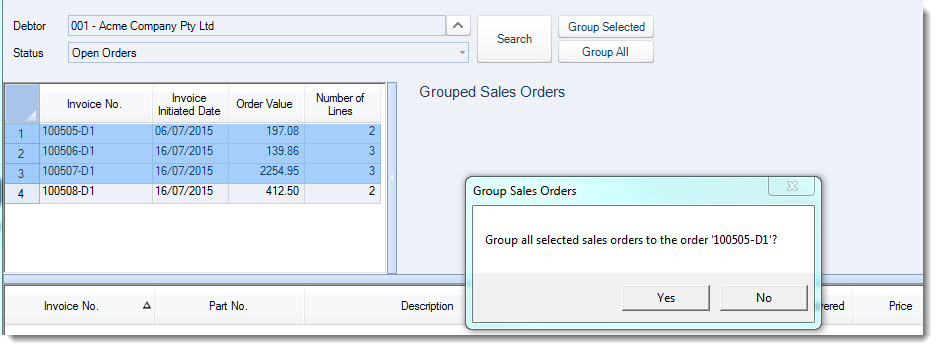
Only the selected orders have been grouped.
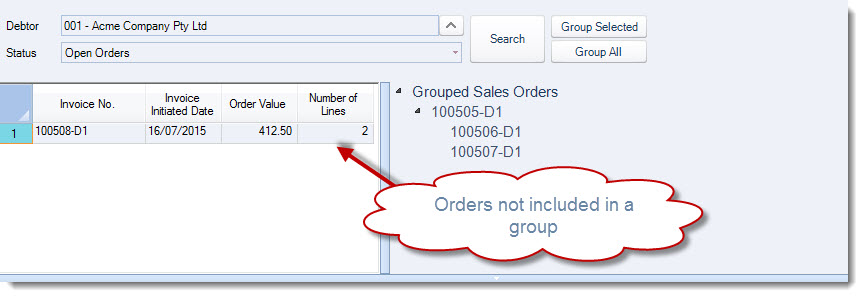
Manual Grouping
Orders can be manually grouping by using the stand windows drag and drop function This is also useful if you want to control which order becomes the parent sales order that all child orders are consolidated into.
Click on your parent order and the move your mouse over the sales order number until you see your cursor appear as a hand.
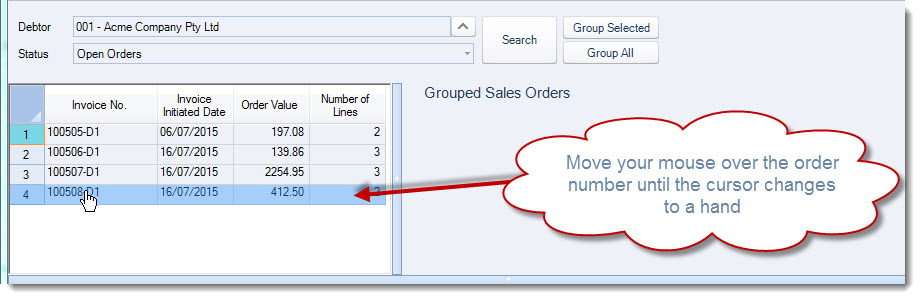
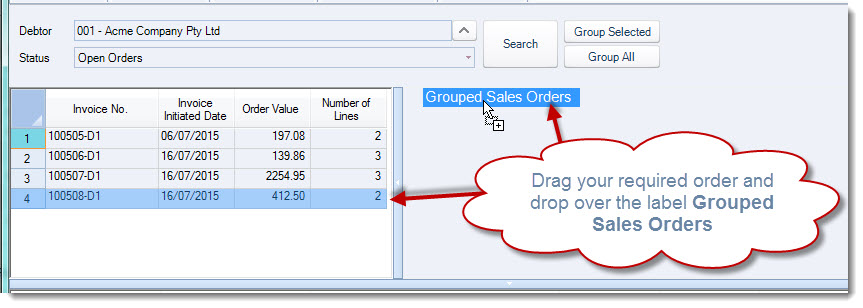
Drag the order and drop it over the label Grouped Sales Orders
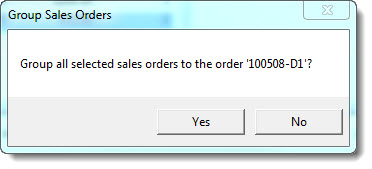
At the Group Sales Orders prompt select Yes
Now drag and drop the child orders over the parent order/(s)
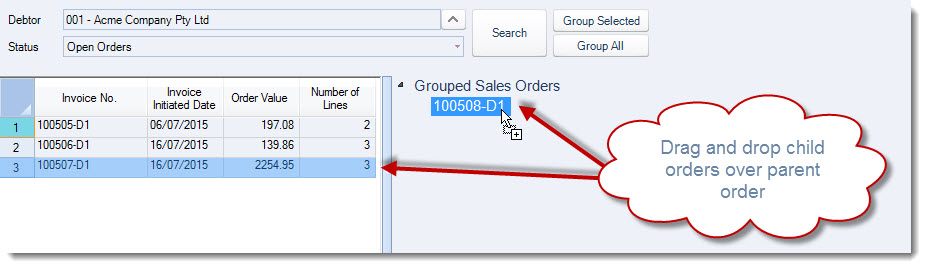
At the Group Sales Orders prompt select Yes Continue this process until you have your required order groupings.
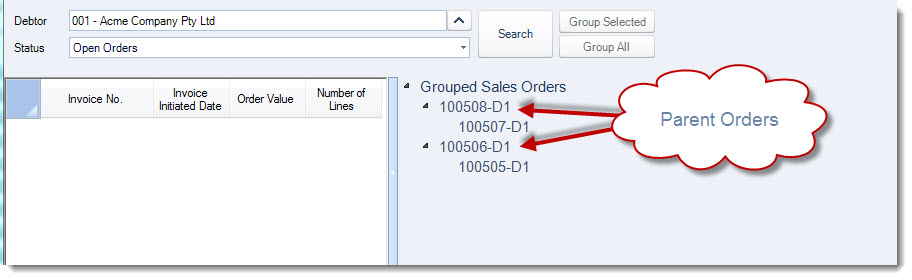
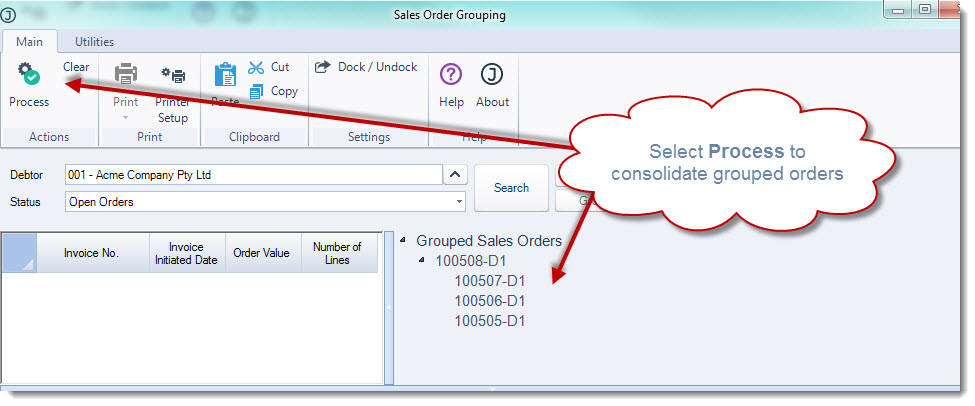
Processing Grouped Orders
When your orders have been grouped and you are ready to consolidate from the menu ribbon select Process
Child Orders
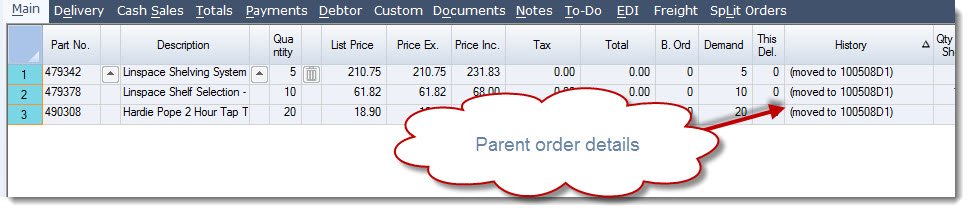
Once orders have been consolidated all child orders are closed.
The Demand field is updated with the order quantity that has been moved to the parent order.
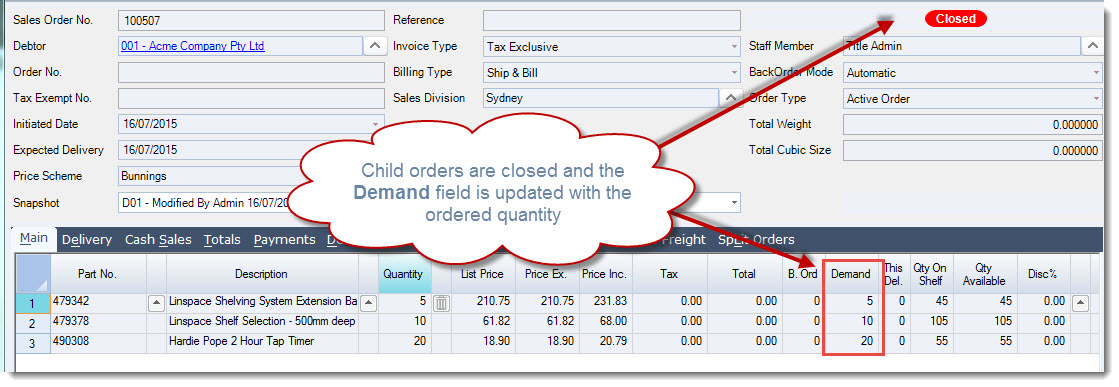
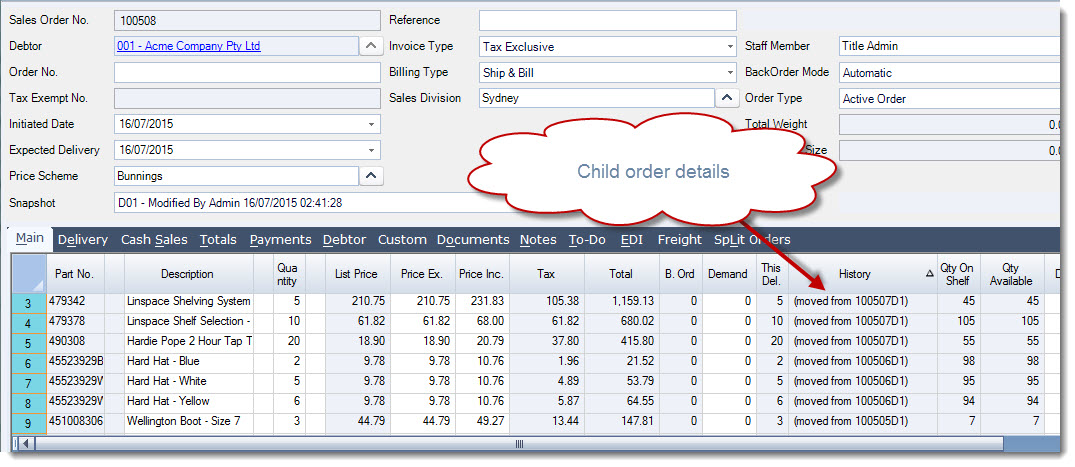
The History field on the sales order lines is updated with the parent order details.
Parent Orders
The parent order is updated with all the line details from the child orders.
The History field on the sales order lines is updated with the child order details.
Process your order as normal.