In this article we look at how to add Estimates to jobs in the Jiwa 7 Job Costing module.
Creating Estimates
Estimates are used to add costings and charges against a job at a detailed level.
A job can have multiple estimates however only 1 estimate can be active at any time.
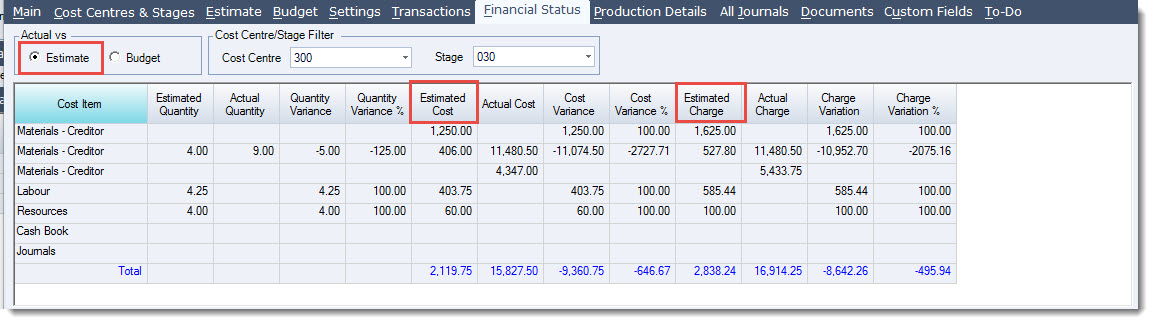
The active estimate is used in comparisons to actual costs on the Financial Status tab as well as reports.
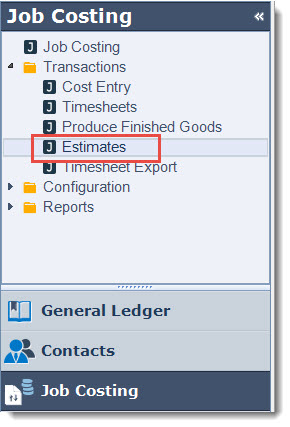
From the menu select Job Costing | Transactions | Estimates
From the menu ribbon select New

Select the required job from the Search Job Costing Jobs popup

Add details about the estimate in the Description field

|
Field |
Description |
|
Estimate No |
The estimate number is automatically assigned on the first save |
|
Job No |
The job that the estimate is applicable to |
|
Description |
User input details about the estimate |
|
Last Modified Date |
This is a non editable field which is automatically updated based on the current login date |
|
Last Modified By |
This is a non editable field field is automatically set for the logged in user name |
Adding Lines to Estimates
Cost details are added to estimates at the Cost Centre / Stage level and by cost type.
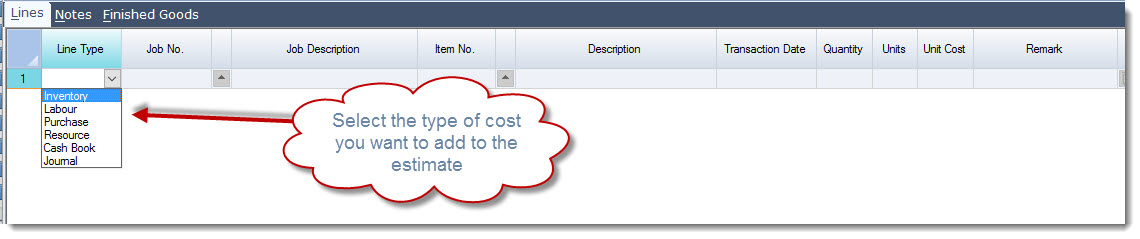
On the Lines tab start adding your costs by first selecting your line type
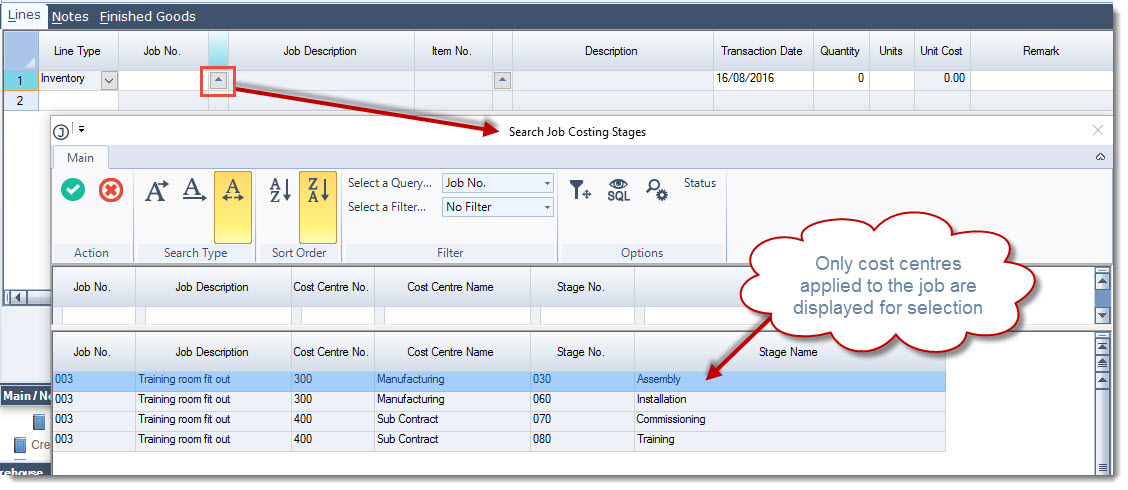
Select the cost centre that the expense is applicable to from the Search Job Costing Stages popup
Select the applicable Item and complete the remaining fields on the line
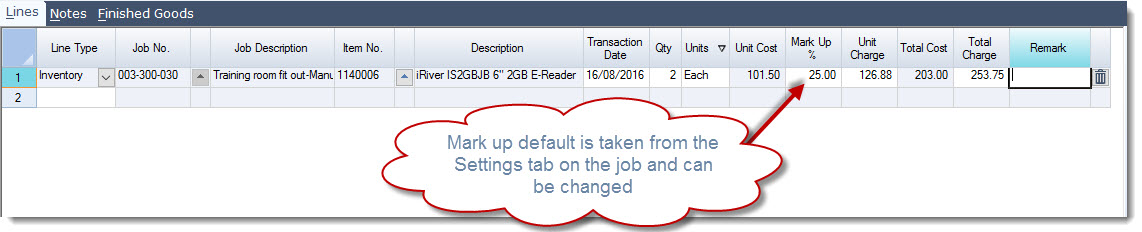
Save your estimate as you are working through it. Estimates are left active which means that they can be edited as required.
Continue until you have completed your estimate
Save your changes
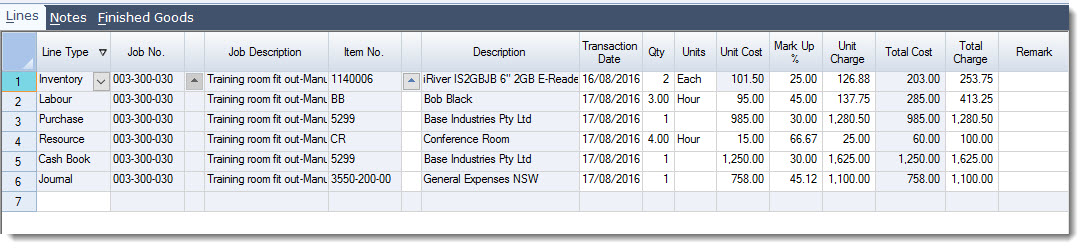
|
Field |
Description |
|
Line Type |
Transaction type. Available options;
|
|
Job No. |
Job cost centre and stage estimate is applicable to |
|
Job Description |
Job description |
|
Item No. |
The item selected will be dependant upon the line type selected
|
|
Description |
Description of item selected |
|
Transaction Date |
This date defaults to the current login date and can be changed if required |
|
Qty |
Line estimated quantity |
|
Units |
Item unit of measure |
|
Unit Cost |
The cost field is automatically populated based on the line type and can be overwritten if required.
|
|
Mark Up % |
Mark up percentage is taken from the values set in the Settings tab for the selected job. Percentage can be overwritten if required |
|
Unit Charge |
Unit charge amount based on unit cost and mark up percentage |
|
Total Cost |
Total line cost amount, this is a calculated field and is not editable |
|
Total Charge |
Total line charge amount . The total charge value can be overridden if required, when this is done the mark up % and unit charge amount fields are recalculated. |
|
Remark |
User line comment field |
Coping Estimates
Estimates already on a job can be edited if required simply by opening the estimate and making the relevant updates.
Alternatively, if you want to keep a detailed record of the different estimates against a job then existing estimates can be copied and the necessary changes made.
From the menu ribbon click on the Copy icon

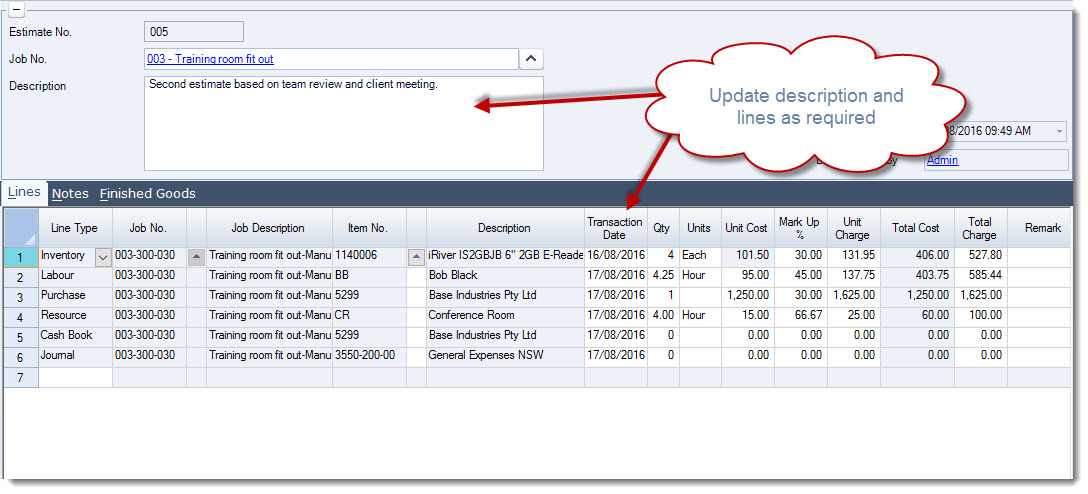
Change the estimate description as required and update your lines accordingly.
NOTE: Estimates can be copied to other jobs simply by changing the job number on the copy
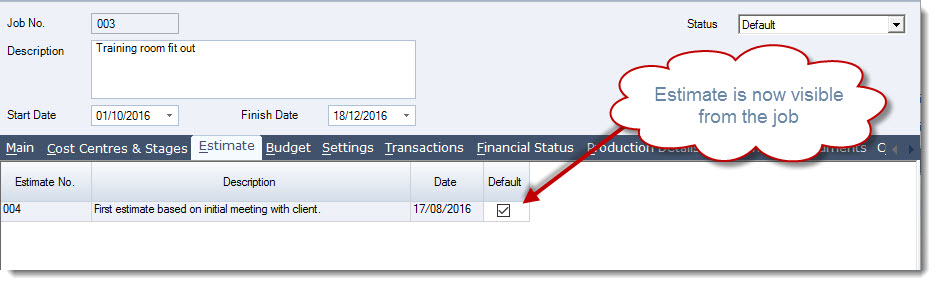
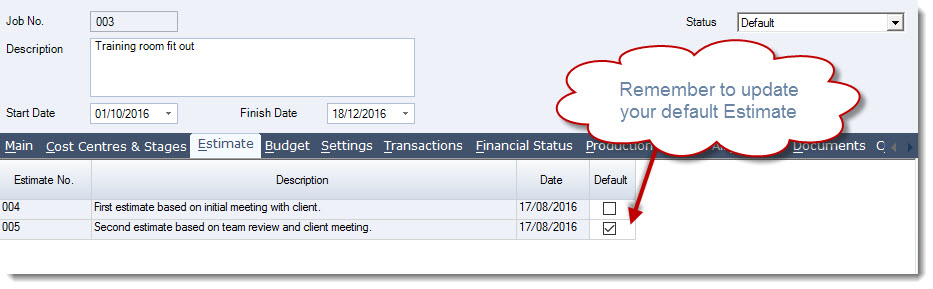
On the job in the Estimates tab make sure you update the default flag on the estimate you want to use when comparing to actuals.
When reviewing your Financial Status tab make sure to select the Estimate radio button when comparing your estimates to actuals.
This video is best seen on the full screen. Just click on the icon at the bottom right of the video (see image below). To exit full screen just press escape