In this article we look at how to issue full and partial credit notes against a job in the Jiwa 7 Job Costing module.
Before proceeding we recommend that you have a reviewed the following articles;
As with job costing invoices job credit notes are issued at the cost centre and stage level. Credit notes are therefore generated from an original invoice ensuring that costs are returned back to the job they were invoiced from.
Credit notes can be created through the Sales Order Entry form either by selecting Sales | Order Entry and then New | New Job Credit Note from the menu ribbon.
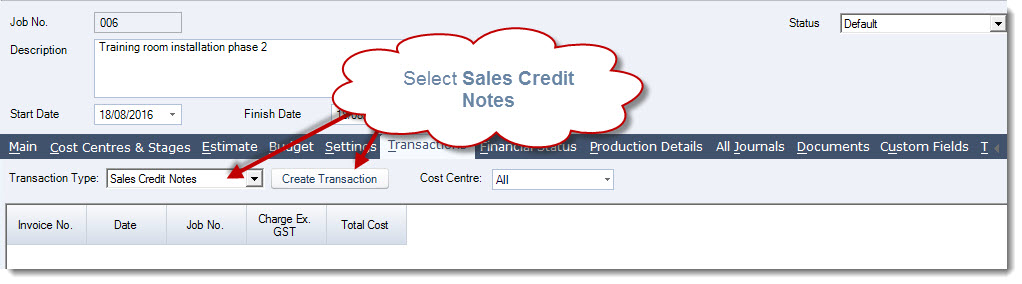
Alternatively the sales order entry form can also be opened from the Transaction tab on a job by using the transaction type of Sales Credit Notes and then clicking on Create Transaction icon.
Full Credit
In this example we look at how an invoice can be credited in full.
From the Transaction tab on the job select the transaction type of Sales Credit Notes and then click on the Create Transaction icon
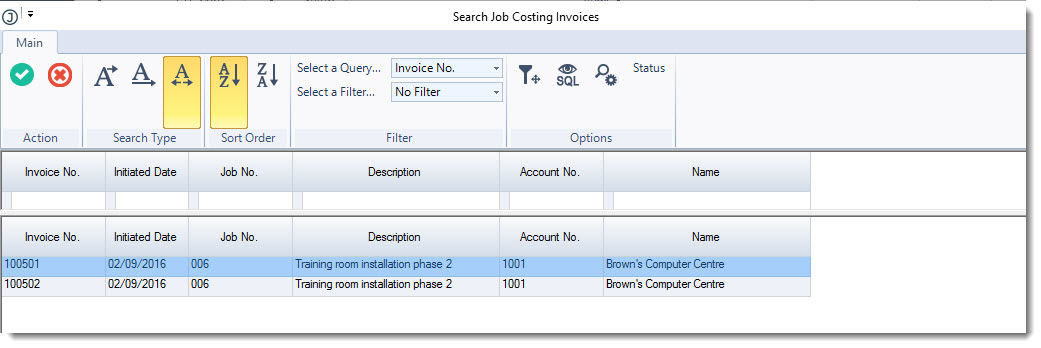
From the Job Costing Invoices popup select the invoice to be credited
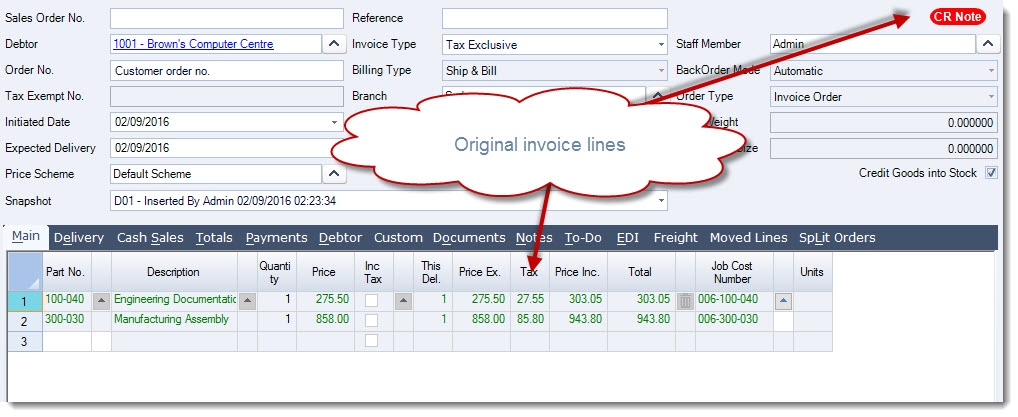
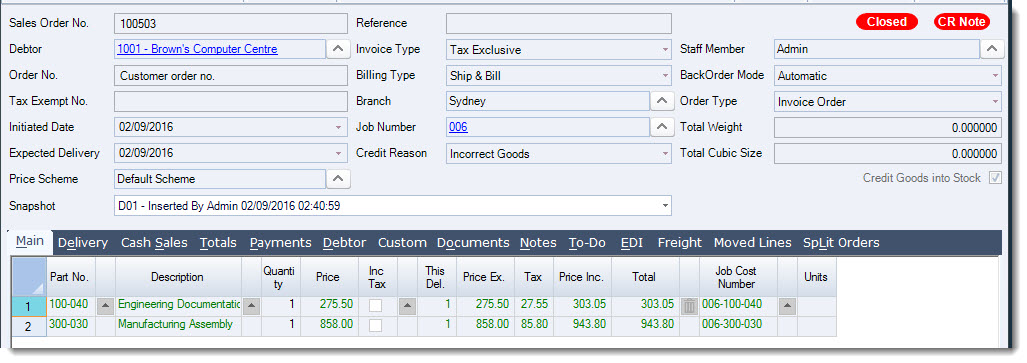
The Sales Order entry form will be populated with the invoice details to be credited
Save and Process your credit note
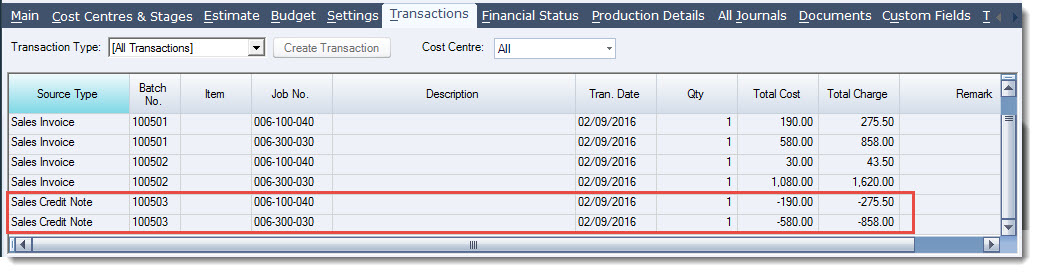
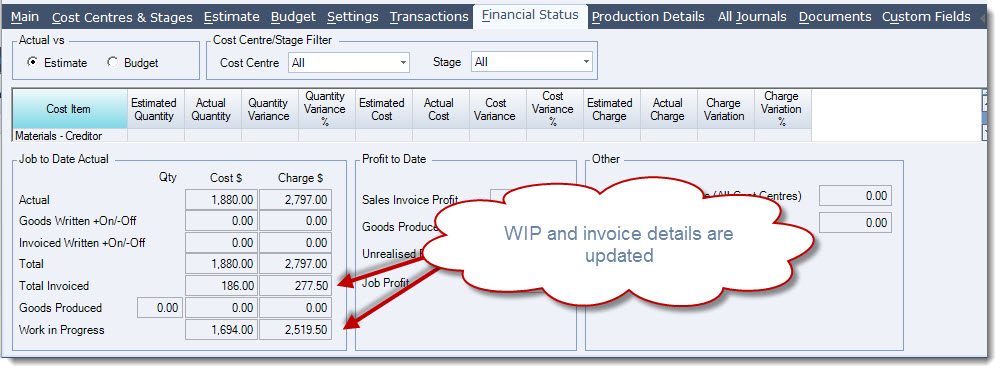
The job is updated with the credit note details
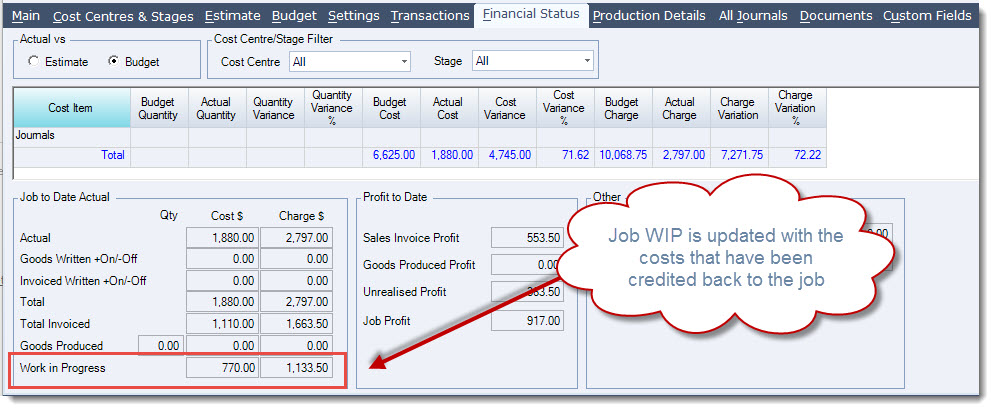
On the Financial Status tab the costs are put back into Work in Progress to be re-invoiced later, written off or cancelled from the job.
Partial Credit
In this example we look at how an invoice can be credited in part.
From the Transaction tab on the job select the transaction type of Sales Credit Notes and then click on the Create Transaction icon
Select the invoice to be credited.
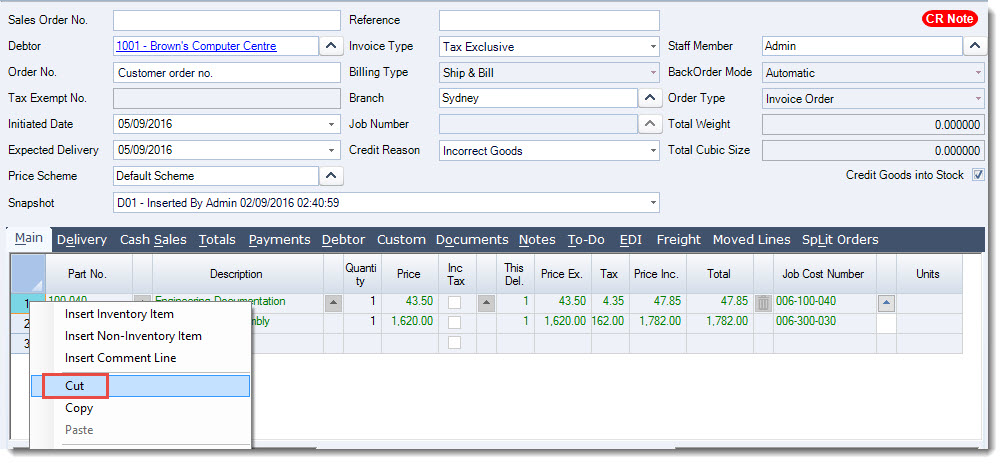
To remove a line from the credit note right mouse click over the line number and then select Cut or click on the rubbish bin icon on the line
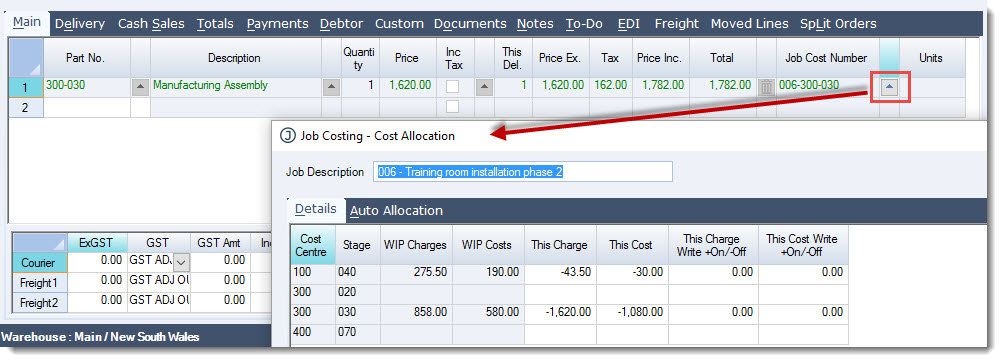
To change the line amount to be credited click on the lookup icon next to the Job Cost Number field, this will open the cost allocation form
Change your credit values by cost centre or transaction by changing the This Charge and This Cost amounts to the value required or zero
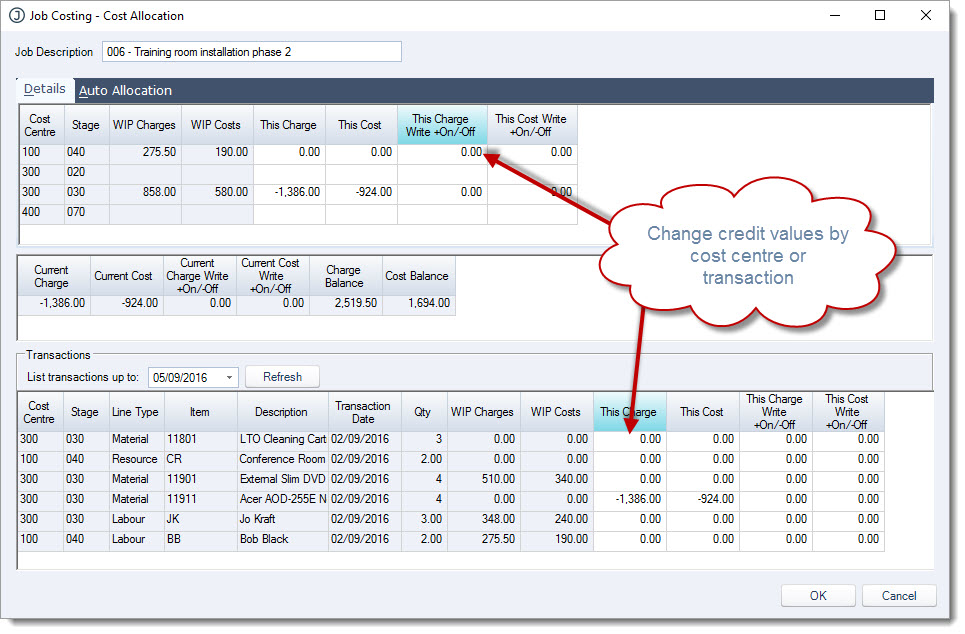
When you have made your changes press OK
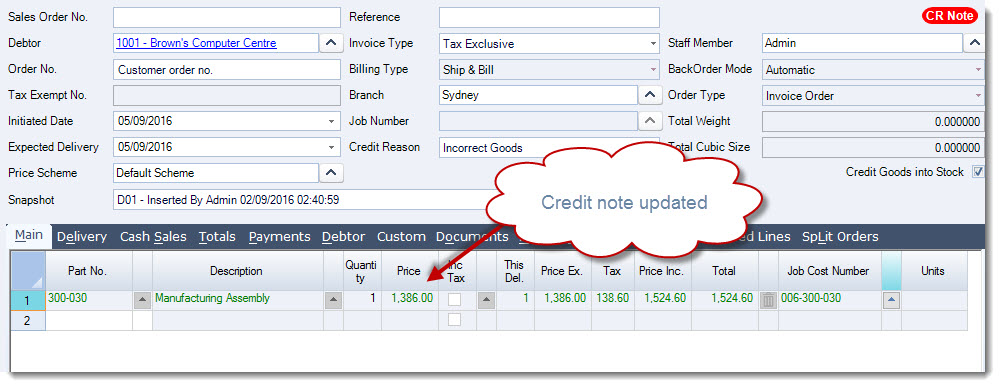
Your credit note is updated
Save and Process your credit note
The job is updated with the credit note details
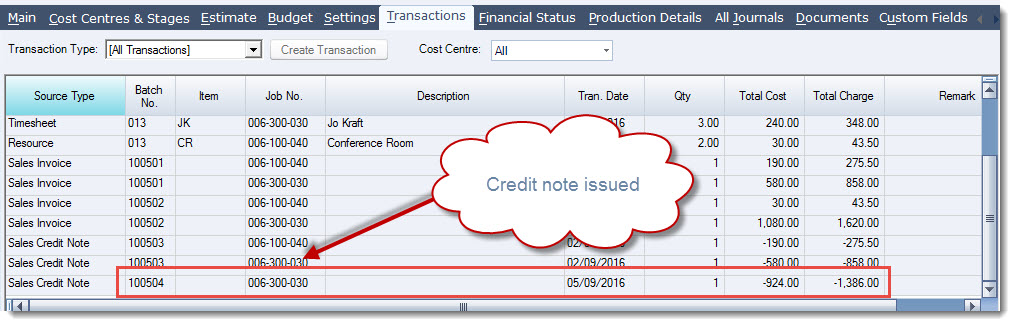
On the Financial Status tab the costs are put back into Work in Progress to be re-invoiced later, written off or cancelled from the job.
This video is best seen on the full screen. Just click on the icon at the bottom right of the video (see image below). To exit full screen just press escape