
In this article we will be looking at how to process Work Orders that contain a single Stage in Jiwa.
Before proceeding please ensure that you have reviewed the following articles;
When the Work Order or Stage status is updated will be dependent upon your business process and/or when stock is to be moved out of stock on hand and into Work in Progress
Contact your Jiwa Consultant to discuss your requirements in more detail.
Updating Work Order
From the menu select Manufacturing | Work Order
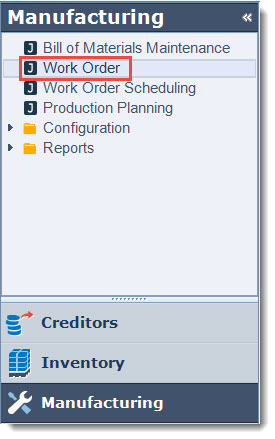
Load your Work Order into the form
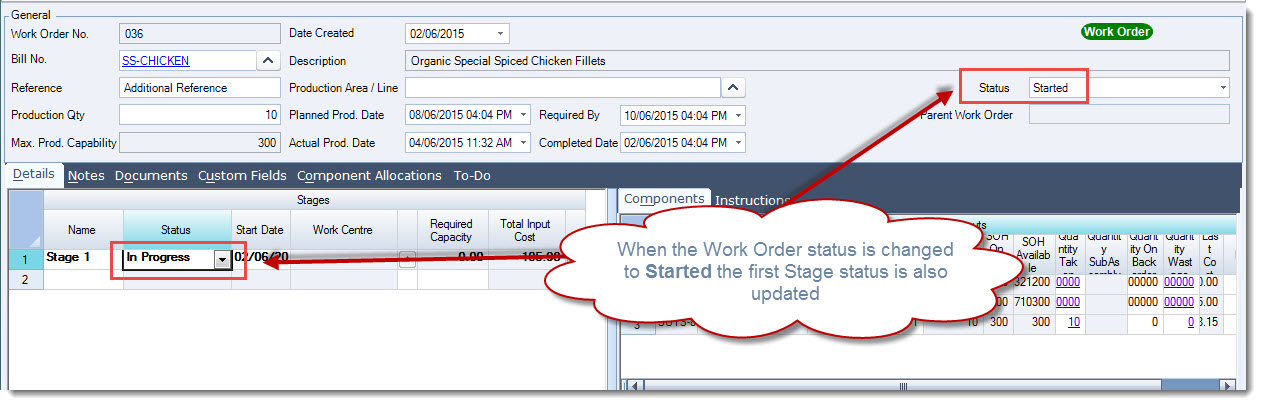
Change the status of the Work Order to Started
You will notice that this will set the status of the Stage on your Work Order to In Progress.
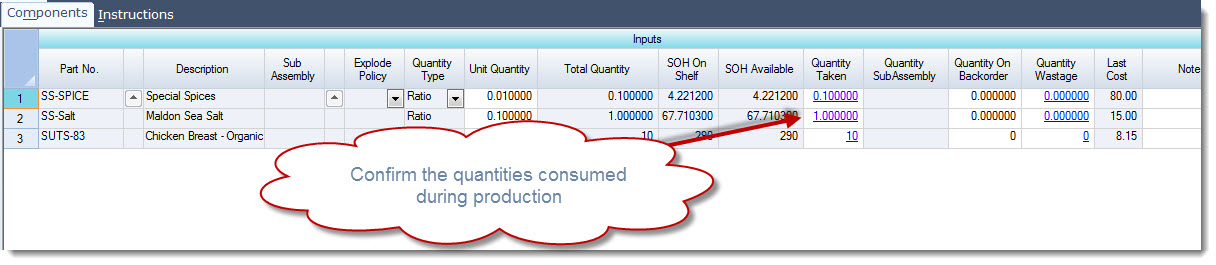
The Quantity Taken field is automatically updated with the quantity that is available.
Update the Quantity Taken where required to reflect the actual quantity used.

Press Save from the menu ribbon
When you save the update to your Work Order stock (Quantity Taken) is then moved to Work in Progress and the General Ledger is updated with the stock movement.
There is no stock movement if the Quantity Taken value is changed to zero and the Stage status is In Progress.
The output Quantity WIP field is updated with the number of complete units based on the input quantities taken.
For example, if your production quantity is 10 but you have only taken enough input items to produce 5 complete units than the output WIP quantity will be 5.

Completing the Work Order
To complete or close the Work Order confirm the input item quantities taken and update if required.
Set the Quantity Out this is the actual quantity produced
You will also notice that the Quantity WIP value will be updated

From the menu ribbon select Save to record you changes.
There are a number of ways in which the Work Order can be closed.
The first method is by simply changing the status on the Work Order to Closed
Then from the menu ribbon select Save at this point the Stock and General Ledgers are updated with the stock movement and the Work Order closed from further editing.

Alternatively, you can update the Stage status to Completed
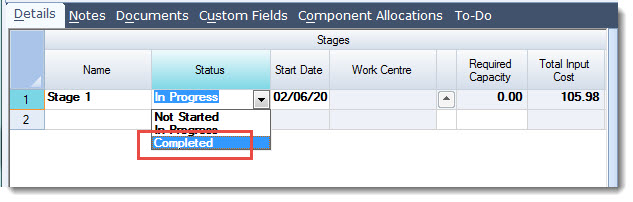
The following message will be displayed
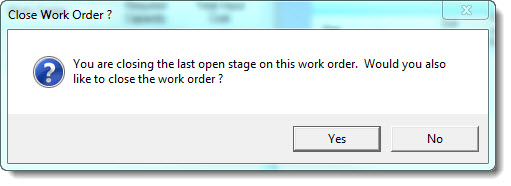
Select Yes this will update the Stage status to Completed and the Work Order status to Closed
Then from the menu ribbon select Save at this point the Stock and General Ledgers are updated with the stock movement and the Work Order closed from further editing.
NOTE: If No is selected at this stage the Work Order status is left at Started the Stock and General Ledgers are not updated.
The Work Order itself must be closed before the output items are available for sale or consumption.
Lastly, you can select Close from the menu ribbon to close your work order.