In this article we look at how to create Work Orders in Jiwa without a Bill of Material.
Before proceeding please ensure that you have reviewed the following articles;
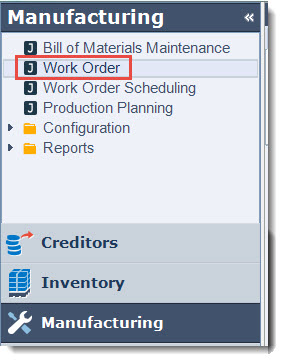
From the menu select Manufacturing | Work Order
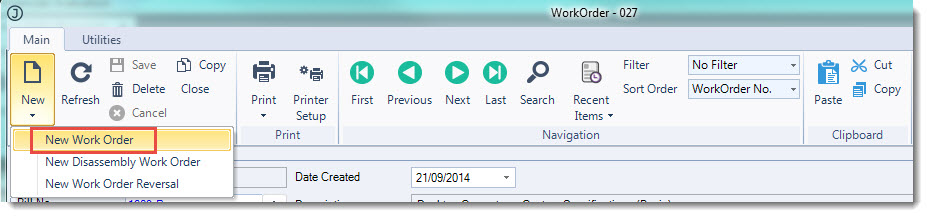
From the menu ribbon select New Work Order
Header Information
In the General section give your work order;
-
Reference,
-
Production Qty,
-
Set the planned and required production dates, and
-
Set the status
Because we will not be creating this Work Order using a Bill of Material the Bill No. field is left blank.

Details Tab
Stages
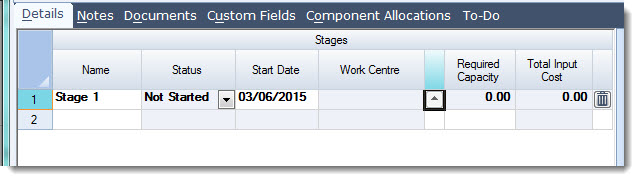
Add a stage to your Work Order Input and output items cannot be added to the Work Order until at least 1 stage has been setup
Inputs
Components
Add the input components to your Work Order making sure you enter in the Unit Quantity
The Unit Quantity is used to calculate the Total Quantity (Unit Quantity x Production Qty)

Instructions
Add instructions to your work order if required

Outputs
Add the output item or items to your Work Order making sure you enter in the Unit Quantity
The Unit Quantity is used to calculate the Total Quantity (Unit Quantity x Production Qty)
Where there is more than 1 output item ensure that the cost percentage field is updated against each line.
Select Save from the menu ribbon to create your new Work Order.

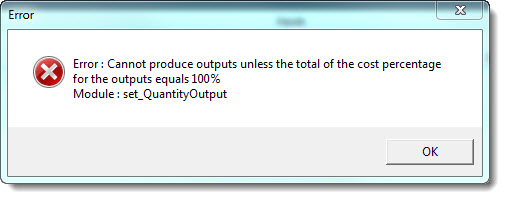
Note: If the total cost percentage does not add back to 100% when you attempt to enter the Quantity Output the following error message will be displayed
Reporting
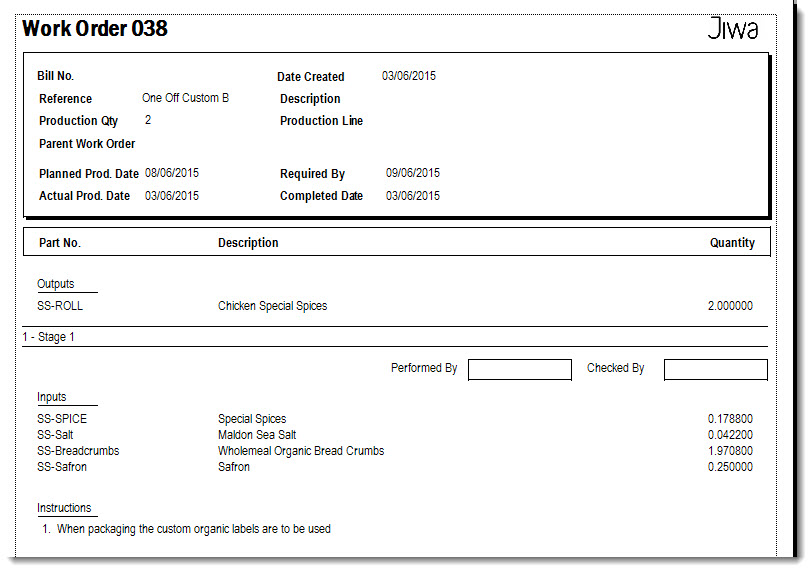
To print out the Work Order report from the menu ribbon select Print | Work Order

This video is best seen on the full screen. Just click on the icon at the bottom right of the video (see image below).
To exit full screen just press escape