
Using a tote or pick basket allows a single order to remain together and clearly identified as it moves from picking to packing. The picker scans the required products and assigns the completed pick to a tote or basket. The packer then scans the tote or basket, checks its contents and completes the order for submission to Jiwa for invoicing.
This article explains how to pick and pack a single order using this workflow in ASPluris.
Before you begin
This article assumes that you are already familiar with dispatching orders in ASPluris. The ASPluris Consolidation module must also be enabled before totes or pick baskets can be used.
Picking an order
-
Log into your scanner.
-
Select Dispatch > Consolidate > Multi Orders
-
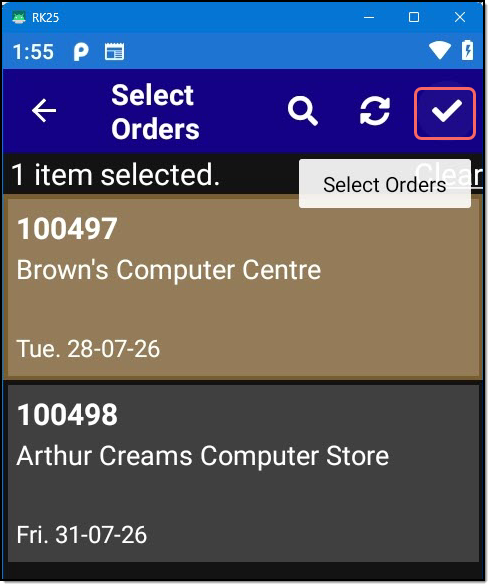
Select the first order display, alternatively scan or search and select the order to be picked.
-
Click on the order to be picked.
-
Press the Select Orders icon.
-
This will load the items on the order to be picked.
-
Pick and scan each product on the order.
-
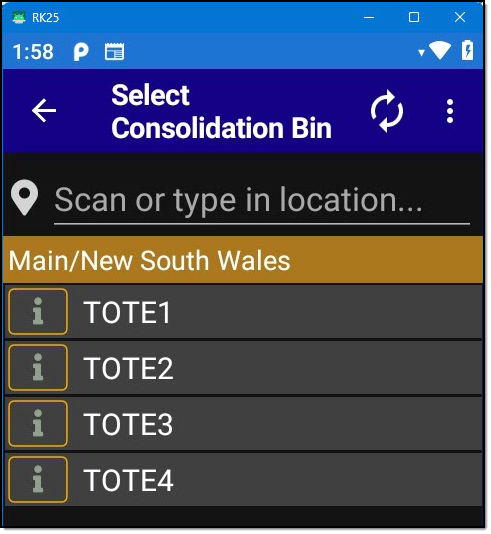
Once each item on the order has been picked scan the tote or basket the goods have been picked into.
-
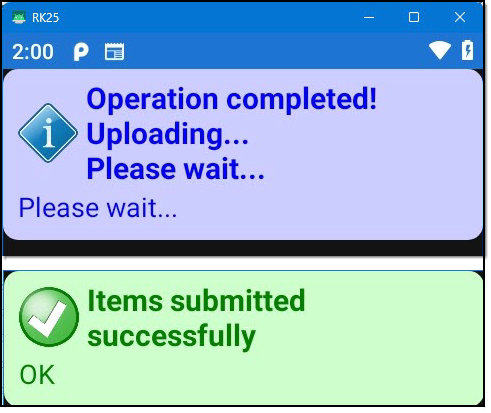
Once the order is completed it is automatically completed and ready for packing.
-
The next order can now be picked.
Packing an order
-
Log into your scanner.
-
Select Dispatch > Pick & Pack.
-
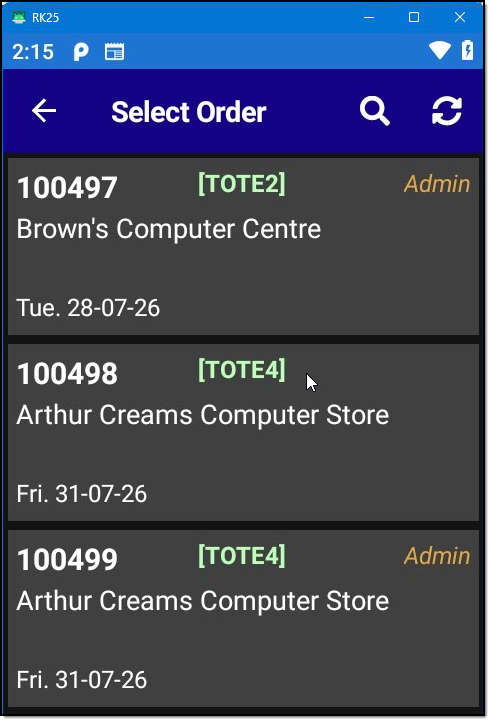
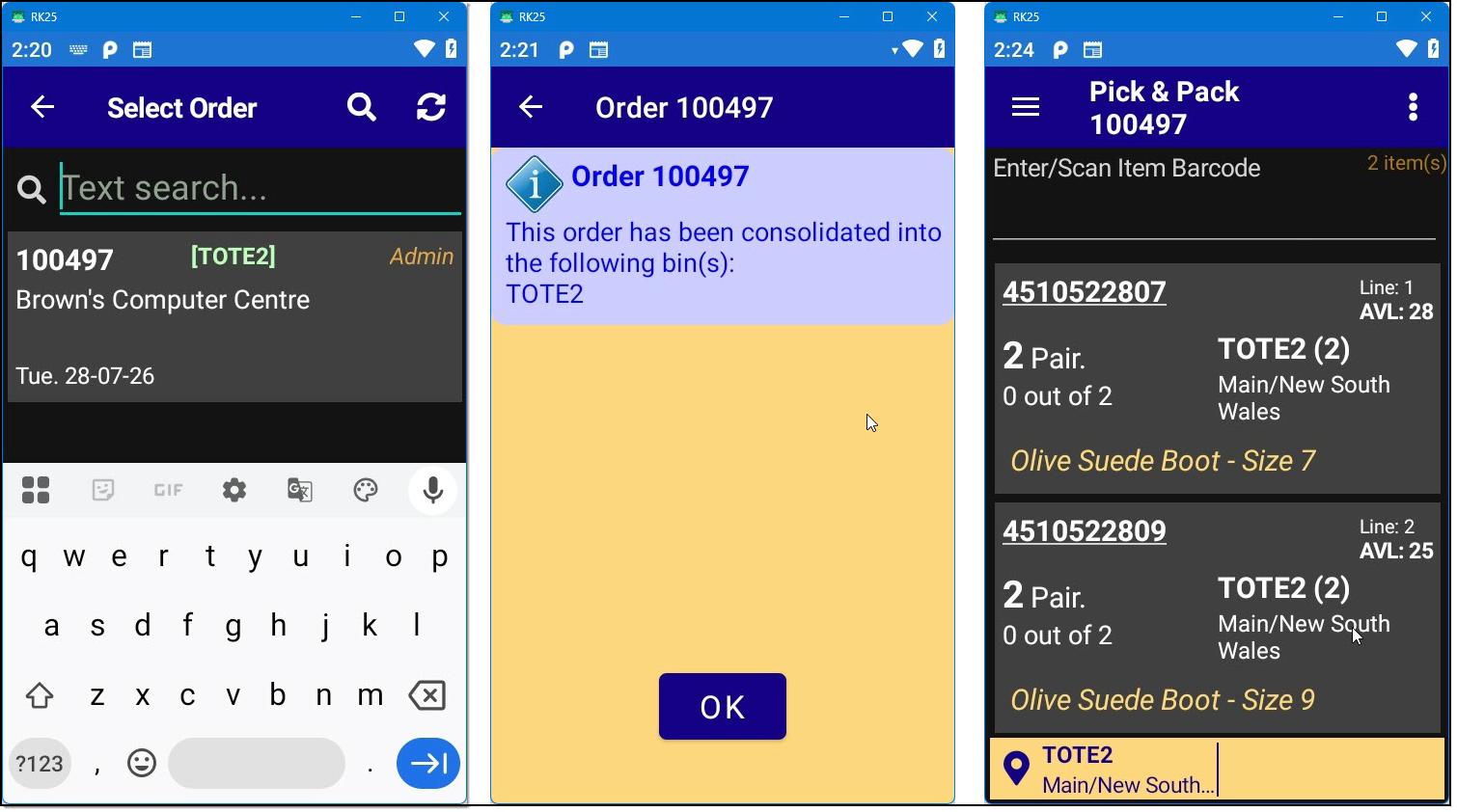
Scan or search and select the tote or basket being packed.
-
Select the order in the tote or basket to pack.
-
Press OK at the prompt.
-
Scan or check the picked items before packing.
-
Once the order has been checked it is automatically submitted to Jiwa for invoicing.
-
The next tote or basket can be checked.