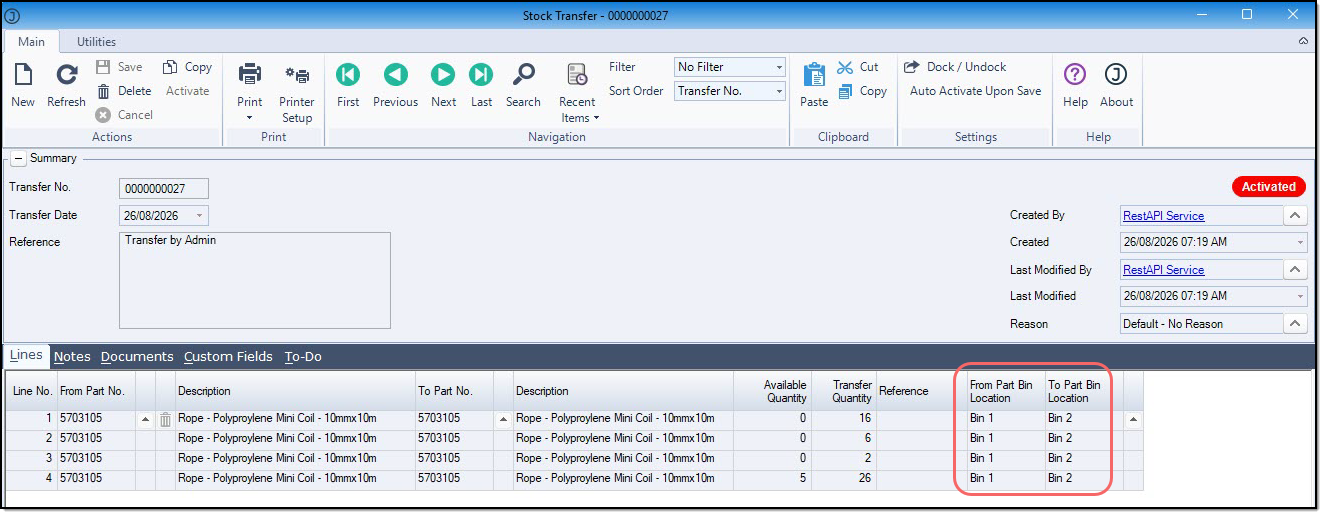
ASPluris can be used to transfer an individual stock items between bin locations within the same warehouse.
Here we look at how to select the item or items to be transferred, select the source and destination bins, and record the quantities being moved. The completed transfer updates the relevant bin quantities in Jiwa without changing the total stock on hand for the warehouse.
This process is useful where individual stock lines need to be relocated for replenishment, warehouse organisation, picking efficiency, or other operational requirements.
Transfer Stock Using Barcodes
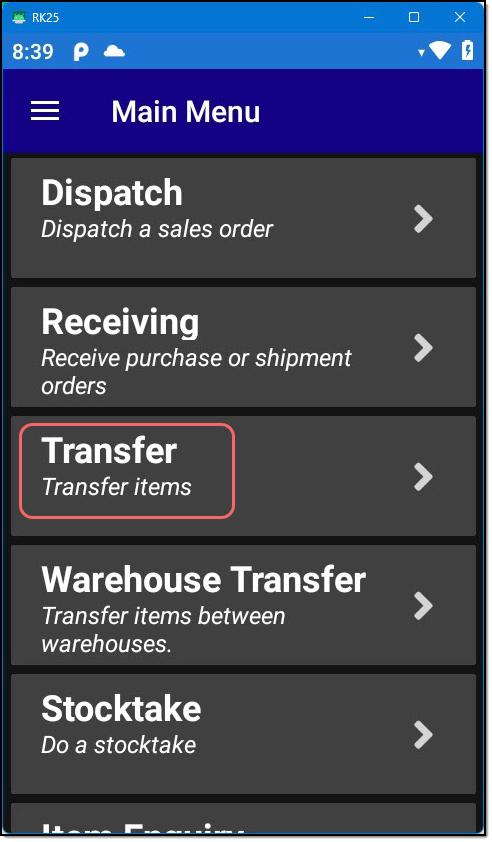
From the Main Menu select Transfer
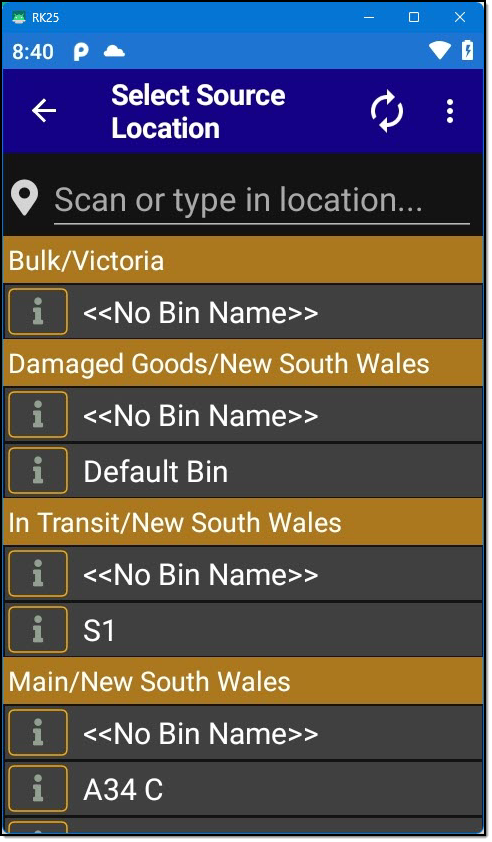
Scan the bin location you want to transfer the stock item from.
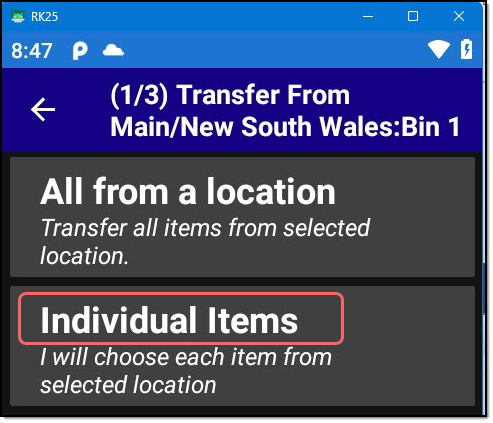
Select Individual Items from the menu options
Scan the product barcode you need to transfer.
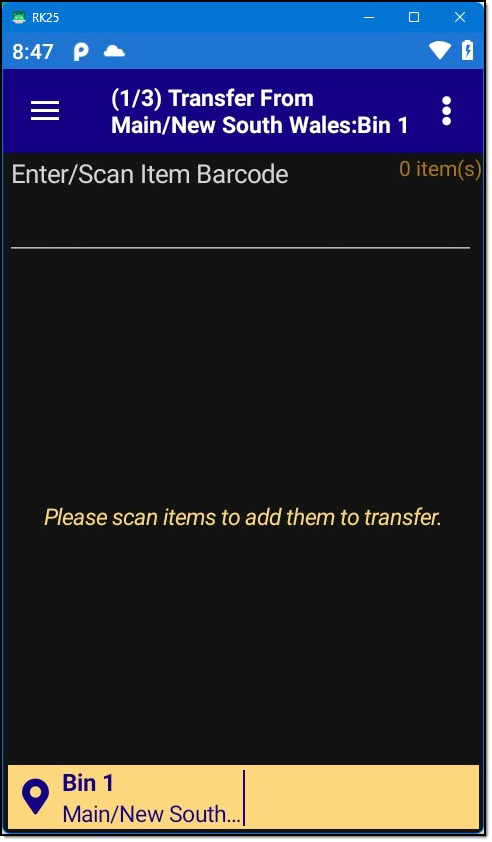
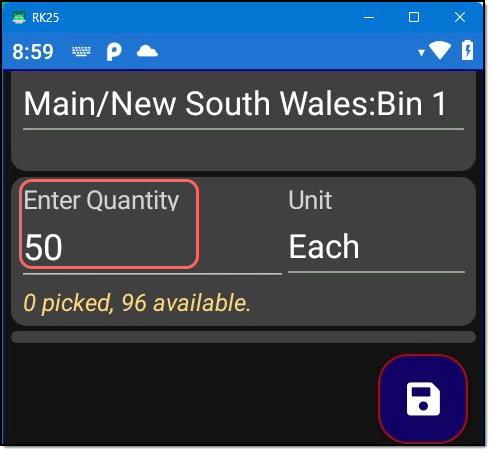
Enter in the quantity to be transferred.
Configuration
ASPluris via the configuration module can be configured to allow users to manually key in quantities or users are required to scan each item being transferred.
Press the Save button to return the the transfer screen.
Repeat process for any other items to be transferred out of the selected bin location.
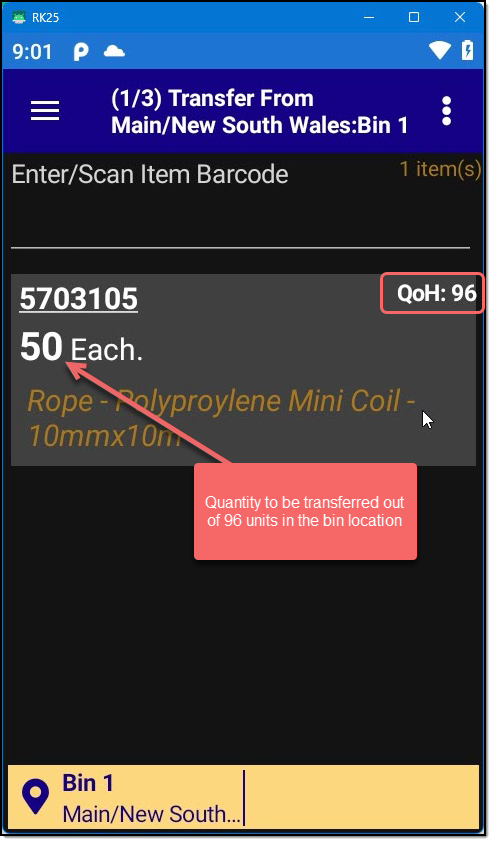
Once you have selected the items to move press the More Options (3 dot icon) on the top right hand corner of the screen.
Press the Paper Plane icon.
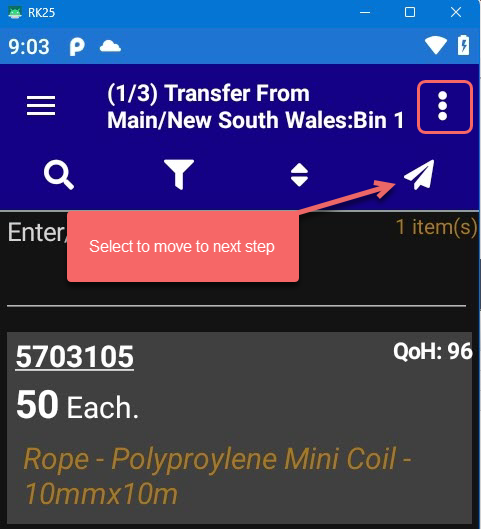
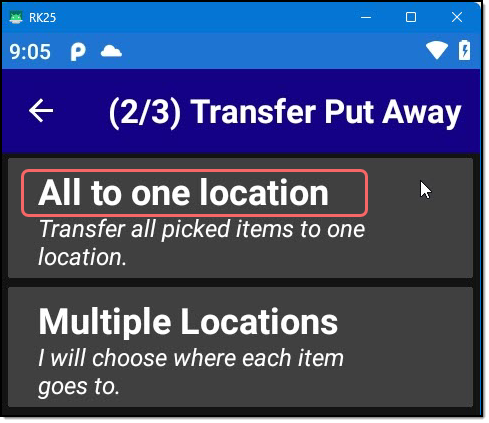
In this example we are moving all the selected items to a single bin location.
From the menu select All to one location
Scan the bin location you are moving stock to.
Check each item being moved
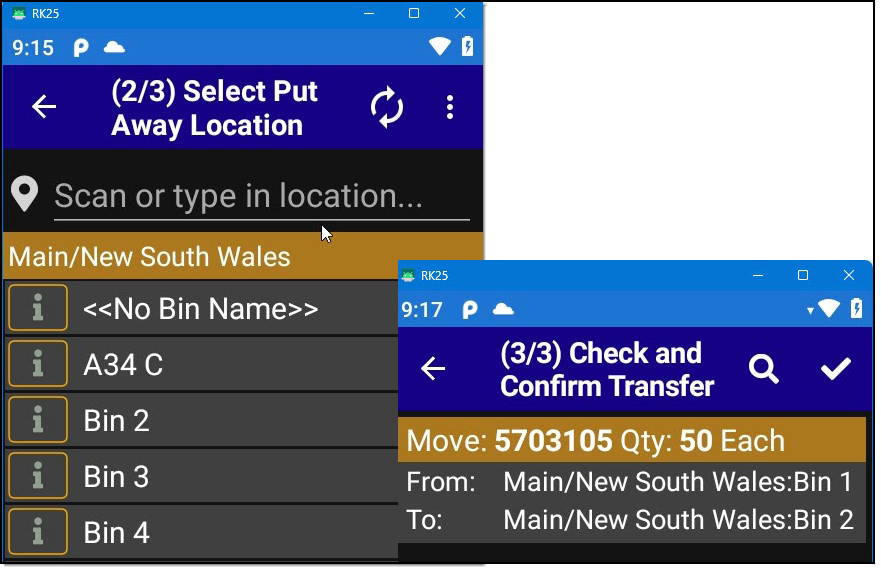
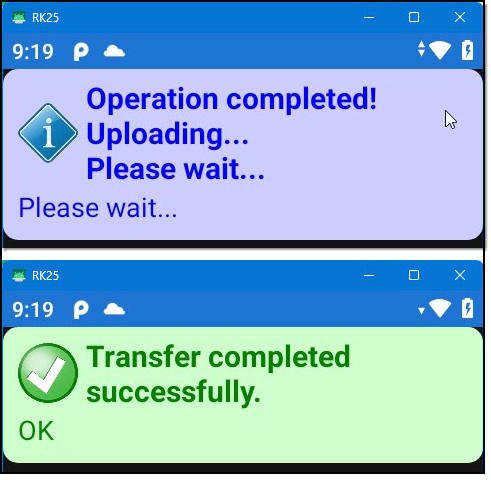
To complete the transfer press the Tick button.
Your transfer is submitted to Jiwa.
Transfer Stock without Barcodes
In this example we look at a scenario where there you do not have a barcode to scan.
The process is the same as detailed above with the exception that you manually select your bin locations and/or products.
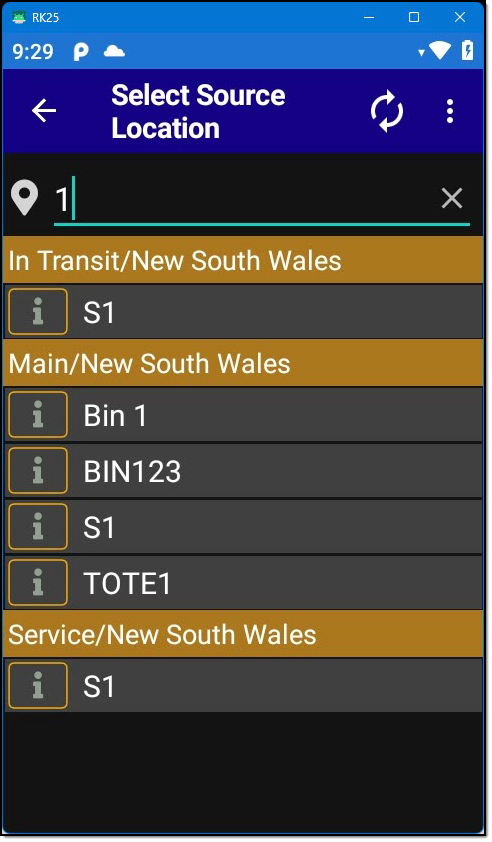
Searching for locations
To select the bin location you can either scroll down through the list of available bins or enter the required bin number.
Searching for products in a bin location
To view the products in the selected bin location.
Press the Menu icon on the top left hand corner.
Then select View Inventory
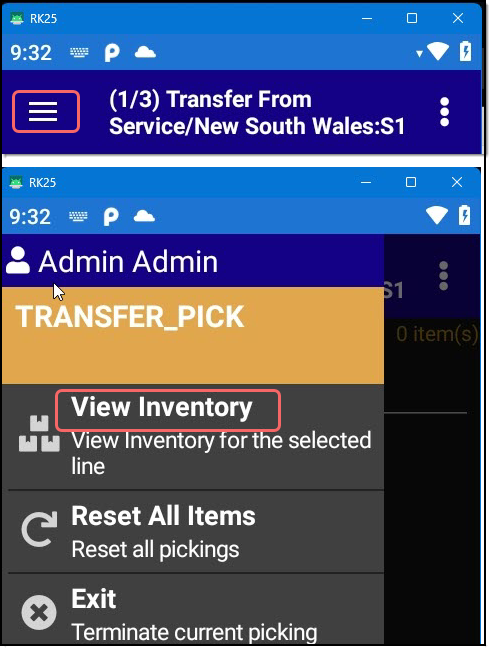
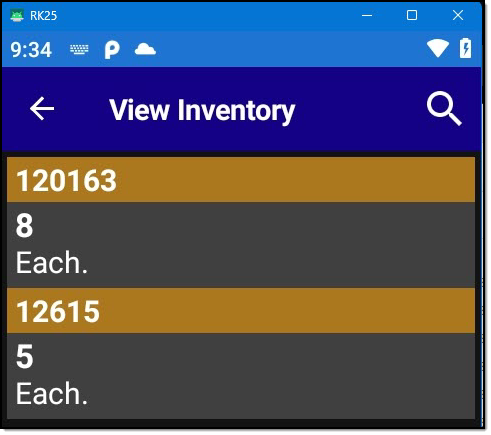
From here you can search for the item required or select the item by scrolling through the listed products.
Jiwa Stock Transfer
Once the transfer is completed a Stock Transfer is created and activated in Jiwa moving the stock from one bin location to another.