
Replenish to Minimum method is used to create a purchase order based on inventory reorder settings in Jiwa. This method helps identify items that need to be reordered by comparing current stock levels against the minimum stock quantities set for those items.
This article explains how to create a single purchase order using the Replenish to Minimum method. This can be useful when stock needs to be replenished for a selected supplier or warehouse based on configured reorder requirements.
Before continuing, we recommend reviewing the following articles
Replenish Re-Order Report
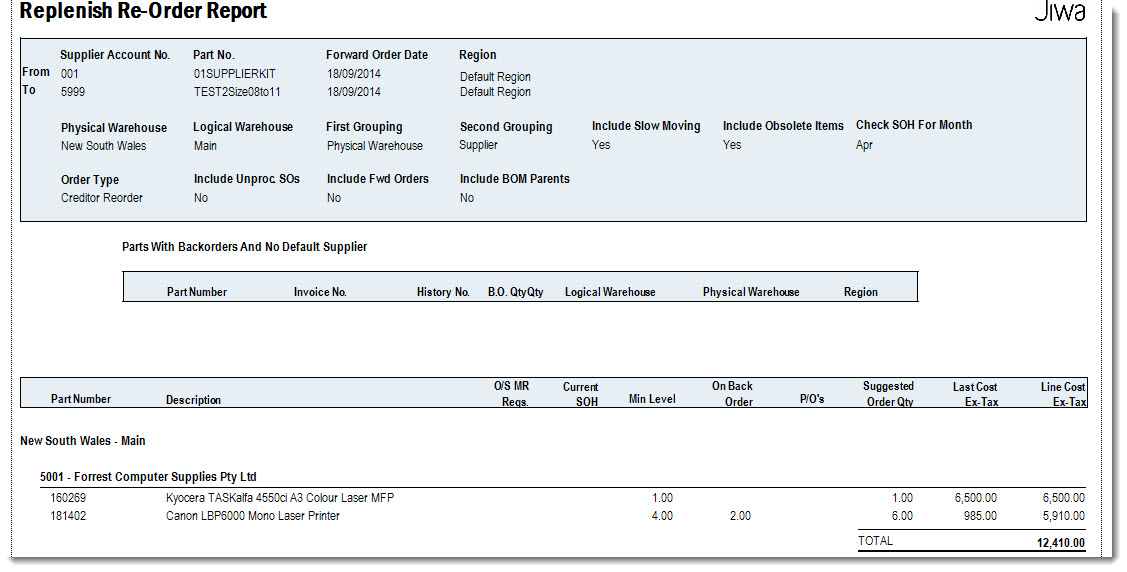
Before creating your replenishment purchase order we can run the Replenish Re-Order Report.
This report will allow us to review the Jiwa suggested order quantities and takes into account;
-
Current stock on hand quantity
-
Backorders
-
Outstanding purchase orders
-
Minimum stock on hand for the selected location
From the menu select Purchasing | Reports | Replenish Re-Order Report

Set your reporting parameters
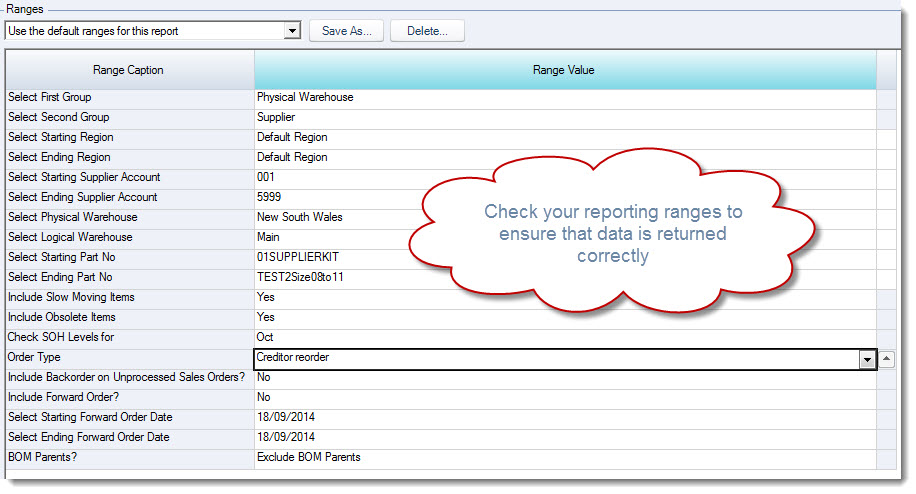
Key reporting parameters to check
|
Range |
Description |
|
Include slow moving items |
Select to include or exclude inventory items with a status of Slow |
|
Include obsolete items |
Select to include or exclude inventory items with a status of Obsolete |
|
Check SOH levels for |
Select the Min. SOH month to be used |
|
Order type |
This report can be run for either Creditor or Warehouse re-orders |
|
Include Backorder on Unprocessed Sales Orders? |
Select to include or exclude inventory items that are on backorder for all unprocessed sales orders. This is different to backorders on sales orders that have been processed which are automatically included in the report under the OnBack Order column. |
|
Include Forward Order |
This is only applicable if you use forward orders where forward orders can be included or excluded from the report |
|
BOM Parents |
This is only applicable if you use Manufacturing allowing you to select how BOM Parents are to be included or excluded from this report. |
Review your report to determine which purchase orders are to be raised.
Generating the Supplier Purchase Order
From the menu select Purchasing | Order Entry
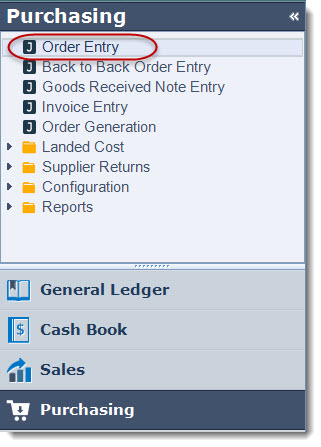
Ensure that you are working in the correct warehouse
Create your new Supplier Purchase Order
Select your supplier
To generate the purchase order based on the suggested orders quantities in our Replenish Re-Order Report at the bottom of the purchase order form ensure your reorder method is set to Replenish to Minimum.

Select the Auto Search icon this will activate the Replenish To Minimum form ensure you set your parameters as per your Replenish Re-Order Report so that you get the same result.
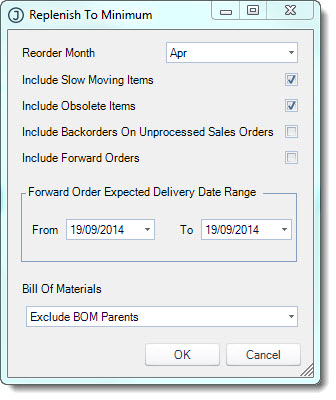
Once you have set your parameters select OK
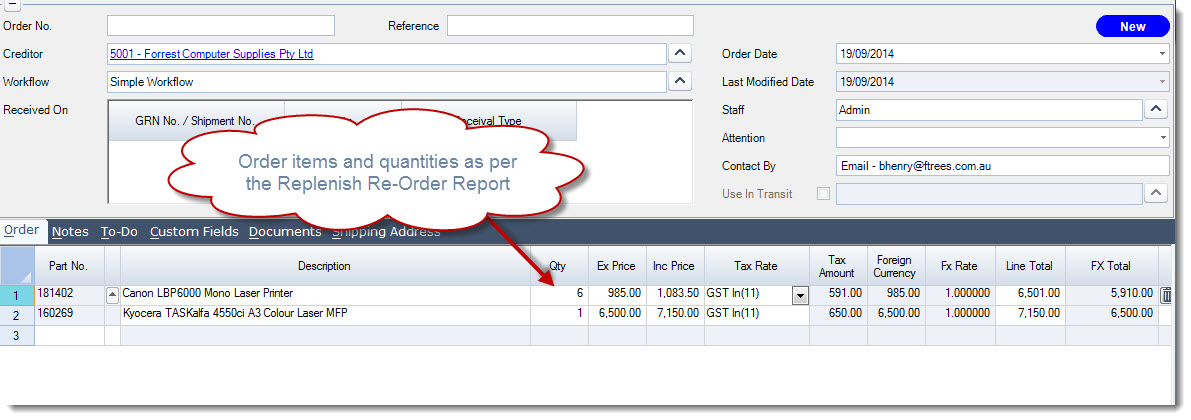
Your Order tab will be populated with the suggest items and quantities
If required amend your purchase order then Save, Print/Email and change the status to Sent.