
The Order Generation form in Jiwa is used to create purchase orders in bulk based on inventory reorder requirements in Jiwa. This process can help identify items that need to be replenished and generate purchase orders using one of the following 2 standard Jiwa methods
-
Replenish to Minimum, or
-
Sales forecast
This article explains how to use the Purchase Order Generation feature with the replenish to minimum reorder method to create forecast-based purchase orders in bulk. This is useful when multiple inventory items need to be reviewed and reordered across suppliers or warehouses based on configured reorder settings.
Before continuing we recommend reviewing the Understanding purchase order reorder methods article which explains the calculation behind each of the standard Jiwa re-order methods.
Custom reorder methods
Jiwa can support custom reorder methods where the standard replenishment options do not meet the needs of your business. Custom reorder methods can be developed to reflect different purchasing rules, stock planning requirements, supplier arrangements, or forecast calculations.
If your business requires a different reorder method, please contact Opal Logic on 1300 456 725 or email support@opallogic.com.au to discuss your requirements.
Replenish Re-Order Report
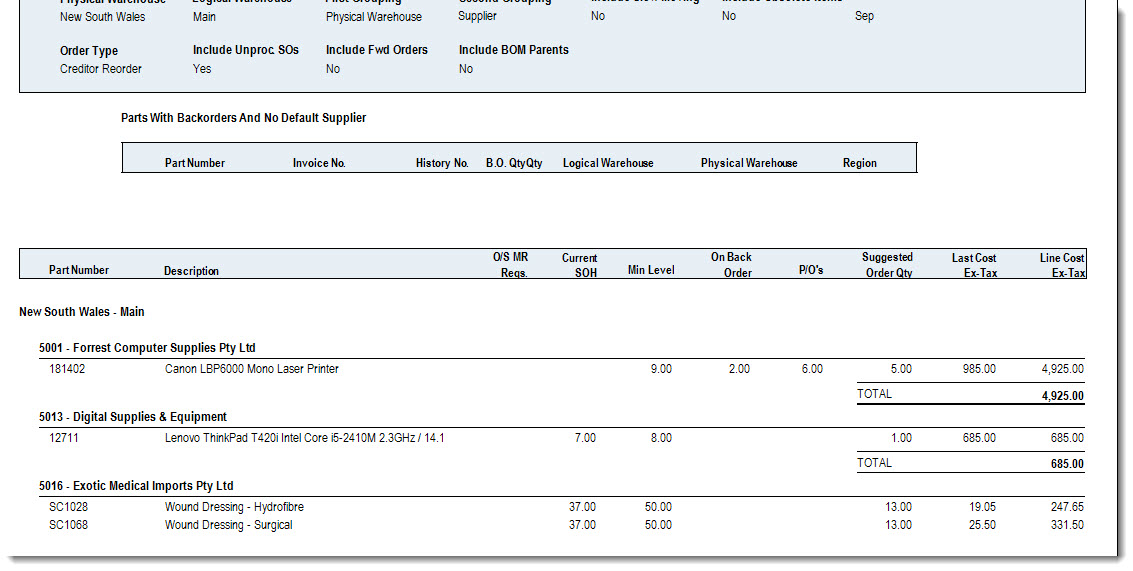
Using the Replenish Re-Order Report review the recommended order quantities, this report will provide assistance in determining what items to order when generating your purchase orders via the Order Generation process.
From the menu select Purchasing | Reports | Replenish Re-Order Report

Confirm your reporting ranges before running your report

Order Generation
Ensure you are working in the correct warehouse before commencing.
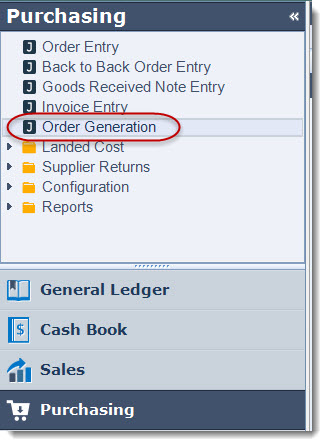
Select Purchasing | Order Generation
From the menu ribbon select New

Set your reporting ranges
|
Range Option |
Description |
|
Ranges |
This section allows you to apply a filter to the products that will be returned in the Products and Purchase Orders grid. The default is set to return all suppliers and products. |
|
Reorder Method |
Select the reorder method to be used, the default is Replenish to Minimum |
|
Reorder Month |
Select the Min SOH month you are order for, the default is the current login month |
|
Include Default Suppliers Only |
This flag allows you to include all alternative suppliers against an inventory item into the grid when un-ticked. The default is set to only use the default supplier |

Select Go to populate your products and purchase order grids
|
Tab |
Description |
|
Products Tab |
This grid is populated with all the inventory items that are linked to the default supplier. If you have elected to include alternate suppliers also by unticking the Include Default Suppliers Only check box then each part will be displayed multiple times for each supplier. The suggested re-order quantity returned is calculated to meet requirements and to meet minimum stock levels if they have been set against the item. |
|
Purchase Order Tab |
This grid displays the total purchase order value for each supplier based on the items from the products grid. |
Amend order quantities by overwriting the Order Quantity field.
Unit cost can be amended by changing the Line Cost field

Review the Purchase Orders to confirm orders to be raised by supplier
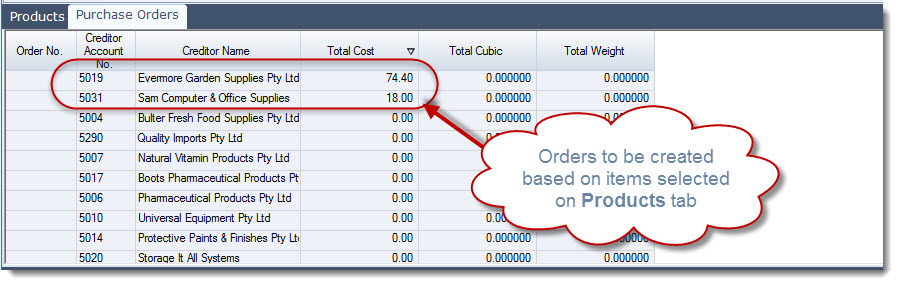
Save the batch and when ready Activate to create the purchase orders as listed on the Purchase Orders grid.
Once activated the batch status will change to Activated and the batch is closed.

Return to the Purchasing | Order Entry form to complete a final review of the purchase orders that have been created and commit them when complete by changing the status to Sent.
Print and/or email your purchase orders to the supplies.