
Recording a supplier invoice is the final stage of the purchasing process in Jiwa. Once goods have been received through a Goods Received Note, also referred to as a GRN, the supplier invoice can be recorded against the received goods.
This article explains how to create and process a purchase invoice from a GRN. This step updates the supplier invoice details and allows the purchase to continue through the creditors and financial reporting process.
Purchase Invoices
Purchase invoices are based on GRN's and cannot be created until a GRN has been created and activated.
The purchase invoice itself does not update the stock ledger again for goods purchased or the expense for services recorded against the GRN but rather moves the liability for these purchases from the accrual accounts to Trade Creditors and takes up GST Paid (if applicable).
Once a purchase invoice has been linked to a GRN the GRN is updated with the status of Invoiced and is no longer available for selection when creating purchase invoices.
A purchase invoice can be created from the GRN itself or from the menu option Invoice Entry.
Both methods are described below;
Create Purchase Invoice from GRN
Creating your purchase invoice directly from the GRN form itself is useful if you receive your supplier invoice at the time the goods are received making the process from Purchase Order to GRN to Purchase Invoice quite seemless.
When in the GRN form has been activated the Create Purchase Invoice icon is enabled on the menu ribbon.

Click on the Create Purchase Invoice icon
This will activate the Purchase Invoice form populated with details from the GRN that the purchase invoice was generated from.
Enter in your invoice number in the invoice number field and set the invoice date

On the Inventory tab confirm the quantity invoiced and unit prices

Additional lines cannot be added to the purchase invoice as each line must be linked to a GRN.
Changing invoiced quantities
Amending the quantity invoiced has different results depending on if the quantity is being increased or decreased.
-
Increasing the quantity invoiced will not change the purchase order or GRN but the stock ledger will be updated with the additional stock being invoiced on the purchase invoice.
-
Decreasing the quantity invoiced will not change the purchase order or GRN. The stock ledger will not be updated with the decrease in stock invoiced.
-
When too much stock has been received on the GRN then the GRN should be invoiced in full and a Supplier Return Credit created for the over-supply.
If you have further questions regarding changing the quantity invoiced on purchase invoices please contact Opal Logic on 1300 456 725 or send an email to our help desk at support@opallogic.com.au
On the Non-Inventory tab confirm the quantity and unit prices of all non-inventory items.
Add any freight applicable to the purchase invoice in the freight section of the form.
If freight was added to the GRN then the freight value will automatically be populated from the GRN.

Once you have checked the details confirm the Invoice Total value on the form against the physical invoice.

If your Invoice Total is out by a cent or so due to tax rounding, the Tax Adjustment field can be used to take this rounding variance into account.

Once you have confirmed the invoice details Save and Activate your purchase invoice.
Create Purchase Invoice using the Invoice Entry Form
Supplier invoices for stock can also be created from the Invoice Entry form.
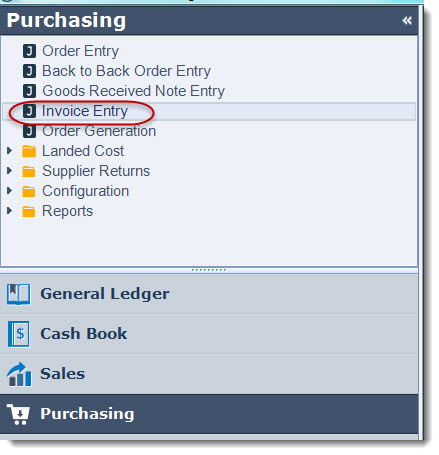
From the Purchasing menu select Invoice Entry
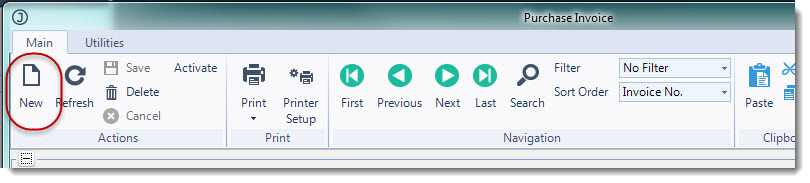
From the menu ribbon select New to create a new purchase invoice
From the Creditors Search form select the supplier you are working with.
To add your GRN's to the purchase invoice click on the GRN lookup icon

This will activate the GRN Search form which will display all un-invoiced GRN's available for the selected supplier.
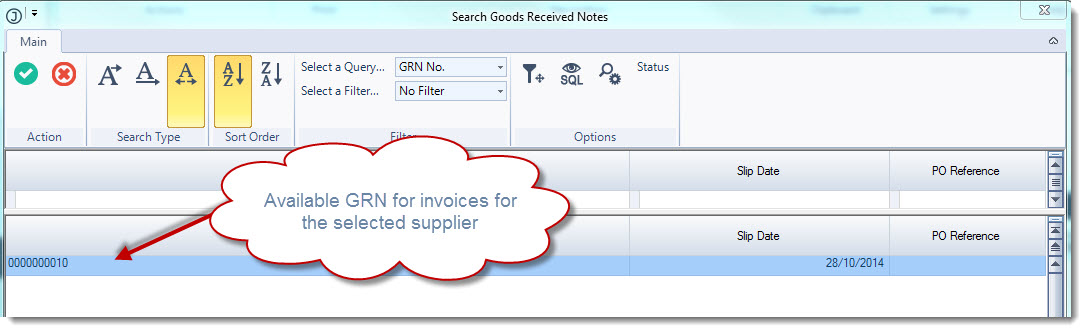
Once you select your GRN to be invoiced the GRN line details will be populated into the Purchase Invoice form.
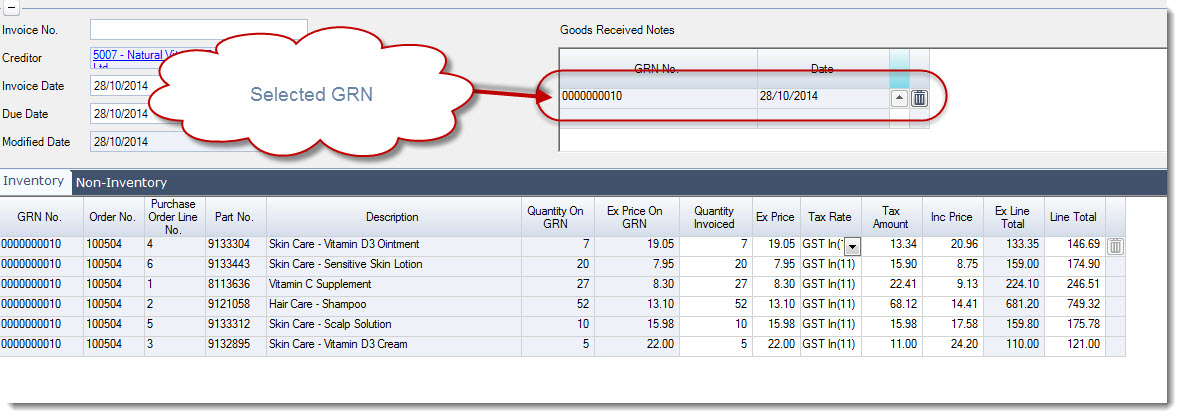
Complete your purchase invoice as per the instructions above.