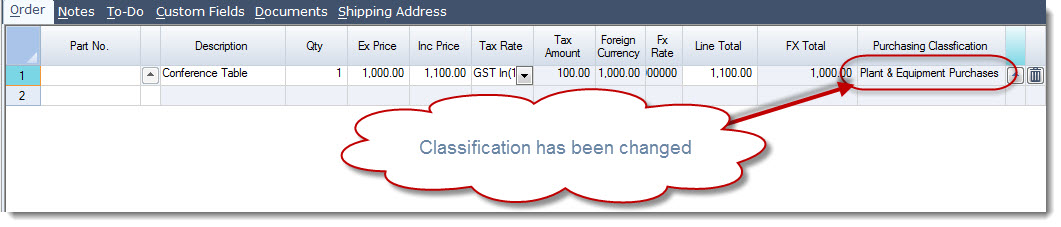
Purchase orders in Jiwa can be used to purchase both inventory and non-inventory items. Non-inventory items may include fixed assets, stationery, services, consumables, or other purchases that do not need to be managed as stock on hand.
This article explains how to add non-inventory items to a purchase order in Jiwa, including how these items can be recorded for purchasing and supplier invoice processing without creating inventory stock records.
Purchasing Classifications
Before you can create purchase orders for non-inventory items you need to ensure that you have the required purchase classifications set-up in Jiwa.
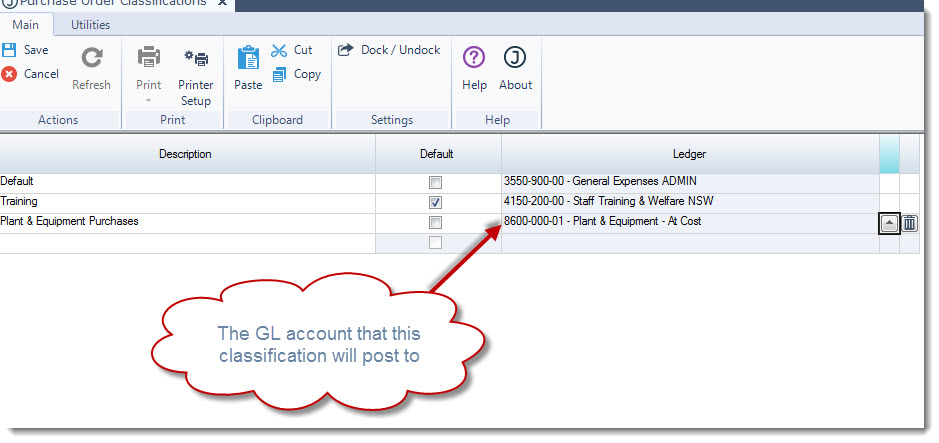
Purchase classifications control the General Ledger posting side of non-inventory items and this is important because you cannot set the actual GL account on the purchase order itself.
From the Purchasing menu select Configuration | Classifications
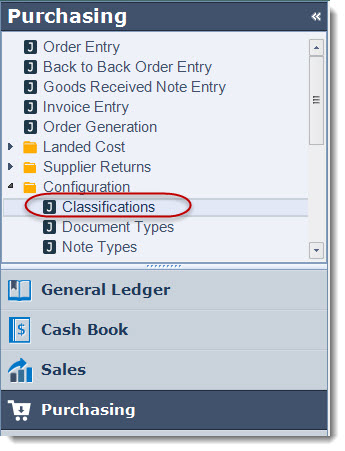
NOTE: Generic purchasing classifications for fixed asset and stationery purchases are typically set-up for you as part of your Jiwa implementation.
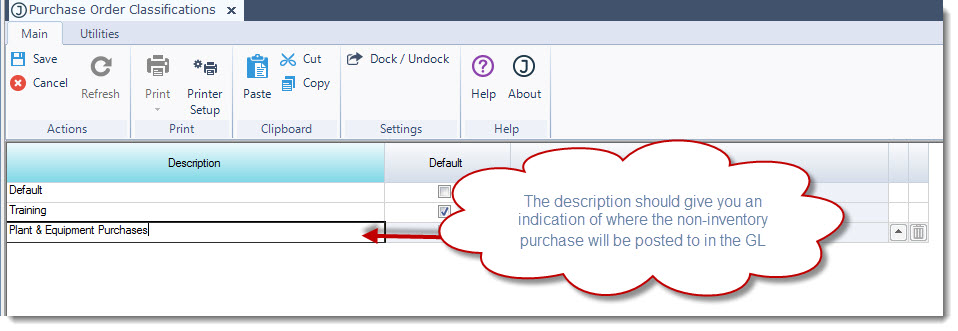
In the Description field enter in a description for your non-inventory purchase type, this should give you an indication of the GL account that the purchase will be posted to, for example Motor Vehicle Purchase.
In the Ledger field select the GL account that the classification is to be linked to.
Save your changes
Creating Non Inventory Purchase Order
Back on your purchase order to add a non-inventory item and ensure that the correct purchase classification is assigned to the line you need to modify your Order Grid
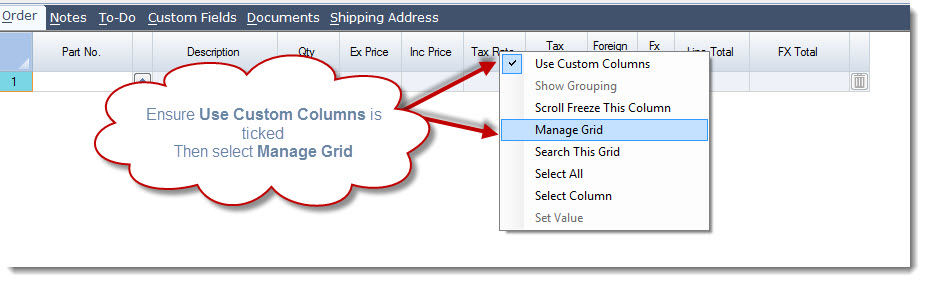
On the Order tab of your purchase order move your mouse over the column headers and right mouse click to bring up the grid menu.
So that Jiwa will remember your grid selection ensure that Use Custom Columns is ticked
Then select Manage Grid
Select the columns PurchClass and PurchClassLookUp.
The PurchClassLookup gives you the lookup icon next to the Purchase Classification and does not have a column caption.
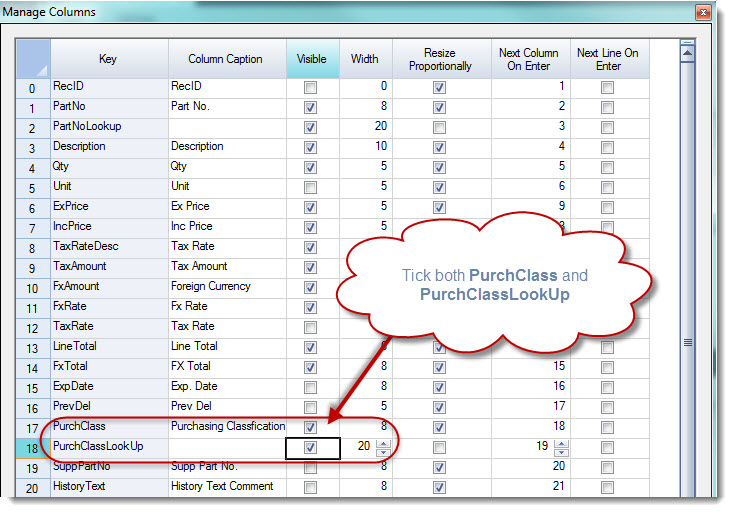
Once you have completed the changes click on the APPLY icon.
Your purchase order grid will now show these columns.

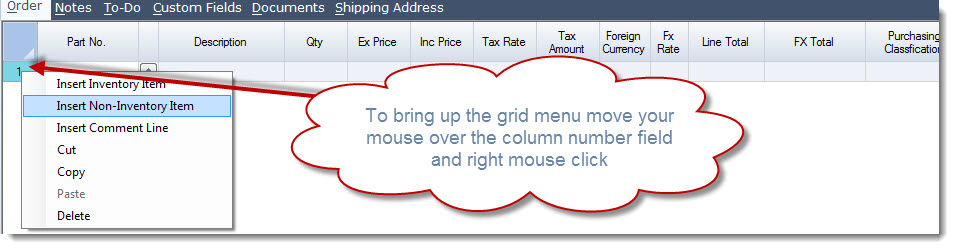
To add a non inventory item to your purchase order right mouse click on the number column and select Insert Non-Inventory Item
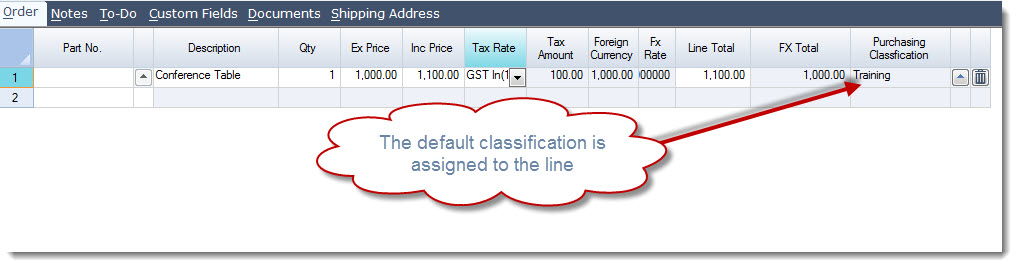
In the Description field add a description of the item to be purchased
Enter in the Qty and Ex Price
The line will be assigned the default Purchase Classification
To change the default classification click on the Purchase Classification lookup icon to bring up the Purchase Classification search screen
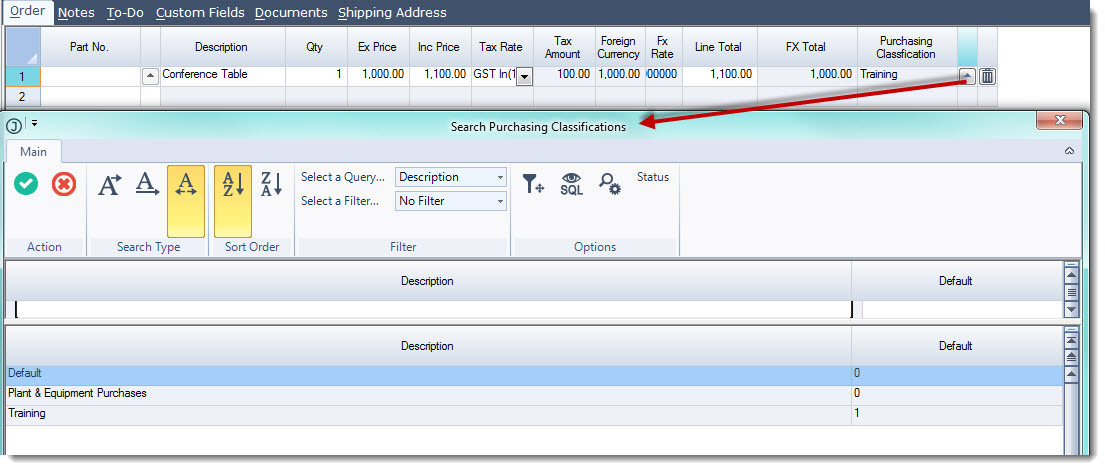
Select the classification to be applied to the line