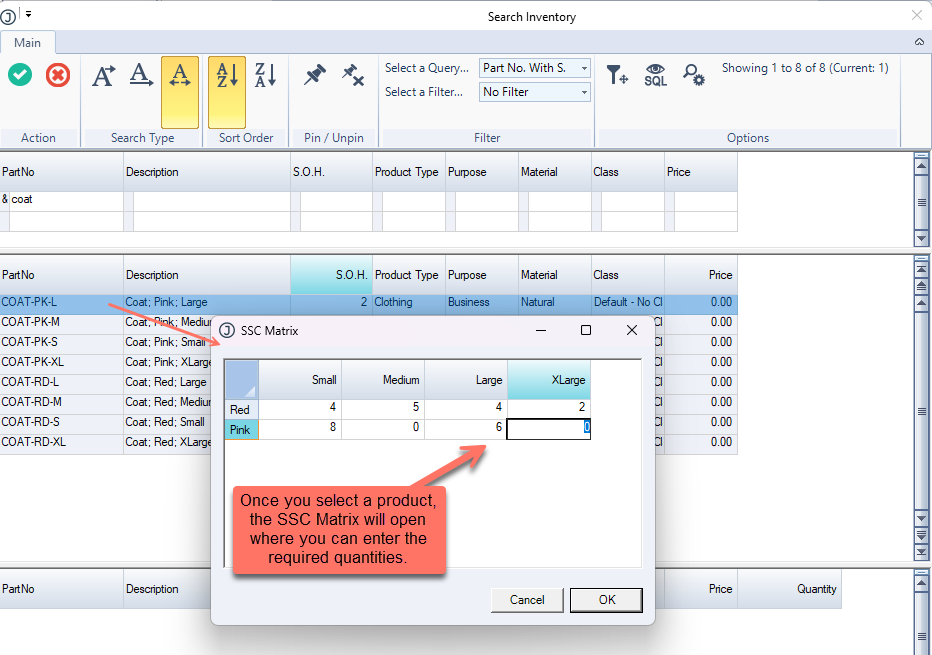
The Style, Size and Colour matrix in Jiwa allows inventory items to be set up with product variations, such as different styles, sizes, or colours. This is useful for managing products that have multiple variants, as Jiwa can automatically generate the related item code combinations.
This article explains how to set up a Style, Size and Colour item in Inventory Maintenance and create the required combinations for that product.
Creating Style, Size and Colour Items
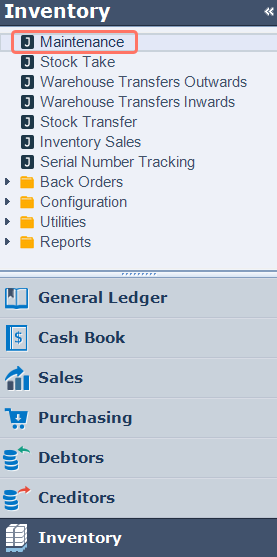
From the Inventory menu select Maintenance
From the menu ribbon select New to create a new item.

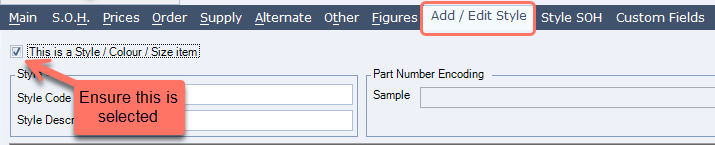
Go to the Add / Edit Style tab.
Tick This is a Style / Colour / Size Item.
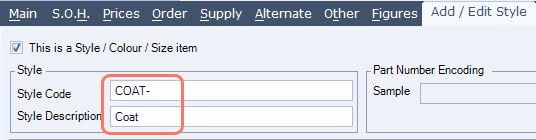
Enter a Style Code and Style Description. The Style Code will be used in the part no.
From here you can start entering all the variations of the product e.g. Colours and Sizes
Enter the colours and the corresponding codes. The colour code will be used in the Part No.
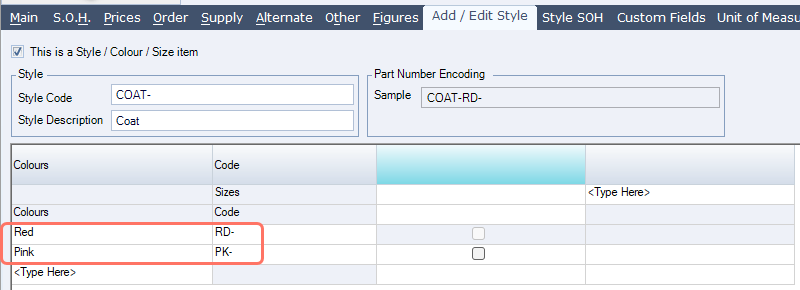
Enter the size variations and the corresponding codes. The Size code will be used in the Part No.

Tick the checkbox for each colour and size combination that is available. For example, Red and Pink coats are available in all sizes
Note: Review the selected colour and size combinations before saving. Jiwa will create inventory items for each selected combination, using the Style Code, Colour Code and Size Code to generate the part numbers.

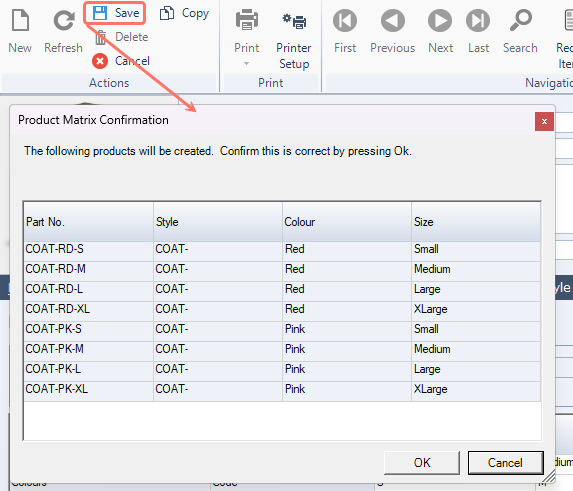
Press Save
You will be prompted to confirm the relevant part no.s will be created.
Press OK
To see all the items which have been created, click Search
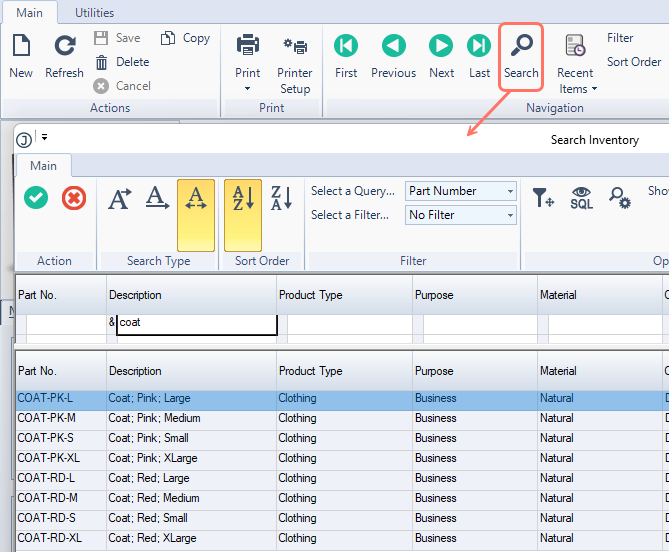
After the items have been created
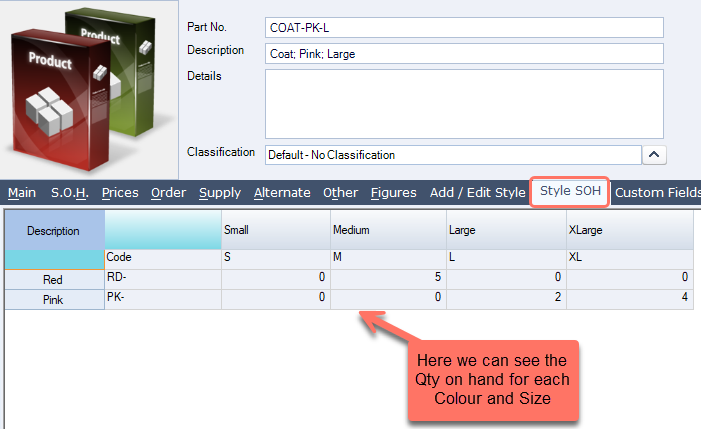
Once set up you can choose any product and go to the "Style SOH" tab to see the stock on hand on all the product combinations.
When creating supplier Purchase Orders you can use the SSC Matrix to easily order the products you require.

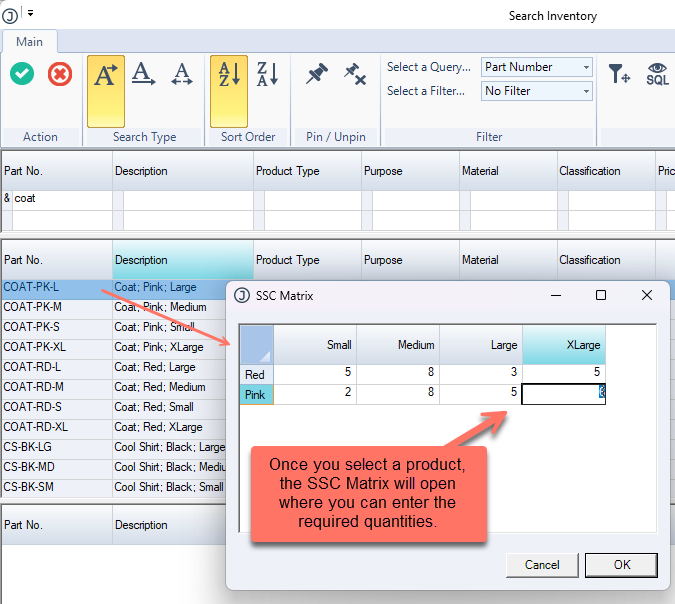
When creating Sales orders you can activate the Colour Size Style Matrix via the Other Settings menu as per the following image: