
Kits in Jiwa allow you to group multiple products together, making it easier to manage items that are commonly sold or processed as a set.
In this article we look at how to create a kit product.
Creating Kit Items
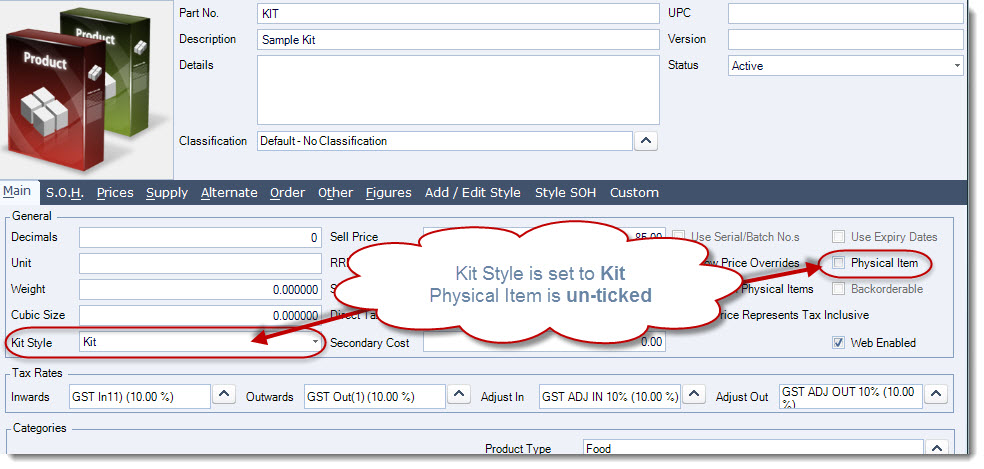
When creating your new item ensure that
-
Your kit style is set to Kit, and
-
Physical Item is un-ticked
|
Kit Type |
Description |
|
None |
Is the default setting when creating a new inventory item and indicates that this is a normal inventory item |
|
BOM |
This kit style is not used in Jiwa7 |
|
Template |
The header record is used as a grouping mechanism only. The kit sell price is determined at the time the kit is added to a quote or sales order and is the sum of the component selling prices. It kit is sell price is ignored if one is set |
|
Kit |
Normal kit type. In this type of kit it is the header record that controls the kit price and not the components. The kit sell price is pro-rated to each component based on the components sell price to the customer |
|
Kit (Tax override) |
The tax rate assigned to the kit overrides the tax rate against each component in the kit. NOTE: Please consult your Jiwa consultant before using this kit style |
Adding Components to your Kit
To add components to your kit move to the Alternate > Components tab

Add your components to the grid setting the quantity required
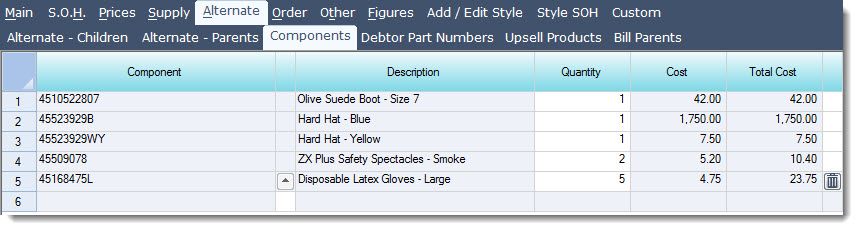
The cost price that is displayed is the Last Cost of the component and will be updated if the components last cost changes.

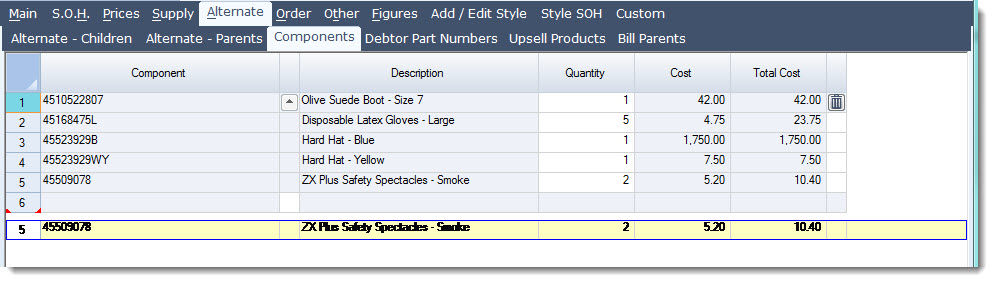
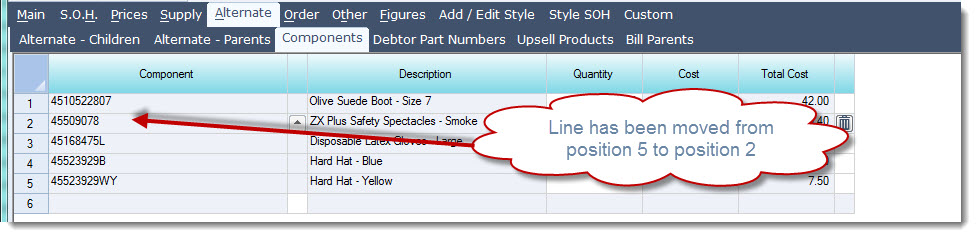
The number displayed against each line represents the order in which the component will be displayed.
To change the order simply drag (hold down you left click button on your mouse) and drop the component to the where you want it to appear.
Save your changes