
Creating a product in Jiwa involves setting up the key details that define how the inventory item is used across the system. These details control how the item is purchased, sold, tracked, costed, and reported on.
This article explains the information users need to enter when creating a new inventory item.
Creating a new Part
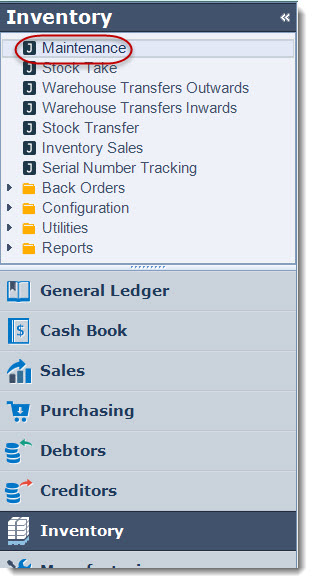
From the Inventory menu select Maintenance
From the menu ribbon select New to create a new item.

Header Information
The header information displays general details about your inventory item. The key fields that should be completed in this section are;
-
Part No.
-
Description
-
Classification and
-
Status

Field Definitions:
|
Field |
Description |
|
Part No. |
Unique part number |
|
Description |
Part description that displays on reports and data entry screens |
|
Details |
Additional field to hold an extended description or technical information about the part |
|
Classification |
Inventory classification the part belongs to. The classification controls the General Ledger postings for this item and sets the default GST rates. When a new item is created the default classification will be automatically applied to the part and should be overridden if required. |
|
UPC |
UPS stands for Universal Product Code or bar code which is also referred to as the parts EAN |
|
Version |
This is a user defined field. The field label can be changed to meet your specific requirements. |
|
Status |
The default status of a new part is Active however the following statuses are also available
|
Main Tab
The Main tab contains further general information about your inventory item.
The key fields to be completed/checked in this section are;
-
Decimals
-
Unit
-
Kit Style
-
Sell Price
-
Displayed Flags
-
Tax Rates
-
Categories
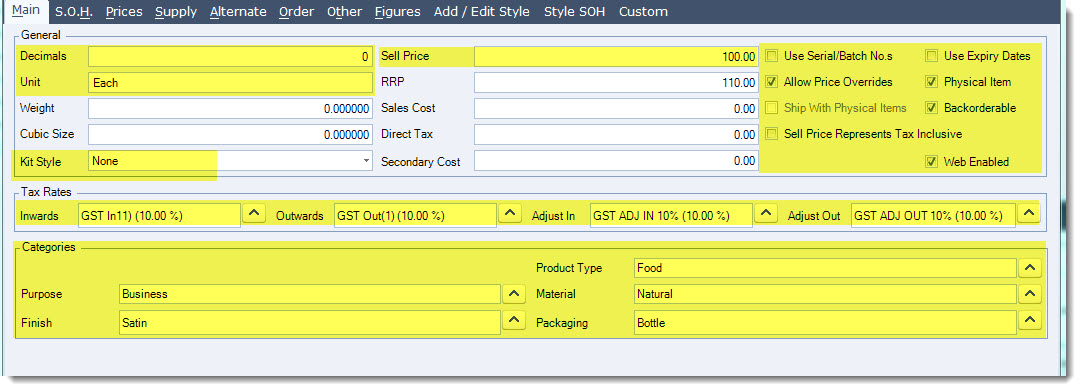
Field Definitions:
|
Field |
Description |
|
Decimals |
How many decimal places is this part number is account for and is applicable to both sales and purchases |
|
Unit |
Unit of measure that the part is purchased and sold in Note: This field in release 7.0.175 has been moved to the Unit of Measure tab. |
|
Sell Price |
Default sell price - This field will also update the Sell Price field on the Prices tab |
|
Kit Style |
This field should be left at None unless the part you are creating is a kit |
|
Use Serial/Batch Nos |
Tick this option if your part is to be serial number or batch tracked? |
|
Allow Price Overrides |
If ticked will allow the price to be overridden when entering quotes or sales orders |
|
Ship with Physical Items |
Applicable only to non-physical items, when ticked this part is to be charged when at least one physical item is to be shipped |
|
Sell Price Represents Tax Incl. |
If ticked indicates that the sell price includes GST. Typically this is used in retail situations |
|
Use Expiry Date |
Tick this option of you want to track expiry dated inventory |
|
Physical Item |
If ticked indicates that quantities on hand of this part need to be tracked. If not ticked then this part is not a physical item so quantities on hand are not tracked |
|
Backorderable |
This flag is only applicable to physical items and determines if an item can be placed on back order or not during the sales process. |
|
Web Enabled |
If ticked indicates that this item is web enabled |
|
Categories |
The categories that are displayed on your inventory maintenance screen will be dependant upon the set-up of your Jiwa databases. Categories are used for reporting purposes allowing users to analyse inventory sales in different ways. |
Supply
In the Supply tab we set and maintain the default supplier and alternative suppliers for the item. It also allows you to maintain different suppliers for each warehouse.
In the supply tab set;
-
Default supplier
-
Supplier default warehouse
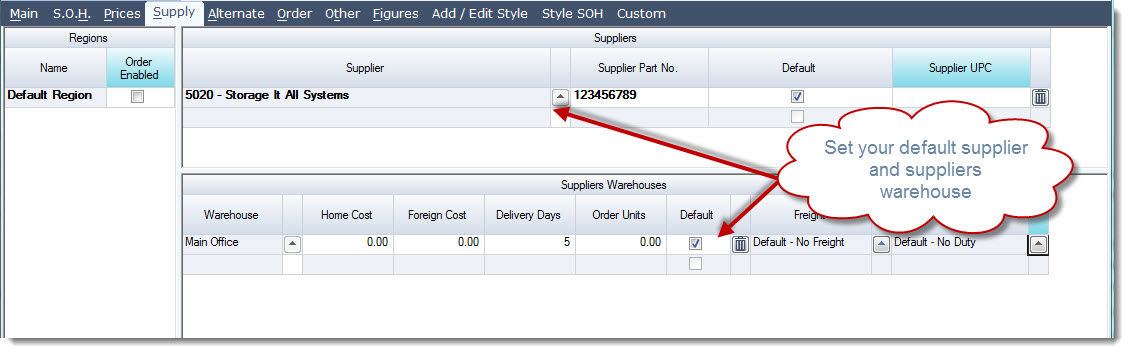
|
Field |
Description |
|
Regions Order Enabled |
When ticked enforces you to enter in at least one supplier and supplier warehouse against the selected region. This flag enables you to set a unique supplier against each location. |
|
Supplier |
Default and alternate suppliers can be loaded into this grid. Your main or preferred supplier must be flagged as the default supplier |
|
Supplier Part No. |
Suppliers part number that can displayed on purchasing forms and reports |
|
Warehouse |
The suppliers warehouse. Multiple supplier warehouses can be set against individual suppliers however one must be set as the default warehouse. |
|
Home Cost |
The supplier cost associated with this particular suppliers warehouse |
|
Delivery Days |
The number of days between the order being sent to then being delivered |
Select Save to record your new item.
Overview of Other Key Tabs
S.O.H Tab
The S.O.H tab stores information relating to your physical stock on hand.
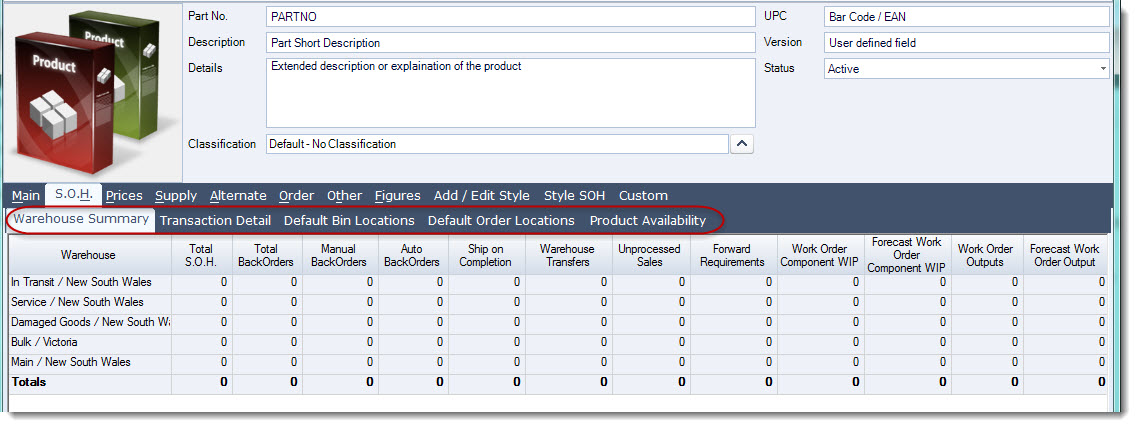
|
Tab |
Description |
|
Warehouse Summary |
A summary of stock on hand and allocations by warehouse (physical and logical) |
|
Transaction Detail |
Displays all inwards transactions, that is only purchases, stock transfers in, warehouse transfers in and manufacturing in transactions. Against each inwards transaction the quantity in, stock on hand remaining and allocated quantities are displayed. |
|
Default Bin Locations |
This tab allows you to maintain the default bin locations against each warehouse for the selected item |
|
Default Order Locations |
This tab allows you to set the default order location against each warehouse. This could be either from the default supplier or another warehouse. These settings are also used by forecast purchasing from both suppliers and warehouses. |
|
Product Availability |
This tab allows you to specify which warehouse/(s) carry this item. Note: This a flag against the item for reference purposes only and is not used by Jiwa at present |
Prices Tab
The Prices tab display the current pricing and costs for the item and is used to maintained item specific pricing schemes.

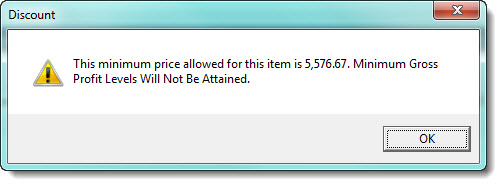
The Minimum Markup GP% can be set against the item and when used in conjunction with the user setting Minimum GP Enforcement can ensure that the item is not sold below the minimum sell price calculated by Jiwa. The user will get an error message similar to the example below when attempting to sell below the minimum sell price.
|
Tab |
Description |
|
Quantity Price Breaks |
Quantity price breaks (or volume discounts) are set and maintained in this tab. Start and end dates can be set against these price breaks |
|
Debtor Specific Prices |
Debtor specific prices/discounts are set and maintained in this tab. Start and end dates can be set against these prices |
|
Debtor Class Specific Prices |
Debtor classification specific prices/discounts are set and maintained in this tab. Start and end dates can be set against these prices |
|
Selling Prices |
Alternate selling prices are set and maintained in this tab. Effective from dates can be set against these prices |
|
Group Pricing |
Debtor price group prices/discounts are set and maintained in this tab. Note that starting and ending dates are not specified against these prices |
Alternate Tab
The Alternate tab contains information relating to alternate parts, up-sell items, and kit components if applicable for the item.

|
Tab |
Description |
|
Alternate - Children |
This tab allows you to specify and maintain replacement or alternative options for the item |
|
Alternate - Parents |
This tab displays the items that the current item supersedes |
|
Components |
This tab allows you to set and maintain components if your item is flagged as a Kit |
|
Debtor Part Numbers |
This tab allows you to set maintain customer part numbers |
|
Upsell Products |
This tab allows you to set and maintain up-sell items |
|
Bill Parents |
This tab displays the BOM's that this item is a component of |
Order Tab
The Order tab is where all order and transaction history for the item can be viewed.

|
Tab |
Description |
|
On Order |
This tab displays all purchase orders, filter is available to only display outstanding purchase orders |
|
On BackOrder |
This tab displays all current back orders |
|
On Unprocessed Sales Orders |
This tab displays stock allocated to sales orders not yet processed |
|
On Forward Order |
This tab displays all sales orders with a type of forward order |
|
On Ship Complete |
This tab displays all orders where the billing type is ship complete and stock has been allocated but not yet delivered or invoiced |
|
Transaction History |
This tab displays all movements against the item. The detail in this tab can be filtered by date, transaction type and warehouse |
Other Tab
The Other tab contains other information relating to the item, such as alternate descriptions, documents, notes and GL Ledger codes.

|
Tab |
Description |
|
Product Groups |
This tab allows you to link an item to other groups that can be used in reporting |
|
Descriptions |
This tab allows you to create and maintain alternative item descriptions that can be used in sales and purchase orders |
|
Ledgers |
This tab lists all the General Ledger posting accounts for this item. These are automatically set based on the items assigned classification |
|
Documents |
This tab allows you to attach documents relating to this item eg. production specification sheets |
|
Notes |
This tab allows you to add additional notes relating to this item |
|
To-Do |
This tab allows you to set task that relate to this particular item |
|
Web Browser |
This tab allows you to enter a URL to a web page if required |
Figures Tab
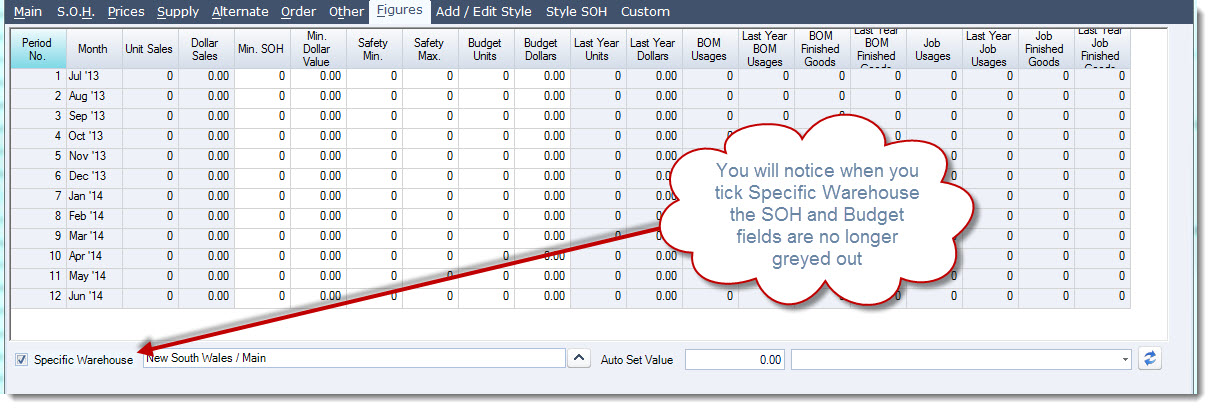
The Figures tab is where you can set and maintain your minimum stock on hand levels, monthly budgeted units by location in-addition to displaying monthly sales information.

To set your minimum stock levels and/or budgets you must select which warehouse you want to us by ticking the Specific Warehouse check box, this will activate the warehouse selection field and give you access to the relevant fields for that warehouse.
Remaining Tabs
|
Tab |
Description |
|
Add / Edit Style |
This tab is used to enter and maintain style, size and colour items. |
|
Style SOH |
This tab displays the stock on hand quantities by colour and size for specific style |
|
Custom Fields |
This tab displays all custom fields |
|
Unit of Measure |
New in Jiwa release v7.0.175.0 This tab is used to enter and maintain the stock keeping unit and units of measure available for the selected item. |