We’re currently updating our website to a new platform. We’re still operating as usual, but some pages may be under construction. Thank you for your patience.
Jiwa Training Centre

Setting up an ODBC Connection

An ODBC Connection will allow you to connect to the Jiwa SQL Database.

This will give you the ability (via a third party program such as Excel, Crystal Reports, etc.) to analyse and report on your data.

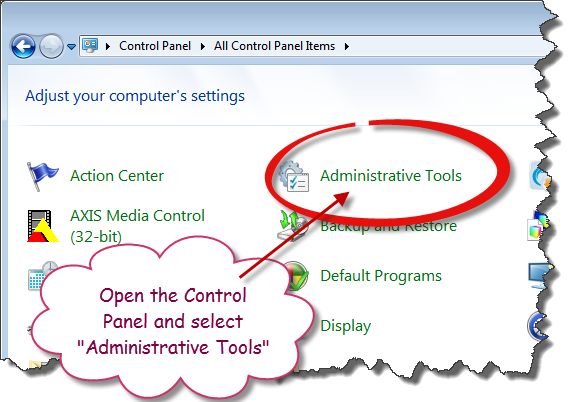
Open up the Control Panel on your computer

Select Administrative Tools
https://austlinkwebresources.s3.amazonaws.com/www.jiwatraining.com.au/articles/Jiwa-Setting-up-ODBC-Connection/1.png

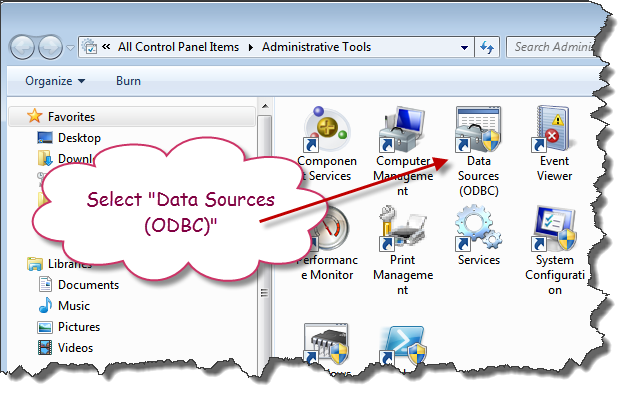
Select Data Sources (ODBC)

https://austlinkwebresources.s3.amazonaws.com/www.jiwatraining.com.au/articles/Jiwa-Setting-up-ODBC-Connection/2.png

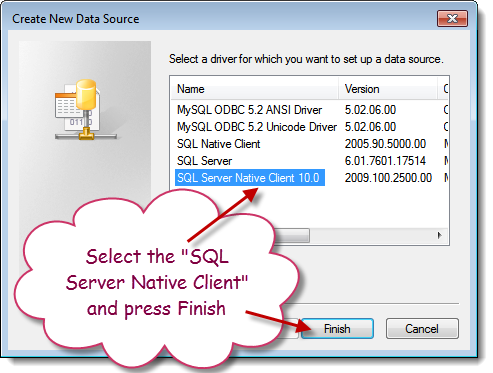
Select the SQL Server Native Client and press Finish.

If you don't have the SQL Server Native Client Installed on your workstation you can download it from here
https://austlinkwebresources.s3.amazonaws.com/www.jiwatraining.com.au/articles/Jiwa-Setting-up-ODBC-Connection/3.png

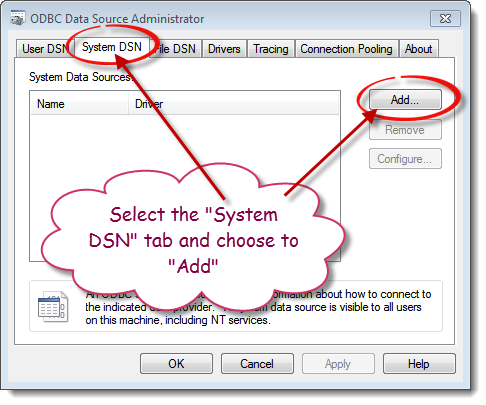
Select the "System DSN" tab and press "Add"
https://austlinkwebresources.s3.amazonaws.com/www.jiwatraining.com.au/articles/Jiwa-Setting-up-ODBC-Connection/4.png

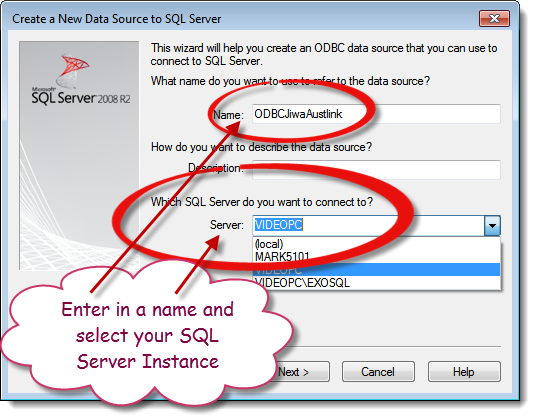
Enter in a meaningful name e.g. ODBCJiwa plus the name of your company.

Select the SQL Server instance where your Jiwa database is installed.

Note if SQL has been installed as the default instance you can refer to it just via the servername otherwise you must refer to it via the servername\instancename.
https://austlinkwebresources.s3.amazonaws.com/www.jiwatraining.com.au/articles/Jiwa-Setting-up-ODBC-Connection/5.png

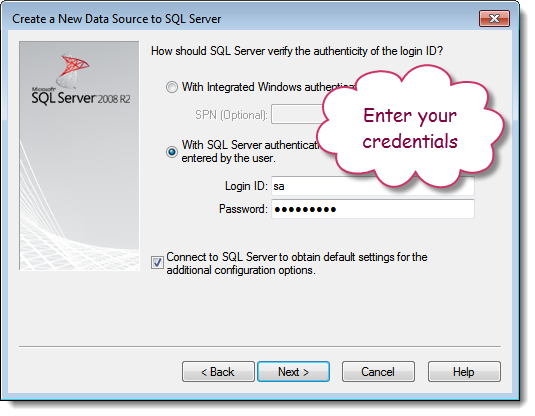
Enter in your SQL credentials. These credentials must have rights to the Jiwa database you are trying to connect to.

Press Next
https://austlinkwebresources.s3.amazonaws.com/www.jiwatraining.com.au/articles/Jiwa-Setting-up-ODBC-Connection/6.png

If you credentials are correct you will get to the next screen.

If not please ask your system administrator for appropriate credentials.

Select your Jiwa database.
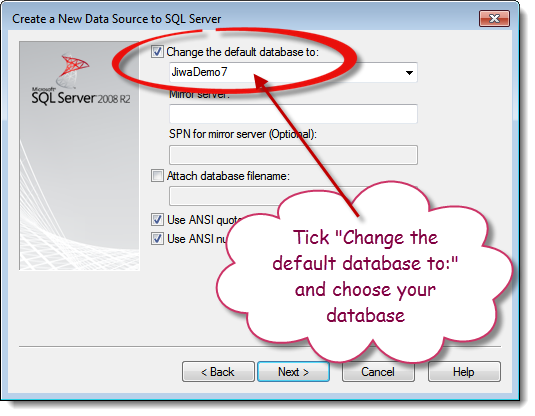
https://austlinkwebresources.s3.amazonaws.com/www.jiwatraining.com.au/articles/Jiwa-Setting-up-ODBC-Connection/7.png

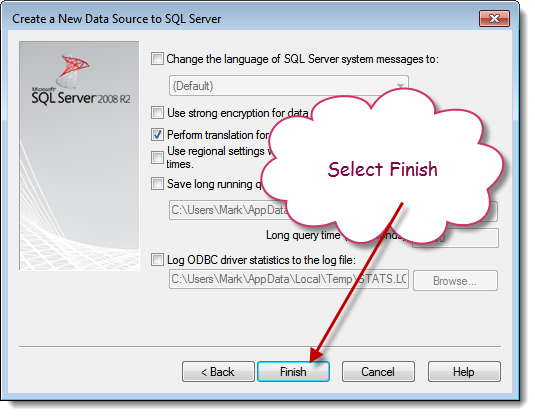
Press Finish

https://austlinkwebresources.s3.amazonaws.com/www.jiwatraining.com.au/articles/Jiwa-Setting-up-ODBC-Connection/8.png

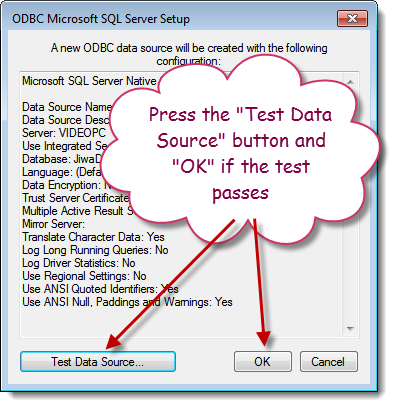
Press the "Test Data Source" button.

https://austlinkwebresources.s3.amazonaws.com/www.jiwatraining.com.au/articles/Jiwa-Setting-up-ODBC-Connection/9.png

You will get the following message if you have connected correctly.
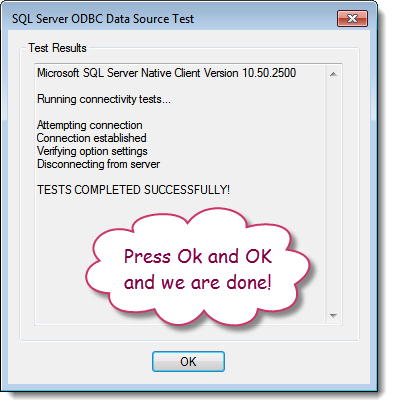
https://austlinkwebresources.s3.amazonaws.com/www.jiwatraining.com.au/articles/Jiwa-Setting-up-ODBC-Connection/10.png

Press OK twice and you are good to go.