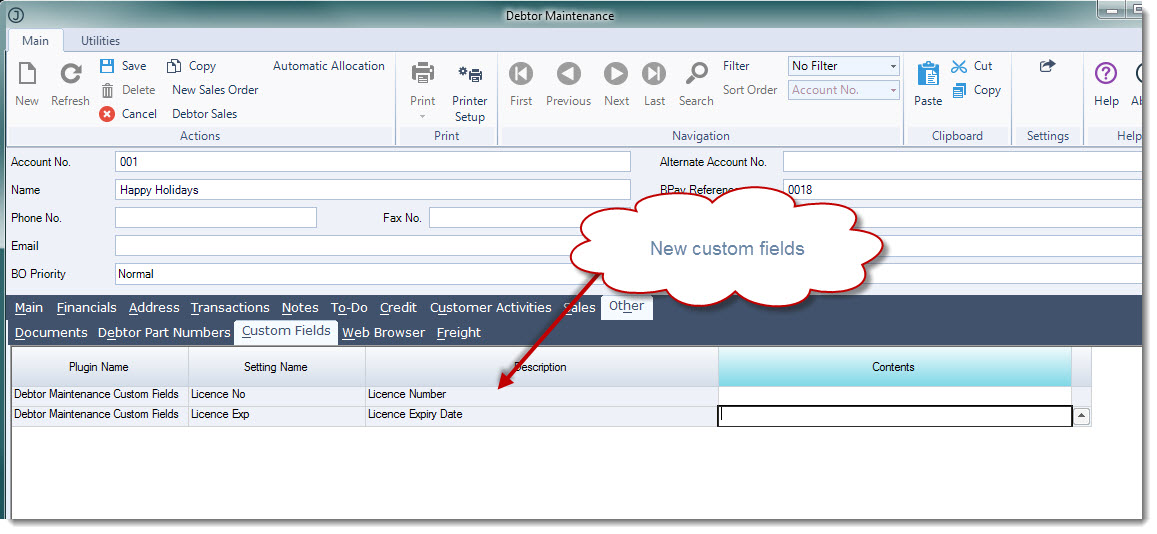
In this article we will look at how to create a simple custom fields in Jiwa 7 using plug-ins.
What is a Plug-in?
A plug-in is a software component that allows users/developers to add specific features to an existing software application.
Jiwa 7 supports plug-ins thus allowing new functions/features to be added to the application in order to meet your specific functional requirements.
Before proceeding please ensure that you;
-
Have a clear understanding of how custom fields work in Jiwa,
-
Have confirmed what type of custom field is required, and
-
Have confirmed what form the custom field is required in
A single plugin can be created for multiple custom fields for example instead of creating a plugin for each custom field on the Debtors Maintenance form a single plugin can be created for all the custom fields on the same form.
From the menu select System Settings | Plugins | Plugin Maintenance

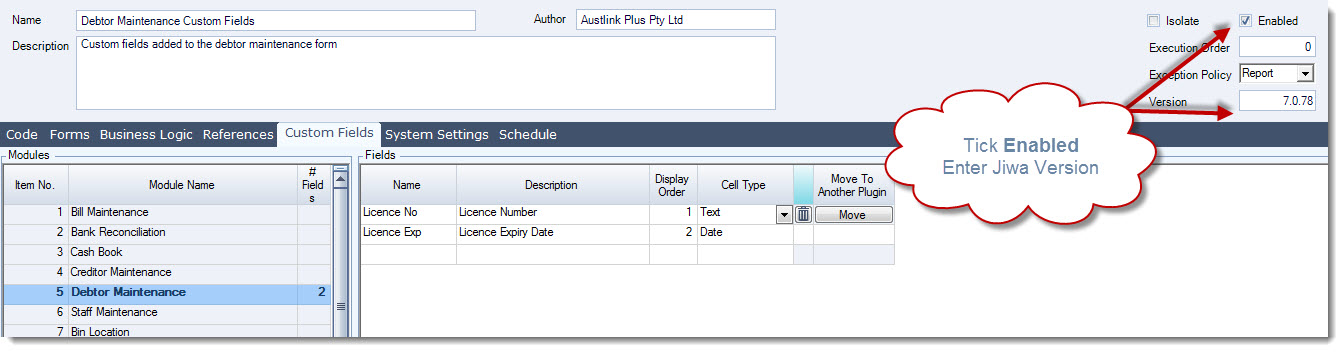
Select New from the menu ribbon to create a new plugin
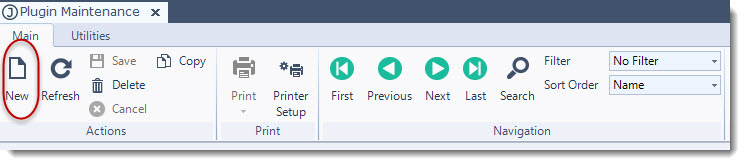
Enter in the plugin name, author and description

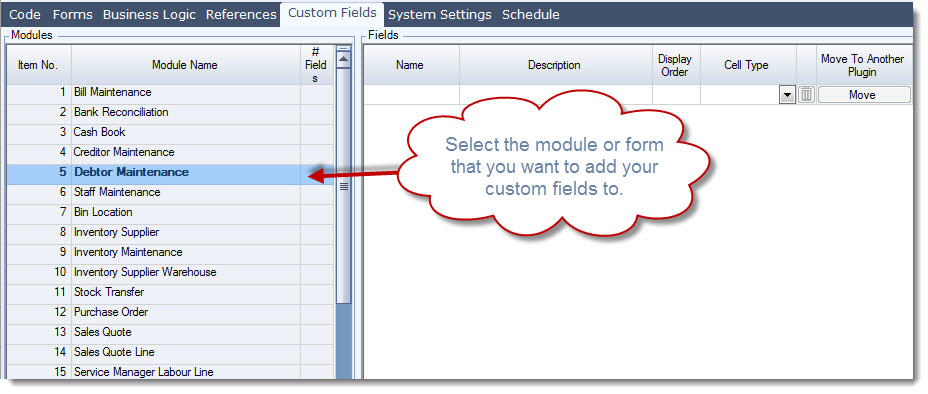
Select the Custom Fields tab
Select the module where the custom fields need to be added. The module refers to the form name.
In the fields section enter in the name of your custom field in Name field and a description in the Description field
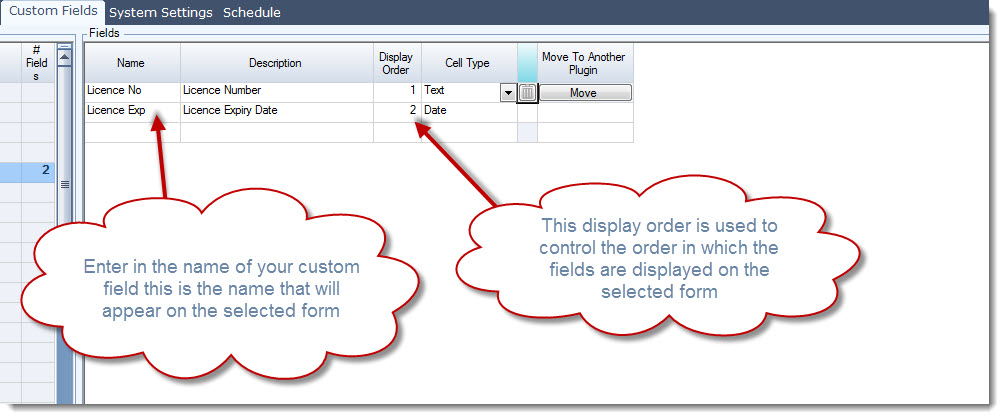
The Display Order field allows you to control the order in which fields are displayed in your selected form. By default Jiwa will apply the order based on the order that the fields were created in.
In the Cell Type field select the type of field you want to create, the field types are;
|
Cell Type |
Description |
|
Date |
This type of field will activate the calendar |
|
Text |
This is a 250 character text field |
|
Float |
Decimal number field |
|
Integar |
Whole number field |
|
Lookup |
Code is required to use this field type |
|
Combo |
Code is required to use this field type |
|
CheckBox |
Check box |
SAVE your changes
To activate your custom fields tick the Enabled check box field
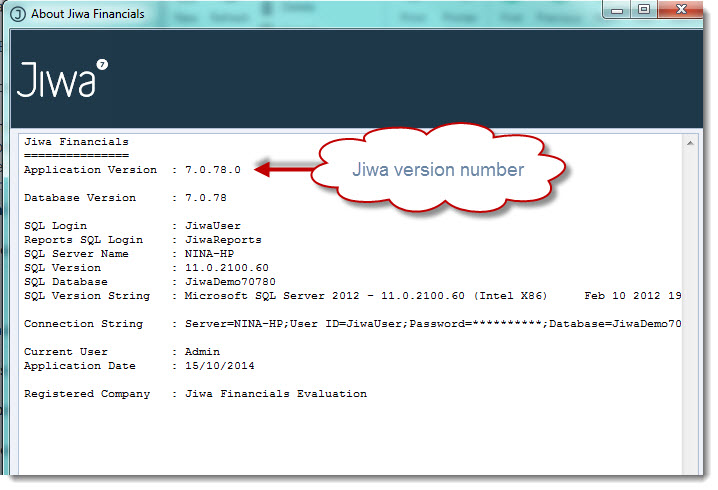
The the Version field enter in the Jiwa version number that the plugin was created in
To confirm your version number click on the About icon from the menu ribbon.

SAVE your changes
To see the new fields you have created you will need to Exit out of Jiwa and log back in for the plugin to be loaded.