We’re currently updating our website to a new platform. We’re still operating as usual, but some pages may be under construction. Thank you for your patience.
Jiwa Training Centre

Integration with Excel

I have created a video below on how to extract data from Jiwa Financials to Excel.

There are two methods, a simple copy and paste method and a more complicated direct SQL connection method  

Extract Data from Jiwa Financials - Simple Method

This first method is a simple copy and paste from any of the Jiwa Transaction Grids.

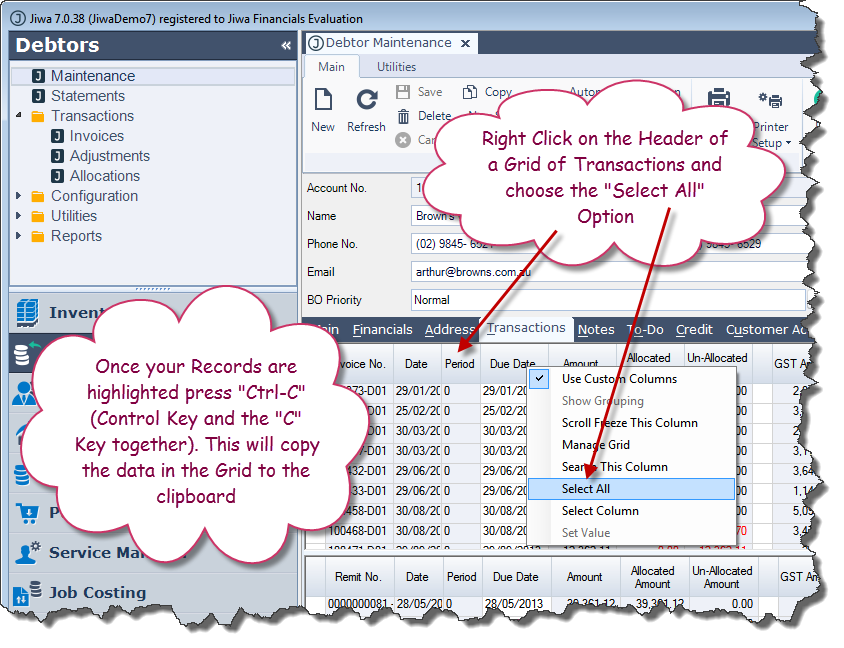
Just right click on the grid header and choose "Select All"

Then use Ctrl-C (the Control Key and the "C" Key together) to copy the selected data
https://austlinkwebresources.s3.amazonaws.com/www.jiwatraining.com.au/articles/Jiwa-Integration-Excel/1.png

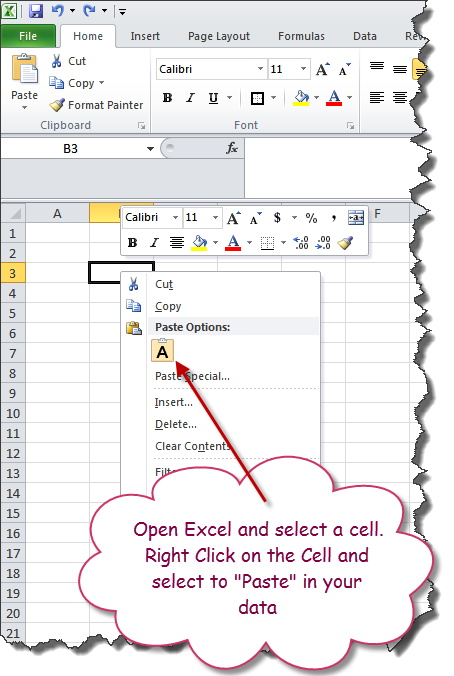
Now open Excel, right click on a cell and select to paste.

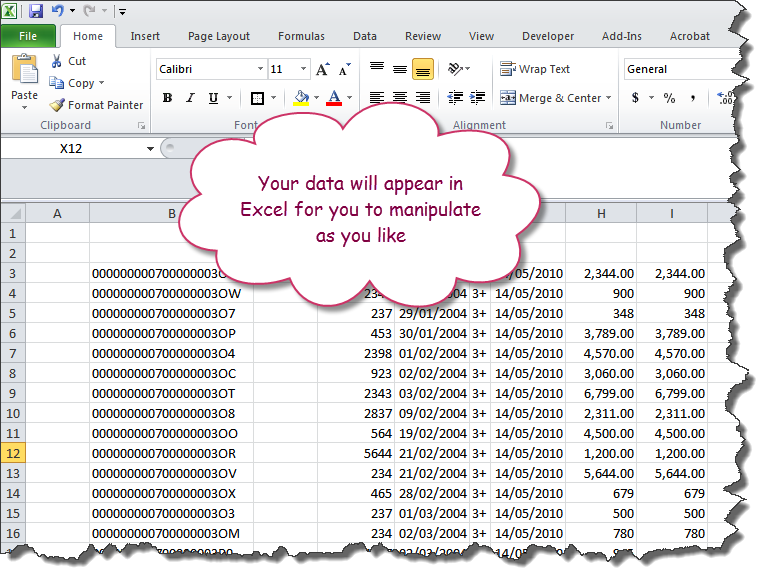
The contents of the Jiwa Transaction grid will now be available to you inside Excel
https://austlinkwebresources.s3.amazonaws.com/www.jiwatraining.com.au/articles/Jiwa-Integration-Excel/2.png


https://austlinkwebresources.s3.amazonaws.com/www.jiwatraining.com.au/articles/Jiwa-Integration-Excel/3.png


Extracting Data from Jiwa Financials via a Report - Simple Method

Another way to extract data from Jiwa is to use the report system which is based on Crystal Reports

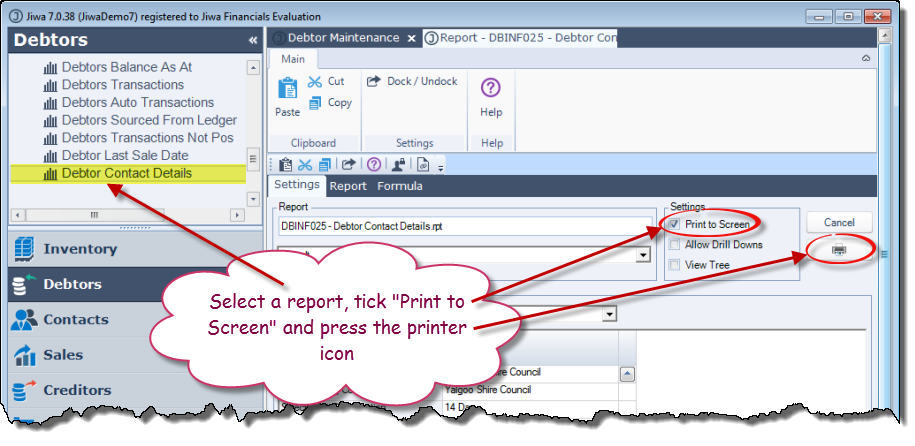
Select a report from the menu, tick "Print to Screen" and press the printer icon
https://austlinkwebresources.s3.amazonaws.com/www.jiwatraining.com.au/articles/Jiwa-Integration-Excel/4.png

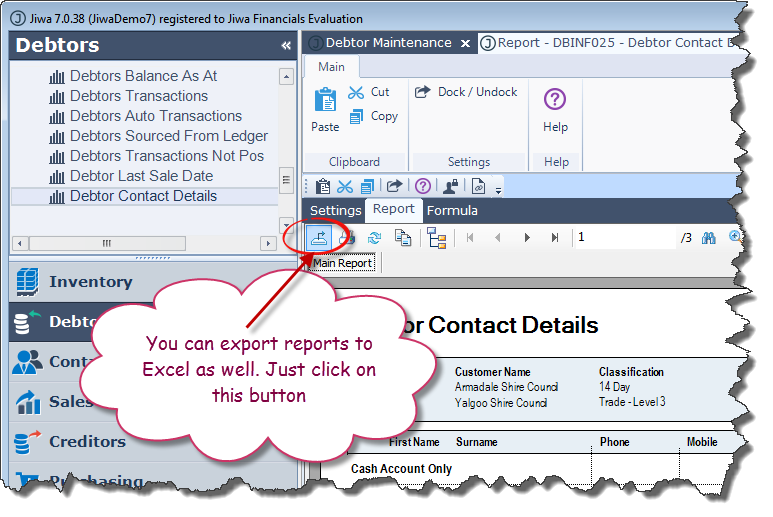
From the report tab click on the export button
https://austlinkwebresources.s3.amazonaws.com/www.jiwatraining.com.au/articles/Jiwa-Integration-Excel/5.png

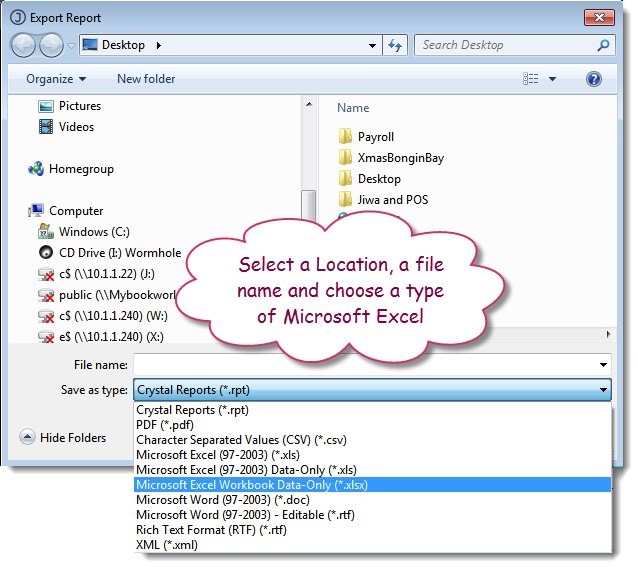
Select a location, a file name and choose a type of "Microsoft Excel"
https://austlinkwebresources.s3.amazonaws.com/www.jiwatraining.com.au/articles/Jiwa-Integration-Excel/6.png

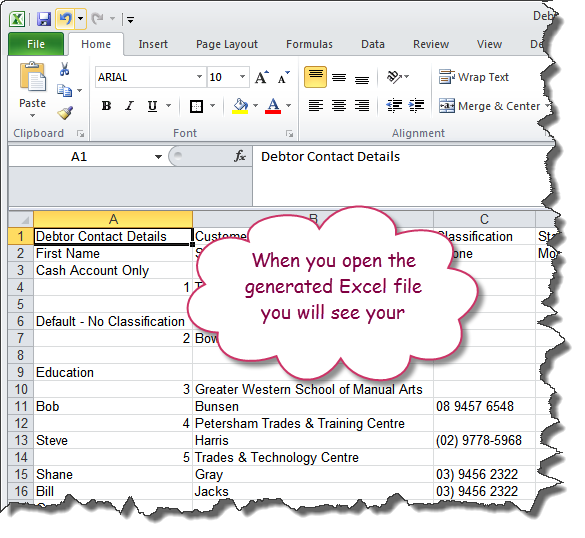
Now locate the file you saved and open it. Your data will now be in Excel
https://austlinkwebresources.s3.amazonaws.com/www.jiwatraining.com.au/articles/Jiwa-Integration-Excel/7.png


Extract Data from Jiwa Financials - Advanced Method

Another way to extract data from MYOB Exo or indeed any other Microsoft SQL data source is to us the data connectivity features within Excel to create a direct connection to the Microsoft SQL database.

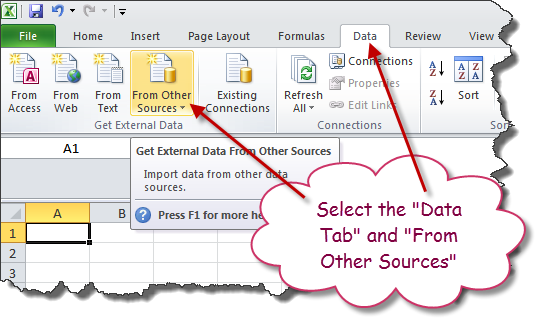
In Excel select the data tab and the "from Other Sources" button
https://austlinkwebresources.s3.amazonaws.com/www.jiwatraining.com.au/articles/Jiwa-Integration-Excel/8.png

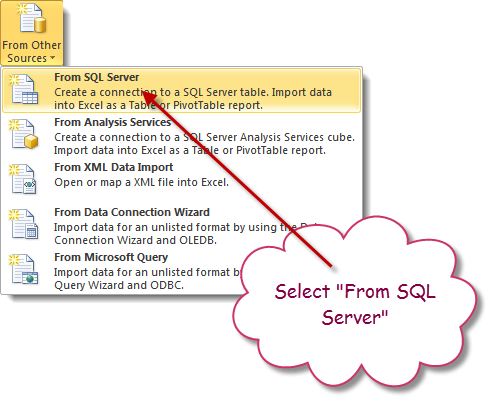
  Select "From SQL Server"

https://austlinkwebresources.s3.amazonaws.com/www.jiwatraining.com.au/articles/Jiwa-Integration-Excel/9.png

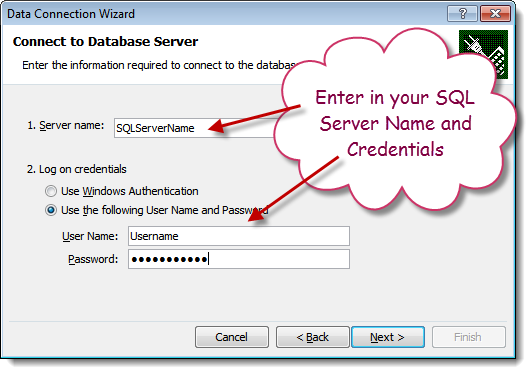
Enter in your SQL Server Name and Credentials
https://austlinkwebresources.s3.amazonaws.com/www.jiwatraining.com.au/articles/Jiwa-Integration-Excel/10.png

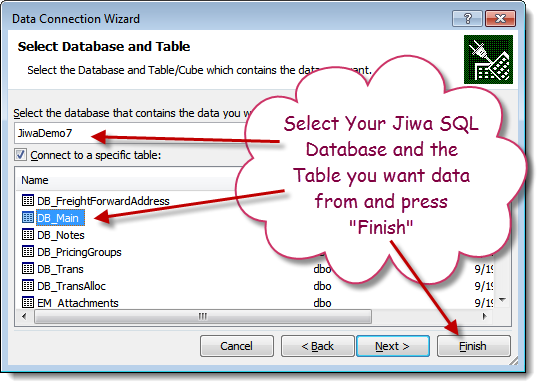
Select your Jiwa SQL database and the table you want data from and press "Finish"
https://austlinkwebresources.s3.amazonaws.com/www.jiwatraining.com.au/articles/Jiwa-Integration-Excel/11.png

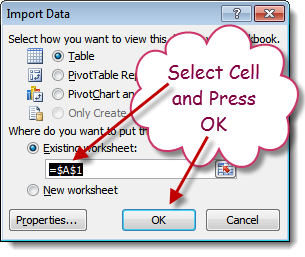
Select the cell you want the data to be copied into and press "OK"
https://austlinkwebresources.s3.amazonaws.com/www.jiwatraining.com.au/articles/Jiwa-Integration-Excel/12.png

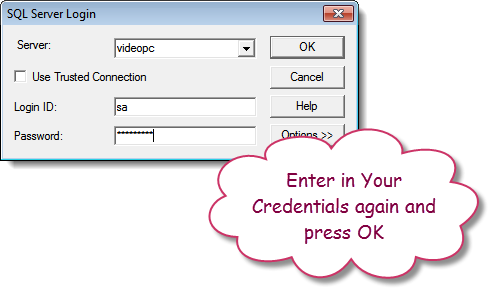
Enter in your credentials again and press "OK"
https://austlinkwebresources.s3.amazonaws.com/www.jiwatraining.com.au/articles/Jiwa-Integration-Excel/13.png

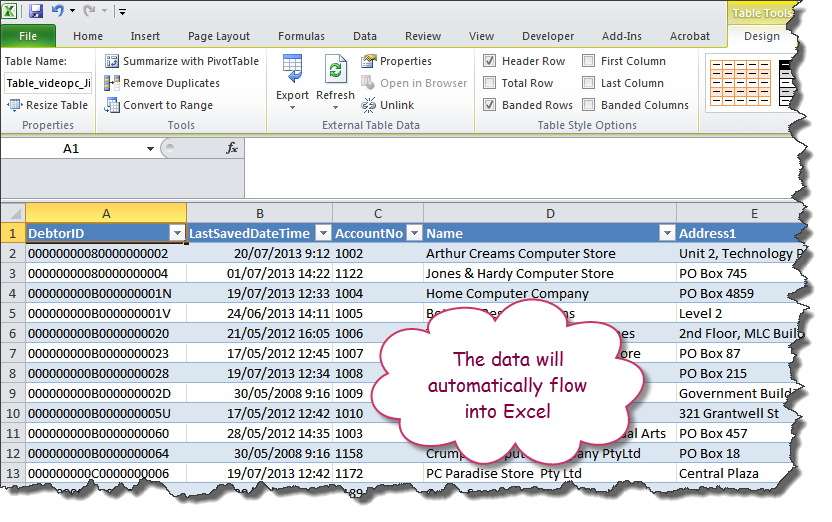
The data from the chosen table will automatically flow into Excel
https://austlinkwebresources.s3.amazonaws.com/www.jiwatraining.com.au/articles/Jiwa-Integration-Excel/14.png

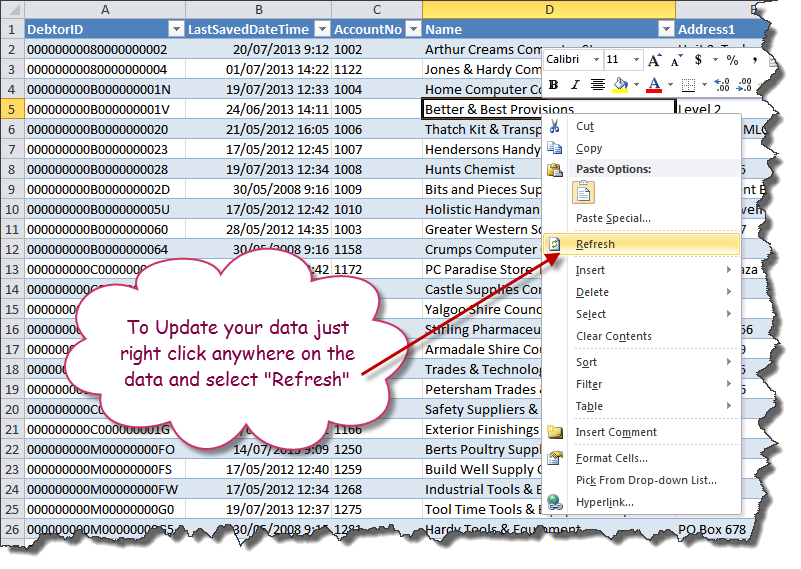
To update your data just right click anywhere on the data and select "Refresh"
https://austlinkwebresources.s3.amazonaws.com/www.jiwatraining.com.au/articles/Jiwa-Integration-Excel/15.png


Modifying the SQL Query

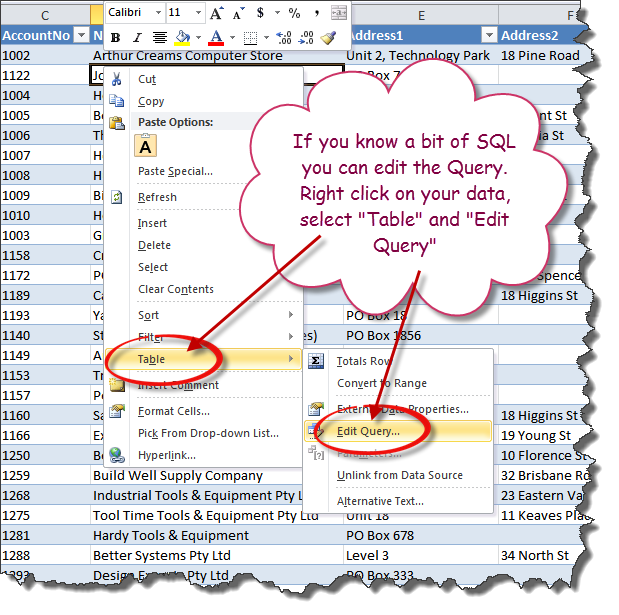
If you know a bit of SQL you can edit the Query. Right click on your data and select "Table" and "Edit Query"
https://austlinkwebresources.s3.amazonaws.com/www.jiwatraining.com.au/articles/Jiwa-Integration-Excel/16.png

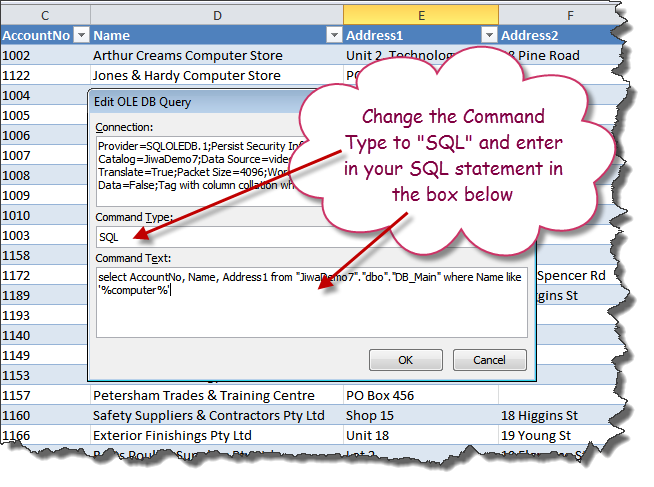
Change the "Command Type" to "SQL" and enter in your SQL statement in the "Command Text" box below
https://austlinkwebresources.s3.amazonaws.com/www.jiwatraining.com.au/articles/Jiwa-Integration-Excel/17.png

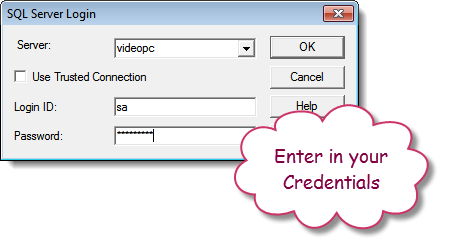
Enter in your Credentials and press "OK"
https://austlinkwebresources.s3.amazonaws.com/www.jiwatraining.com.au/articles/Jiwa-Integration-Excel/18.png

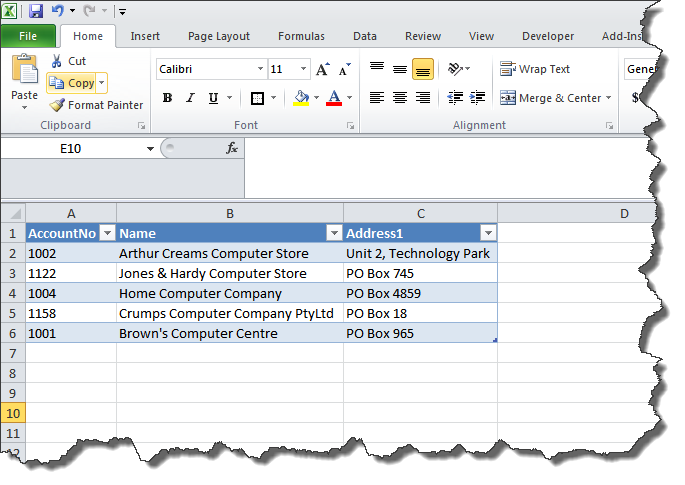
The data returned will now be modified in line with your new SQL Query
https://austlinkwebresources.s3.amazonaws.com/www.jiwatraining.com.au/articles/Jiwa-Integration-Excel/19.png

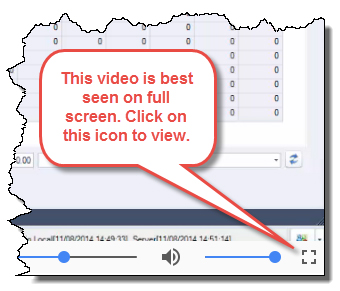
  This video is best seen on the full screen. Just click on the icon at the bottom right of the video (see image below). To exit full screen just press escape
https://austlinkwebresources.s3.amazonaws.com/www.jiwatraining.com.au/articles/Jiwa-Sales-Orders-Single-Order-Processing/videofullscreen.jpg