In this article we will be looking at how to reverse a Debtor payment.
In the following example the payment of $500 has been been applied to the wrong debtor account so we need to reverse the entry.

Step 1: Un-allocate Your Duplicate Payment
To begin lets unallocate the payment from the invoices it has been applied to.
This step is not required if the payment has not been allocated.
Next to the payment click on the lookup icon to activate the Debtor Payments & Allocations form

In the Debtor Payments & Allocations form you can see the payment has been allocated to the first 2 invoices.
To unallocate the payment simply enter in zero in the This Allocation Amount field against the relevant invoices, or single left click on the Un-Allocated Amount against each transaction.
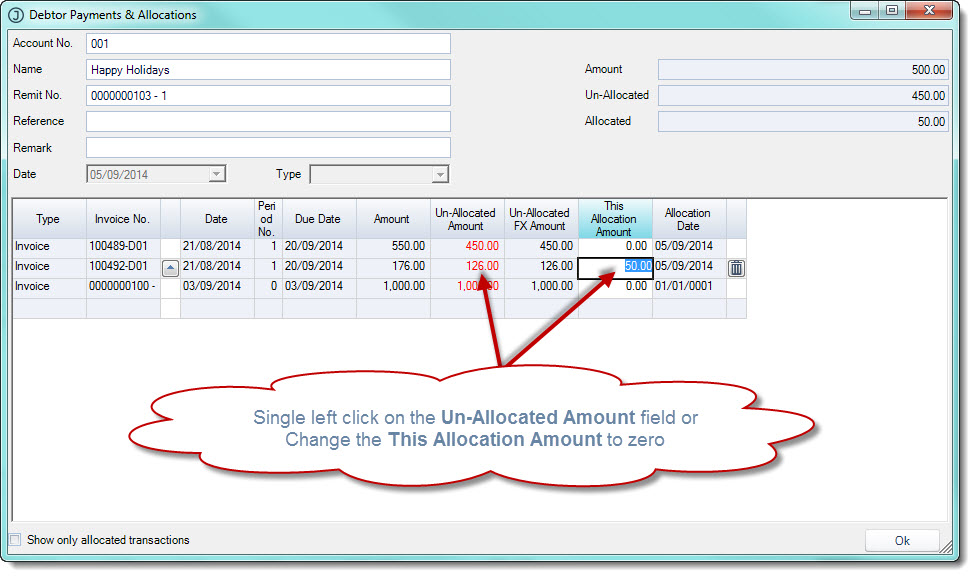
Once you have unallocated the payment select OK to exit from the screen. Your payment is now unallocated
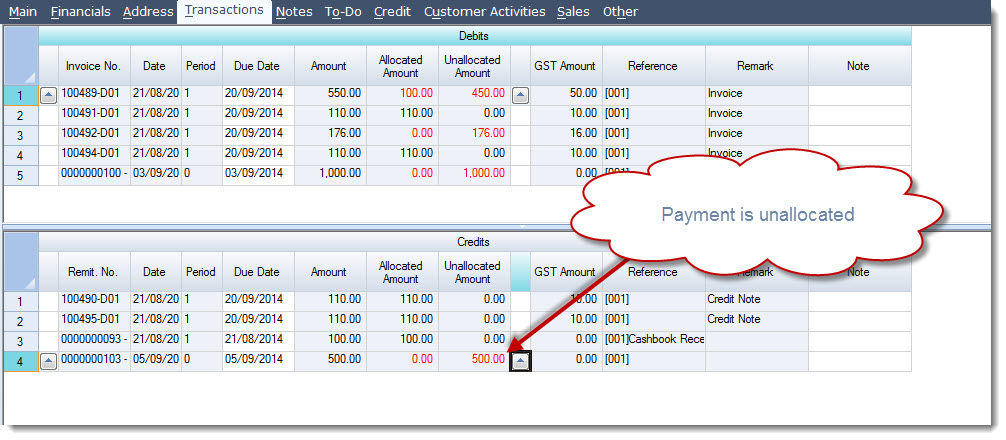
Save your changes
Step 2: Reverse Your Debtor Payment
Your Debtor payment can be reversed using either the Cash Book Receipts or Payments form, in this example we will use the Cash Book Payments form to reverse our payment.
If you use the Receipts form (which can be accessed via the Transactions tab in Debtor Maintenance) make sure you enter a negative value in the Home Amount field.
Select Cashbook > Payment
Create a new Cash Book Payment batch
Search for your Debtor by clicking on the first lookup icon next to the Debtor/Creditor field
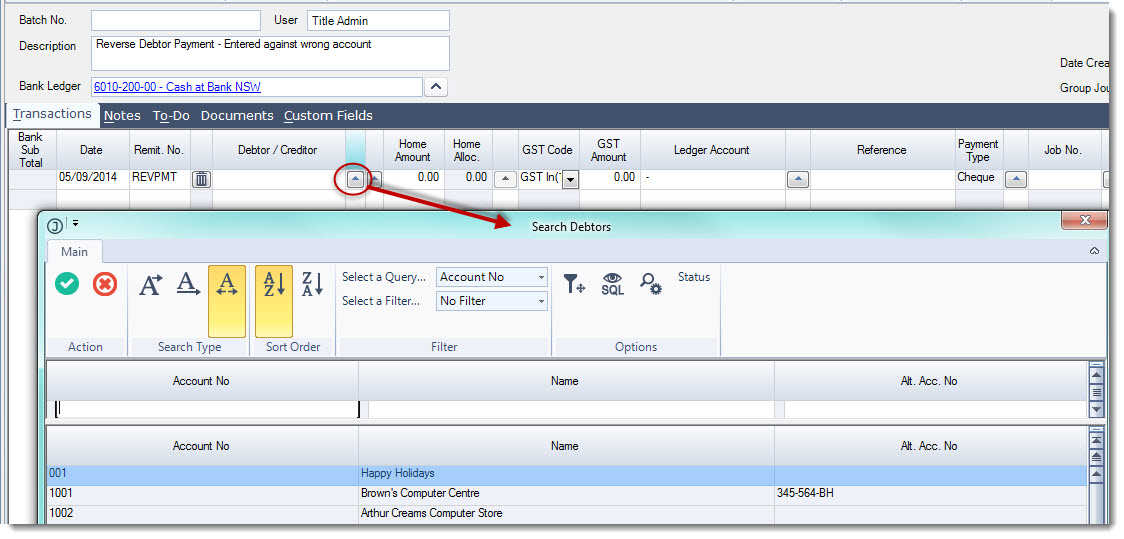
Complete the transaction details then allocate your reversal to the original payment
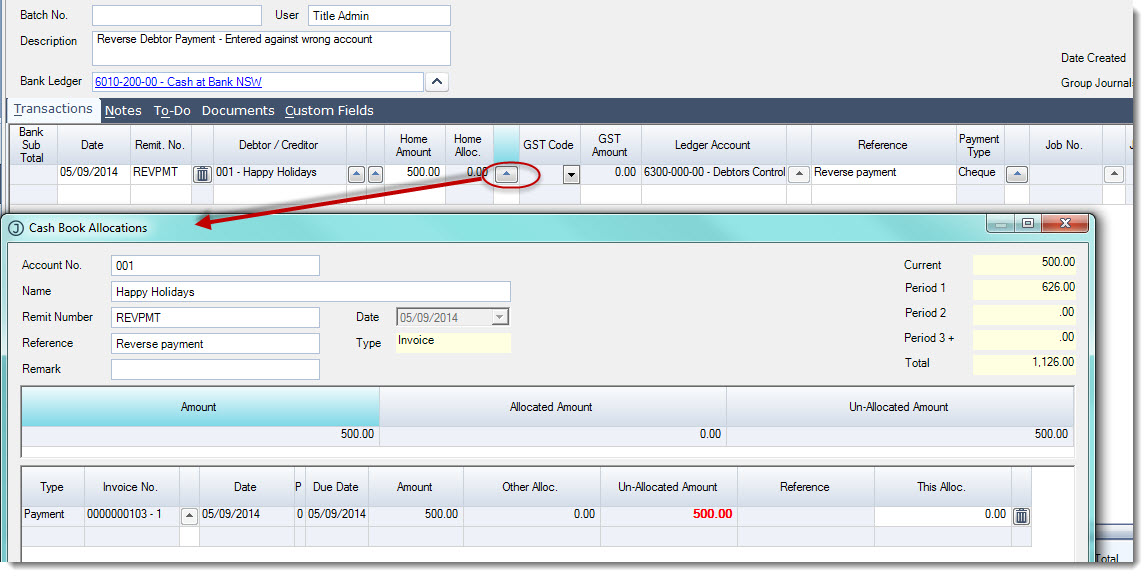
Save your allocation
Save and Activate your cash book payment batch
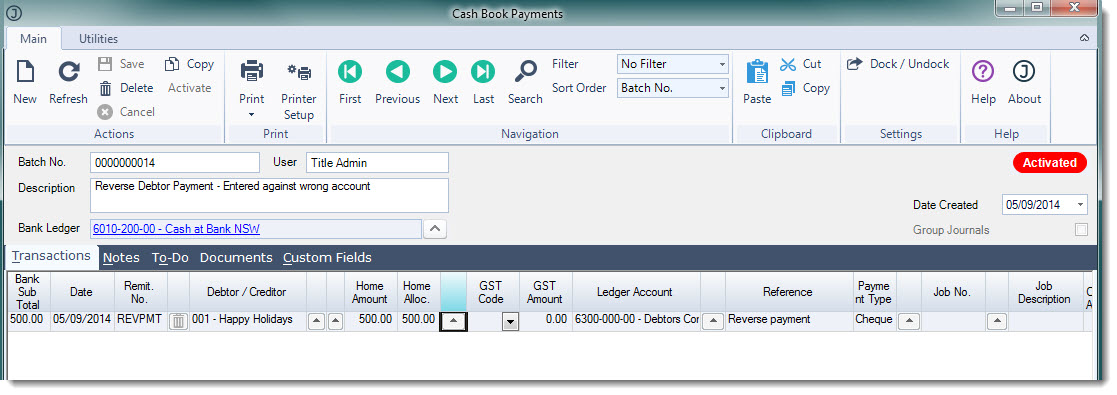
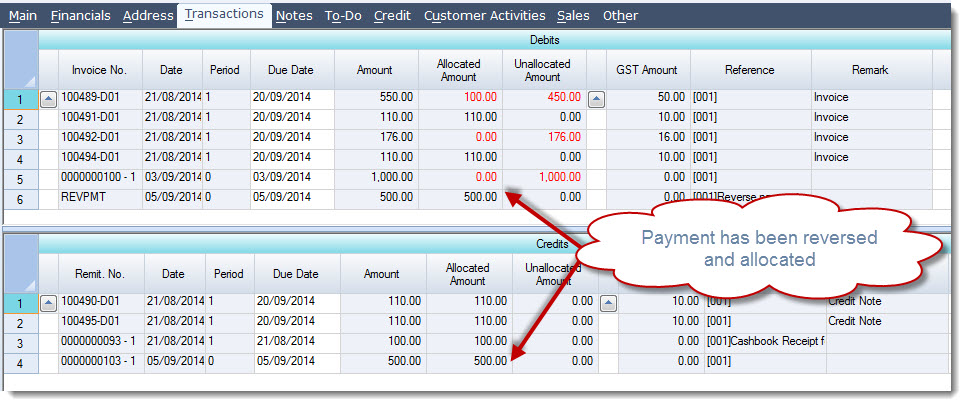
The payment has now been reversed and the reversal allocated to the original payment.
This video is best seen on the full screen. Just click on the icon at the bottom right of the video (see image below). To exit full screen just press escape