In this article we look at how to create Debtor classifications and categories in Jiwa 7.
Debtor Classifications
In Jiwa Debtor classifications serve several purposes, they assign to new Debtors the default;
-
Sell Price Scheme,
-
Debtor Pricing Group
-
Trading Terms, and
-
General Ledger control accounts
In addition to this they are also used for reporting, searching and analysis purposes.
Many of the standard Jiwa Debtor and Debtor based sales reports use Debtor classifications to filter or group data, so when creating Debtor classifications consideration should also be given to your reporting requirements.
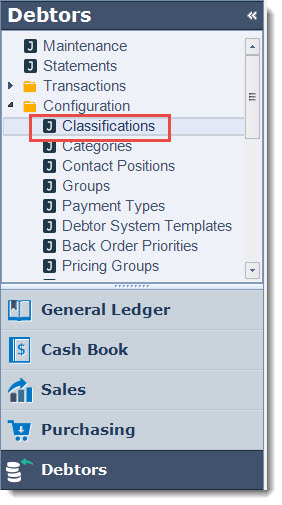
From the menu select Debtors | Configuration | Classifications
From the menu ribbon select New
Alternatively, you can base your new classification on an existing one, load the required classification and select Copy from the menu ribbon.
When coping an existing classification all ledger account settings are also copied.
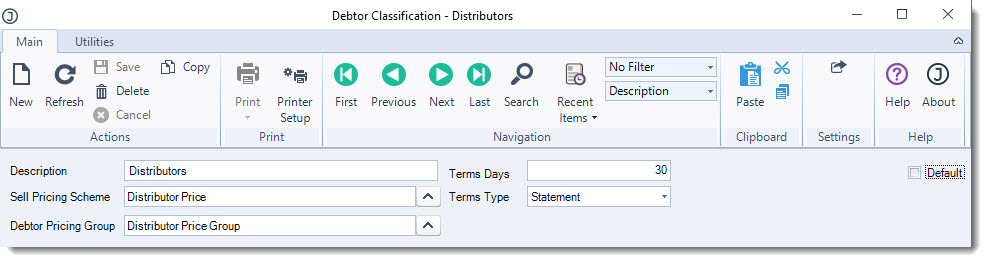
In the header section enter in the classification
-
Description,
-
Default Sell Price Scheme,
-
Default Debtor Pricing Group, and
-
Default terms
|
Field |
Description |
|
Description |
Classification description |
|
Sell Pricing Scheme |
This is the default selling price scheme that is assigned to the Debtor account on the Financials | Pricing tab in Debtor maintenance when the account is linked to this classification.
The Price Scheme can be changed on individual Debtor accounts if required. 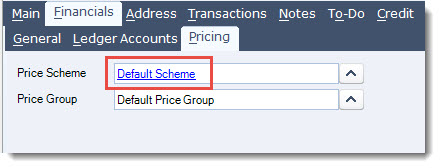
Note: Changing the Sell Price Scheme on a classification will not update existing Debtor records. |
|
Debtor Pricing Group |
This is the default pricing group that is assigned to the Debtor account on the Financials | Pricing tab in Debtor maintenance when the account is linked to this classification.
The Price Group can be changed on individual Debtor accounts if required. 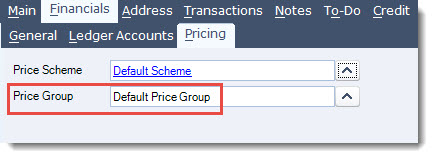
Note: Changing the Debtor Pricing Group on a classification will not update existing Debtor records. |
|
Terms Days / Terms Type |
These are the default trading terms that are assigned to a new Debtor account on the Credit tab in Debtor maintenance when the account is linked to this classification.
Trading terms can be changed on individual Debtor accounts if required. 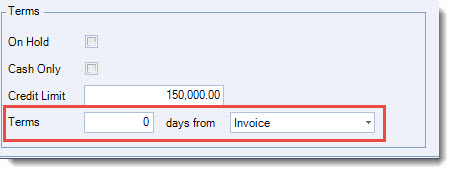
Note: Changing the trading terms on a classification will not update existing Debtor records. |
|
Default |
This flag indicates if the classification is the default classification. Only 1 classification can be set as the default and this is the classification that is automatically assigned to new accounts that are created through Debtor maintenance. |
Ledgers
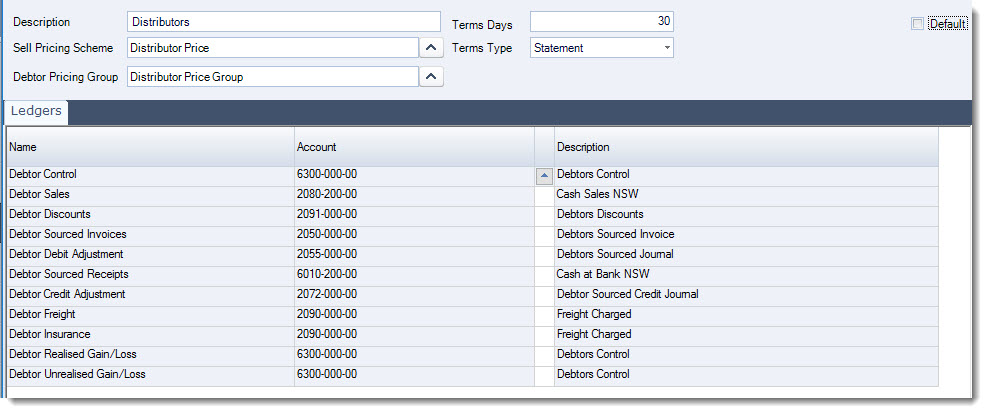
These are the default General Ledger control accounts for the classification which are then applied to each Debtor account linked to the classification.
These ledger accounts can be changed on individual accounts if required in Debtor maintenance under the Financials | Ledger Accounts tab.
The purpose of each account is explained in the table below, however if you are not sure on which accounts to set please contact your Jiwa Consultant.
Note: Changing ledger accounts against a Debtor classification will not update existing Debtor records.
|
Control Account |
Description |
|
Debtors Control |
This control account should be linked to your Debtors control account in the Balance Sheet. If you have multiple Debtor control accounts then ensure that the classification is linked to the correct account. |
|
Debtor Sales |
This control account is only used when your Jiwa database is set to not use the inventory sales ledger. Note: This is a rarely used option, please contact your Jiwa consultant if you are considering changing the configuration of your database. |
|
Debtor Discounts |
This is the control account that is used when discounts are applied through the;
|
|
Debtor Sourced Invoices |
This control account is only used when Debtor invoices are created through the Debtor Invoice form. Note: The Debtor Invoice form is not available to all users, please contact your Jiwa consultant to discuss your requirements. |
|
Debtor Debit Adjustments |
This control account is used when creating Debtor adjustments and adding an amount in the Write On Amount field in the form.
|
|
Debtor Sourced Receipts |
This control account is not used in Jiwa 7.
|
|
Debtor Credit Adjustments |
This control account is used when creating Debtor adjustments and adding an amount in the Write Off Amount field in the form. This account is typically set to an expense account. |
|
Debtor Freight |
This control account is used to post amounts entered in the Courier, Freight 1 and Freight 2 fields in the Sales Order Entry form. 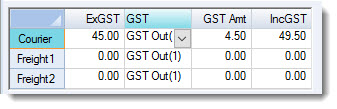
|
|
Debtor Insurance |
This control account is only used when your Jiwa database has been setup to enable Debtors Insurance. When enabled any value entered in the Freight 2 field in Sales Orders will post to this account. |
|
Debtor Realised Gain/Loss |
Currently this control account is not used and is in place for future use |
|
Debtor Unrealised Gain/Loss |
Currently this control account is not used and is in place for future use |
Debtor Categories
Jiwa has 5 different Debtor categories which can be used for reporting, searching and analysis purposes.
Categories are independent of classifications and each other which allows for greater flexibility in reporting and analysis from a Debtor sales perspective.
From the menu select Debtors | Configuration | Categories
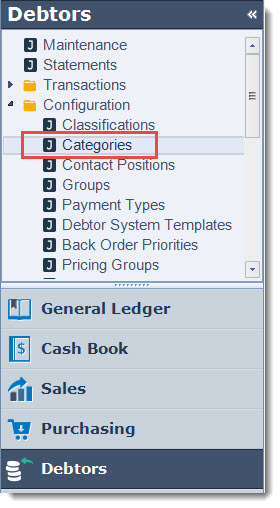
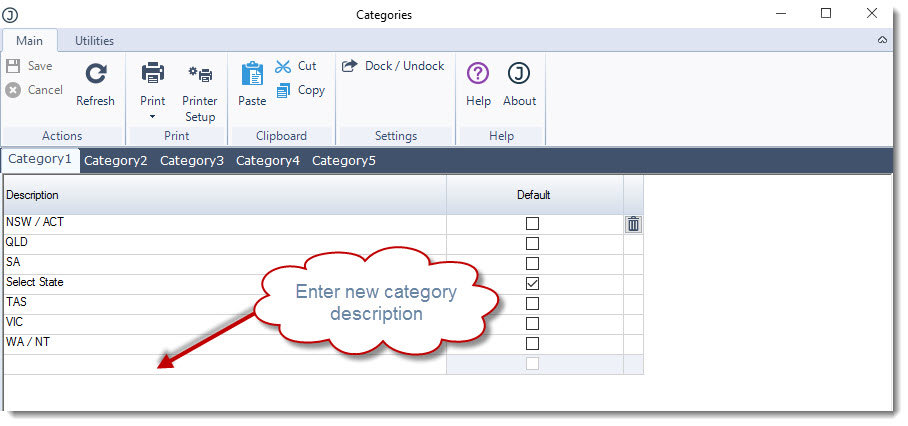
Starting with the first category enter your category description in the Description field.
The default flag is used to indicate the default category that is applied when new accounts are created through Debtor maintenance.
Save your updates.
Repeat this process for each category used.
Category Descriptions
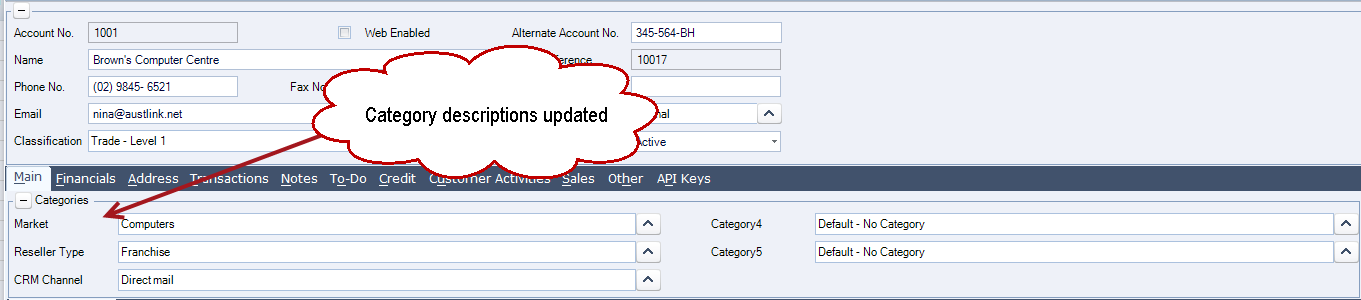
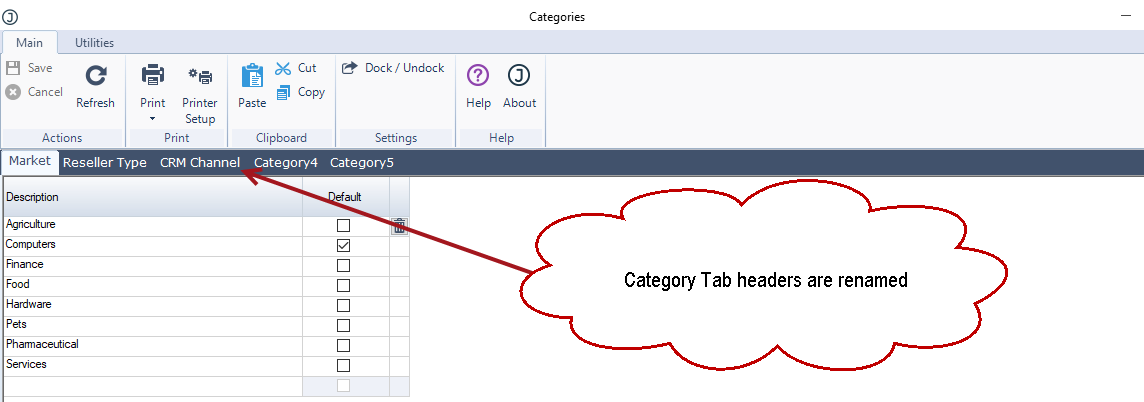
So that the purpose of each category is clear to users when creating and maintaining Debtor accounts, category descriptions can be manged through system settings.
To update your Debtor category descriptions go to System Settings | System Configuration menu.
Click on the Debtors tab and update the category descriptions.
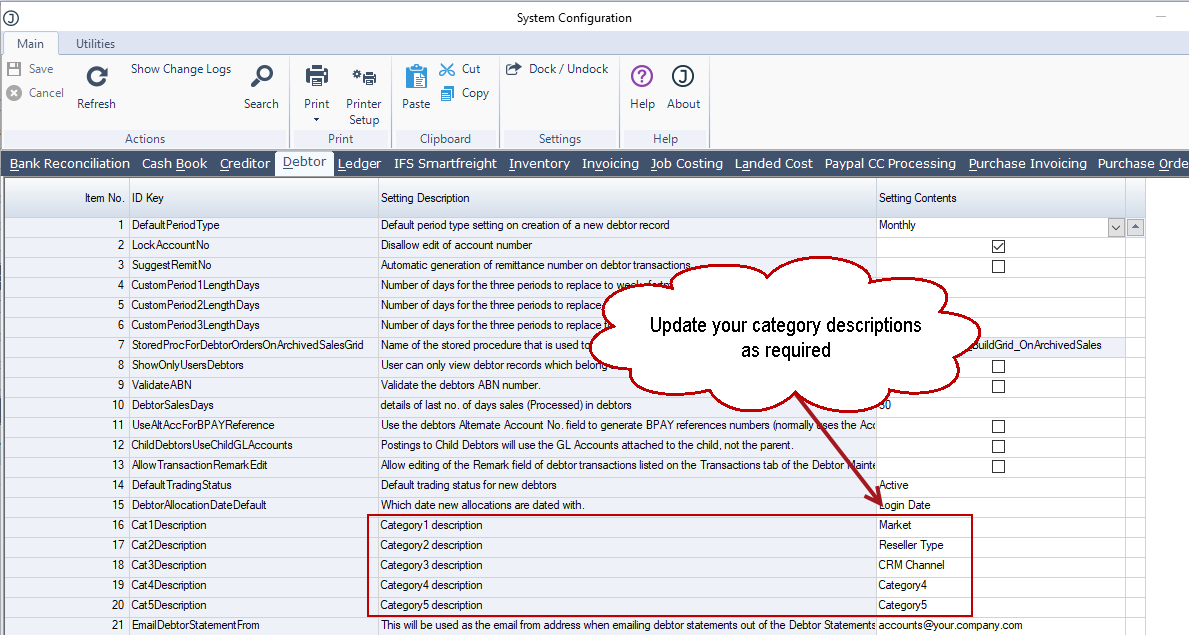
This will update the descriptions displayed on the Debtor and Debtor Category maintenance forms.