In this article we look at creating Debtor Adjustments in Jiwa.
The Debtor Adjustment form is used to make adjustments to a Debtor account such as;
-
Small balance adjustments,
-
Transfer payments between Debtor accounts,
-
Bad debt write off's
From the menu select Debtors | Transactions | Adjustments

From the menu ribbon select New

Confirm your Batch Date
The Batch Date is the date that will be assigned to the journal entries posted to the General Ledger.
The lines contained in the batch must all correspond to the same period as the Batch Date.

In the Description field add a brief description about the purpose of the adjustment.

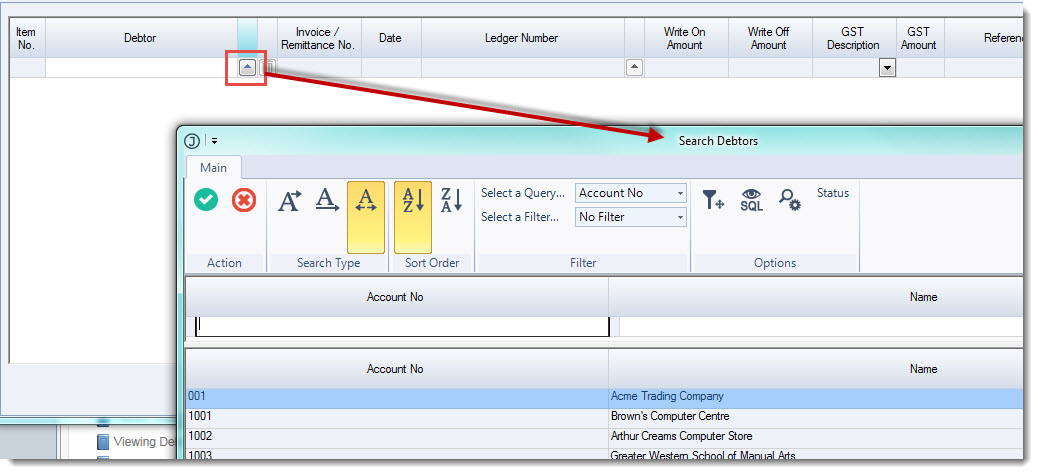
In the grid select your Debtor Account by clicking on the lookup icon next to the field to bring up the Debtors Search form or enter in the Debtor account number if known.
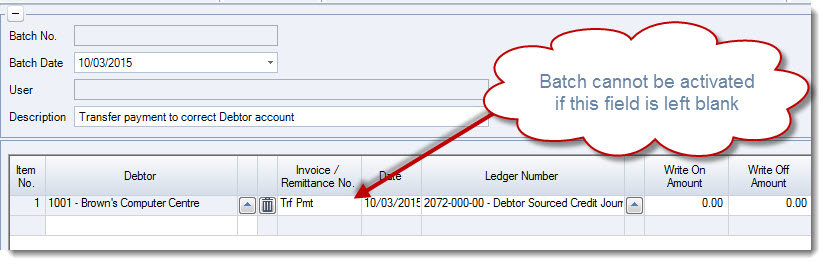
Enter in a reference in the Invoice/Remittance No. field.
You will not be able to active the batch if this field is left blank.
Enter in the applicable transaction date or accept the default system login date.
Check the Ledger Number and change if required. The default account is taken from the control accounts that are linked to the Debtor.
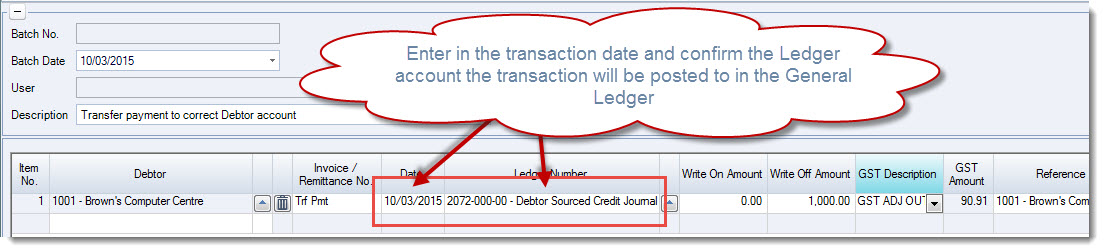
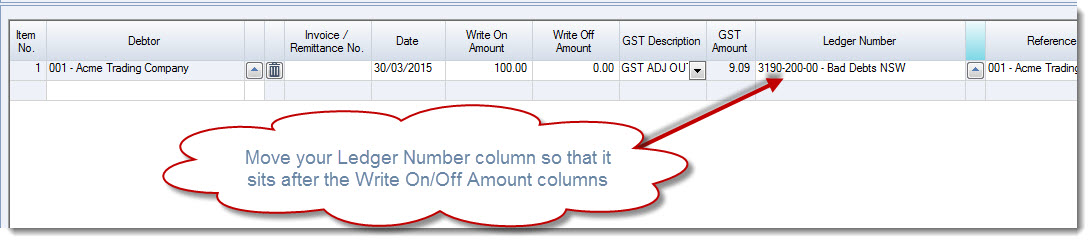
NOTE: Because the form looks at two(2) different control accounts you may notice that the Ledger Number changes back to the default account when you enter in an amount. To avoid this happening simply move your Ledger Number column to sit after the amount field as per the example below.
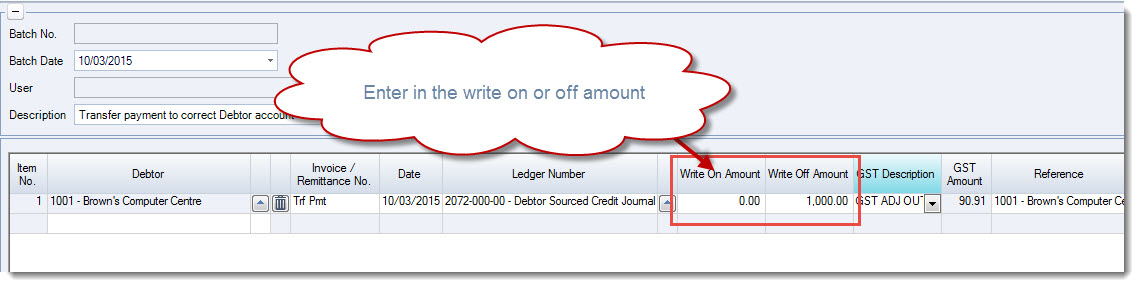
Enter in the Write On or Write Off amount
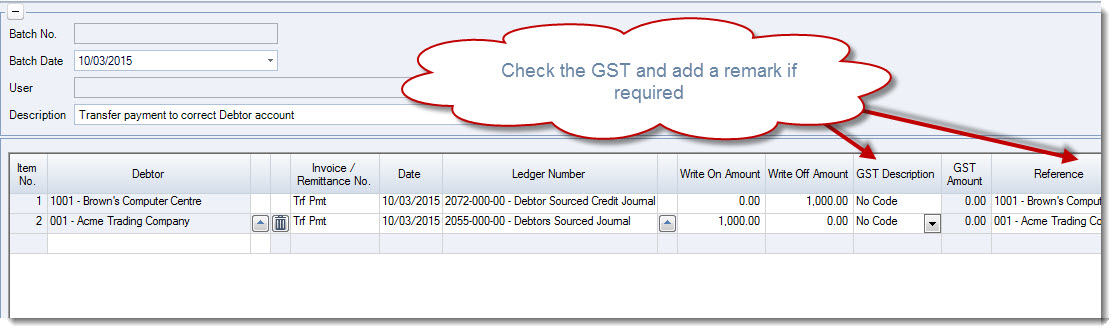
Check if GST is applicable and change the GST Description if required.
Add a Remark if required.
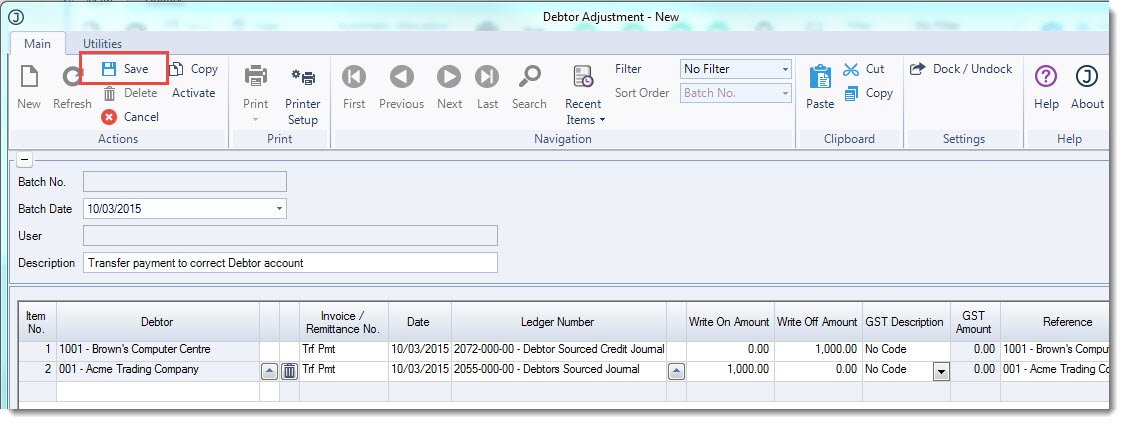
From the menu ribbon select Save to save your batch
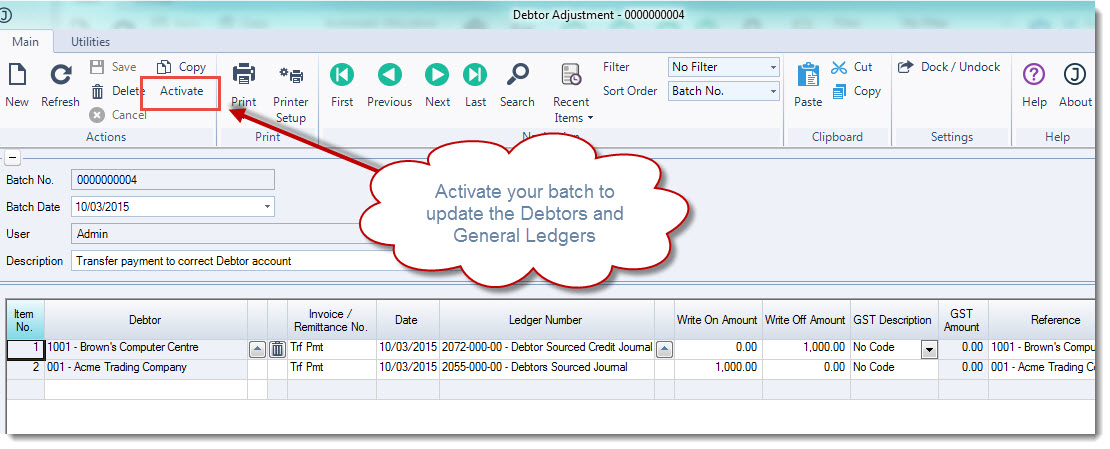
From the menu ribbon select Activate to close your batch from further editing and to update the Debtors and General Ledgers.
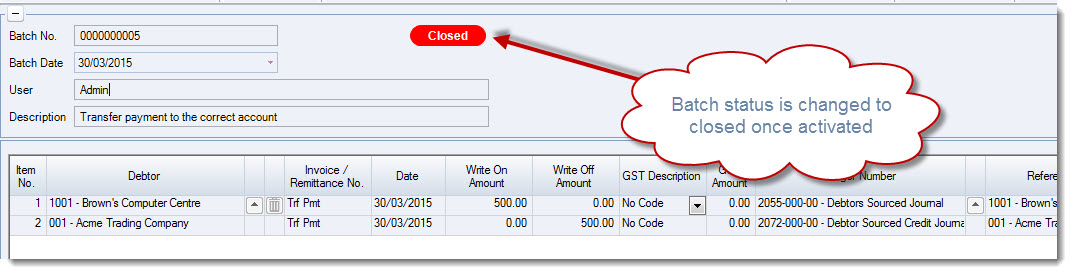
Once Activated that batch status is updated to Closed
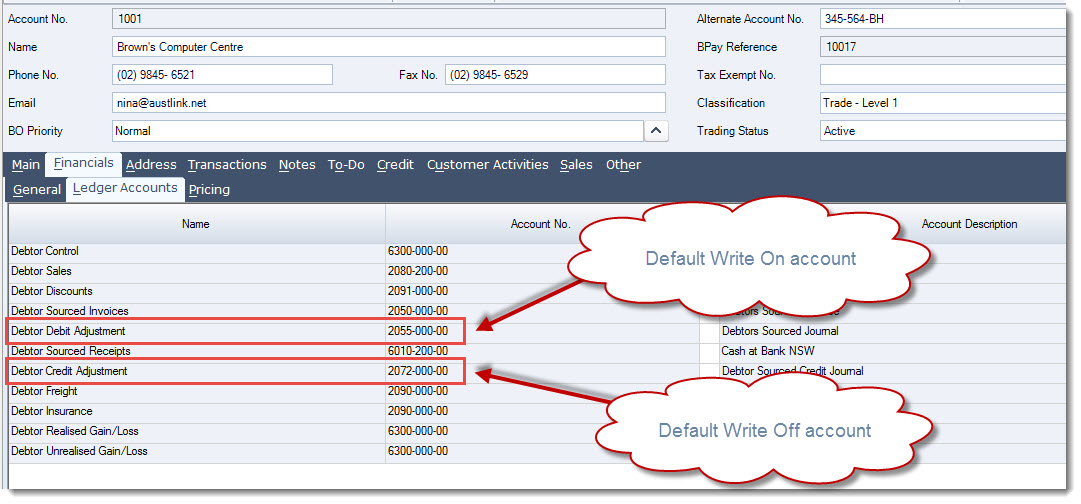
Default Ledger Numbers
The default ledger numbers in the Debtor Adjustment form are taken from the control accounts set against the Debtor account.
These can be set to a generic Debtors Adjustment account if required.
This video is best seen on the full screen. Just click on the icon at the bottom right of the video (see image below). To exit full screen just press escape