
Supplier Return Requests are used in Jiwa to start the supplier return process. A request can be raised when goods need to be returned, replaced, or when a pricing credit needs to be claimed from the supplier.
This article explains how to create a Supplier Return Request in Jiwa. This is the first step in the supplier return process and allows the return or credit claim to be recorded before any stock movement or supplier credit processing occurs.
At the request stage, there is no impact on inventory quantities or the General Ledger. Stock and financial updates occur later in the process, depending on whether Supplier Return Shipping and Supplier Return Credit are used.
|
Step |
Required? |
Purpose |
Inventory / ledger impact |
|---|---|---|---|
|
Supplier Return Request |
Optional |
Records the initial request for a return, replacement, or pricing credit with the supplier. |
No inventory or General Ledger impact. |
|
Supplier Return Shipping |
Optional |
Used when goods are being returned or exchanged. Stock is transferred to the In Transit location until the supplier credit is received and processed. |
Inventory is updated to reflect the transfer to In Transit, and journal entries are created for the stock movement. |
|
Supplier Return Credit |
Mandatory |
Records the supplier credit note for local or imported stock. |
Updates creditors and creates the required financial postings. |
In Transit location required
If your business uses Supplier Return Requests or Supplier Return Shipping, an In Transit location should be created in each applicable physical warehouse.
Supplier Return Request
A Supplier Return Request is a request that is recorded in Jiwa for the return, replacement or pricing credit for stock purchased.
As this is only a request there is no impact in the stock ledger, in other words the stock you intend to return is still available for sale in Jiwa.
This is an optional step in the supplier return process if your business process does not include raising requests in Jiwa you can go to the next step Jiwa PO's - Supplier Return Shipping
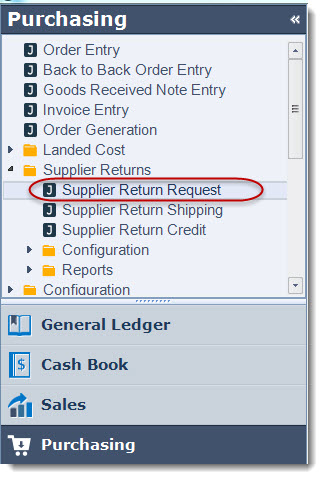
From the menu select Purchasing | Supplier Returns | Supplier Return Request from the menu
Select New from the menu ribbon

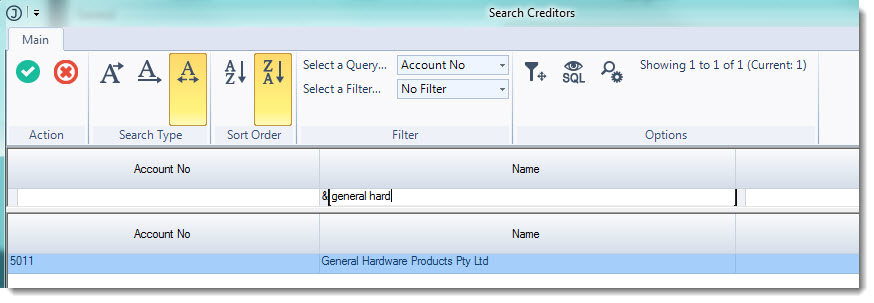
Select your supplier from the Creditors search form
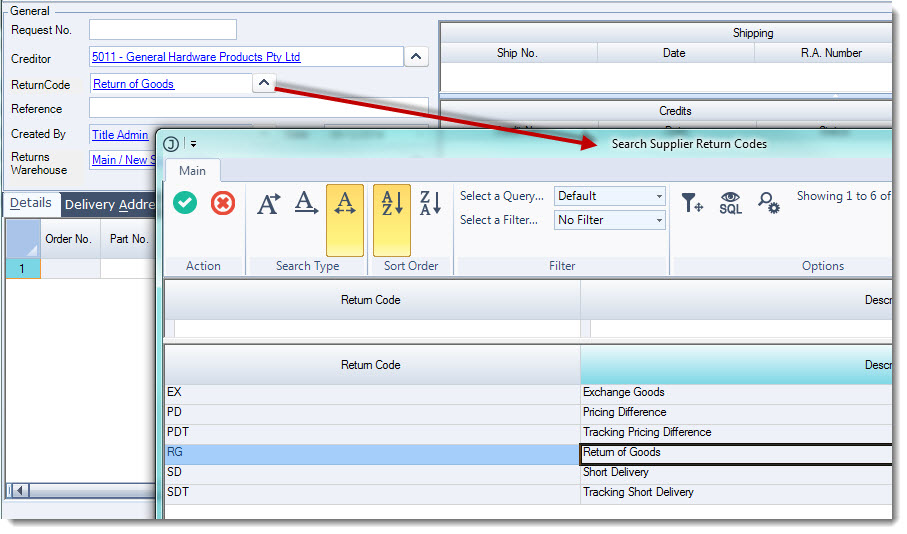
Select the Return Code by clicking on the lookup icon next to the field or accept the default code.
Remember: The return code dictates how the Inventory, Creditors and General Ledgers are updated and are explained in more detail in our article Jiwa PO's - Supplier Return Codes.
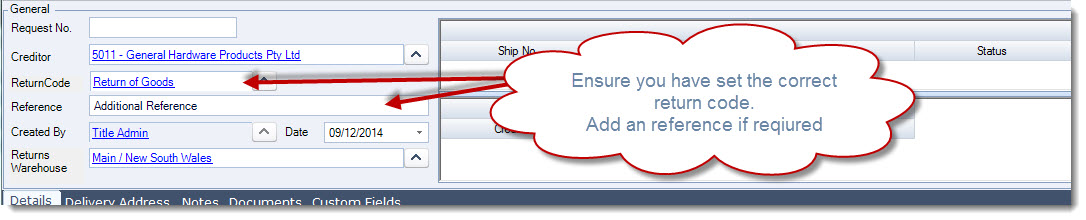
Add a reference if required.
In the Details tab add your required items by entering in the part number, or clicking on the lookup icon next tot he Part No. field to bring up your Search Inventory form.
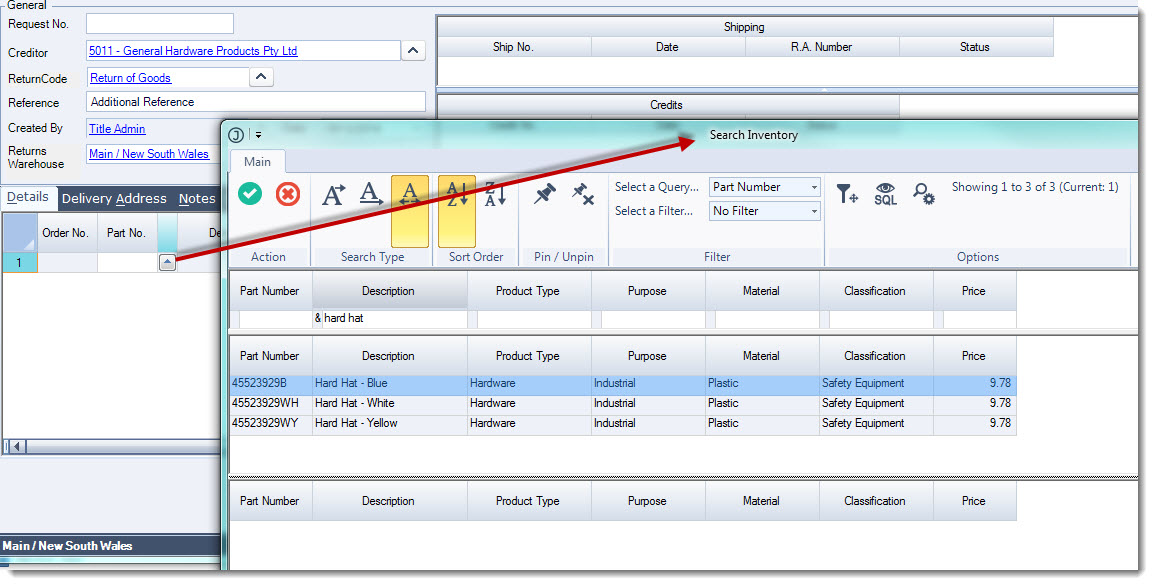
Select the items required for the return request and press the Select & Close icon from the menu ribbon.
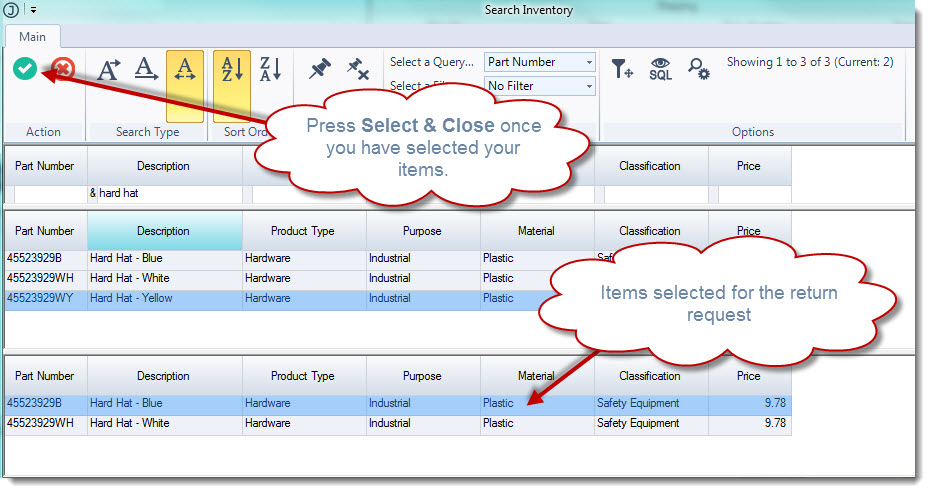
Your items will be loaded into the Details grid.
Enter in the quantity to be returned in the Quantity field this will activate the receipt selection form.
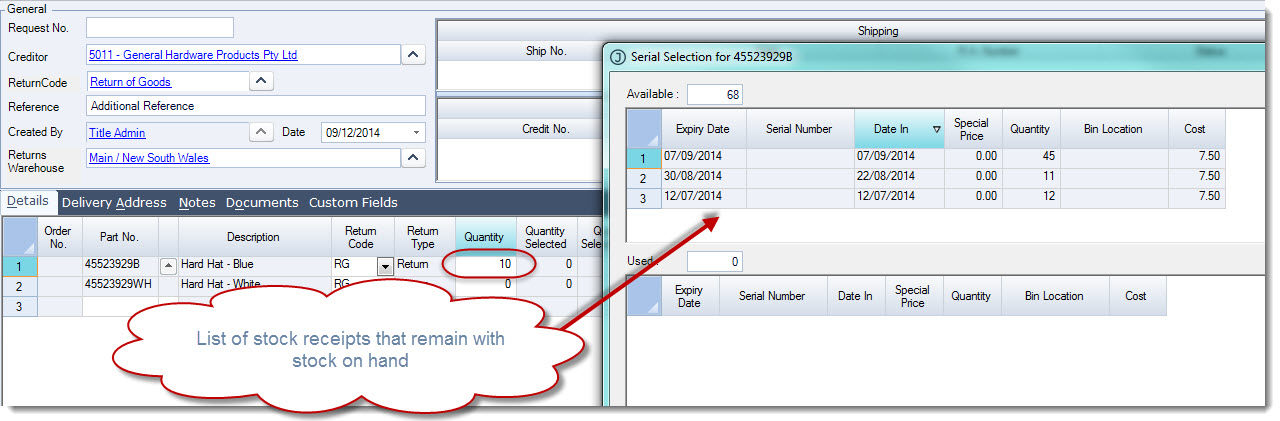
If you are returning stock from a specific receipt than select that receipt alternatively you may just select the stock from the oldest date.
Select your batch to return the stock from this will then activate the quantity to be returned form.
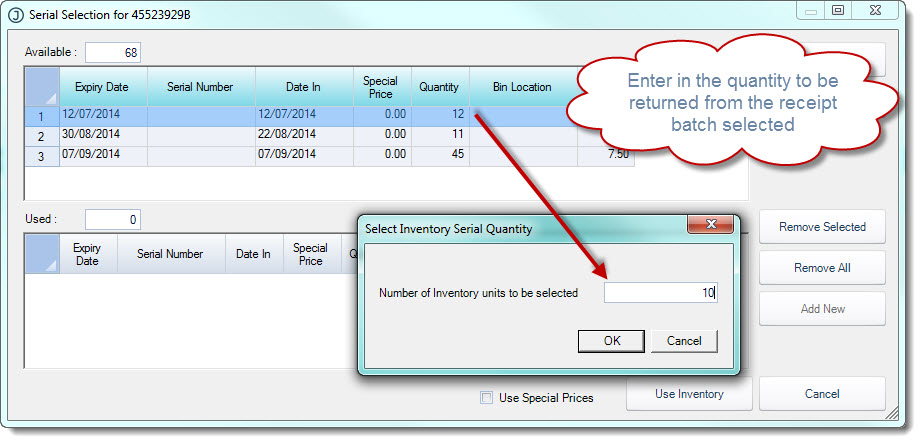
Enter in the quantity to be returned from the selected receipt batch and select OK.
This will populate the selection grid in your selection form.
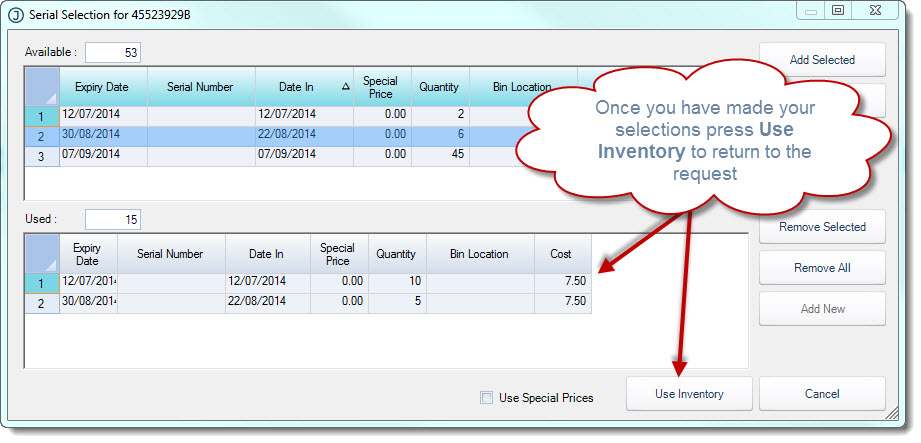
When you have made your selections press the Use Inventory icon to return to the Supplier Return Request form.
Review and update the Unit Return Value and FX Rate as required. This is the unit price you are expecting back from your supplier.
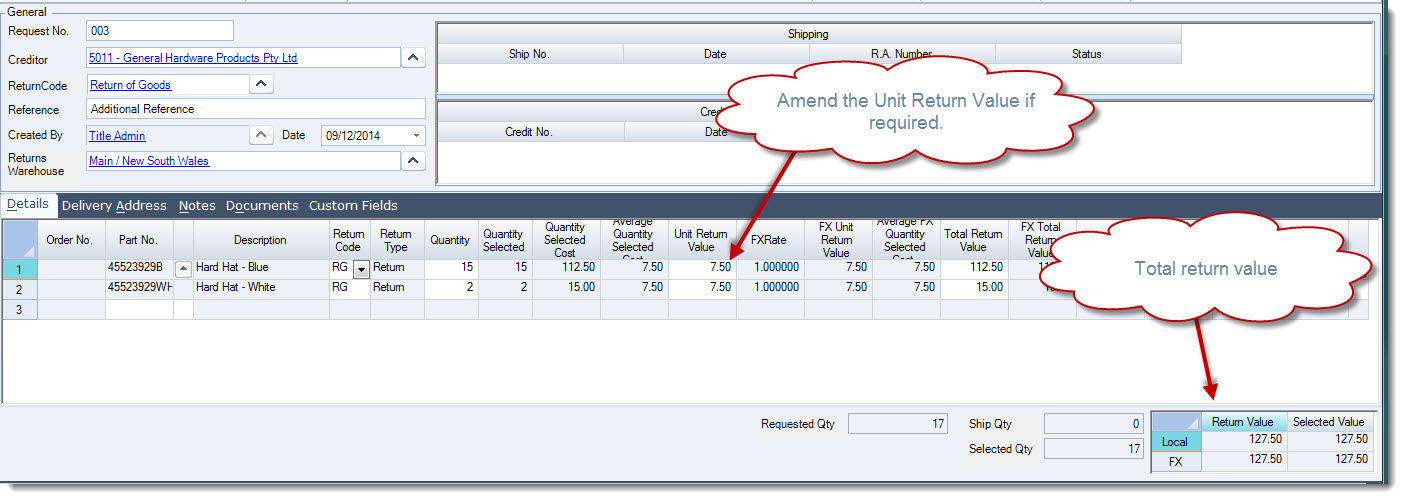
The Unit Return Value and FX Unit Return Value that is populated into the grid is the landed cost value for the selected receipts.
When returning stock to overseas suppliers you will need to change the FX Unit Return Value to the value you are expecting back from your supplier.
Any differences between the Selected and Return values is posted to the Cost Price Adjustment control account linked to the inventory item when the supplier return credit is processed.
Continue this process for each item on your return request.
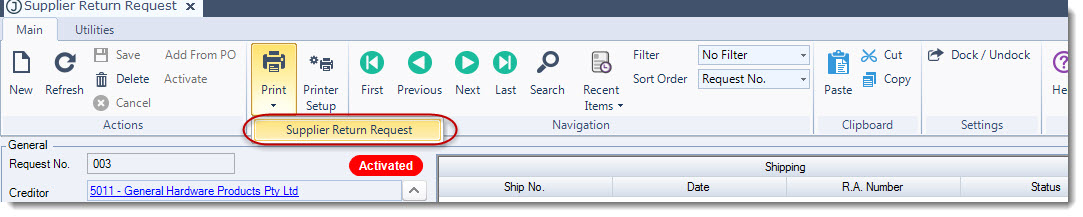
Select Save and Activate from the menu ribbon when you have completed your request.
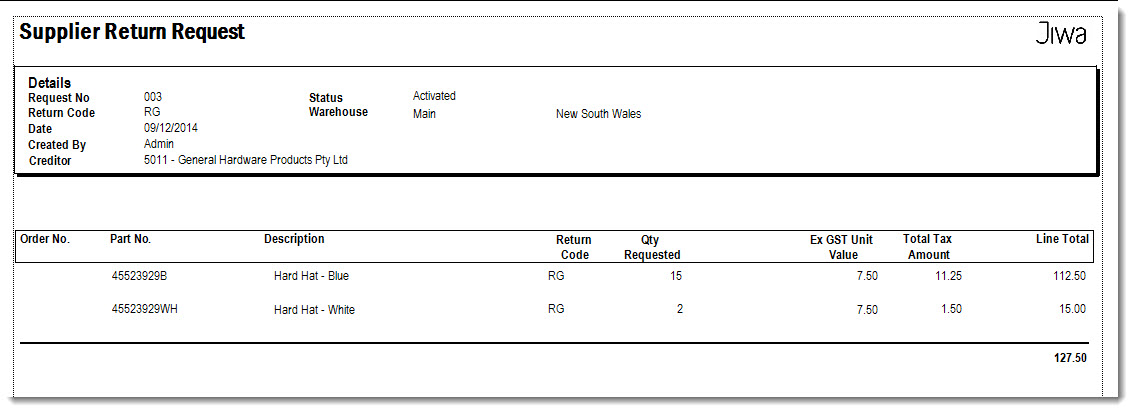
Select Print from the menu ribbon to print your supplier return request report.
Video walkthrough