
Supplier Return Credit is the final step in the supplier return process and is used to record the supplier credit note in Jiwa.
This article explains how to create a Supplier Return Credit. If a Supplier Return Shipping document has already been created, the credit can be processed as the next and final step in the return process. If your business does not use Supplier Return Shipping, a Supplier Return Credit can also be created directly.
Supplier Return Credit is the only mandatory step in the supplier return process.
|
Step |
Required? |
Purpose |
|---|---|---|
|
Supplier Return Request |
Optional |
Records the initial request for a return, replacement, or pricing credit. |
|
Supplier Return Shipping |
Optional |
Transfers returned stock to the In Transit location while waiting for the supplier credit. |
|
Supplier Return Credit |
Mandatory |
Records the supplier credit note and completes the supplier return process. |
Supplier Return Credit - No Shipping Document
Here we will be looking at creating a supplier return credit without a shipping document.
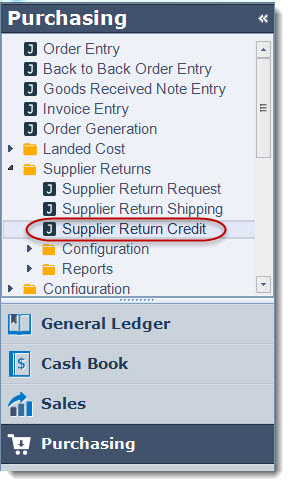
From the menu select Purchasing | Supplier Returns | Supplier Return Credit from the menu
From the menu ribbon select New

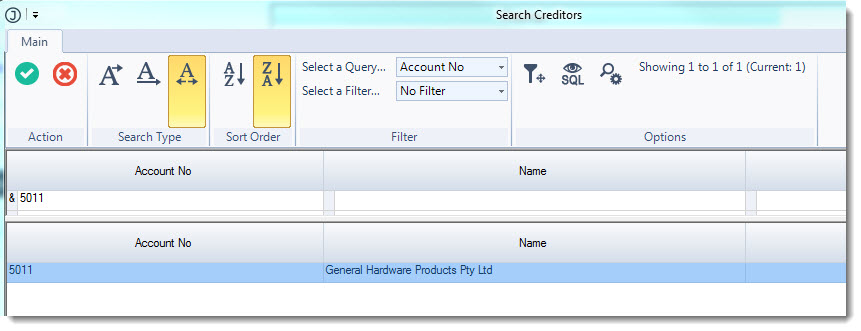
Select your required creditor from the Creditors search form
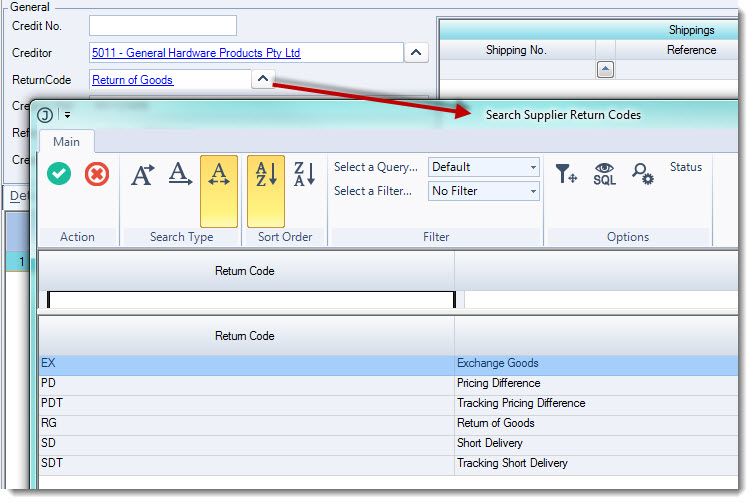
Select the return code applicable to the supplier credit, use the lookup icon next to the ReturnCode field to bring up the list of available codes.
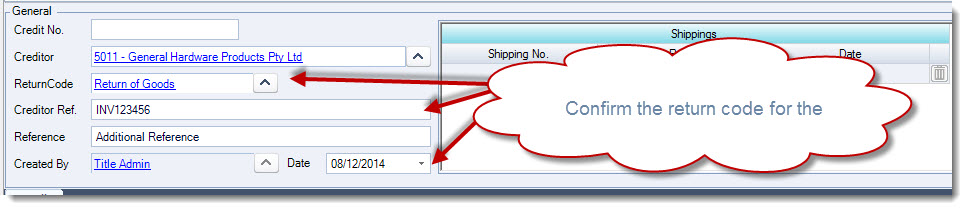
In the Creditor Ref. field enter in your creditor's credit note number.
Additional references can be added in the Reference field
Confirm the transaction date
Enter in your parts in the Details tab grid
In the Quantity To Credit field enter in the number of units the credit note is for, this will activate the cost batch selection form
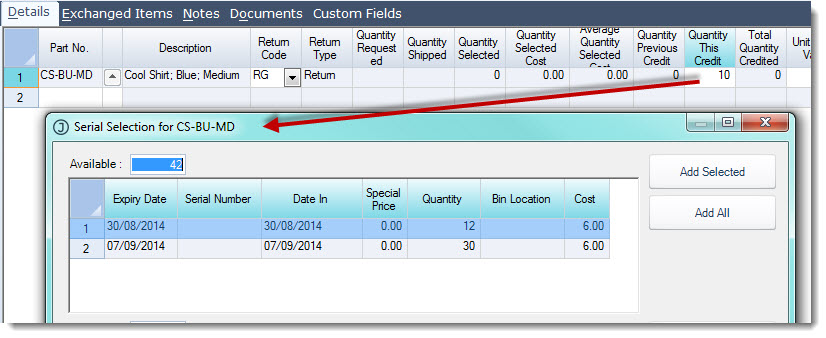
Select the batch the that stock is to be taken from by double clicking on the batch, this will activate the quantity dialog box.
Enter in the quantity to be returned from the selected batch and select OK
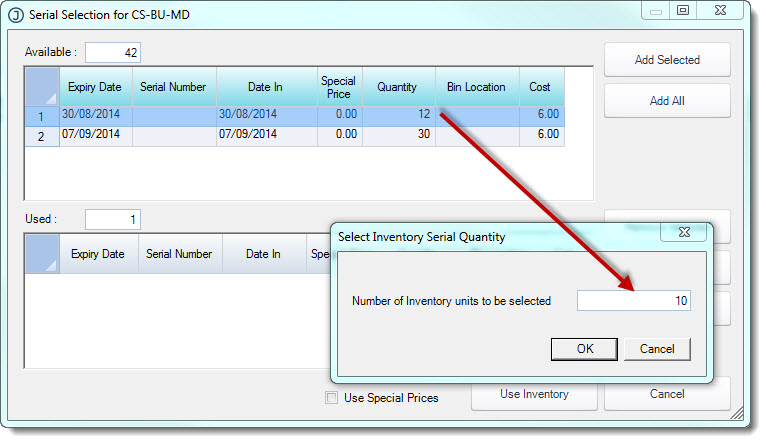
This will add the item to the selection area of your dialog box.
Repeat the above process for the item selected until you have the required return quantity.
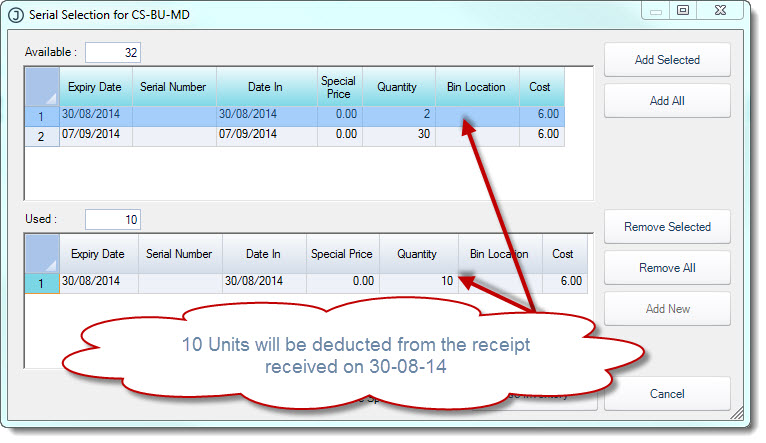
Select Use Inventory to return to the Details tab grid.
Confirm the credit value amend the Unit Credit Value if required
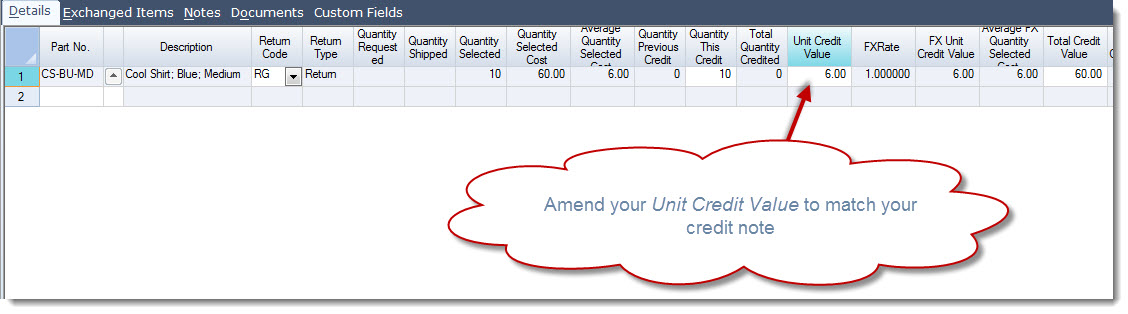
Repeat this process for each item on the credit note.
The total credit value is displayed at the bottom of your form.
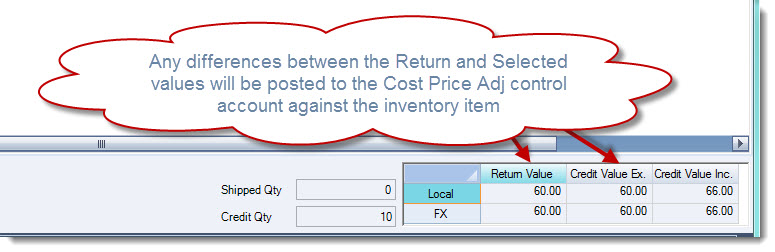
Select Save and Activate when you have completed your return credit.
On activation the Inventory, Creditors and General Ledgers will be updated and the supplier return credit is locked from further editing.
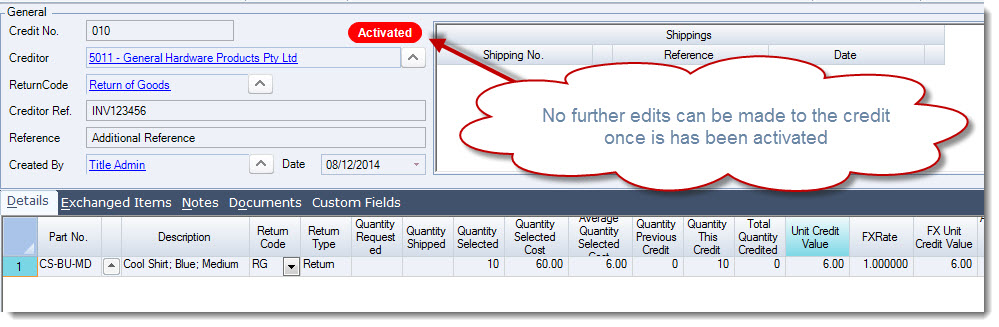
Supplier Return Credit - Using Shipping Document
Here we will be looking at creating a Supplier Return Credit based on a Supplier Return Shipping document.
Create your new Supplier Return Credit and complete the General information section.

Bring in your shipping document by clicking on the lookup icon next to the Shipping No field to activate the Supplier Return Requests search form.
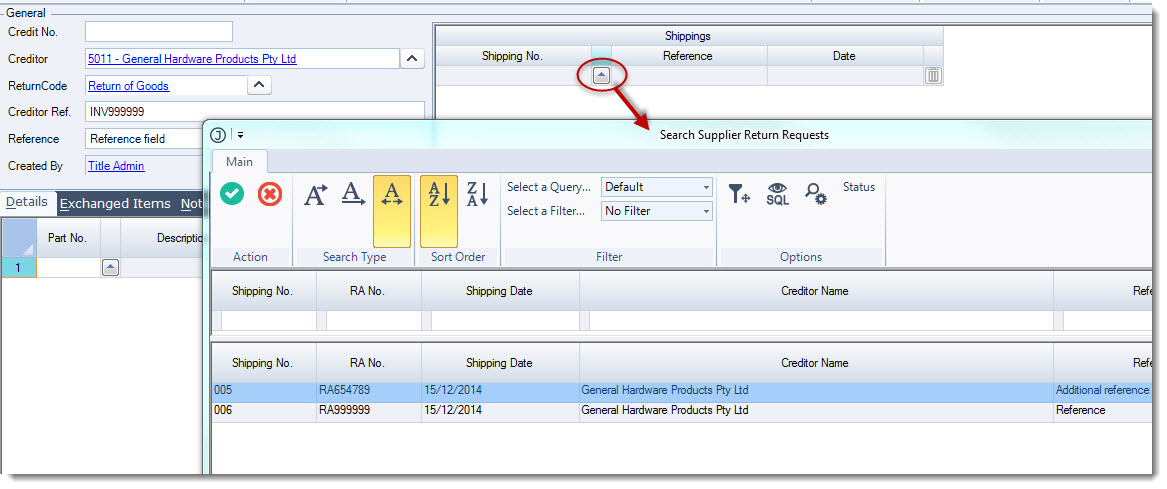
Select the required return request and from the menu ribbon click on Select and Close to load the request into your details grid
Add additional return requests to the credit if required.
You will notice that the Shippings grid will be populated with the return requests that have been added to this Supplier Return Credit.
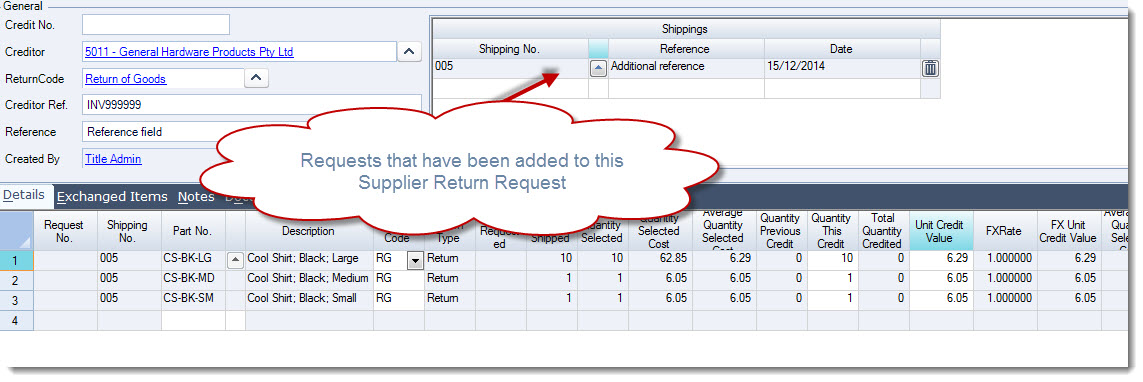
Amend the Quantity this Credit and Unit Credit Value as required.
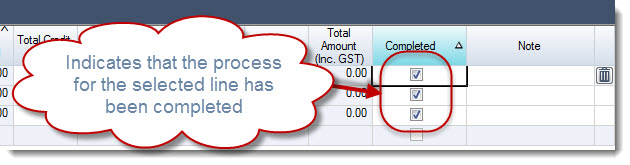
Tick the Completed check box against each line, this will indicate the the return for this part is complete and no further credits are expected.
Save and Activate your return credit when complete.
Video walkthrough