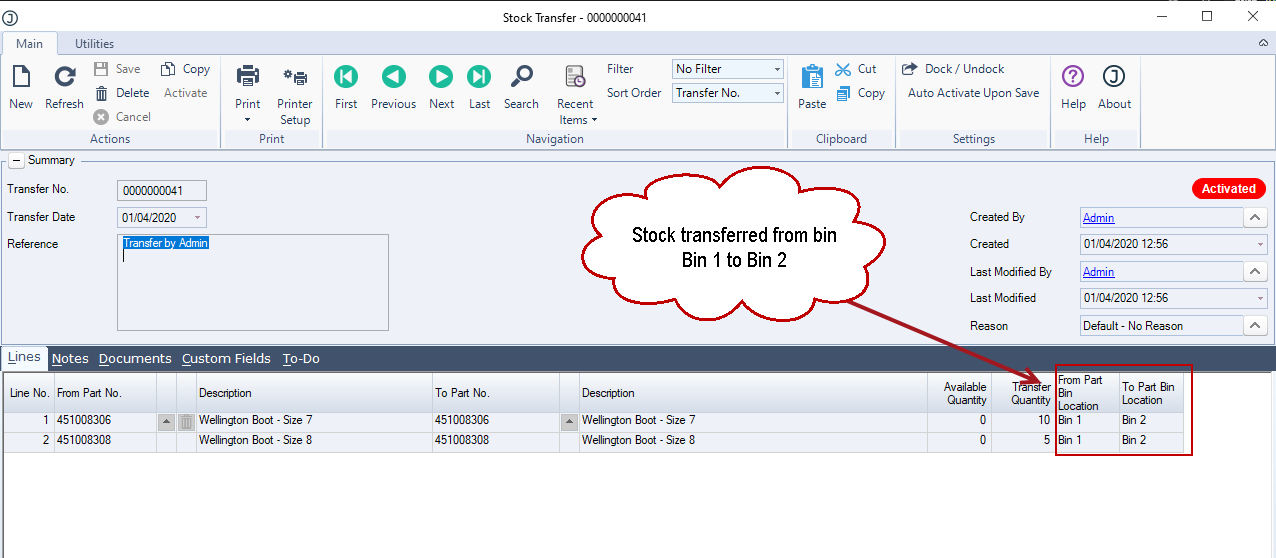
In this article we look at how to transfer individual stock items between bin locations in a warehouse using ASPluris.
Transfer Stock
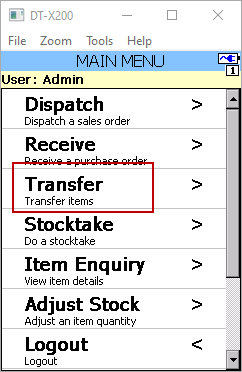
From the Main Menu select Transfer
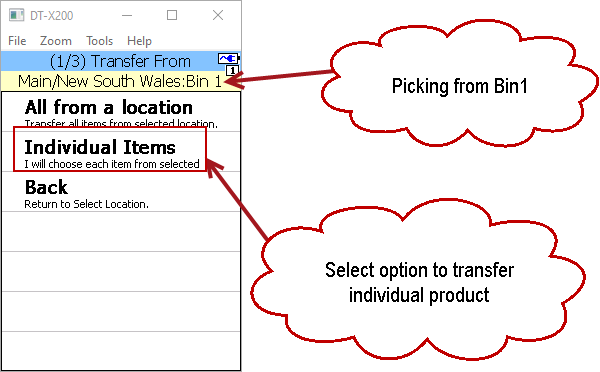
Scan the Bin Location barcode you want to move stock out of.
If your bin locations are not barcoded then click on the Pick button to select your bin location.

To transfer an individual item or some items from the selected bin location select the Individual Items option from the menu.
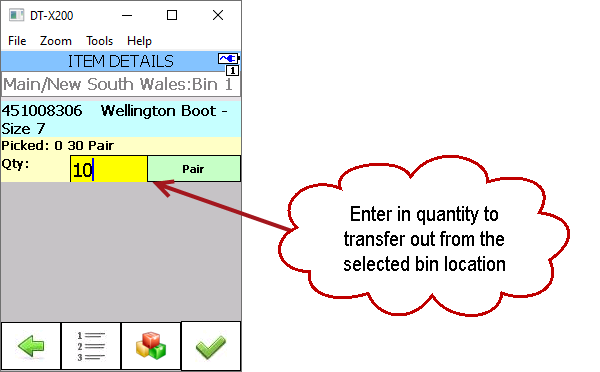
Scan the barcode of the item you want to move out of the bin location.
Enter in the quantity to be transferred.
Note: ASPluris via the configuration module can be configured to allow users to manually key in quantities to be transferred or users are required to scan each item being transferred.
Press the Select green tick box to return to the Transfer Pick screen which will display the items picked for transfer.
Repeat this process for any other items you need to transfer out of the selected bin location.
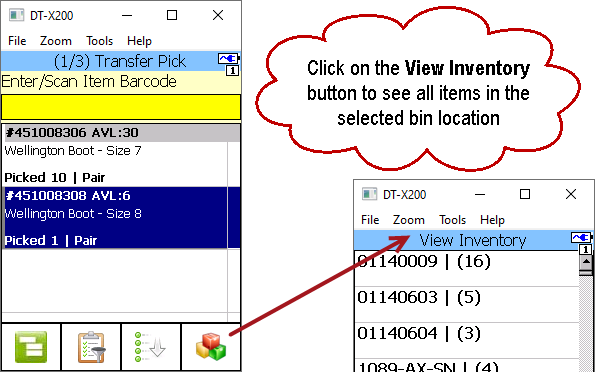
Once you have completed your selection of items to transfer, press the Menu button.
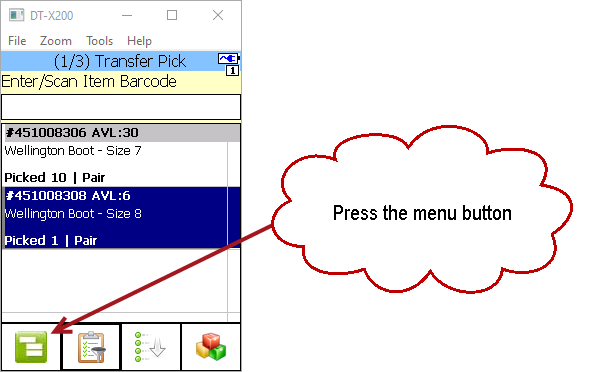
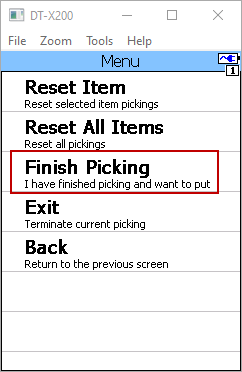
From the menu select Finish Picking.
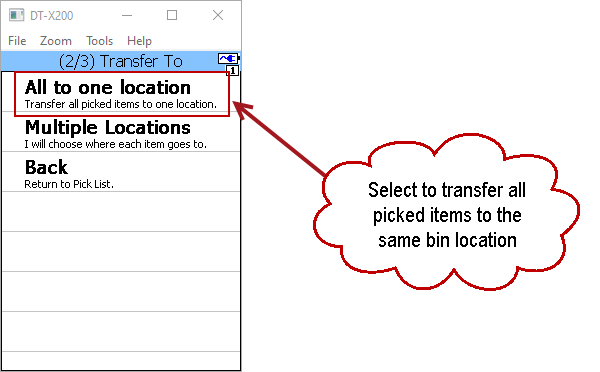
In this example we are transferring all the picked items to the one location.
At the Transfer To menu select All to one location
Scan the bin location barcode or press the Pick button to select the bin location stock is to be transferred to.
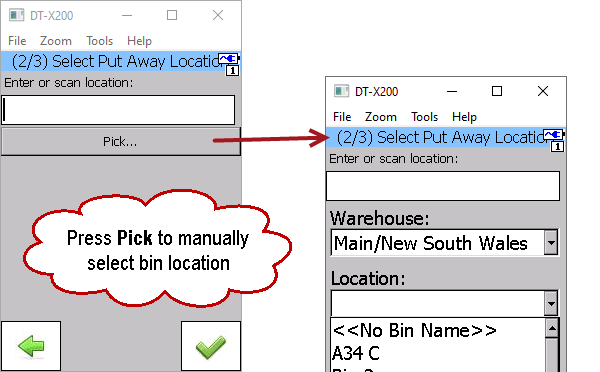
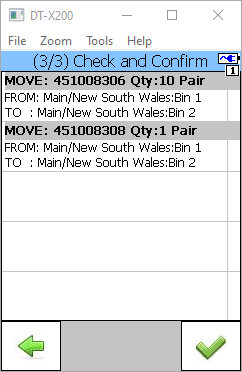
Once you have selected the bin location stock is being transferred to, the items to be transferred are displayed on the screen for review.
To complete the transfer press the Select green tick button.
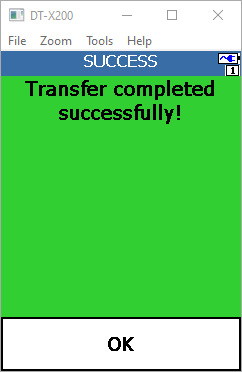
Once the transfer is complete the following message is displayed.
Press OK to return to the main menu.
Once the transfer is completed in ASPluris a Stock Transfer is created and activated in Jiwa transferring the stock from one bin location to another.