In this article we look at how to undertake a stocktake using ASPluris.
Jiwa Stocktake
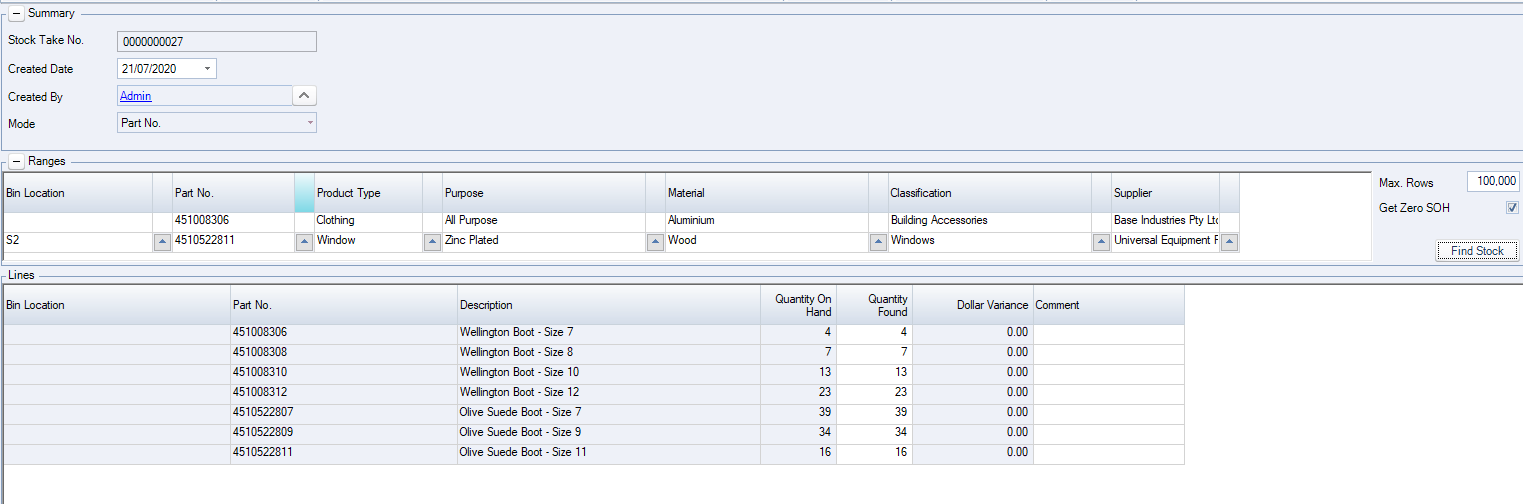
A stocktake must first be created in Jiwa before you can start your stocktake using ASPluris.
Create and save your stock take in Jiwa.
ASPluris does not take into account the stock take Mode so this can be left at Partno.
ASPluris Stocktake
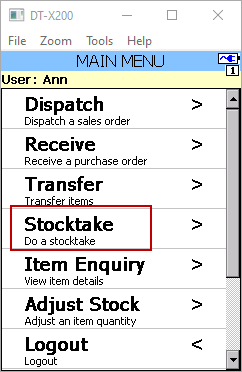
Log into ASPluris on your scanner.
From the Main Menu select Stocktake.
Available stocktakes are listed on the screen.

Select the required stocktake and then scan or pick the location you are about to count.
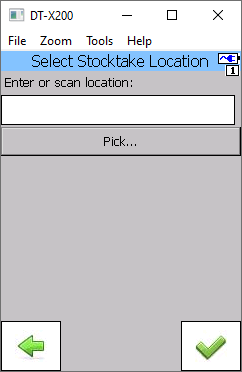
If your bin locations are not barcoded click on the Pick button to select bin locations.
When you have selected your bin location press the Select (tick) icon
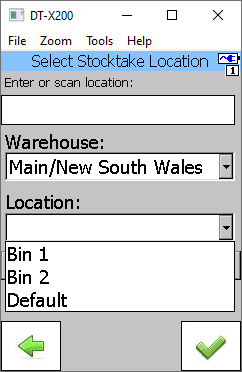
Once you have selected your bin location the screen will display items not counted.
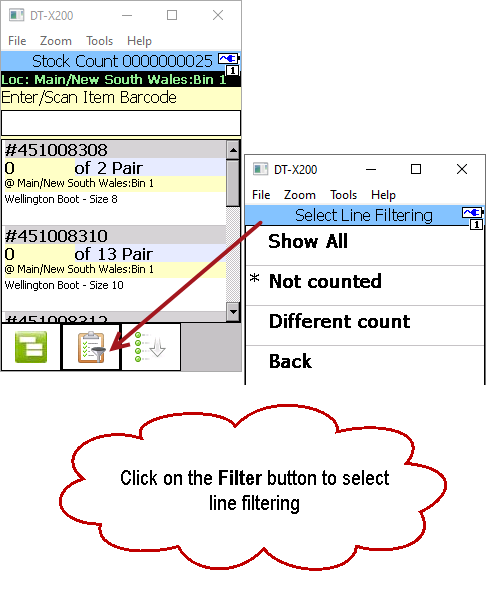
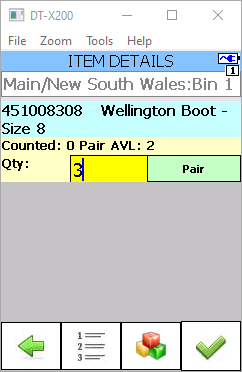
Scan / select the items to count.
Note: Default quantities and over counting is controlled through the ASPluris configuration module.
As items are counted in ASPluris they will be removed from the screen, use the line filter to view the quantities counted.
Repeat the process for each bin.
To submit the count quantities click on the Menu button to return to the stocktake menu.
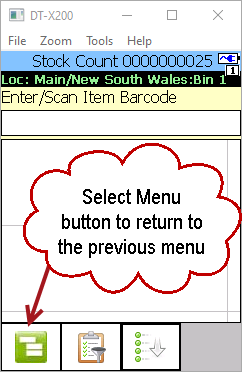
From the stocktake menu then select Submit
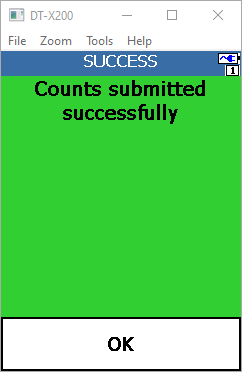
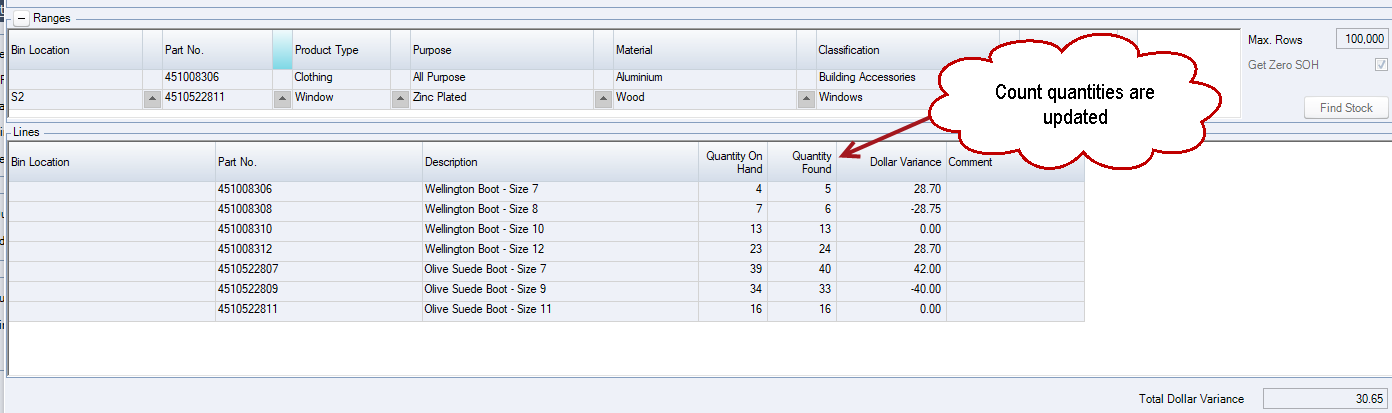
In Jiwa the stocktake has been updated with the counted quantities.
Review the variances and Activate to complete the stocktake.