
We’re currently updating our website to a new platform. We’re still operating as usual, but some pages may be under construction. Thank you for your patience.
Jiwa Training Centre

Dispatching Sales Orders Partial

In this article we will look at how to part pick a sales order in ASPluris and push the picked quantities back up to Jiwa.

When a sales order if fully picked in ASPluris the picked quantities are automatically sent back to Jiwa once the last item on the order is picked. In instances where the order cannot be picked in full due to stock shortages, or stock rationing then the order can be manually pushed back to Jiwa for invoicing.

First Snapshot Pick

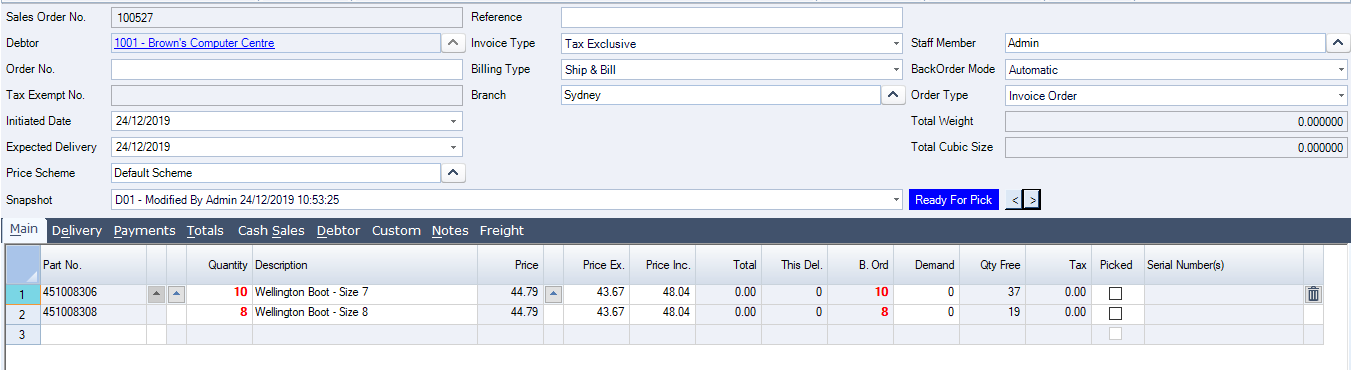
In this example we will only part supply each line.
https://austlinkwebresources.s3.amazonaws.com/www.jiwatraining.com.au/articles/ASPluris-Dispatching-Sales-Orders-Partial/24-12-2019%2010-58-06%20AM.png


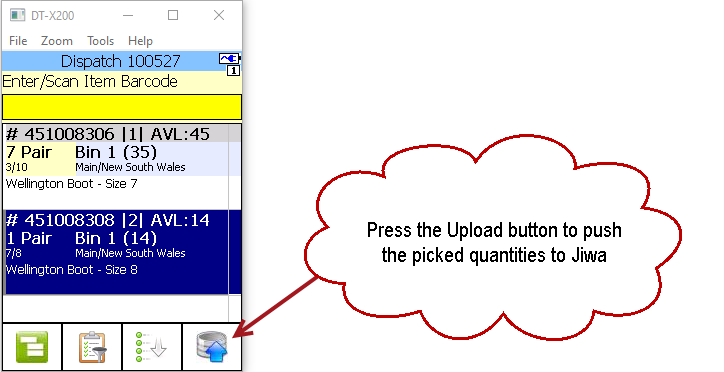
The picked stock is scanned, note that the line items continue to display in ASPluris as they have not been picked in full.

https://austlinkwebresources.s3.amazonaws.com/www.jiwatraining.com.au/articles/ASPluris-Dispatching-Sales-Orders-Partial/24-12-2019%2011-01-44%20AM.png


When you are ready to send the picked quantities to Jiwa, press on the Upload button.
https://austlinkwebresources.s3.amazonaws.com/www.jiwatraining.com.au/articles/ASPluris-Dispatching-Sales-Orders-Partial/24-12-2019%2011-04-09%20AM.png


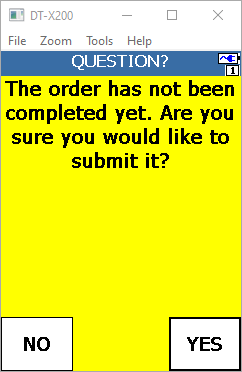
The following message is displayed, select Yes.
https://austlinkwebresources.s3.amazonaws.com/www.jiwatraining.com.au/articles/ASPluris-Dispatching-Sales-Orders-Partial/24-12-2019%2011-05-24%20AM.png


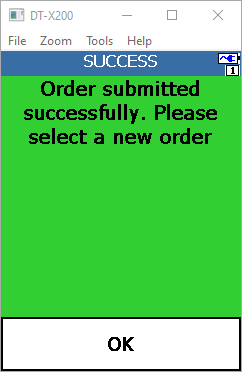
When the order has been submitted the following message is displayed to the user.

Select Ok to continue.
https://austlinkwebresources.s3.amazonaws.com/www.jiwatraining.com.au/articles/ASPluris-Dispatching-Sales-Orders-Partial/24-12-2019%2011-07-40%20AM.png


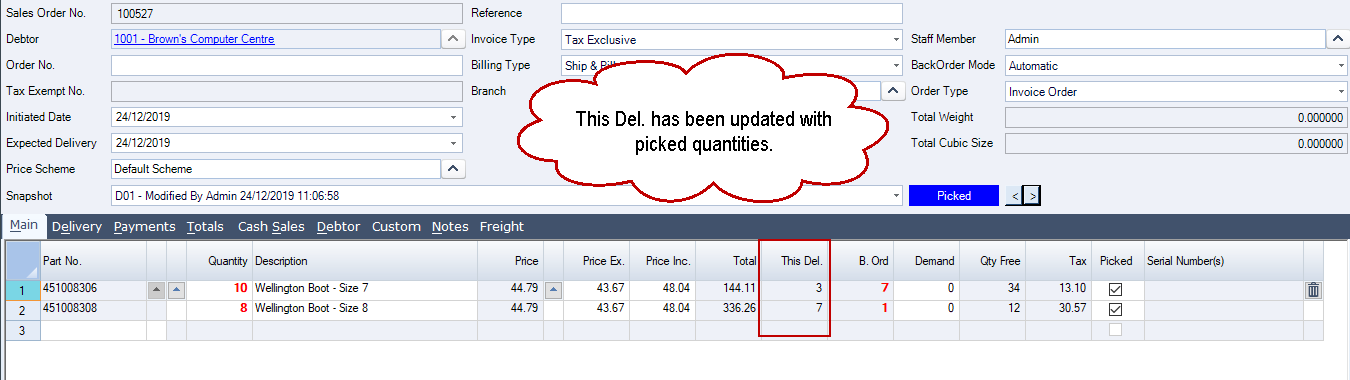
The order in Jiwa is updated with the picked quantities and ready for invoicing.
https://austlinkwebresources.s3.amazonaws.com/www.jiwatraining.com.au/articles/ASPluris-Dispatching-Sales-Orders-Partial/24-12-2019%2011-08-42%20AM.png


Subsequent Snapshot Pick

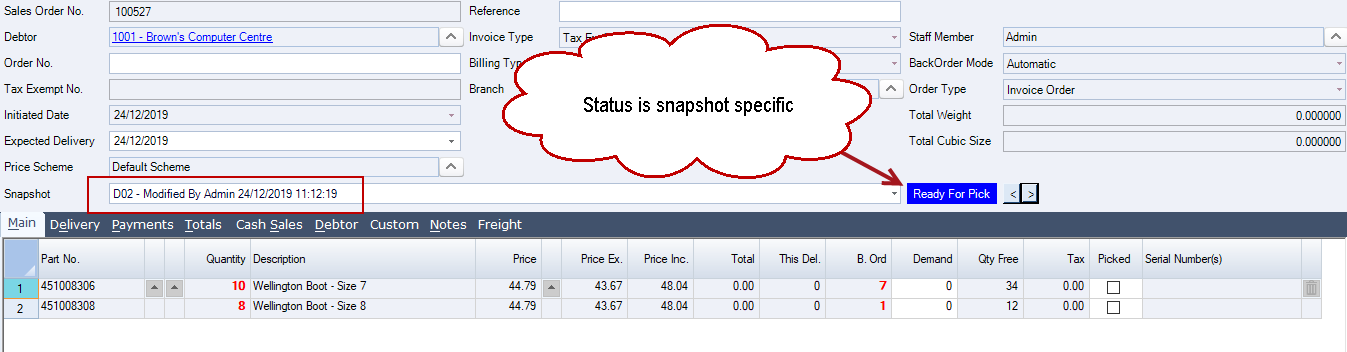
In this example we are going to supply the balance of the order so we need to create the second snapshot on the order.

The Sales Order status is snapshot specific so we need to change the status to Ready for Pick in order for the order to be sent back to ASPluris.
https://austlinkwebresources.s3.amazonaws.com/www.jiwatraining.com.au/articles/ASPluris-Dispatching-Sales-Orders-Partial/24-12-2019%2011-12-27%20AM.png


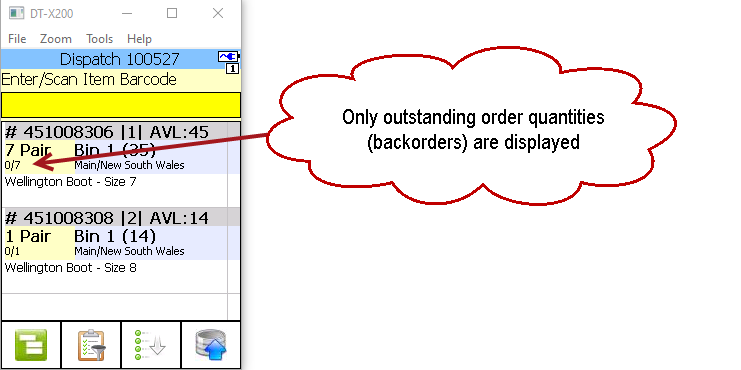
The snapshot is now available in ASPluris for picking.

Note, that only the outstanding order quantities are displayed for picking.
https://austlinkwebresources.s3.amazonaws.com/www.jiwatraining.com.au/articles/ASPluris-Dispatching-Sales-Orders-Partial/24-12-2019%2011-14-16%20AM.png


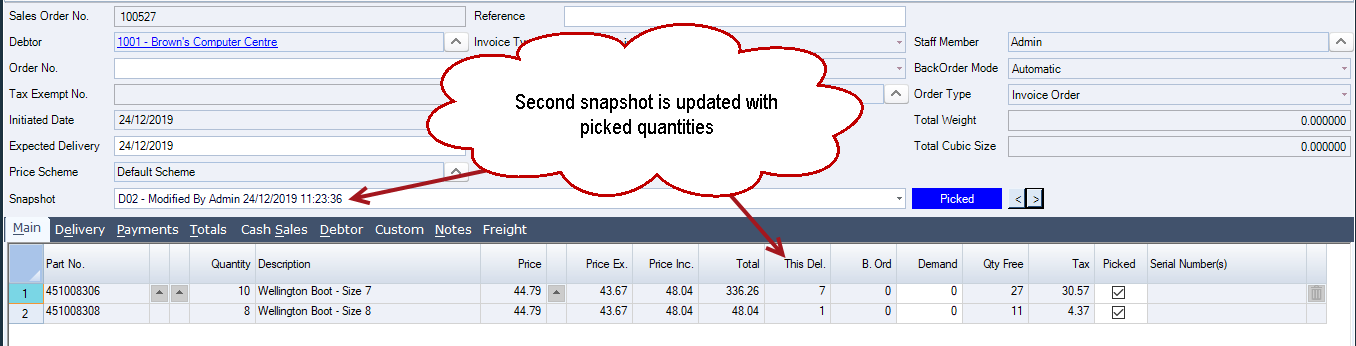
Once the order is completed in ASPluris and the picked quantities sent back to Jiwa the second snapshot is updated and ready for invoicing.
https://austlinkwebresources.s3.amazonaws.com/www.jiwatraining.com.au/articles/ASPluris-Dispatching-Sales-Orders-Partial/24-12-2019%2011-24-00%20AM.png