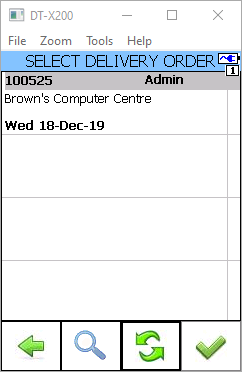
In this article we will look at how to pick sales orders using ASPluris where the entire sales order is being picked.
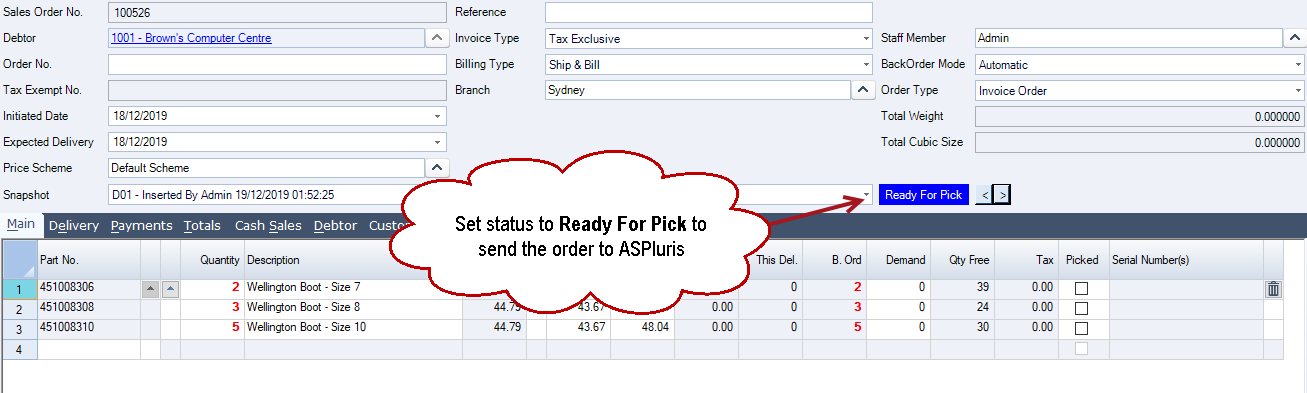
Create your sales order in Jiwa, when the order is ready for picking set the status to Ready For Pick
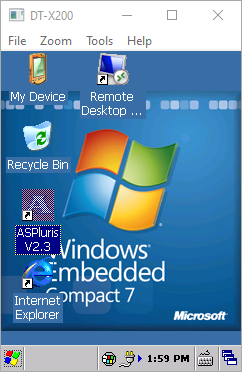
Log into ASPluris on the scanner by double clicking on the ASPluris icon
Select user
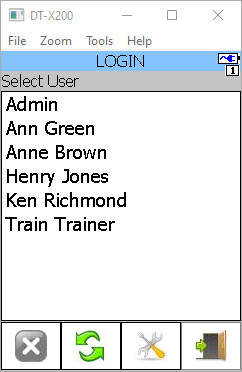
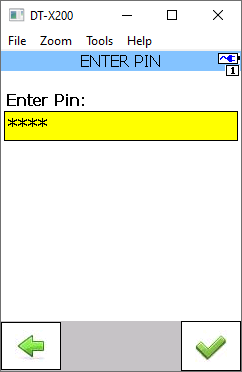
If ASPluris has been configured to enforce user passwords, the user will be prompted to enter in their password.
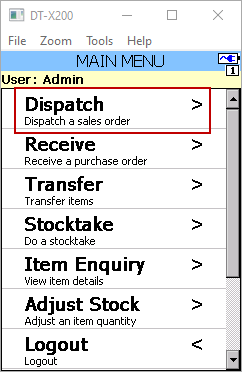
From the Main Menu select Dispatch
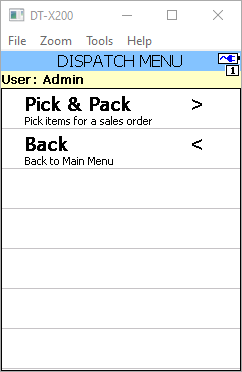
From the Dispatch menu select Pick & Pack
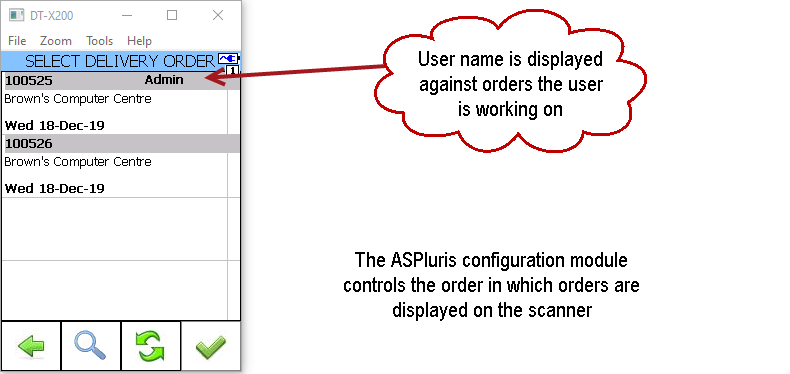
Select the order to be pick from the list by clicking on the order.
Items are displayed on the scanner so the user knows which products to pick and the order the products should be picked
Note: The order in which products are displayed to the user is controlled through the ASPluris configuration module and can be based on a number of different options including bin location.
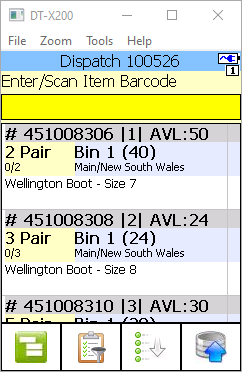
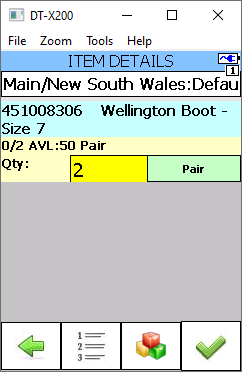
If bin tracking is used then the user will scan the bin location barcode first and then the product barcode and then enter in the quantity being picked.
Note: Quantities picked can be entered in by the user manually or ASPluris can be setup to require each item to be scanned.
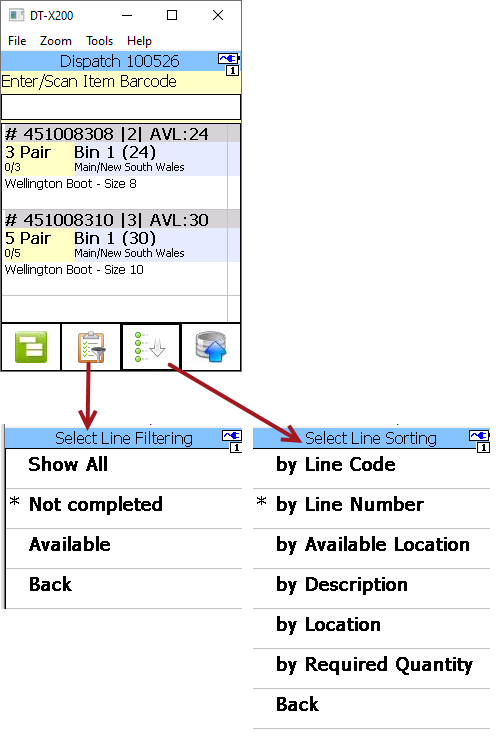
When the quantity orders equals the quantity picked the product line no longer appears on the display
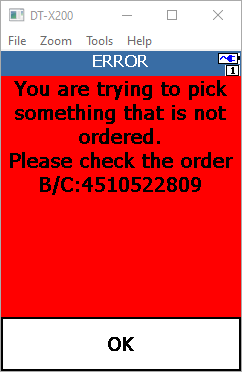
If the user scans a product that is not on the order the following error message is displayed.
The user continues picking the items on the order, once the order is complete the picked quantities are sent back to Jiwa for invoicing.
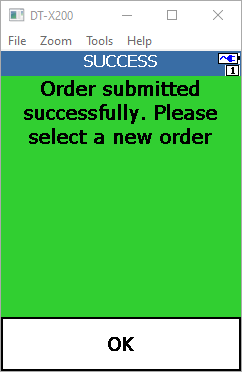
Once the user selects OK they are returned back to the Select Delivery Order screen to start on the next order.