ASPluris can be used to partially pick and dispatch a sales order where the full order cannot be completed.
This article explains how to record the quantities picked in ASPluris and send those quantities back to Jiwa for further processing and invoicing.
When a sales order is fully picked, ASPluris automatically sends the picked quantities back to Jiwa after the final item is completed. If the order cannot be picked in full because of a stock shortage, stock rationing, or another fulfilment issue, the partially picked quantities can be sent back to Jiwa manually.
First Snapshot Pick
In this example we will only part supply each line.
The picked stock is scanned, note that the line items continue to display in ASPluris as they have not been picked in full.

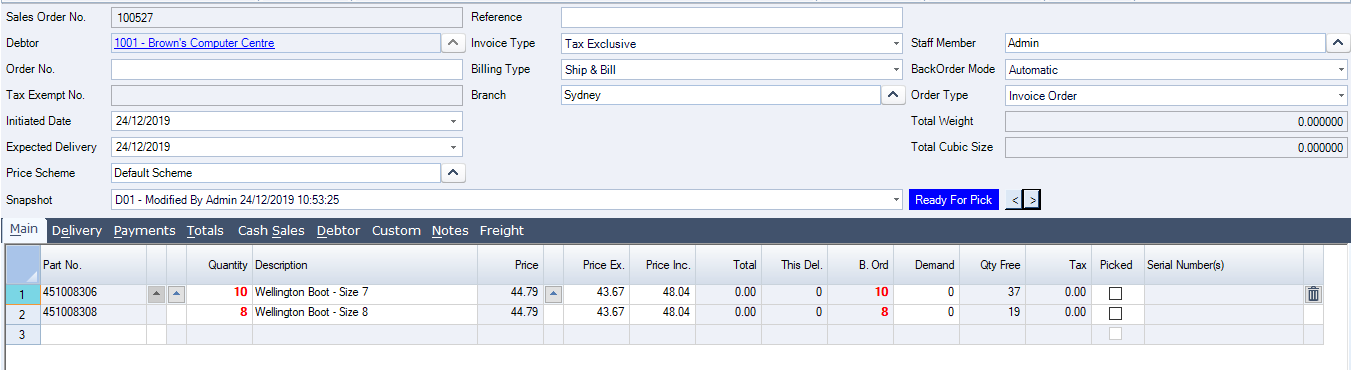
When you are ready to send the picked quantities to Jiwa, press on the Upload button.
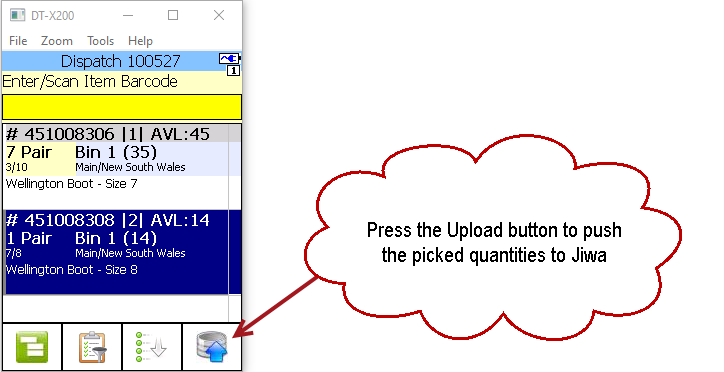
The following message is displayed, select Yes.
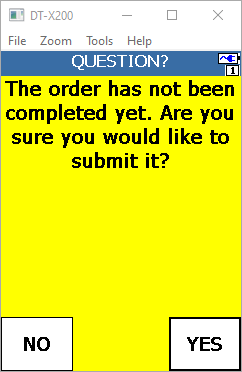
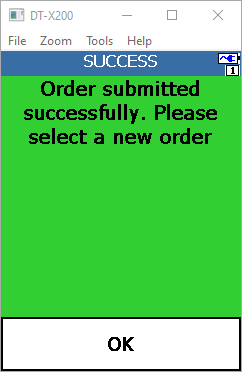
When the order has been submitted the following message is displayed to the user.
Select Ok to continue.
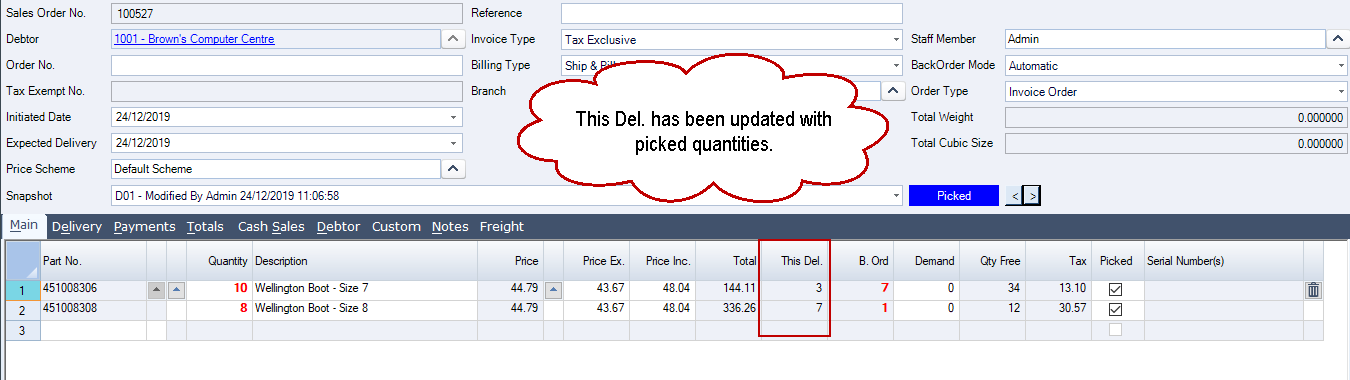
The order in Jiwa is updated with the picked quantities and ready for invoicing.
Subsequent Snapshot Pick
In this example we are going to supply the balance of the order so we need to create the second snapshot on the order.
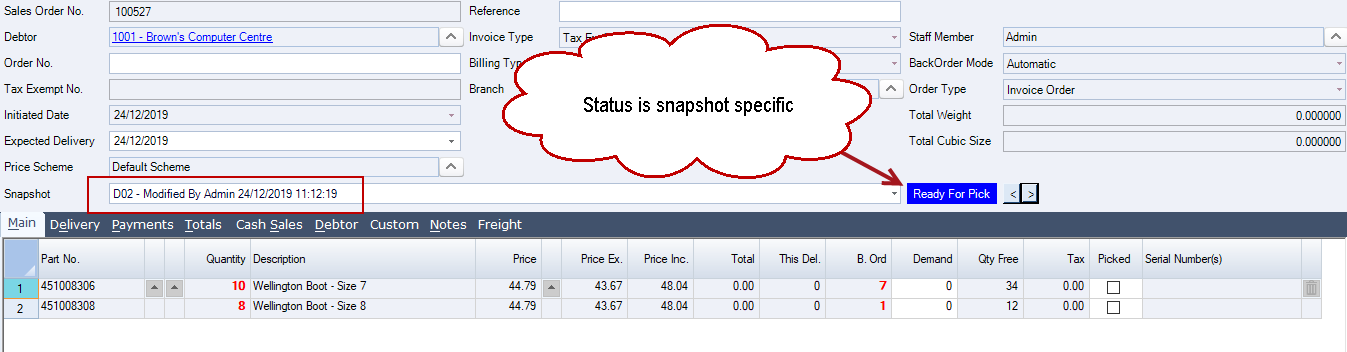
The Sales Order status is snapshot specific so we need to change the status to Ready for Pick in order for the order to be sent back to ASPluris.
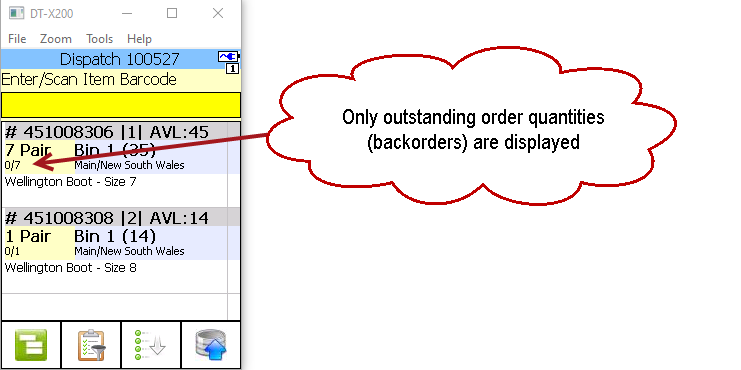
The snapshot is now available in ASPluris for picking.
Note, that only the outstanding order quantities are displayed for picking.
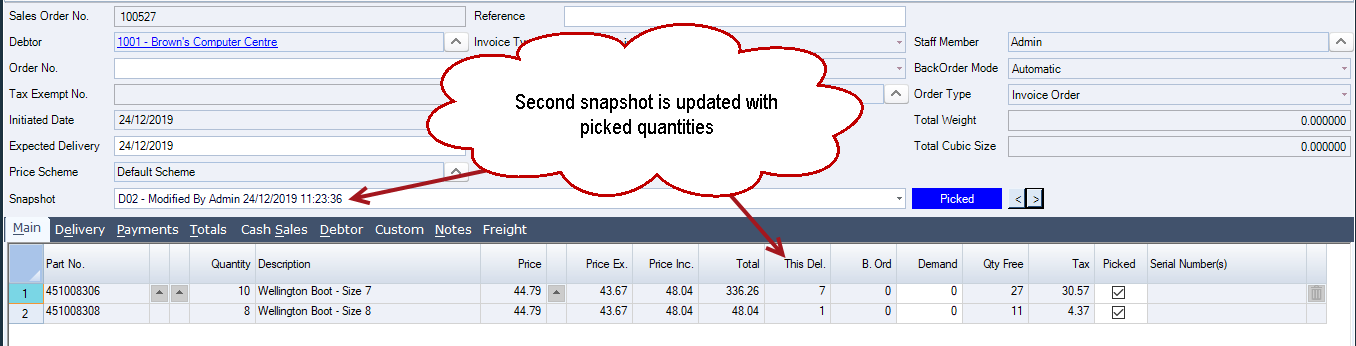
Once the order is completed in ASPluris and the picked quantities sent back to Jiwa the second snapshot is updated and ready for invoicing.