SMS alert templates are used to define the message content, trigger, and recipient rules for automatic SMS messages sent from Jiwa.
This article explains how to create SMS alert templates using examples from different Jiwa forms. These examples show how template setup can vary depending on the form, trigger, and contact details used to send the SMS message.
Contacts and mobile numbers
Before an SMS alert can be sent, Jiwa must be able to identify the mobile number the message should be sent to.
Automatic SMS alerts are sent to the contact details defined by the alert setup. For example, sales order alerts may be sent to the delivery contact on the sales order, while Debtor Maintenance alerts may be sent to contacts linked to a specific contact position.
Before creating an SMS alert template, check that the required contacts and mobile numbers are set up correctly in Jiwa.
Delivery Contact
When an alert is setup and the To field in the header section is set to Delivery Contact, Jiwa will use the mobile number of the contact that is captured in the Contact Name field on the Delivery Address tab of the Sales Order.

Contact Position
When an alert is setup and the To field in the header section is set to Contact Position, Jiwa will use the mobile number of the contact that is linked to the relevant contact position in Debtor Maintenance.
If you have multiple contacts linked to the selected contact position on your SMS alert template then all contacts will receive the alert.

Before you start creating alert templates make sure you have created your required contact positions and updated your Debtor accounts accordingly.
Debtor Maintenance Alert
In this first example we will look at how to create a new SMS alert template that will send out an automatic reminder to all customers with overdue invoices.
An initial message is sent to the customer when the invoice is past it's due by date and and then an alert will be sent out every 5 days to customers until the invoice is settled.
From the menu ribbon select New
In the Template Name field enter in a name for your new alert
In the Description field enter in a description for the template or it's purpose.

In the Header section start at the Form field and select Debtor Maintenance
In the To field select Contact Position
From the Contact Position drop down box select the contact position you want alerts to be sent to.
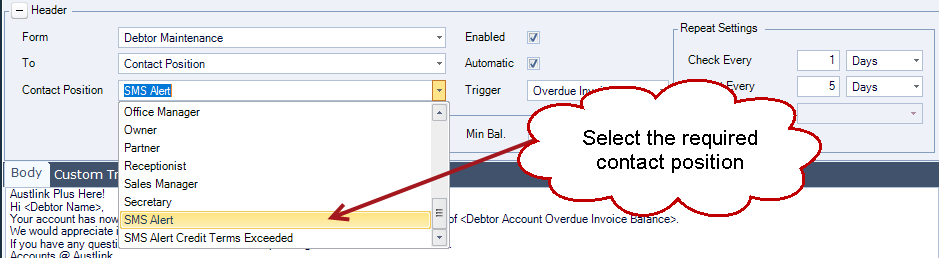
As this is an automatic alert make sure the Automatic check box is ticked.
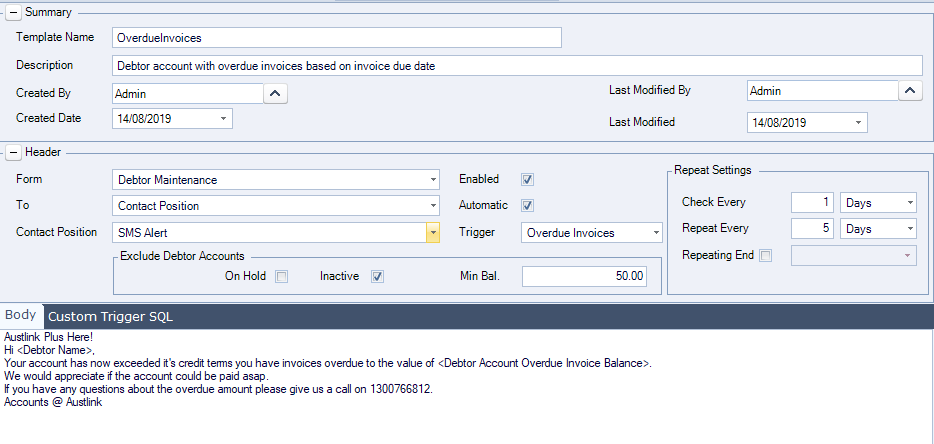
From the Trigger field drop down list select Overdue Invoices
If you want alerts to go out to your customers that are on hold, then you will need to un-check the On Hold check box.
If you do not want reminders to go out to customers with small balances then set a Min Bal. value.
Next we need to set the repeating cycle, in other words how often does this alert need to be run.
As we are checking for overdue invoices in this example I want to check accounts each day, so I set the Check Every cycle to daily. This will mean that as soon as an invoice becomes overdue an initial alert will go out to the customer.
I then want an alert to go out every 5 days to the customer until the overdue invoices are paid so I have set the Repeat Every cycle to 5 days.
I am not setting an end date because I want this alert to always run.

Now we are ready to add a message in the Body tab.
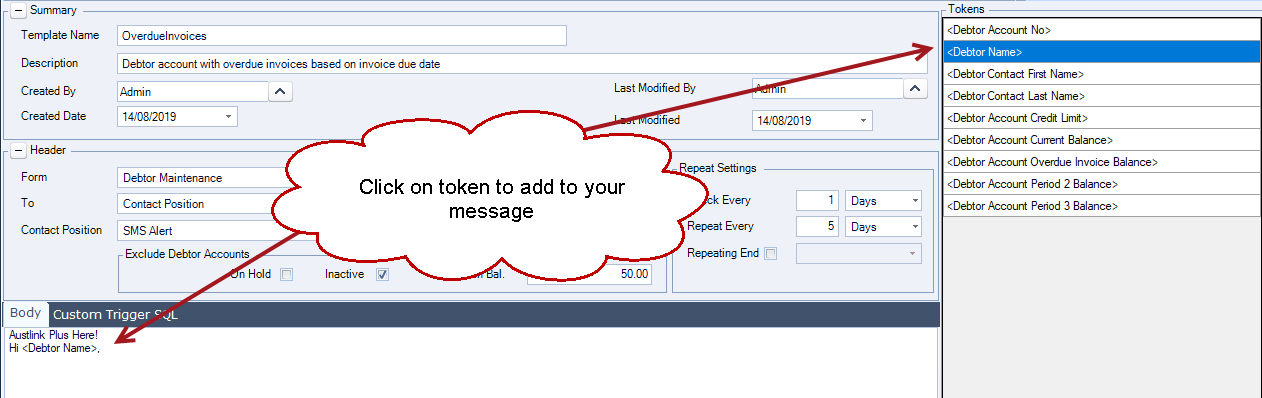
Start typing in your message, where you need to add Jiwa information simply click on the required token to add it to your message
Save your template.
Make sure your template is flagged as Enabled for your alerts to start going out.
Your template should look similar to the example below.
Sales Order Alert
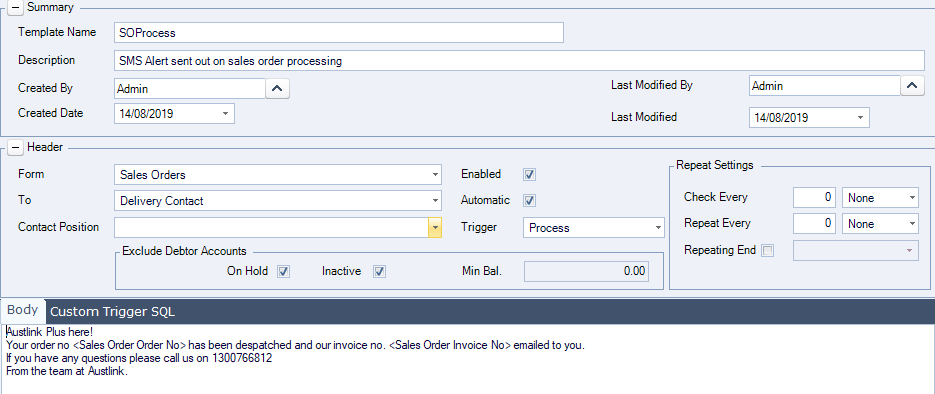
In this example we will look at how to create a new SMS alert template that sends out an SMS message to the customer when the sales order snapshot has been processed to an invoice.
From the menu ribbon select New
Give your template a name and description
From the Form drop down list select Sales Orders
From the To drop down list select Delivery Contact
Make sure you have ticked the Automatic check box
And the Trigger option for this alert is Process
A repeat setting in this example is not required as the trigger for sending the alert is on the action of Processing the sales order.
Your template should look similar to the example below.