
The are a number of ways in which back orders can be filled in Jiwa 7.
-
Process Back Orders
-
Manual Back Order Mode using New Snapshot
-
Manual Back Order Release
In this article we will be looking at how to fill back orders using the Process Back Orders feature.
Process Back Orders allocates stock once received to;
-
Active Orders,
-
Invoice Orders with a status of Processed,
-
Sales Orders with a back order mode of Automatic
Orders with a back order mode of manual are not included in this process.
Process Back Orders does not create an invoice, once stock is allocated invoices can be generated by processing each order individually or in batch using the Batch Processing Orders form.
BackOrder Process List
Before processing your back orders you may want to run the BackOrder Process List report.
This report will only display items that will be filled by the Process Back Orders form. What this means is that stock must be received into Jiwa first before you can run this report.
Refer to the All BackOrder Listing report if you want to see all items on back order.
From the menu select Sales | Reports | BackOrder Process List
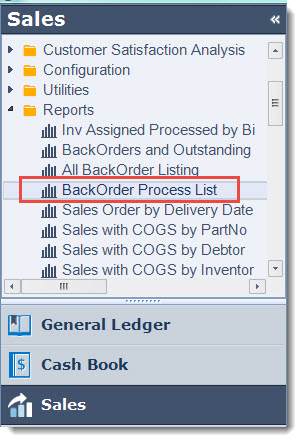
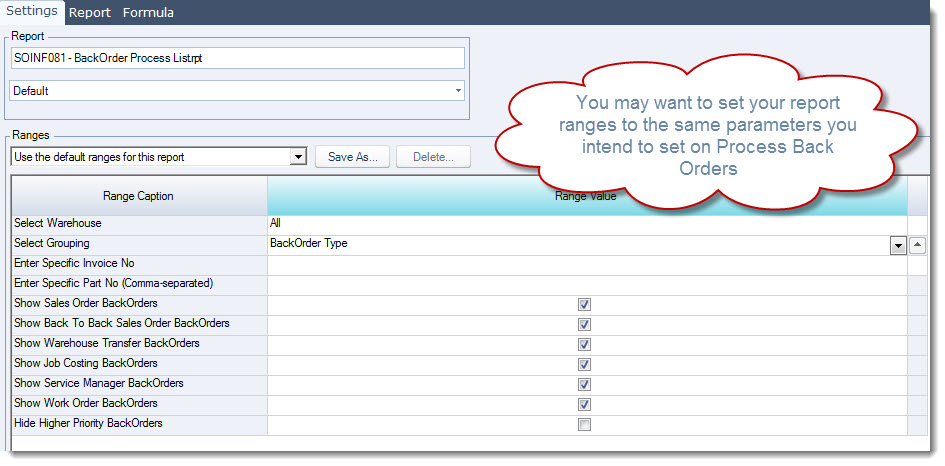
Set your report ranges, these should be set to the same ranges you intend to use when running Process Back Orders
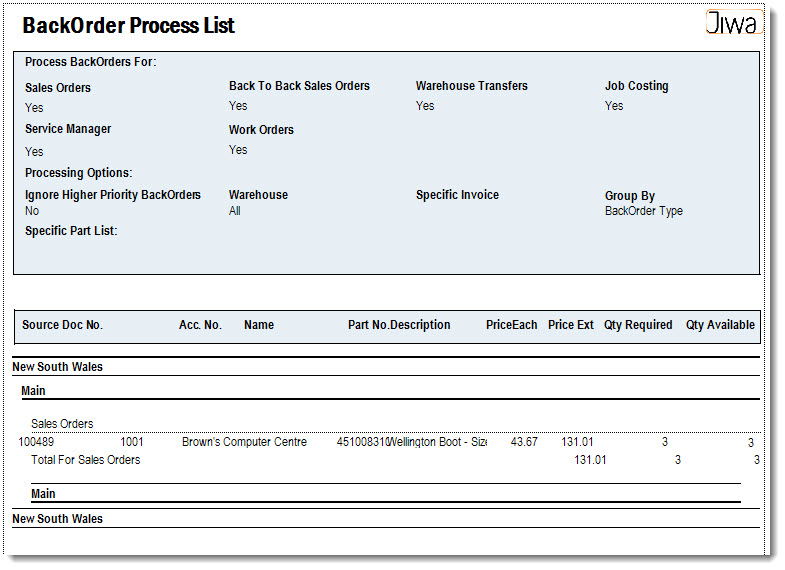
The report will display all items that will be filled when you run Process Back Orders.
Process Back Orders
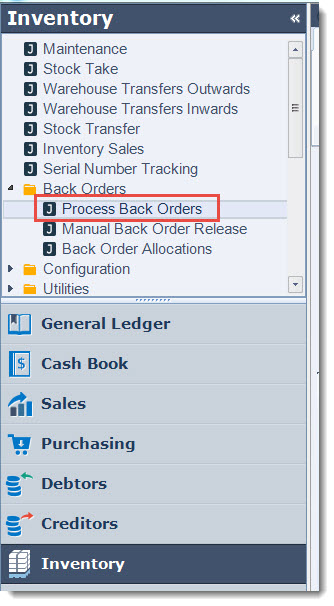
From the menu select Inventory | Back Orders | Process Back Orders
|
Field |
Description |
|
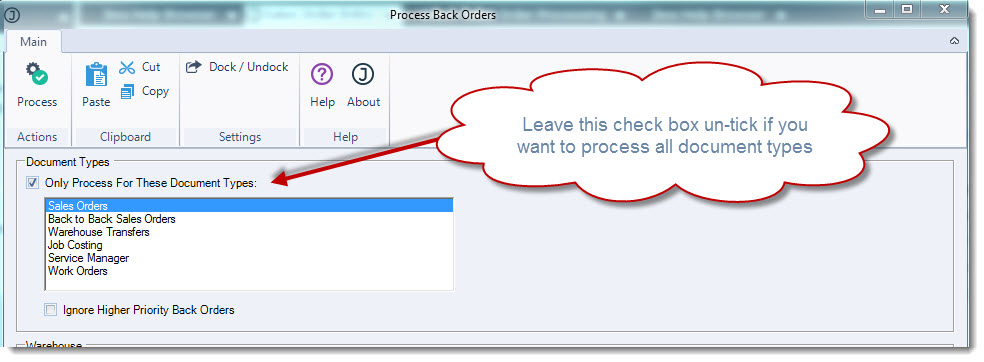
Document Types |
By default all document types are selected, by ticking the Only Process For These Document Types check box you can select a specific module or multiple modules to run the process for. Using your mouse and the Ctrl key you can select multiple modules. |
|
Ignore Higher Priority Back Orders |
When one or more modules are selected this option will ignore back orders for other modules if selected |
|
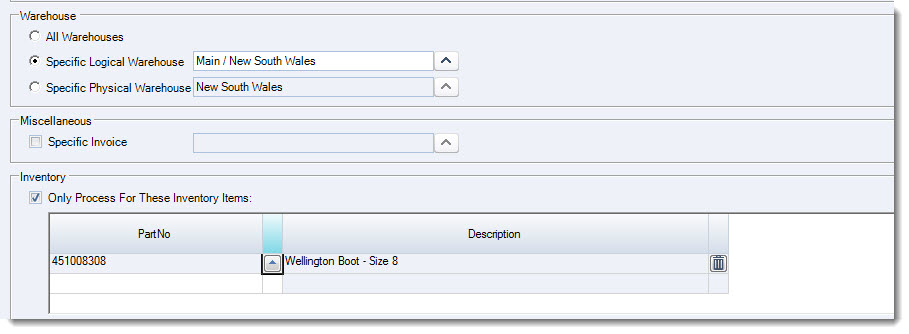
Warehouse |
Allows the process to be run for a specific warehouse |
|
Miscellaneous |
Allows the process to be run for a single sales orders. When this option is selected all higher priority back order orders are ignored |
|
Inventory |
Allows the process to be run for a single or multiple selected inventory items. |
|
Printing |
Controls what type of documents are produced during the process None - No documents are produced Print invoices only - Prints all documents with a type of invoice Print all sales order reports - Prints all valid documents |
Select the document type/(s) you wish to process
If you want to process back orders for all document types then do not tick the check box Only Process For These Document Types
If applicable select;
-
The warehouse you want to run the process for,
-
Specific invoice, or
-
Specific inventory items
Select the type of reports to be printed if applicable

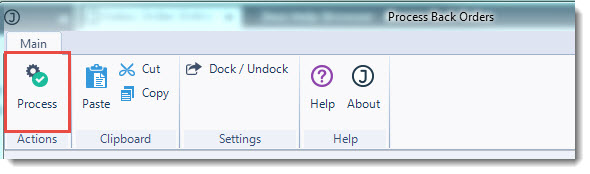
When you have completed your selection from the menu ribbon select Process
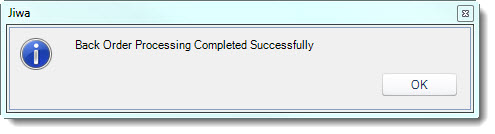
Once the process has completed select OK at the completion popup
Sales order are now ready for processing.