In this article we look at processing cash sale transactions in the Opal Logic POS form for Jiwa and the various functions that are available.
Cash Sales
To process a cash sale click on the Cash Sale button on the form.
If transaction login is enabled the user login prompt will be displayed on the creation of a new sale.
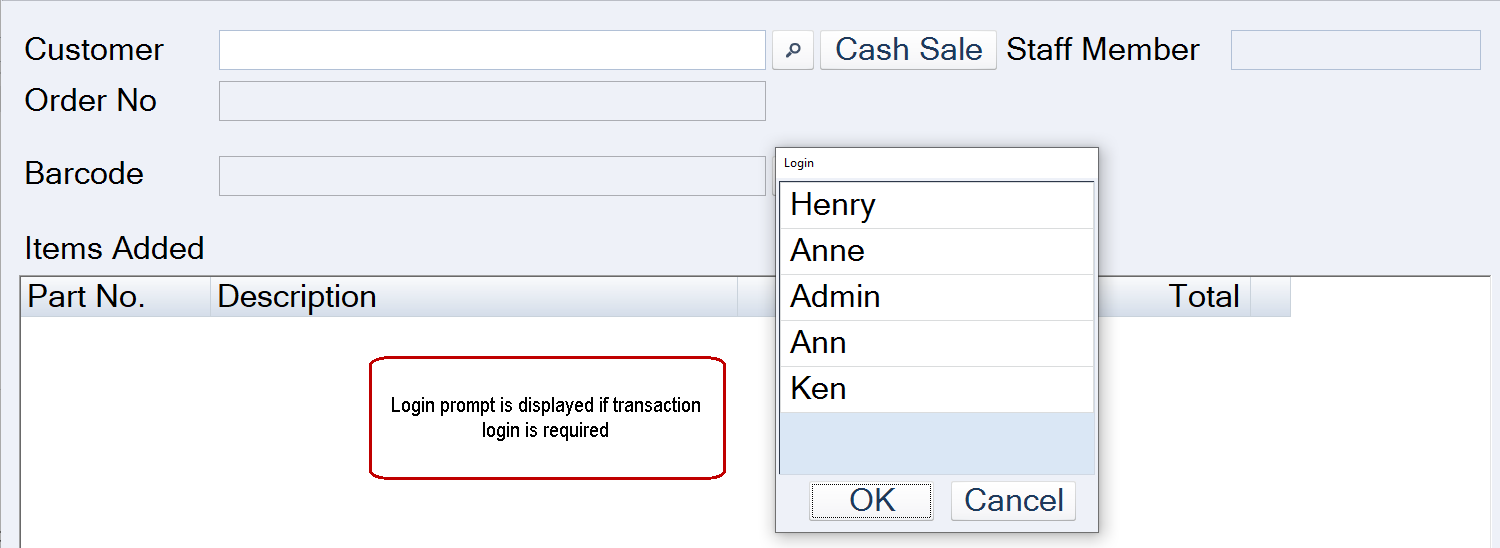
Select the staff name and press OK or double click.
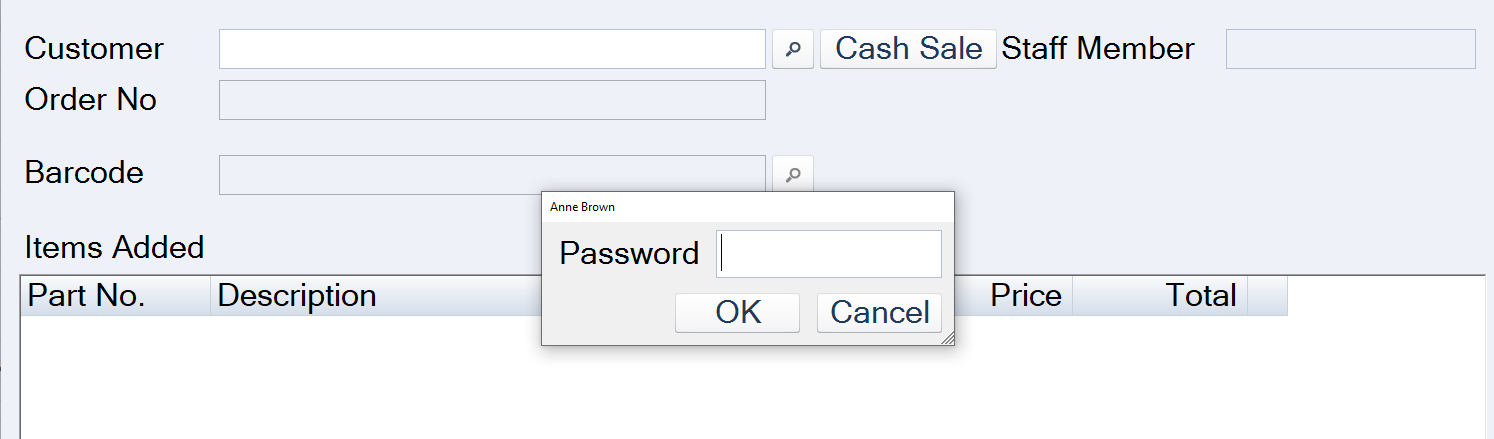
If a password is required on transaction login, the password prompt will be displayed for the staff member to enter in their password.
Add items to the sale by;
-
Scanning each item using a barcode scanner. Scanning the same item multiple times will automatically increment the quantity,
-
Type the part number into the barcode field and press Enter, or
-
Click on the search icon next to the barcode field to bring up the standard Jiwa Inventory Search form to select from.
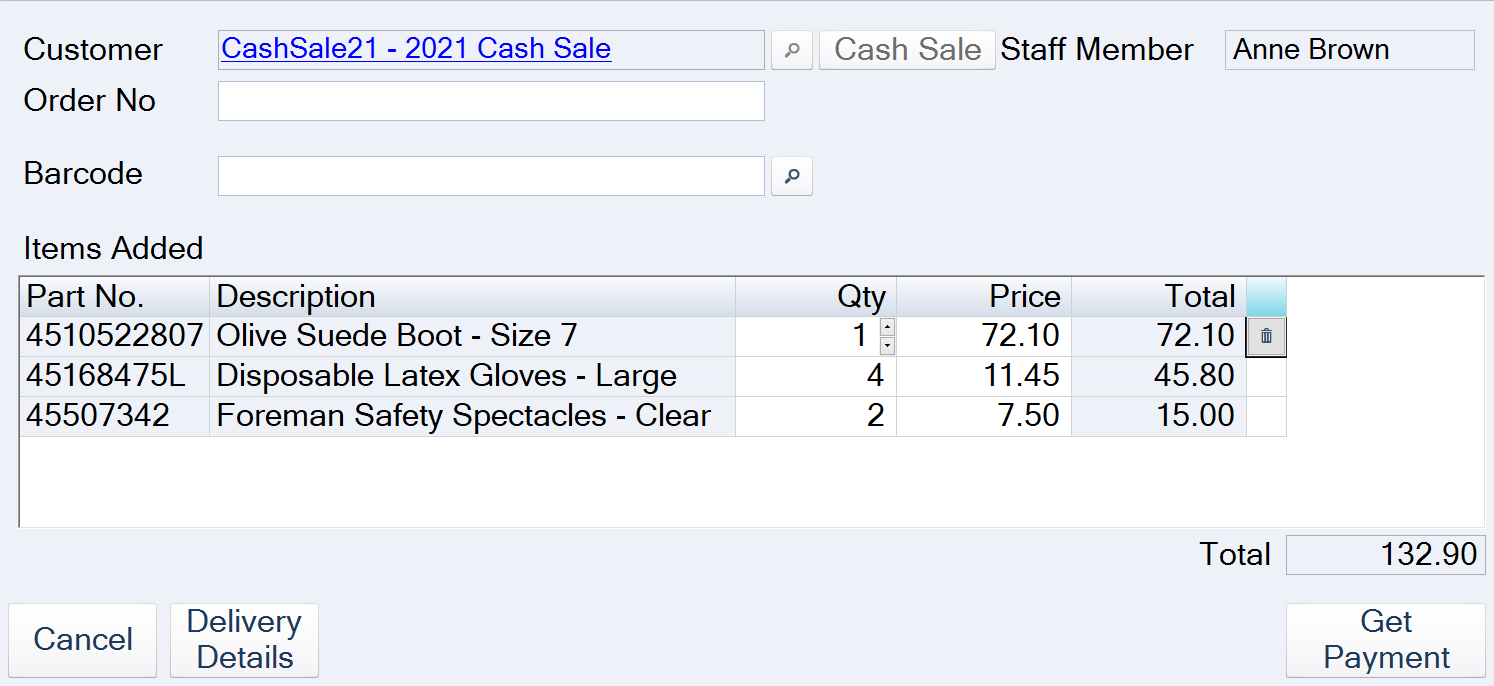
To complete the sale click on the Get Payment button.
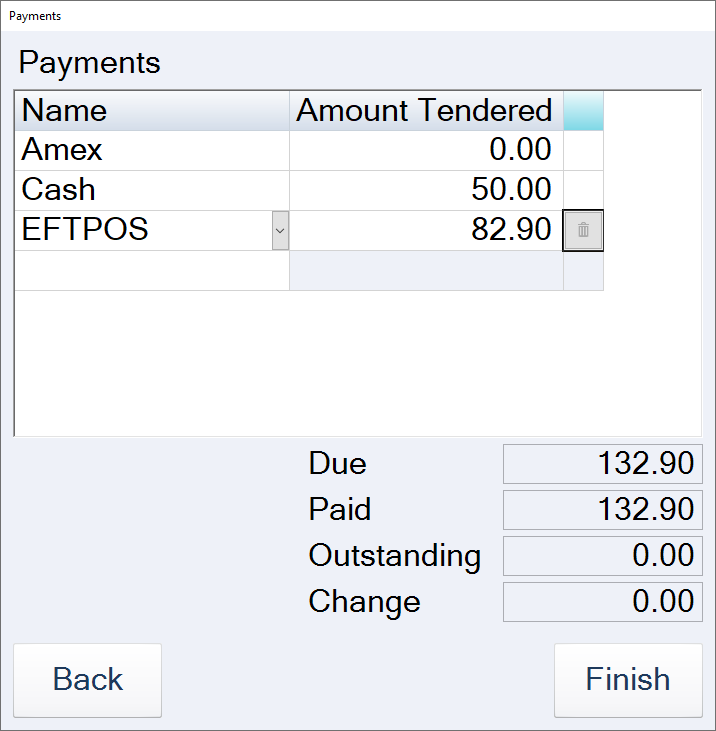
This will bring up the Payments popup.
Select the required payment method by clicking on the Amount Tendered field.
For split payments add the payment amount for the first method and then select the second payment method.
To finalise the sale click on the Finish button.
The Has Stock Been Taken? prompt is displayed if auto stock adjustments have been enabled.
The user confirms if stock is being taken by the customer.
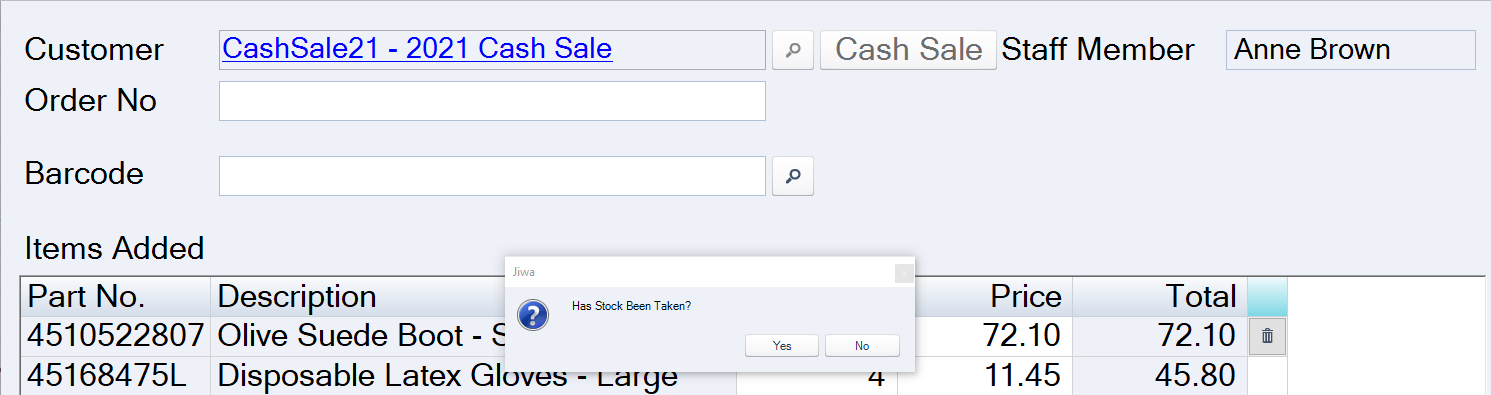
If Yes is selected and there is no stock stock on hand in Jiwa, an automatic stock adjustment is recorded to bring in the required quantity so that the sales order can be processed and converted to an invoice. The customer invoice or docket is printed.
If No is selected then the item or items go on back order and the sales order in Jiwa is left unprocessed.
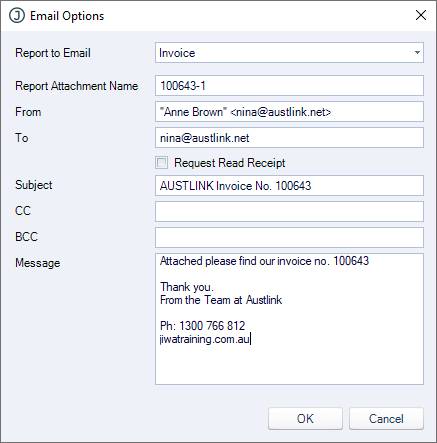
The Email Options prompt is displayed next. This allows users to email the invoice to the customer.
Select OK to send the email or Cancel to close the popup.
Cash Sales for Delivery
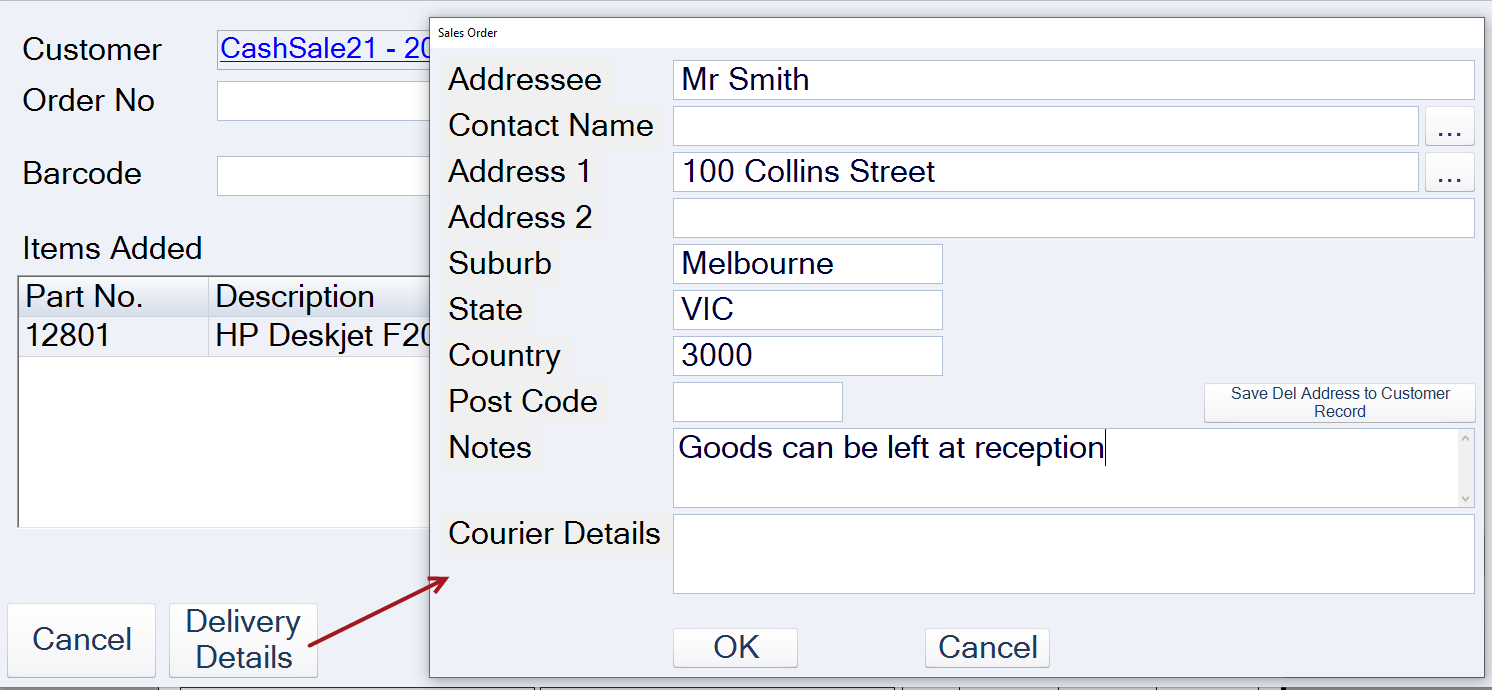
In cases where a cash sale has to be delivered to the customer, the delivery address details can be captured against the sale by clicking on the Delivery Details button on the POS form.
For account sales the customer default delivery address is populated into the fields and can be changed as required.
After the payment is taken, at the Has Stock Been Taken? prompt the user will select No.
An order confirmation is printed for the customer and the sales order can be supplied and invoiced when picked and ready for delivery.
Note: Users may not want to select No at the stock taken prompt if the stock is going to be placed in a holding area for immediate delivery. In this case the invoice is printed and attached to the goods for delivery at a later time, and an email version is sent to the customer.
Line Discounts
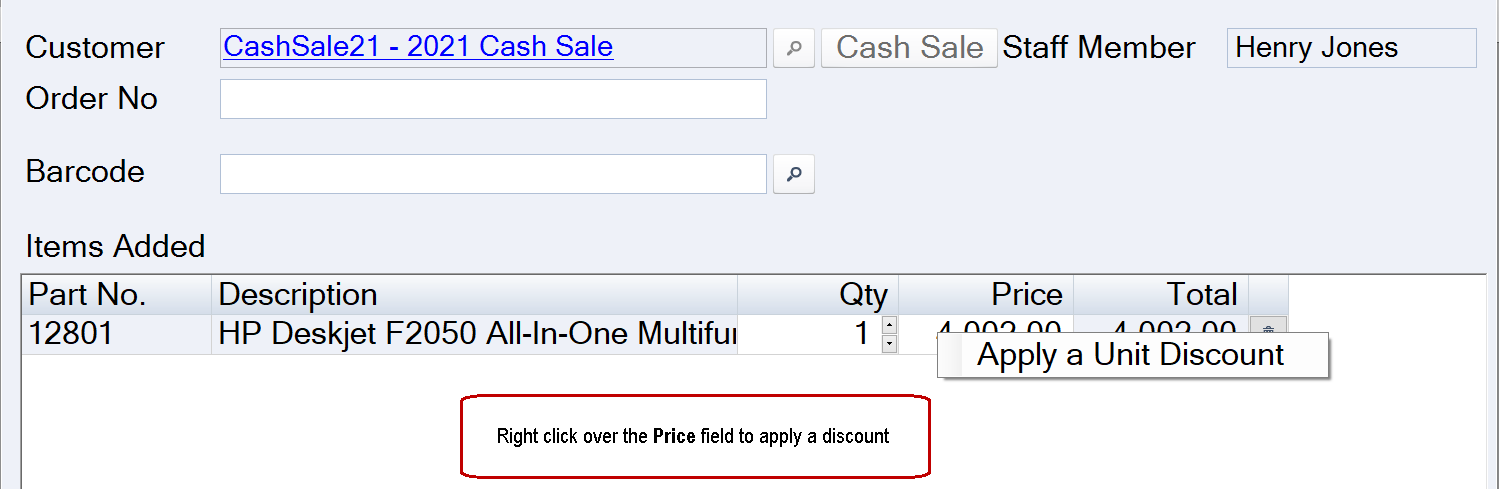
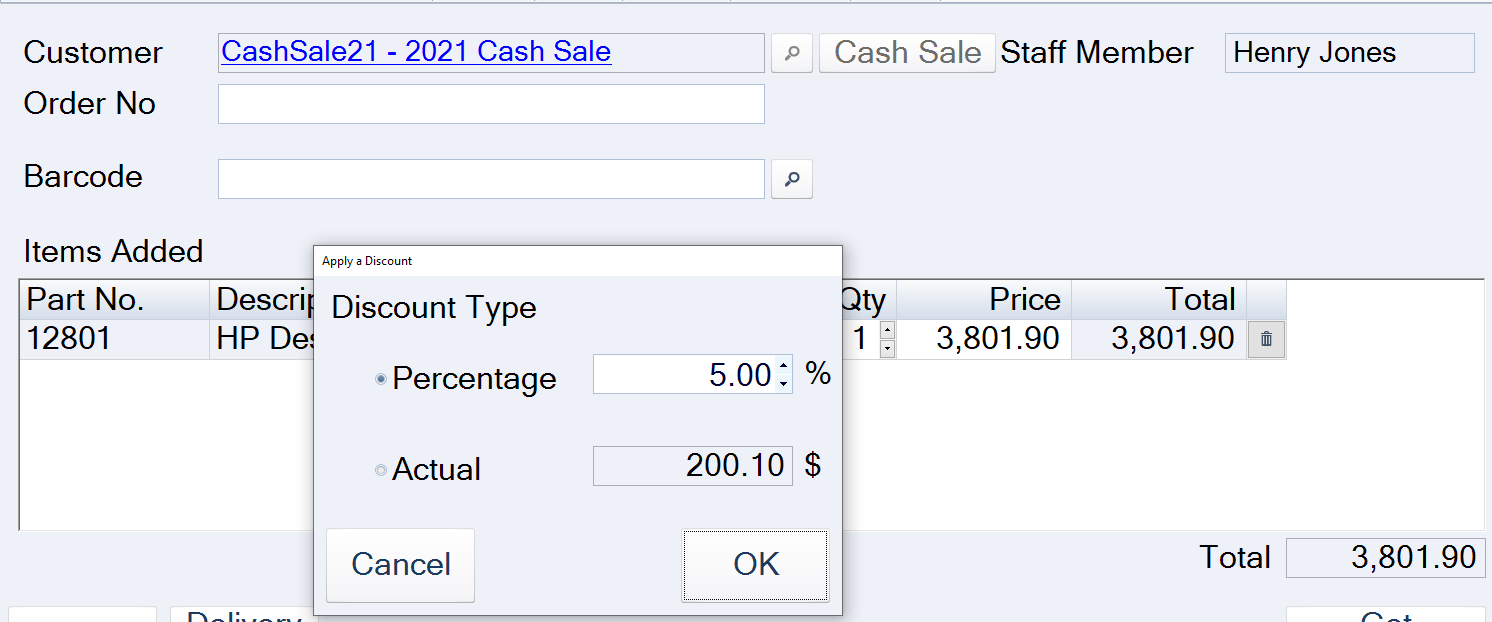
Percentage or fixed amount discounts can be applied at the line level on the form. Right mouse click over the Price field and select Apply a Unit Discount.
Select the discount type and when ready press the OK button
Special Orders
The Special Orders feature can be used where customers are placing orders for stock that is not held on hand and a deposit is required on the order.
Special Orders can be created against account or cash sale accounts.
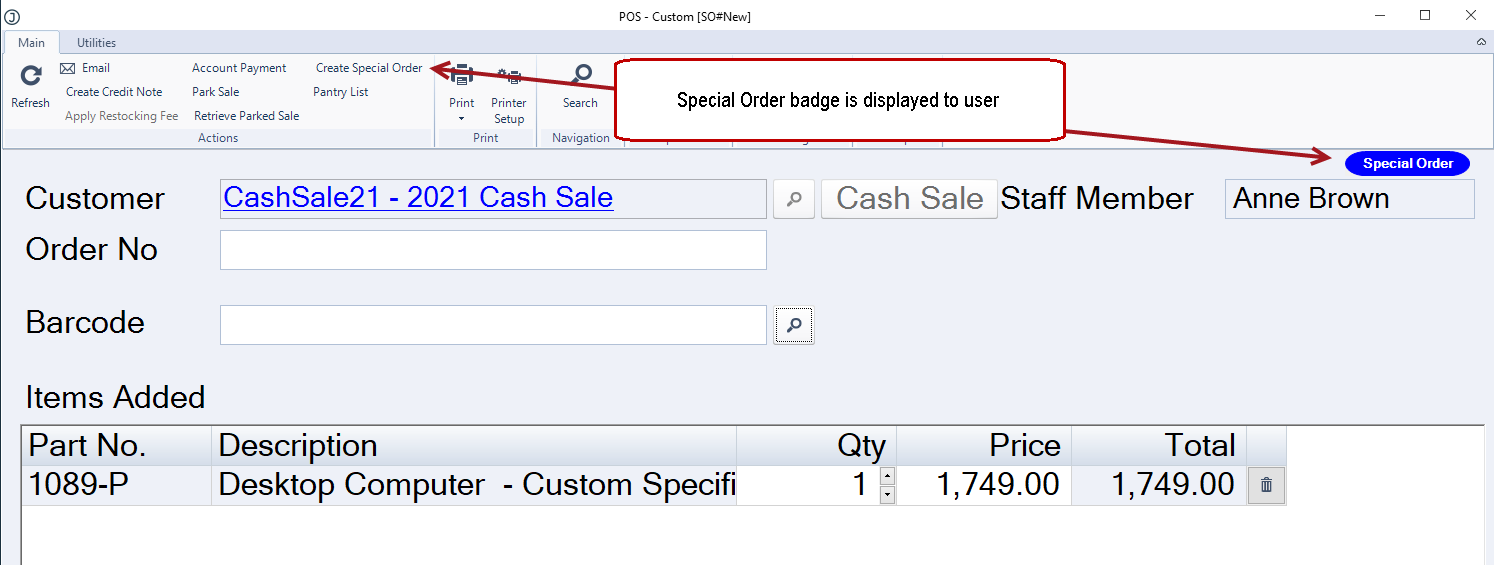
To create a special order from the menu ribbon click on the Special Order button.
Select your customer and add your items to the order. A badge is displayed on the form indicating to the user that a special order is being created.
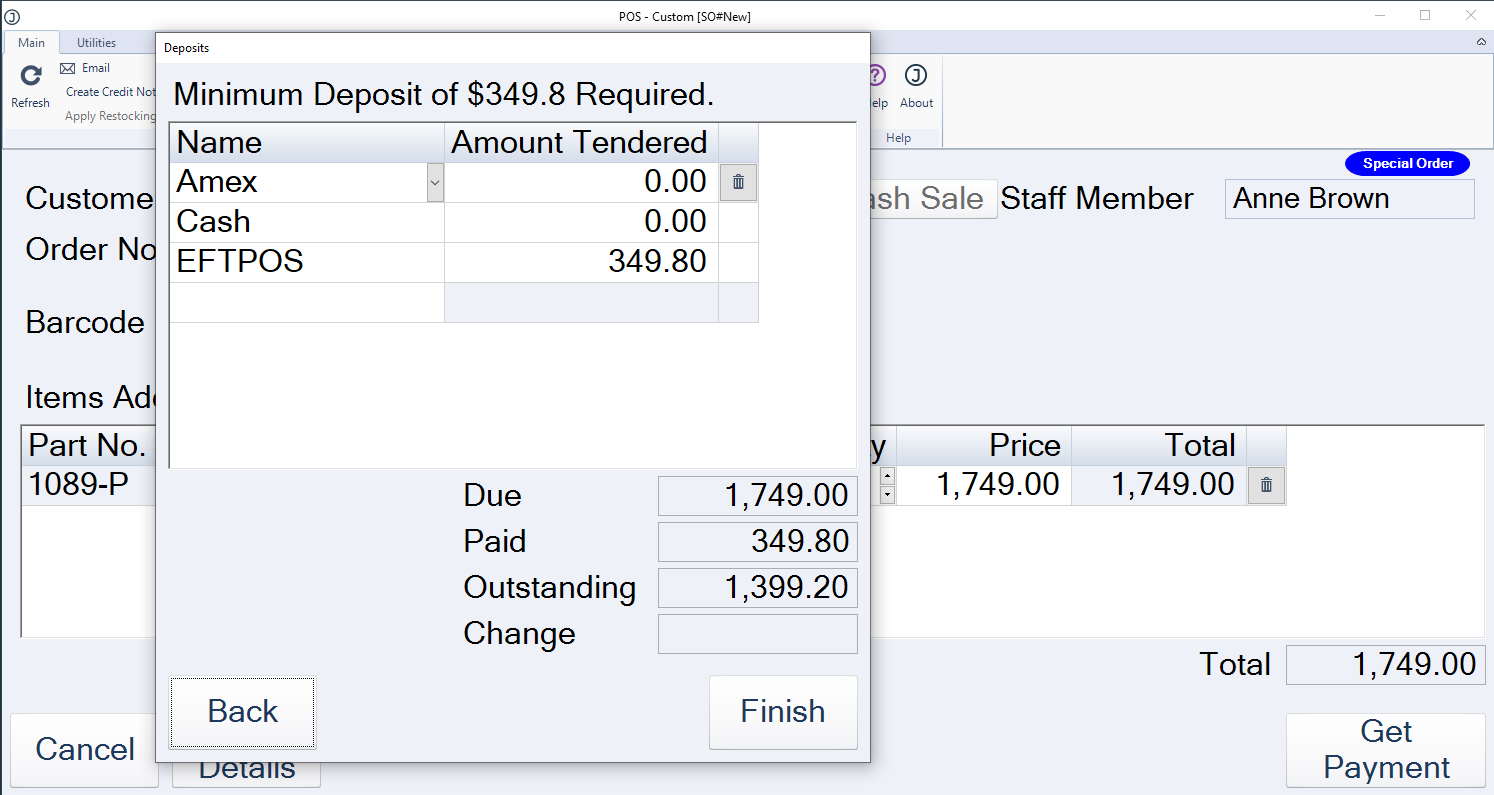
On the payment popup the minimum deposit amount is displayed.
The Finish button is disabled if the user attempts to take a deposit amount less than the minimum required.
Once the payment is recorded an Order Confirmation report is printed.
Parking Transactions
Transactions can be parked and retrieved at a later time.
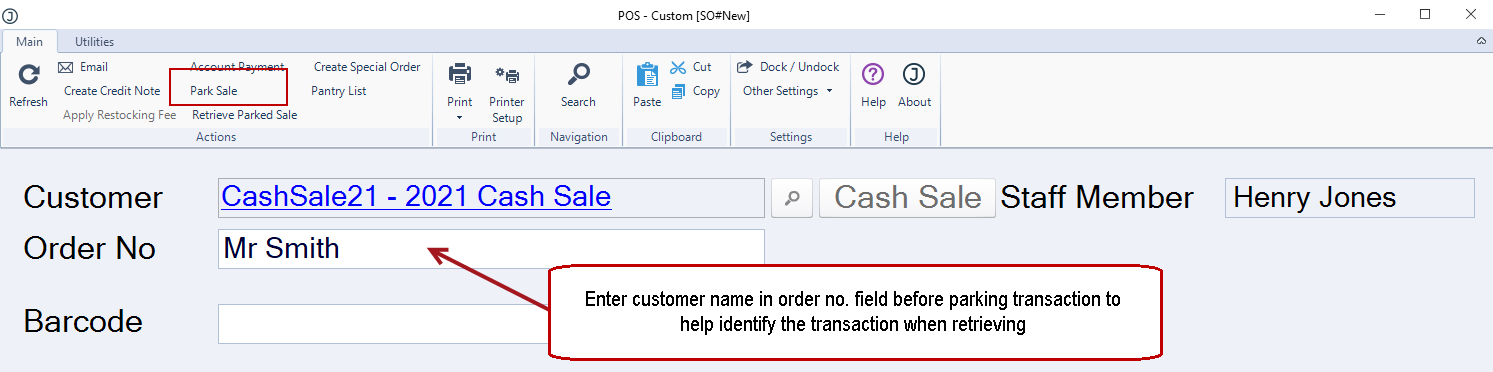
To Park a transaction click on the Park Sale button on the menu ribbon.
Placing the customer name in the Order No field will make retrieving the parked transaction easier.
To Retrieve the parked transaction click on the Retrieve Parked Sale button on the menu ribbon and select your transaction.
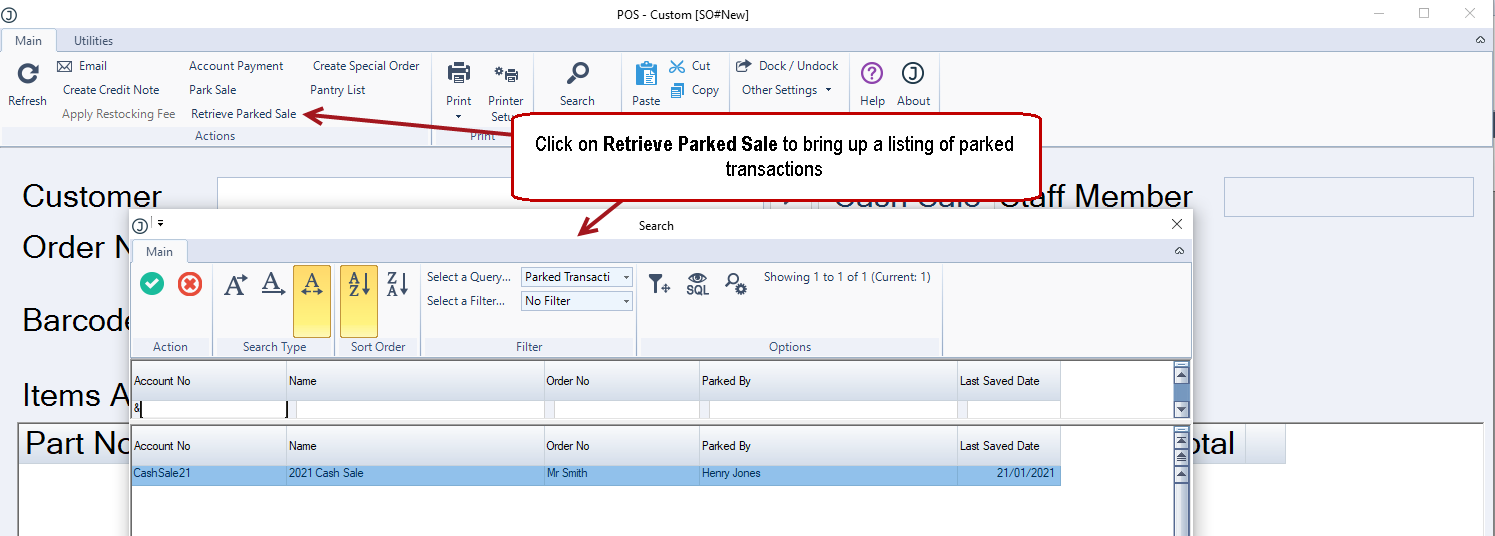
Complete your transaction.
To cancel the transaction click on the Cancel button.
To re-park your transaction click on the Park Sale button again.
Searching Transactions
Users can search and load closed transactions into the POS form using the standard Jiwa Search button on the menu ribbon.
This is useful if a customer returns and requires an invoice to be reprinted and/or emailed.
Note: Unprocessed sales orders cannot be loaded and processed from the POS form.
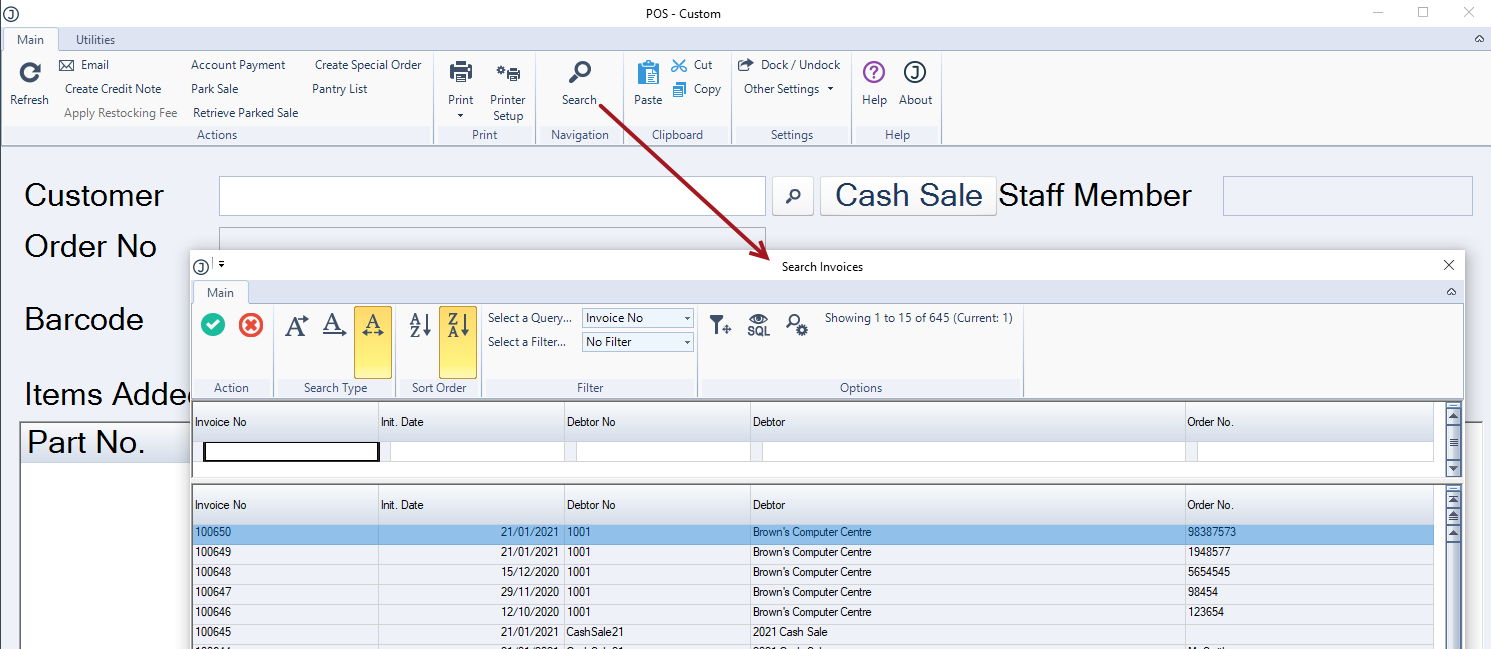
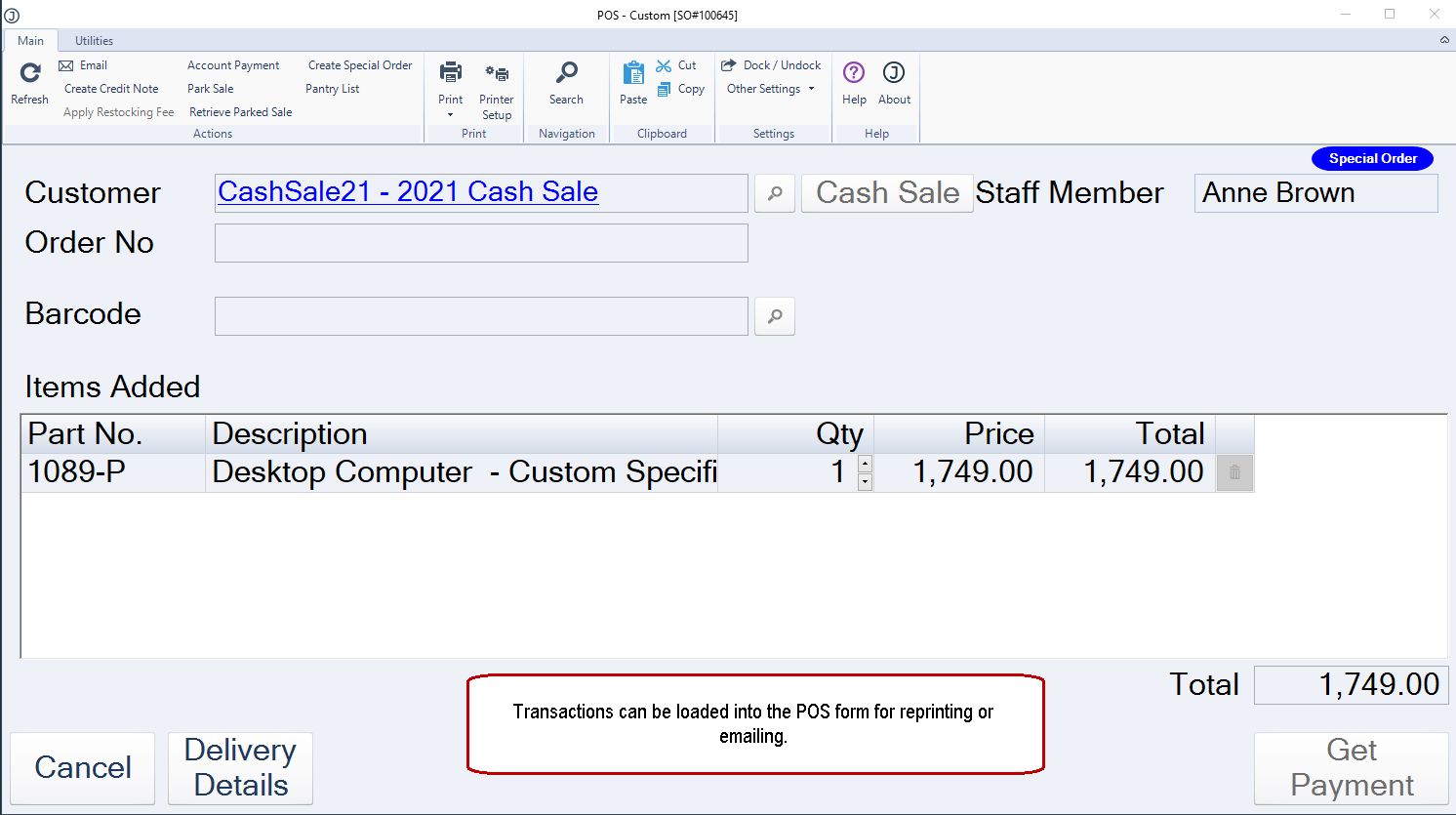
Once the transaction is loaded into the form, users can print or email the invoice, credit note or order confirmation.
To clear the transaction simply click on the Cancel button
Sales Orders
Once a transaction has been processed through the POS form a sales order is automatically created and processed in Jiwa if stock is available and the user has selected Yes at the Has Stock Been Taken? prompt.
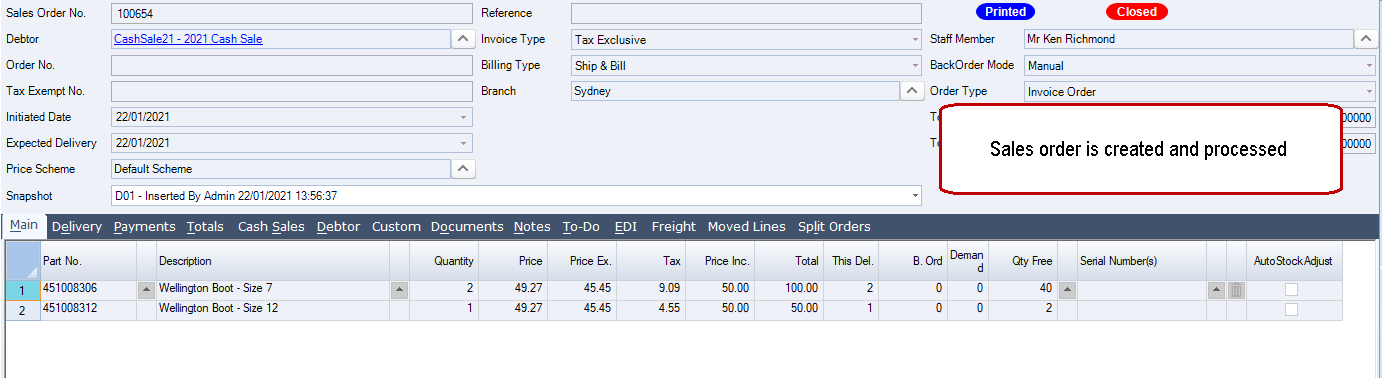
The sales order is created but not processed if
-
The transaction is a special order, or
-
The user selects No at the Has Stock Been Taken? prompt, or
-
The user select Yes at the Has Stock Been Taken? prompt but the auto stock adjustment function has not been enabled.
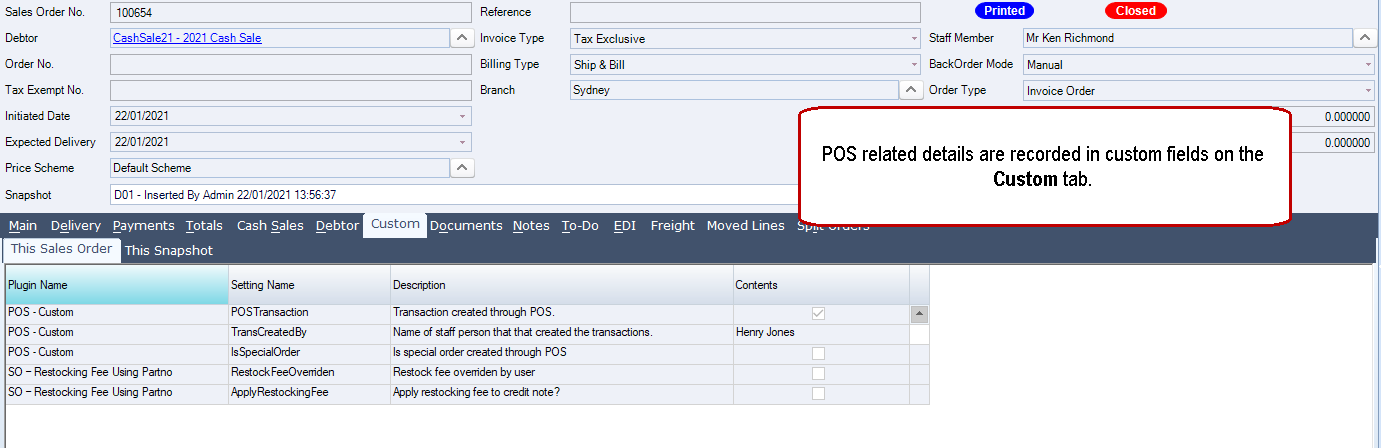
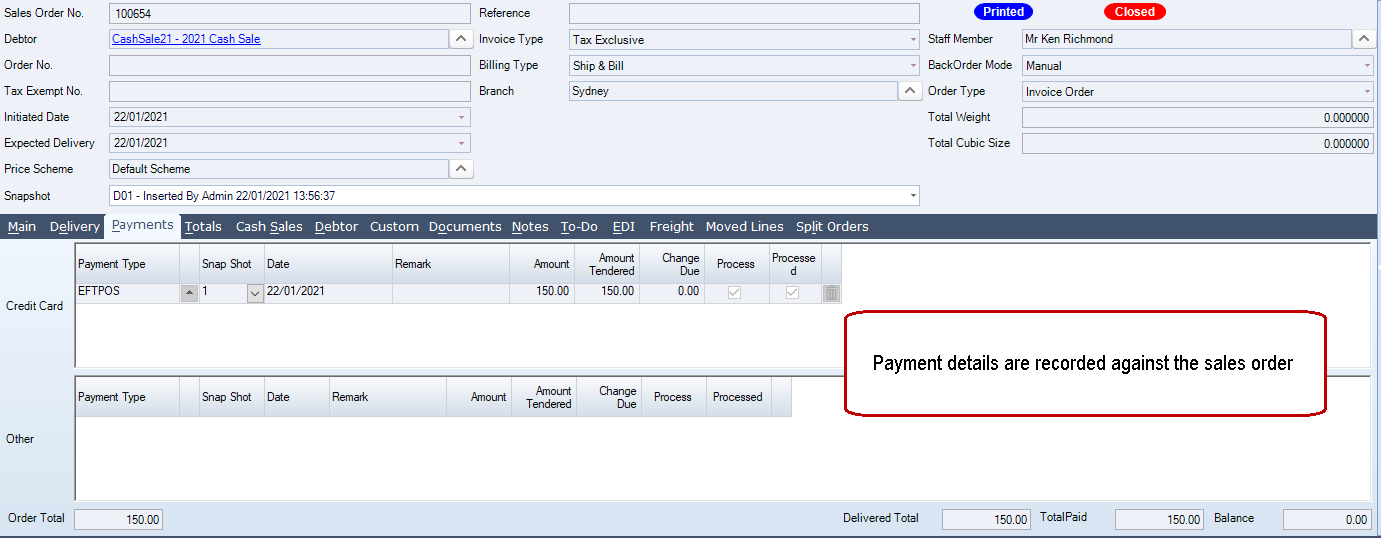
Payment details are recorded against the sales order on the Payments tab.
On the Custom tab details relating to the POS transaction are recorded in custom fields.