
In this article we look at processing account transactions in the Opal Logic POS form for Jiwa and the various functions relating to Debtor accounts.
Account Sales
Account sales are processed in the same way as cash sales, with the exception that a Debtor account is selected and the sale can be placed on the account if the Debtor is within their trading terms.
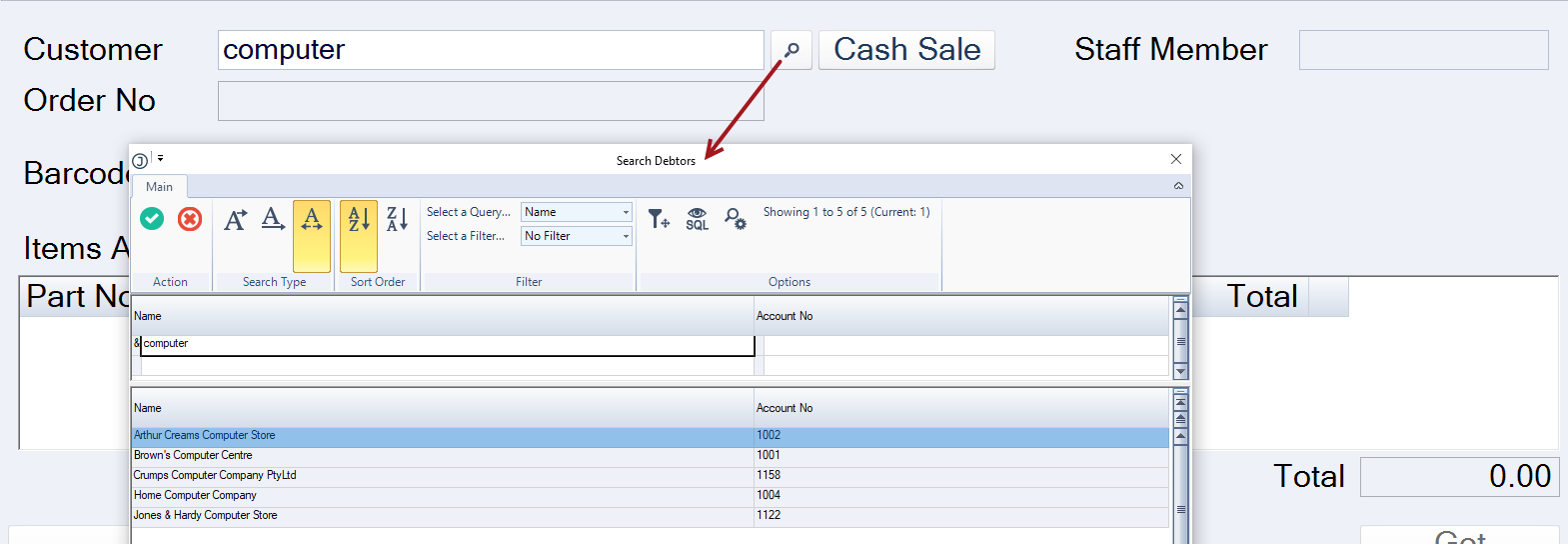
To search for your customer click on the lookup button next to the customer field to bring up the Debtor Search form.
Alternatively, key in part of the Debtor name and press the enter key.
Add items to the sale and when ready click on the Get Payment button.
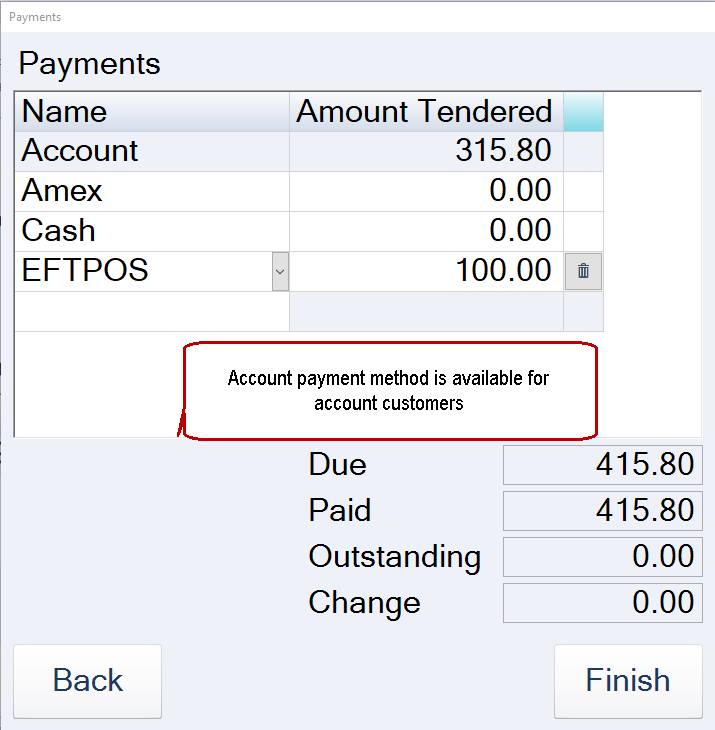
As this is an account customer, the Account payment method is available.
The invoice can be part paid by entering the payment amount against the required payment type, the balance will display against the account.
Pantry List
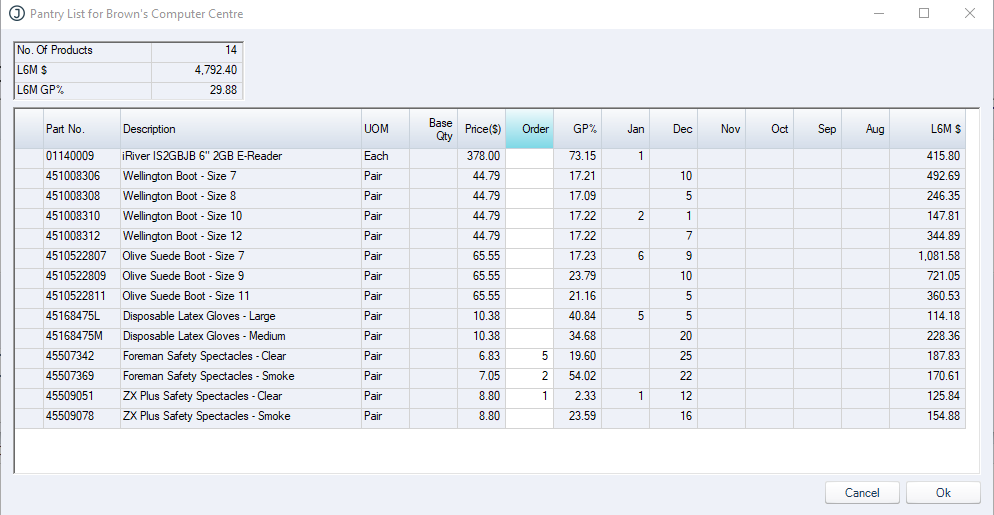
The pantry list is a display of items that the customer has purchased over the last 6 months.
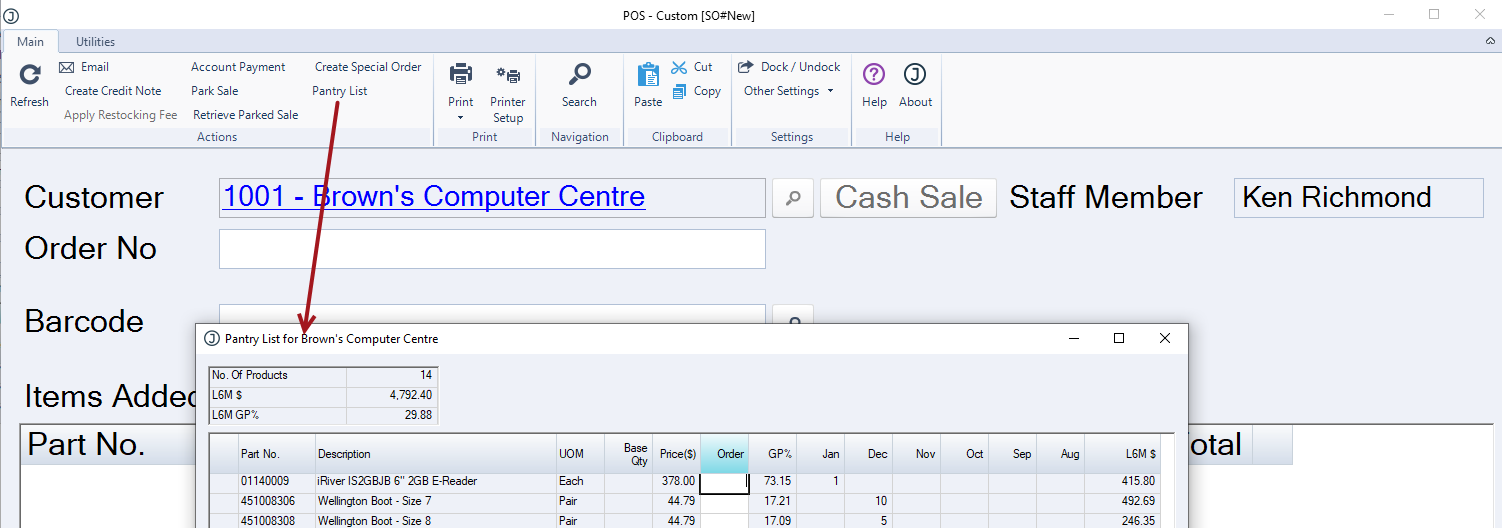
To use the pantry list on the Opal Logic POS form, start a new transaction by selecting your customer.
From the menu ribbon click on the Pantry List button.
Enter the required quantity in the Order field.
Press OK to close the pantry list and return to the POS screen
The selected items and quantities are loaded into the items grid.
The pantry list can be activated as often as required whist you are still working on the sale.
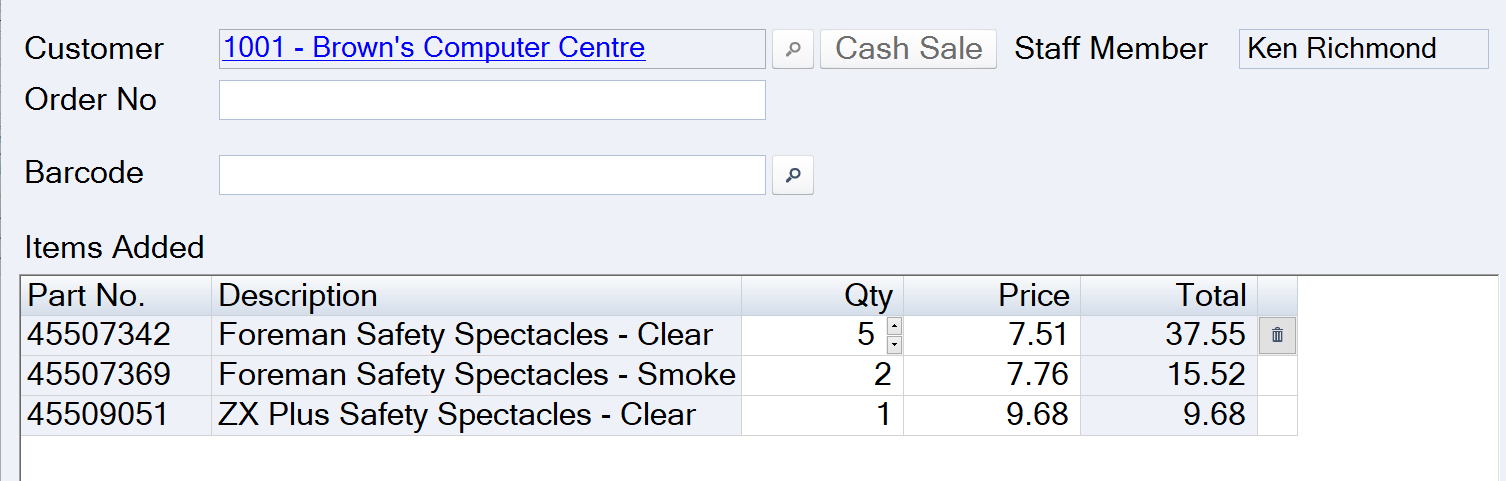
Complete your transaction.
Trading Term Checks
Trading terms for account customers are enforced in POS.
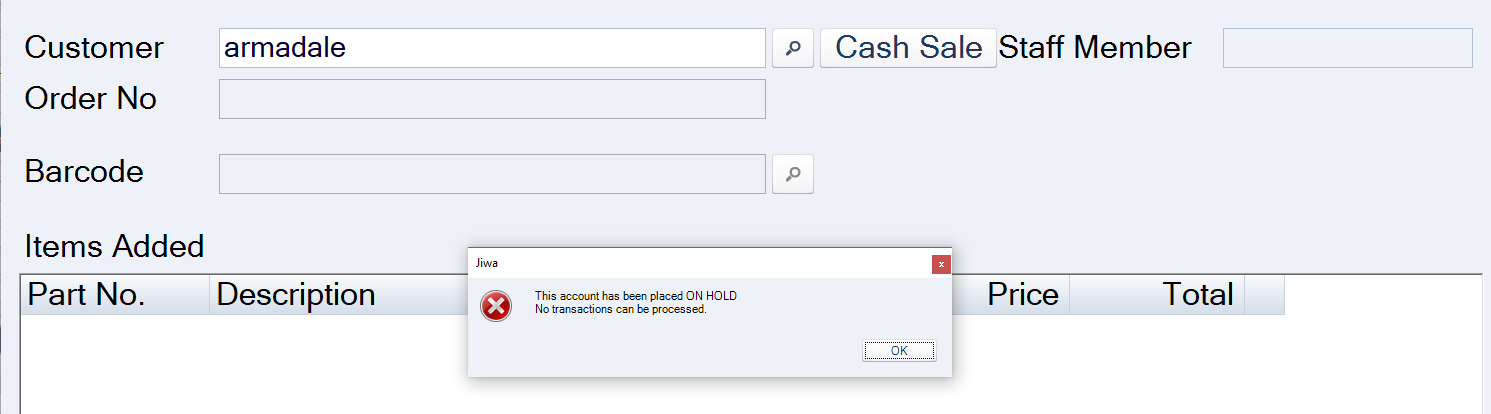
On Hold Accounts
When an account is placed on hold, if a user attempts to create a transaction through POS the following popup is displayed.
Overdue Invoices
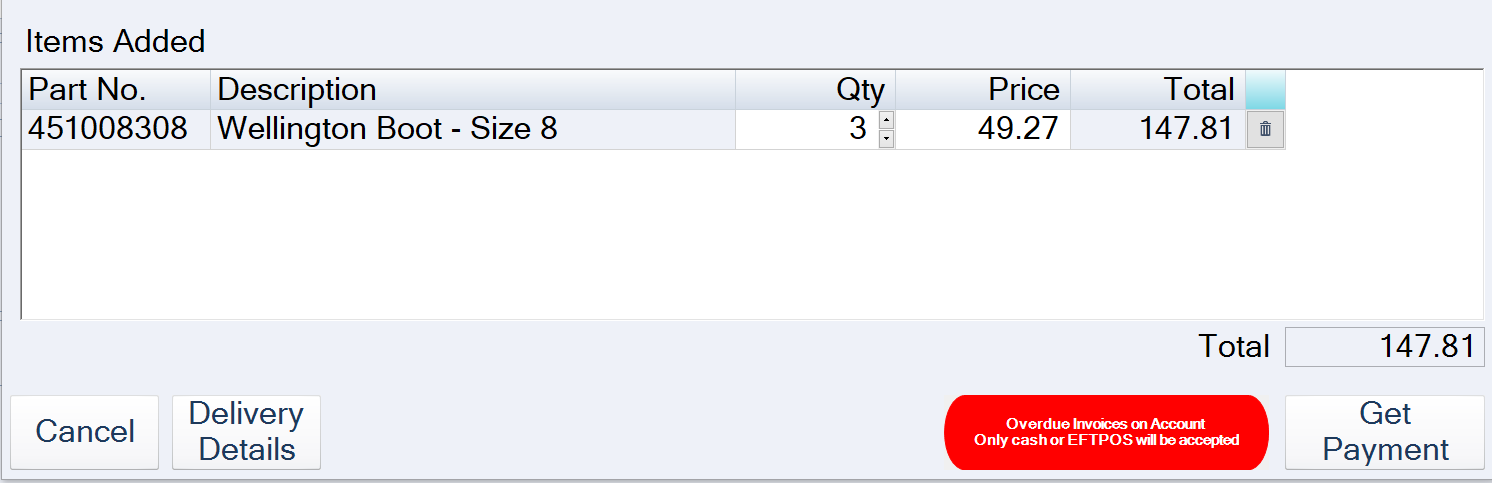
Sales can be processed for accounts with overdue invoices however, the sale cannot be placed on account, alternative payment is required in order to complete the sale.
The following alert is displayed to the user.
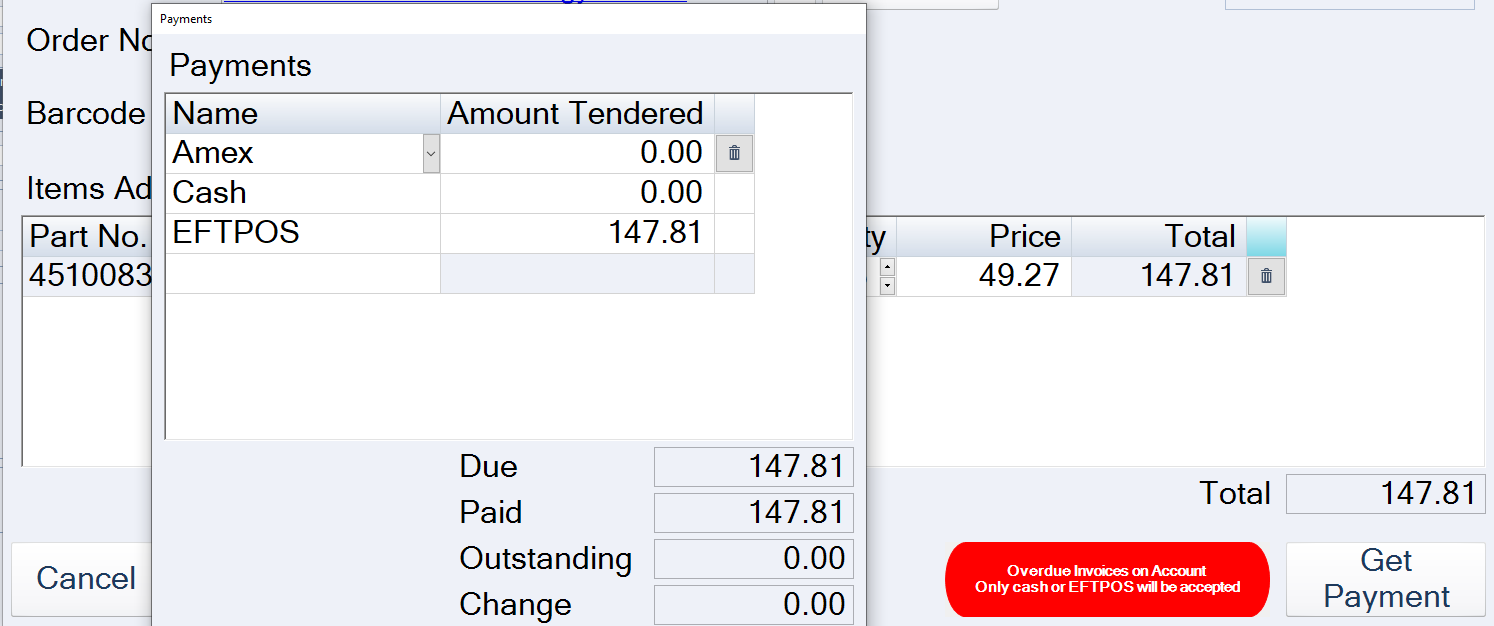
On the payment popup the Account option is not available.
Credit Limited Exceeded
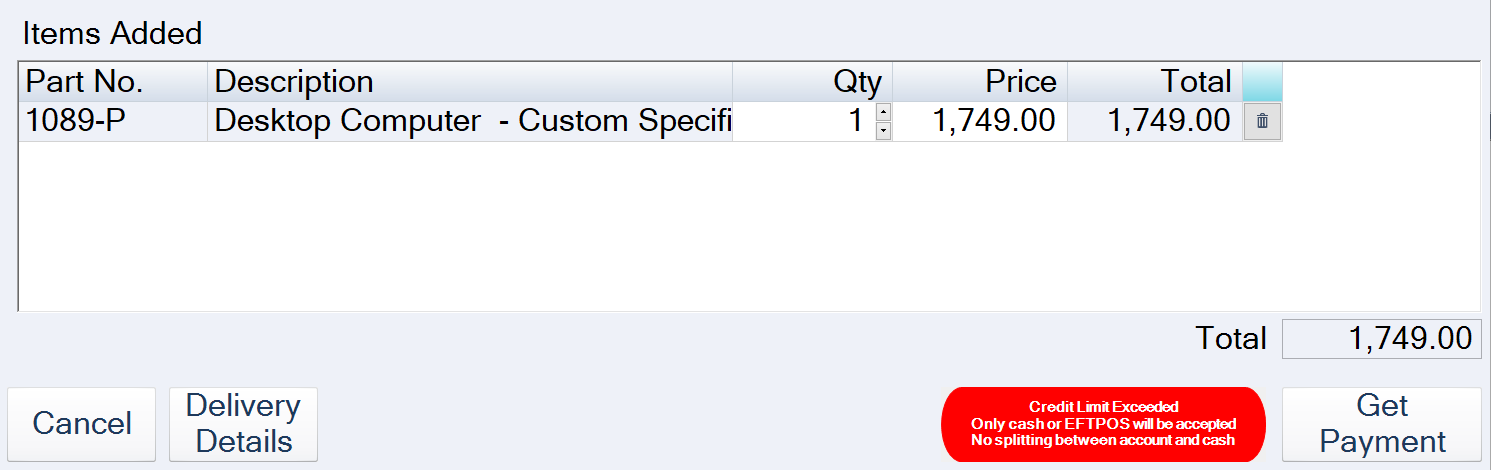
Where a sale will exceed the customers credit limit the following alert is displayed to the user.
Payment is required to complete the sale, the sale cannot be placed on account.
Enforcing Customer Order Numbers
Customer order numbers can be enforced through POS if enabled.
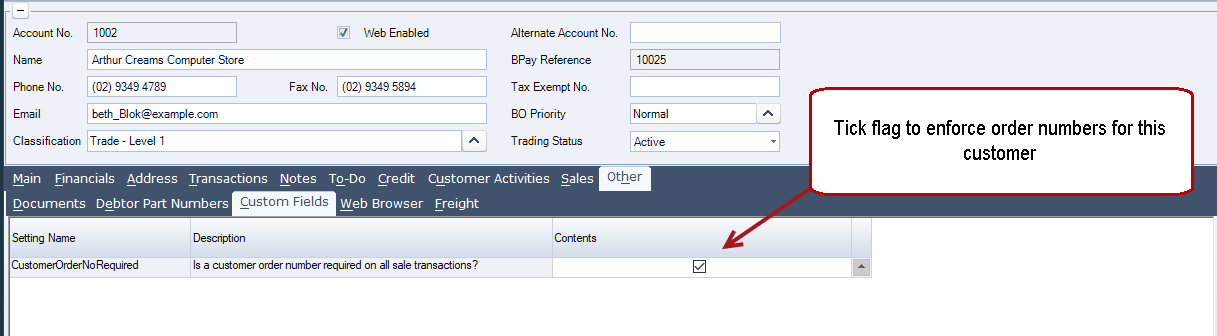
To enforce customer orders numbers in Debtor Maintenance ensure that the Customer Order No Required flag is ticked.
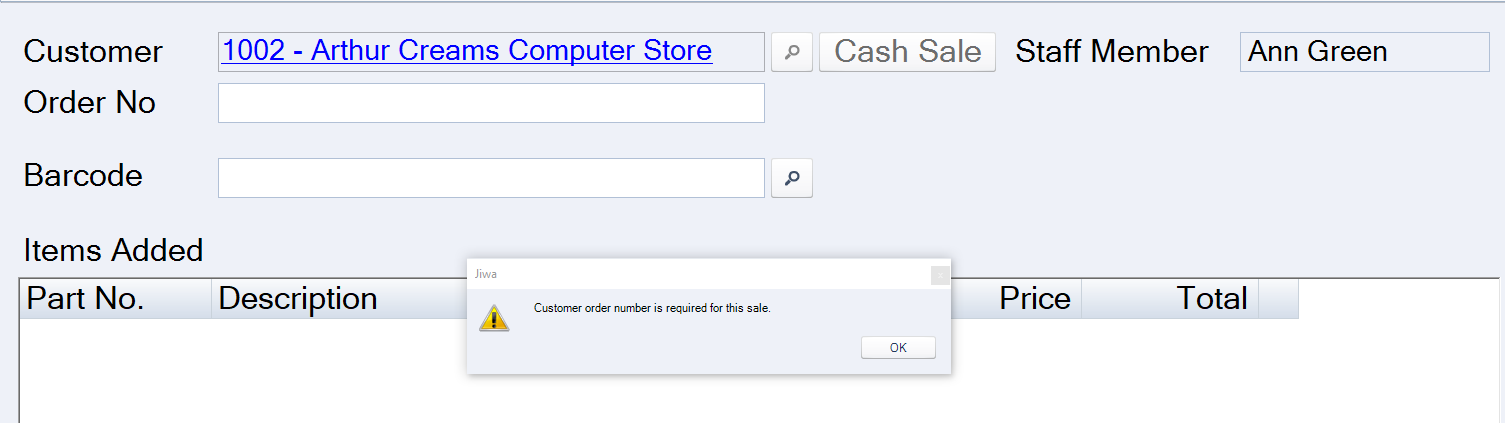
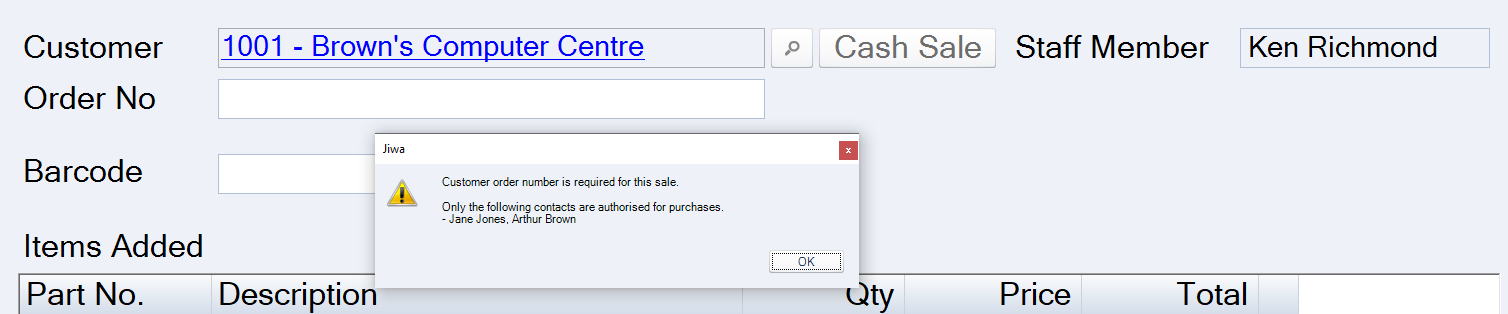
At POS the following popup is displayed, users will not be able to complete the sale until the Order No field is populated.
In cases where a customer has requested that only certain staff can place orders, the Debtor account can be setup to alert users.
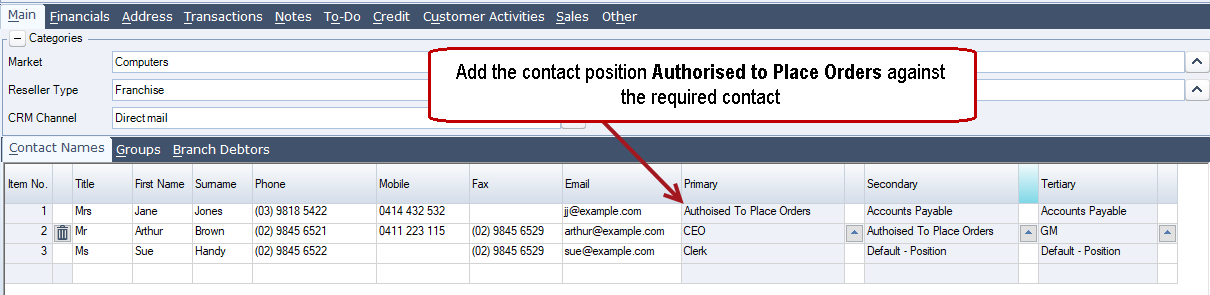
In Debtor Maintenance create the contacts that are authorised to place orders with you. In any of the three available positions, set the contact position of Authorised to Place Orders against the required contacts as per the example below.
This function works in conjunction with the Customer Order No Required flag so ensure that this custom flag is also ticked.
At POS the following popup is displayed to the user.
Account Payment
If enabled customer account payments can be made through the POS form.
From the POS menu ribbon click on the Account Payment button.
This will bring up the Search Debtors form.
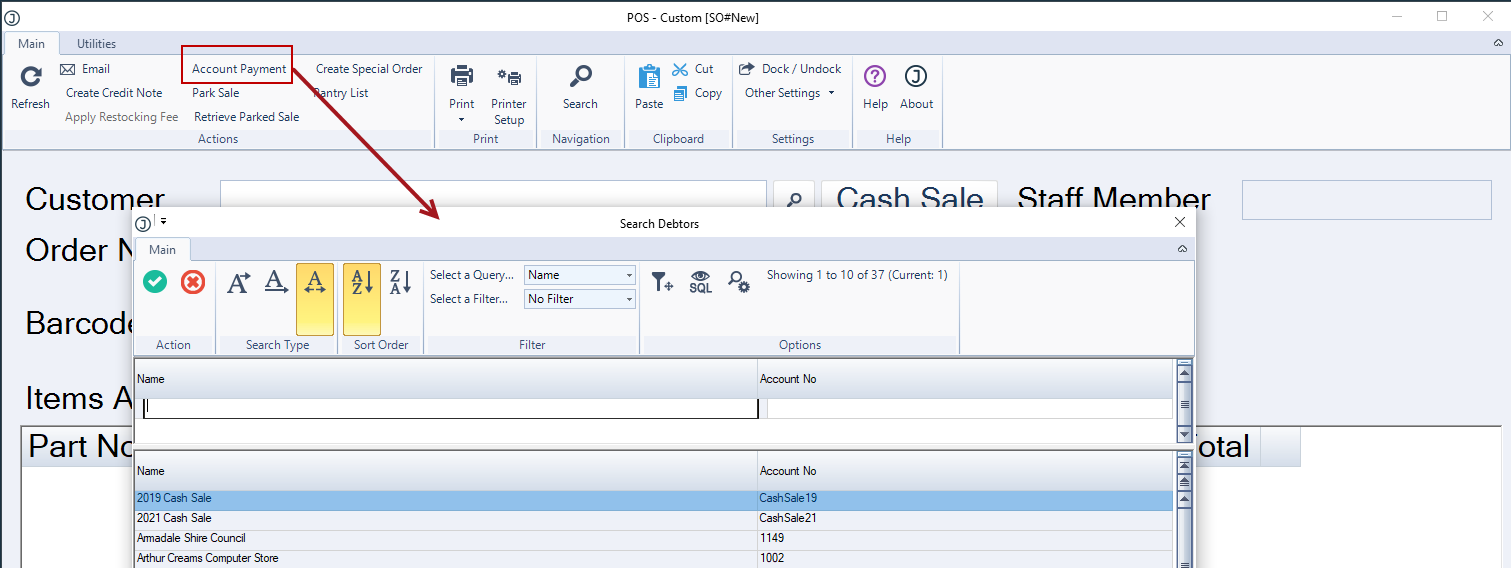
Select the required Debtor record. This will bring up the Account Payment form.
Enter in the amount being paid against the required payment method.
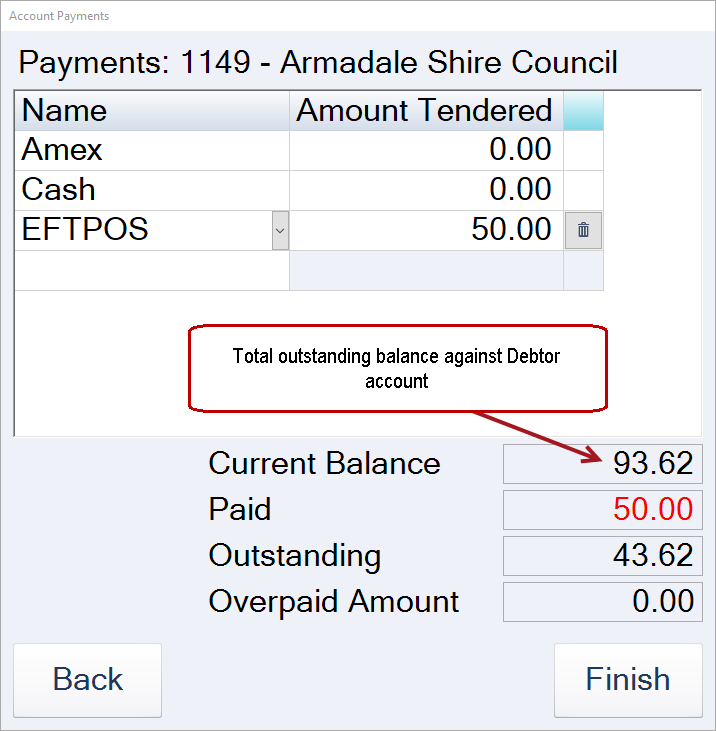
Press Finish to complete the transaction.