In this article we look at how to create and maintain staff records in Jiwa 7.
In order to create and maintain staff records in Jiwa you must have administrator level permissions.
From the menu select System Settings | Staff Configuration | Staff Maintenance

From the menu ribbon select New to create a new staff record or Search if you want to update an existing record.
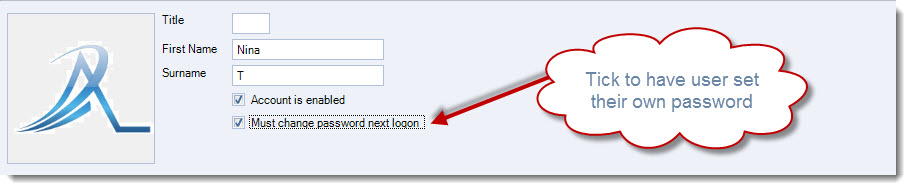
Complete the details in the header section of the Staff Maintenance form
|
Field |
Description |
|
Title / First Name / Surname |
This is the user name that will appear on transactions in Jiwa created by the user. 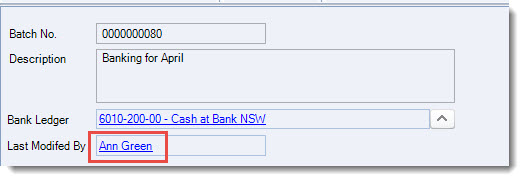
|
|
Account is enabled |
This flag controls if the staff record is active and users can log into Jiwa. When unchecked the user will not be able to log into Jiwa. |
|
Must change password next login |
This flag enforces the user to change their password on the next login. This is useful if you have set the user a temporary password and you require the user to create their own. |
|
Image |
Images can be added to staff records by right clicking on your mouse and selecting Change 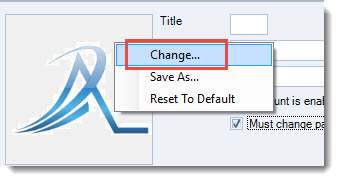
|
Main Tab
The Main tab allows you to manage users login details, passwords, email settings and menu options.
Jiwa Login
In the Jiwa Login section enter in the users login name in the Username field
You do not need to set a password if you have selected to have the user set their own password on next logon
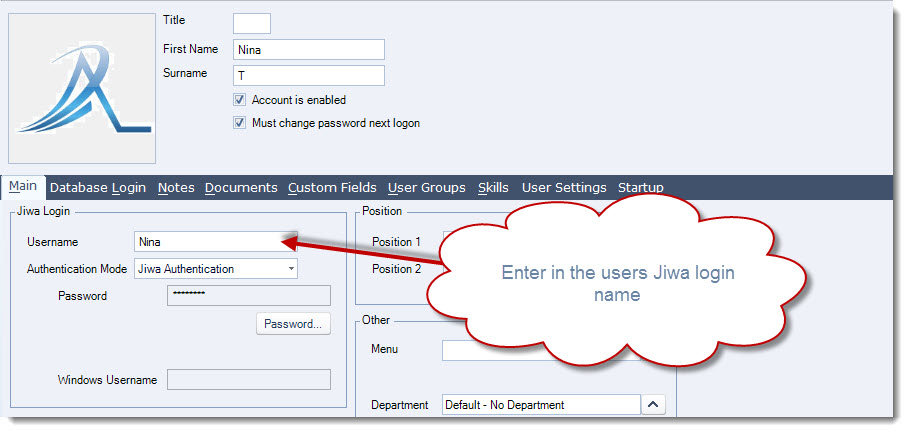
Save your updates, you will not be able to save the record until you have set the login Username
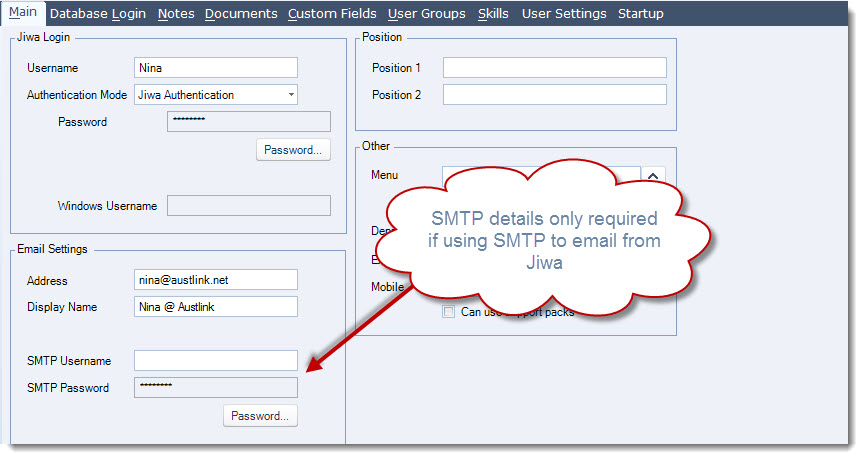
Email Settings
In the Email Settings section enter in the users email address and their display name
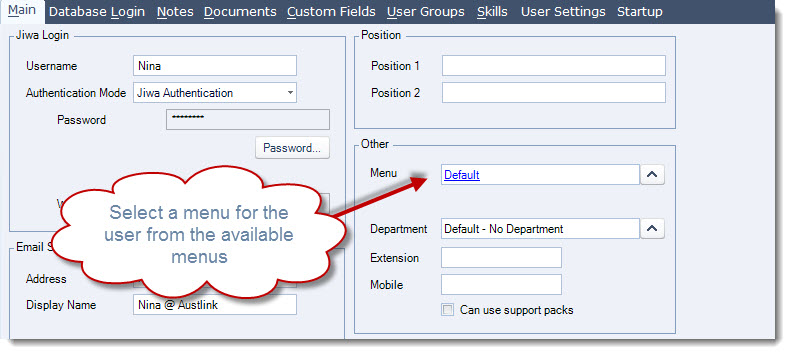
Other
In the Other section select a Menu that is applicable to the user and enter any other applicable details.
|
Field |
Description |
|
Username |
This is the Jiwa login name used in the login screen 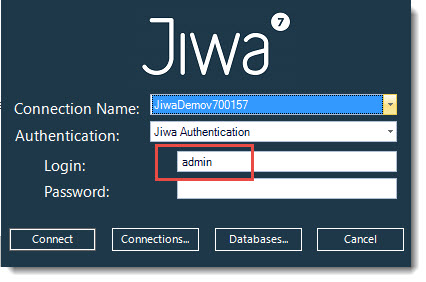
|
|
Authentication Mode |
This is the authentication mode used when logging into Jiwa. Available options are; Jiwa Authentication - this method requires a Jiwa login name and password to be entered by the user when logging into Jiwa. This is also the default authentication method. Windows Authentication - this method uses the windows login credentials to log into Jiwa. The user is not required to enter their login name or password, both fields are disabled. When first using this method the user must select the authentication method of Windows on the login screen 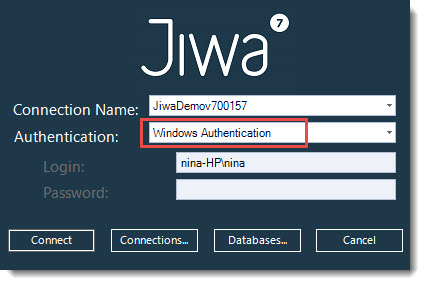
Either - This option allows users to select their method of authentication when logging into Jiwa. |
|
Password |
The Password button allows you to set or reset a users Jiwa password. All passwords are encrypted therefore you can only change a password, you cannot view passwords. Password can only be changed where the Authentication Mode is set to
|
|
Windows Username |
Enter in the users Windows login name including the domain, for example Nina-HP\Nina This field is only enabled when the authentication mode is set to
When using Windows authentications users are not able to log into Jiwa unless their Windows login is authenticated |
|
Address |
This is the users email address that will be used when sending emails from Jiwa |
|
Display Name |
This is the email display name |
|
SMTP Username / Password |
These fields only need to be populated if you are sending all emails from Jiwa via SMTP |
|
Position 1 / Position 2 |
Staff position fields |
|
Menu |
Select the menu that is applicable to the user from the options available. Menu's can be customised to match business processes/functions by removing options not applicable to the role. Contact your Jiwa Consultant to discuss your specific requirements. |
|
Department |
Select the department that is applicable to the user from the available options. Departments are user defined and can be setup to meet your specific requirements. |
|
Extension / Mobile |
Staff contact details |
|
Can use support packs |
This option is only applicable the Service Manager module where support packs are sold. |
User Groups Tab
User Groups in Jiwa 7 are used to grant and restrict access to modules, forms and tabs. New user groups can be created to meet business function requirements, please contact your Jiwa Consultant to discuss your requirements in detail.
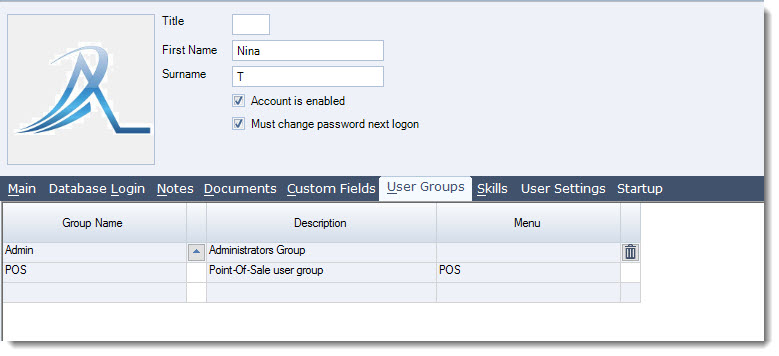
Staff records can be linked to one or more user groups.
Click on the lookup icon next to the Group Name field to bring up the Search User Group form
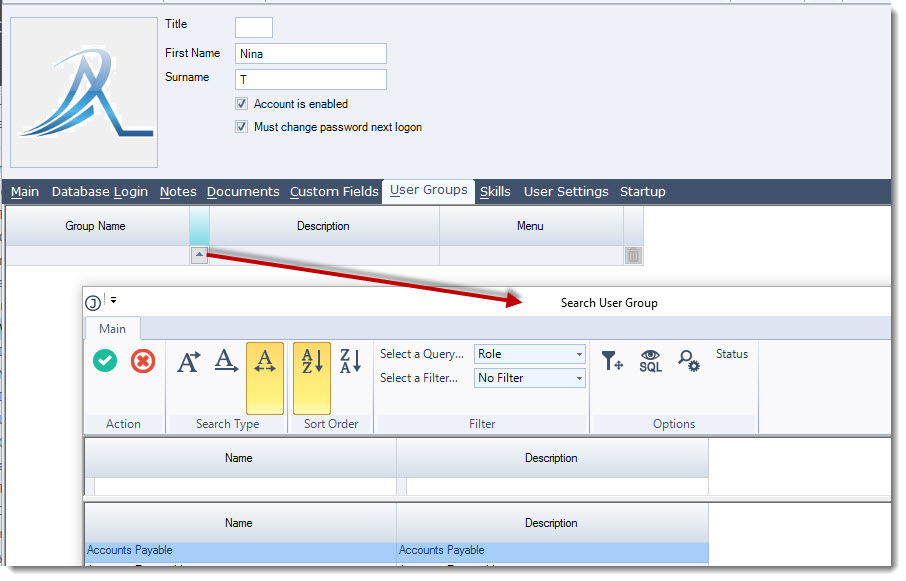
Repeat this process to add additional groups if required.
User Settings Tab
This tab allows you to control specific actions at the user level.
When creating a new staff member the default settings on this tab can be accepted.
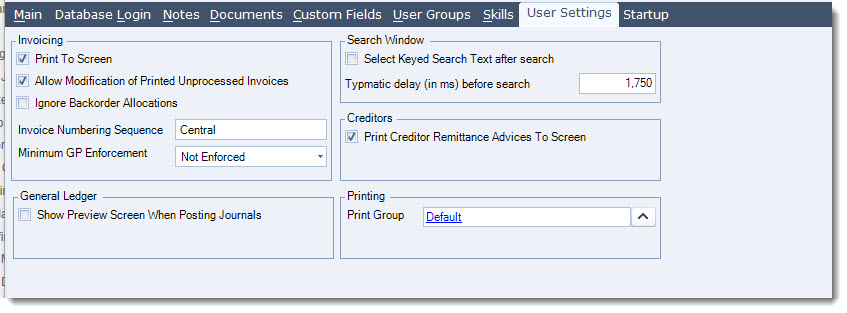
|
Field |
Description |
|
Print To Screen |
This setting determines if invoicing reports are printed directly to the printer or to the screen first. 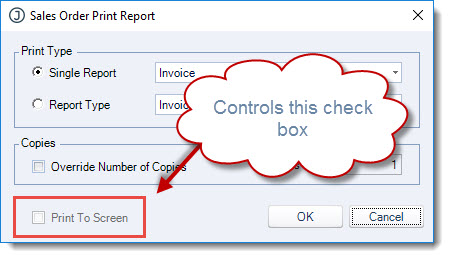
|
|
Allow Modifications to Printed Unprocessed Invoices |
When enabled this setting allows the user to modify unprocessed sales orders that have been printed. The default is Yes |
|
Ignore Backorder Allocations |
When enabled this setting gives the user an option to take stock that is already allocated to existing backorders, if there is insufficient stock available to fulfil the new order. The user is prompted with the following popup. The default setting is No 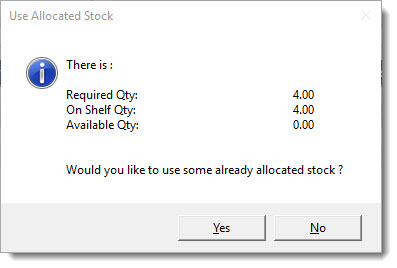
|
|
Invoice Number Sequence |
This setting allows you to have different invoice number sequences per user. The default setting is Central which means that the system number setting for Central will be used. |
|
Minimum GP Enforcement |
This setting controls whether the selling price in sales orders can be changed to be less than the minimum sell price on the Prices tab in Inventory Maintenance. The options are;
|
|
Show Preview Screen When Posting Journals |
When enabled this setting displays the General Ledger journal entry before posting. The exception to this is Sales Order Processing. The default setting is No |
|
Select Keyed Search Text after Search |
In the search forms when enabled this setting will replace the existing text when typing. 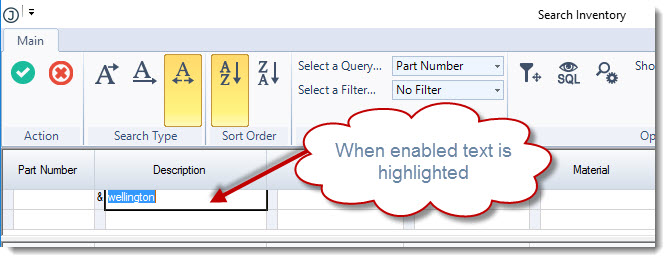
When disabled then additional text is appended to the existing text in the search field. 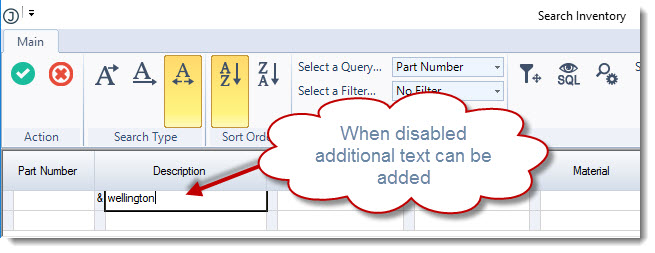
|
|
Typmatic delay (in ms) before search |
This is the time Jiwa waits before starting the search on entered text. The default setting is 1,750 ms |
|
Print Creditor Remittance Advices to Screen |
This setting determines if Creditor remittance advice's are printed directly to the printer or to the screen first. |
|
Print Group |
This is the print group linked to the staff record |
Startup Tab
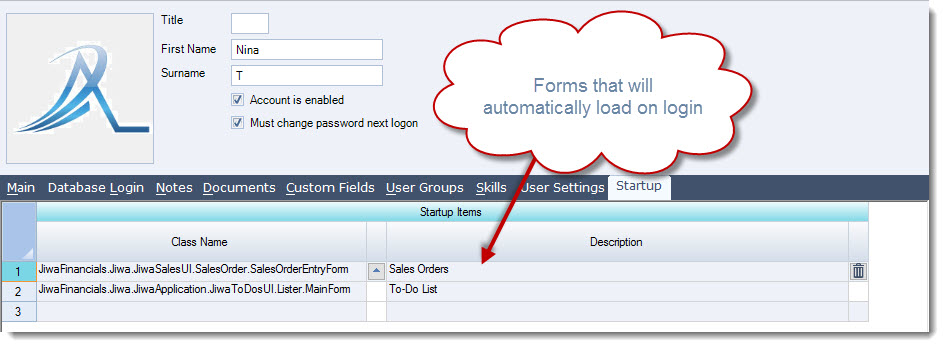
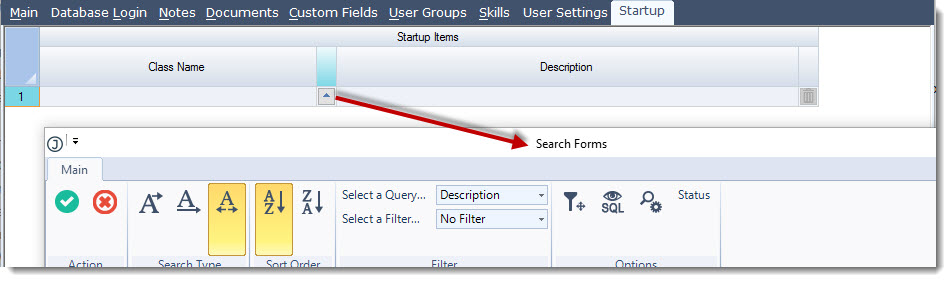
The Startup tab is used to set forms that will automatically load each time the user logs into Jiwa.
To add a form on startup click on the lookup icon next to the Class Name field to bring up the Search Forms window
In the Description field enter in the name of the form you want to auto load on startup, for example Sales Orders
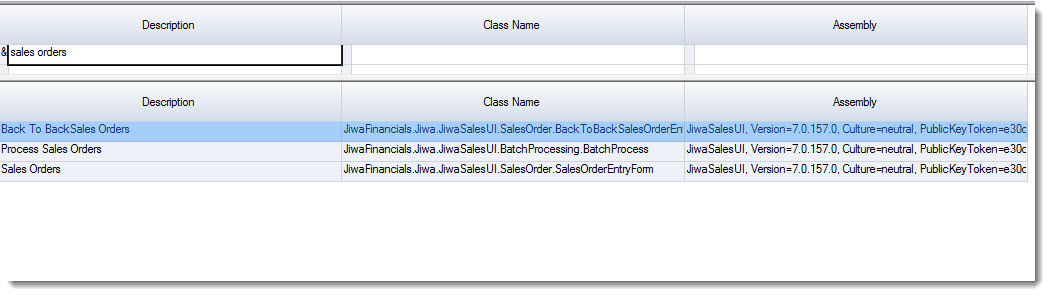
Select the required form and repeat the process for any other form required.