In this article we look at invoicing tasks on service jobs.
Before proceeding please ensure that you have reviewed the following articles on Service Manager;
Processing Tasks
Tasks on a service job can be invoiced individually or together as a single job. How service jobs are invoiced will be dependant upon your requirements and business processes.
To begin load the service job you want to invoice into the Service Jobs form
From the menu ribbon select Process Makes Sales Order

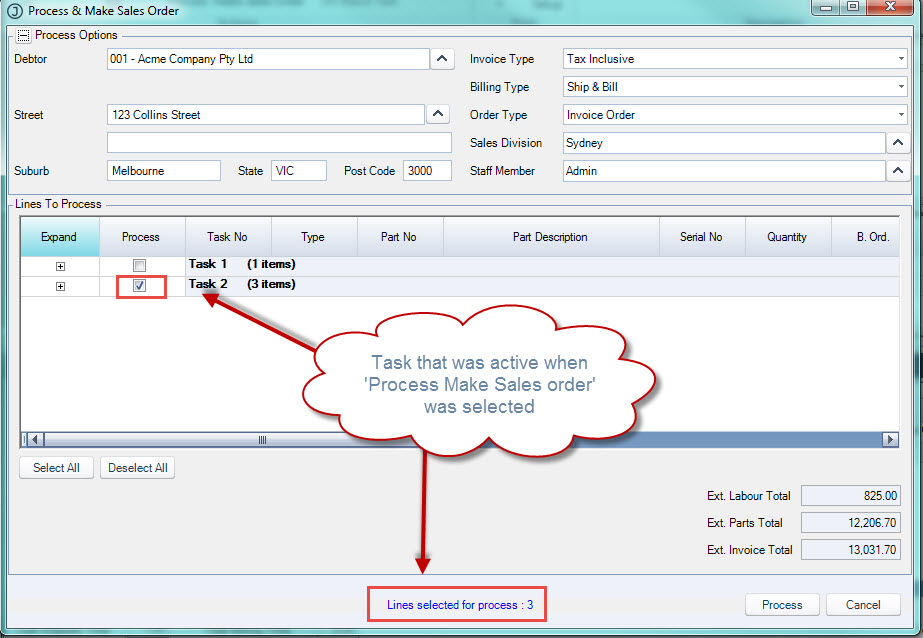
The Process & Make Sales Order popup will appear
By default the task that was active when you selected to process will be the task that is flagged to process.
Process Options
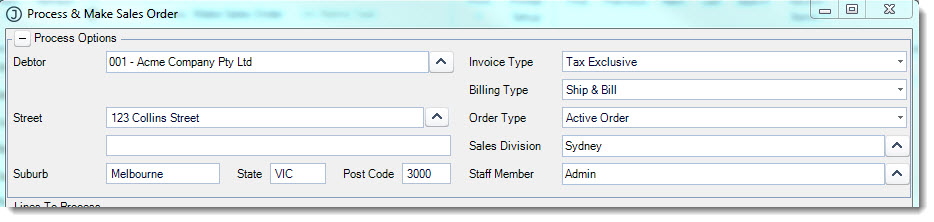
The top part of the form displays the processing options.
The Debtor and address details default to the Billing Debtor that has been assigned to the active task.
All other details default to your system setting defaults but can be changed manually if required.
Lines to Process
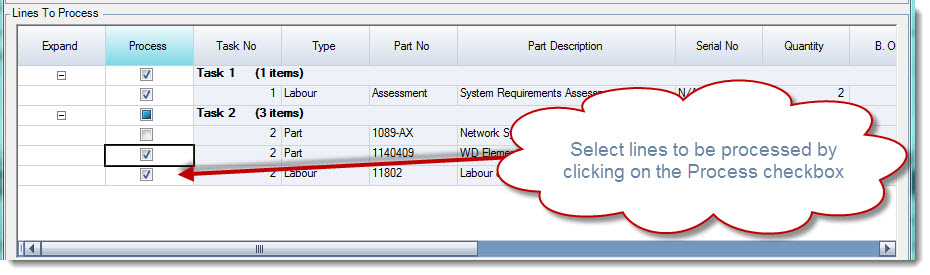
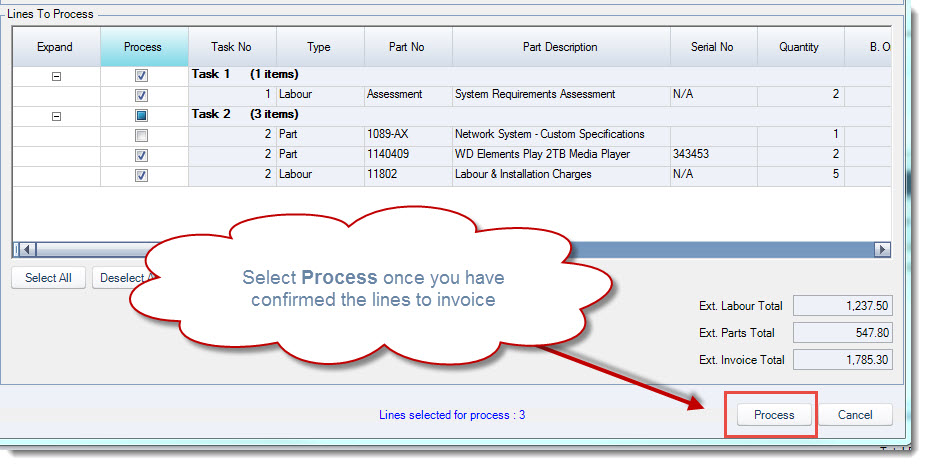
The middle section of the form is where we select the tasks and lines on a task that are to be invoiced.
You will notice that the lines not yet processed on the active task are automatically flagged to process.
The process box will be greyed out on lines that have already been processed.
To review the lines to be invoiced click on the Expand button next to the task.
If you want to process all lines against all task simply click on the Select All button.
Alternatively, you can click on the Deselect All button and then manually select which lines you want to invoice by clicking on the Process check box next to the task line.
Summary
The bottom section of the form provides you with a summary of labour and parts that have been flagged for processing excluding GST.

When you have confirmed the lines that need to be invoiced select the Process icon.
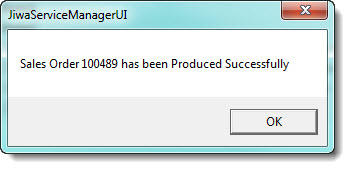
When the sales order has been created the following popup will appear.
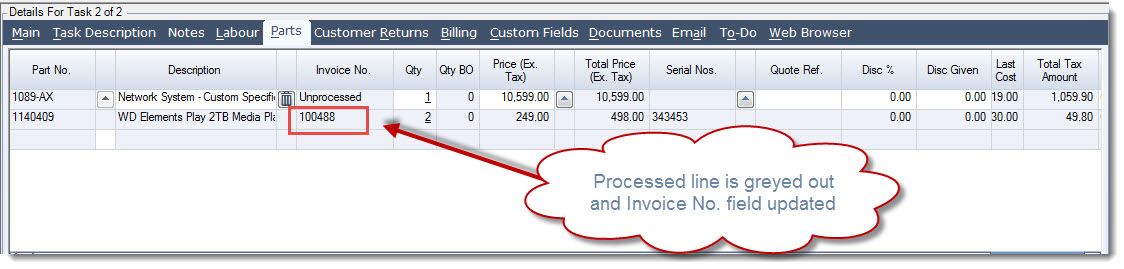
Back at the service job the lines that have been processed are no longer editable and the entire line is displayed in grey.
The Invoice No. field is updated with the sales order number that the line was processed to.
Processing Service Job Sales Orders
When tasks are processed on a service job an unprocessed sales order is created.
It is recommended that service job related sales orders are not edited as the service job will not be updated with the change made to the sales order.
For example if the quantity or price is changed on the sales order the service job will not be updated to reflect this change.
To process your sales order open the Sales Order Entry form and load your service job order.
The Order No. field is populated with the service job reference and the Reference field with the service job and task number.
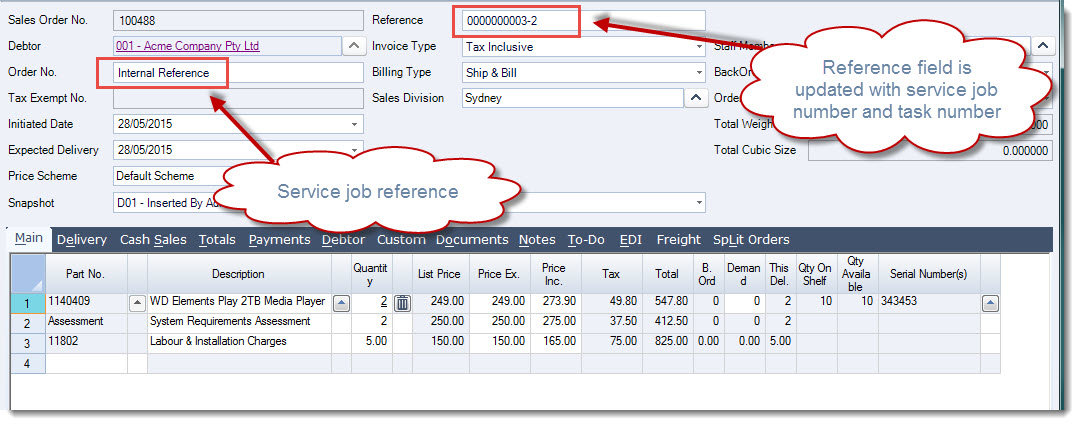
From the menu ribbon select Process to process your service job order to an invoice.

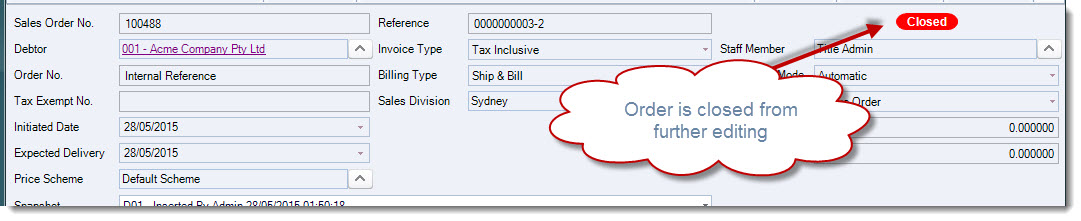
Once the invoice is generated the sales order status will be updated with Closed