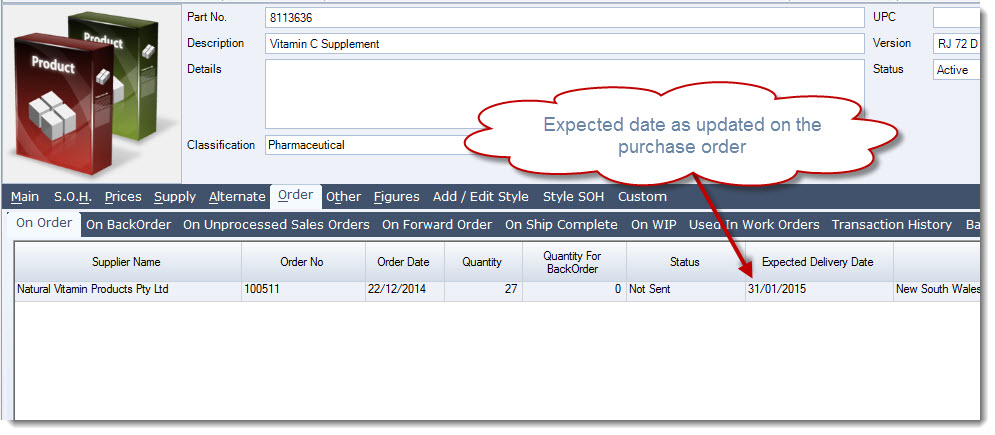
In this article we will be looking at how to set the expected delivery date on purchase order lines.
Before proceeding we recommend that the following articles are reviewed;
Before you can change the expected delivery date you need to ensure that the Expected Date is visible on our Order tab of your purchase order.
Move your mouse over the column headers on the Orders tab and right click to activate your grid setting options.

Make sure that Use Custom Columns is ticked, this option will apply your custom settings to the grid.
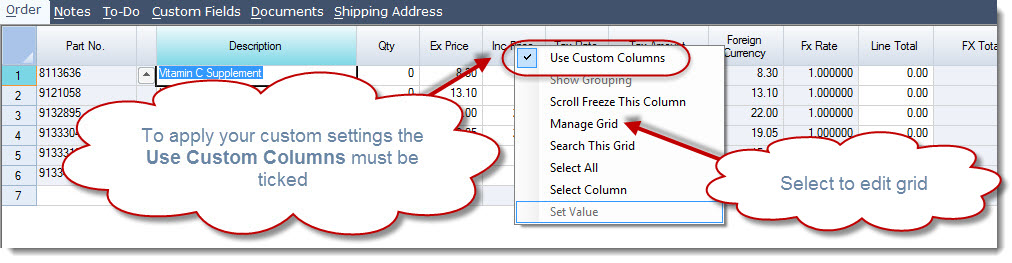
Select Manage Grid from the column setting options to activate the Manage Columns form.
Make visible the column ExpDate by checking the Visible check box.
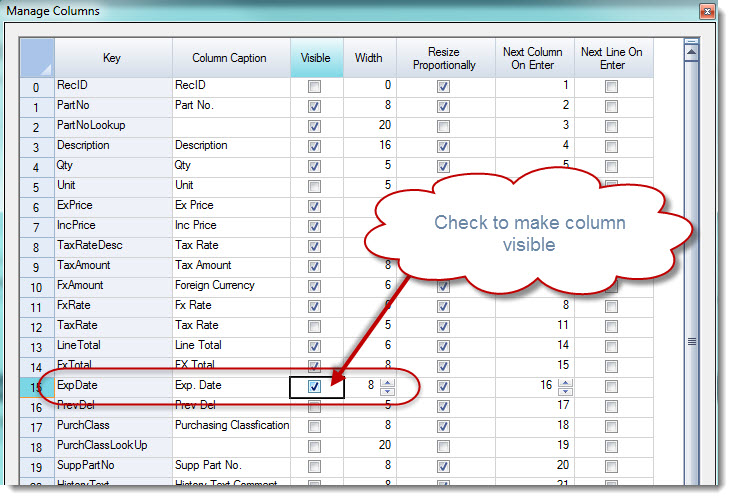
Select Apply to close the form and return to your purchase order.
The column is now visible on your purchase order entry form.
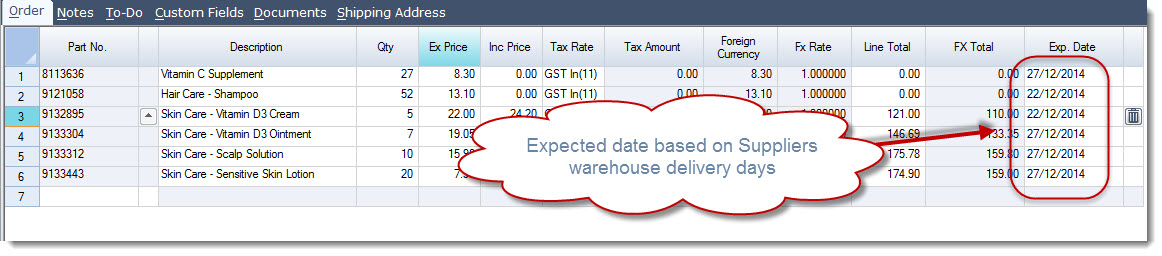
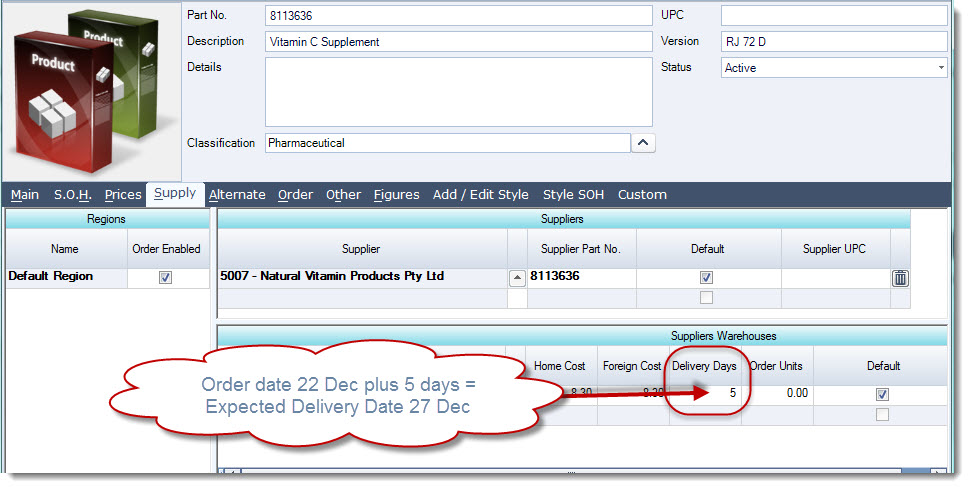
Jiwa will automatically calculate the Expected Delivery Date using the Delivery Days set against the inventory item in the Supply | Supplier Warehouse tab.
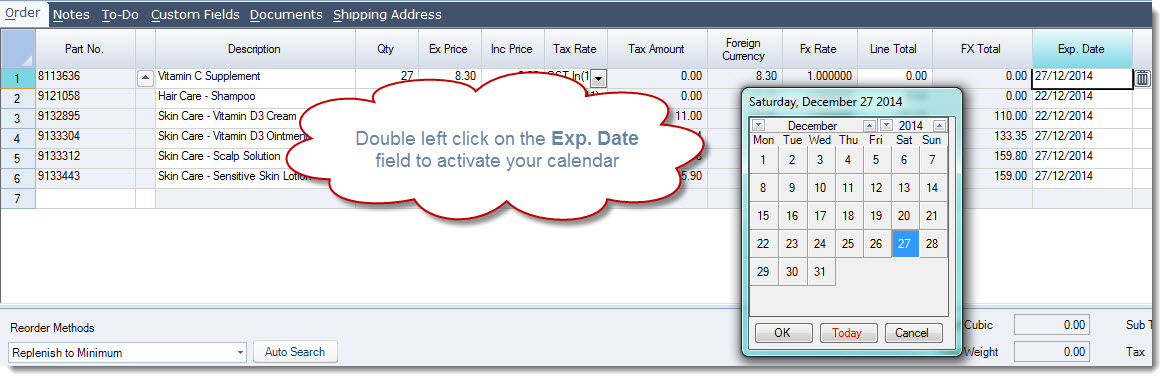
The date can be changed by either typing over the date in the Exp. Date field or double left clicking on the field to activate the calendar.
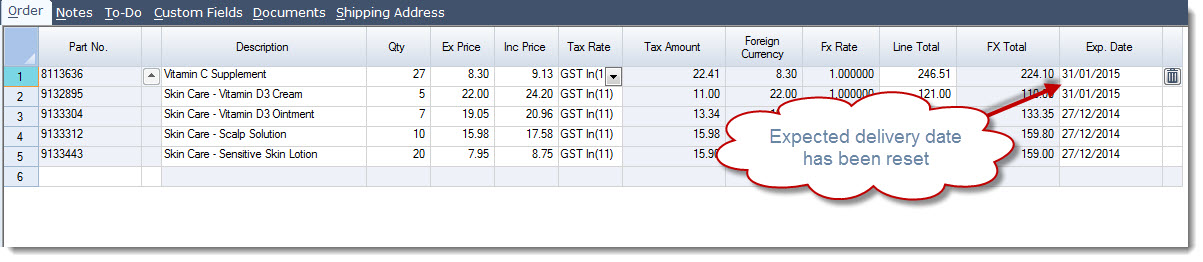
The Expected Delivery Date once set can be viewed from the Inventory Maintenance form