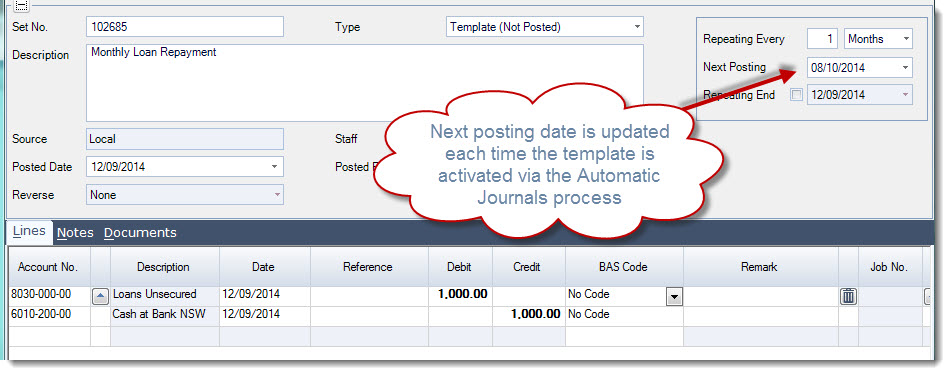
In this article we will look at how template or recurring journals are used in Jiwa.
Overview
Template journal sets in Jiwa are used for transactions that occur on a regular basis where the entries are the same for each posting.
The journals are created from these templates when the Automatic Journals process is run.
Creating Template Journals
Select General Ledger | Journal Transactions | Journal Sets
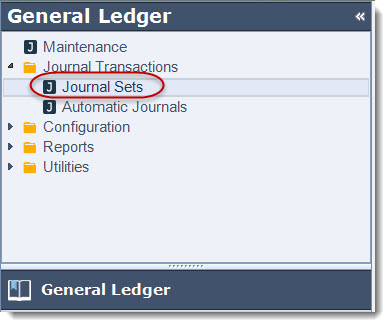
From the menu ribbon select New

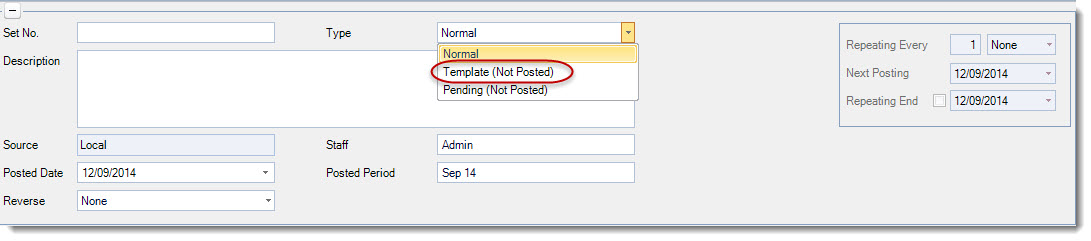
From the Type drop down box select Template (Not Posted)
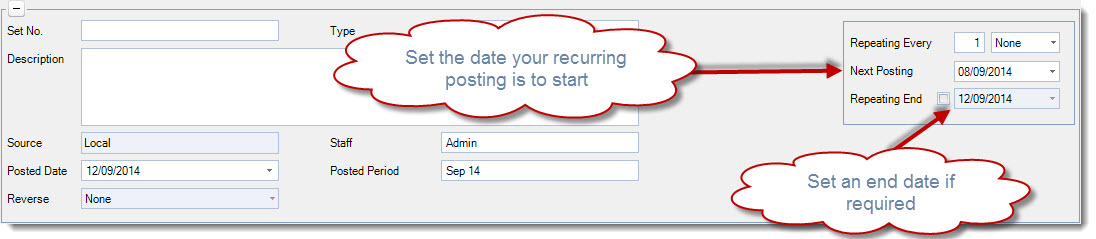
This will activate the Repeating section of the journal set header.
Set the frequency of your template or recurring journal set
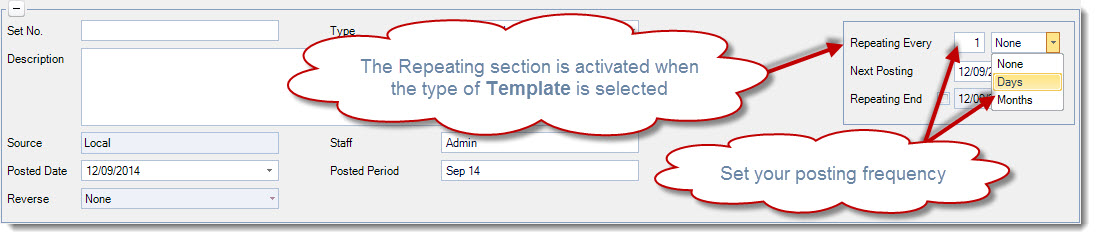
Set your Next Posting date
Set your Repeating End date if applicable, if this is a permanent posting journal then this date does not need to be set.
Give your journal set template a description and enter in the journal lines.
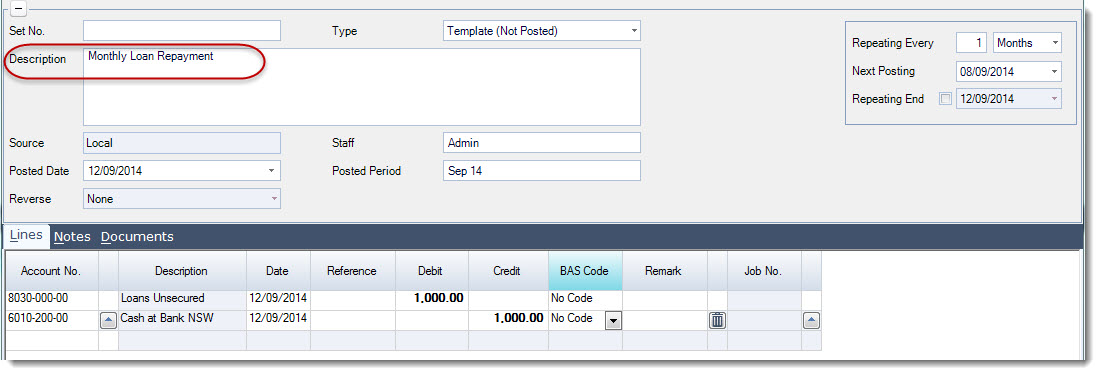
Save your template journal set, at this point your template will be assigned a journal Set No.
Template Journal Sets with GST
If your template journal set has GST applicable you will need to;
-
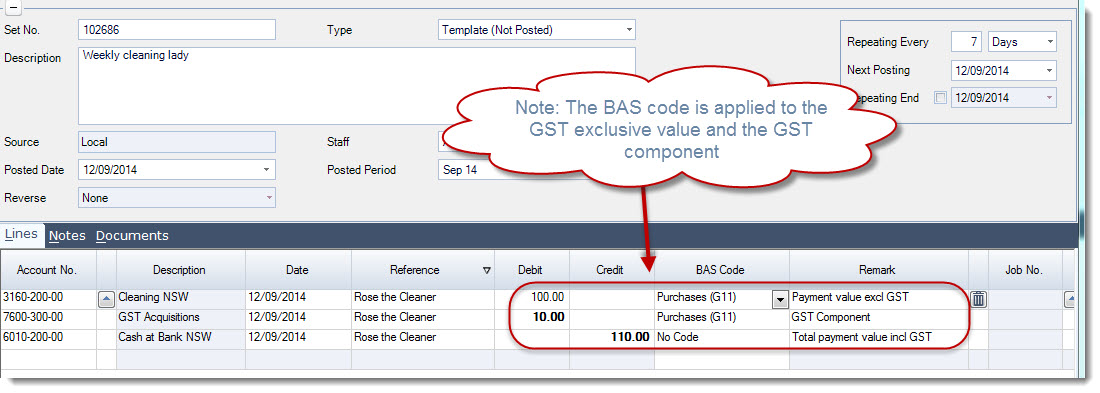
Enter in your GST applicable transaction value excluding GST and apply the correct BAS code
-
Enter in your GST amount as a separate line and apply the correct BAS code
This is because journal sets do not automatically calculate GST. If you are not sure of the entry that needs to be created please seek advise from your Tax Accountant.
Automatic Journals
The Automatic Journals form is used to activate or post your Template (recurring) journal sets.
Select General Ledger | Journal Transactions | Automatic Journals
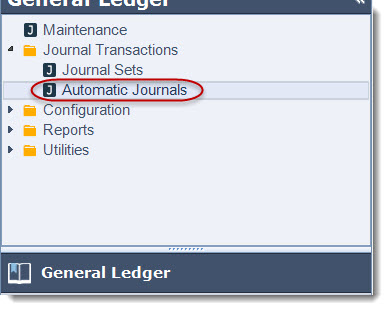
From the menu ribbon select New to create a new posting batch

This will bring up the templates that are due to be posted in the grid
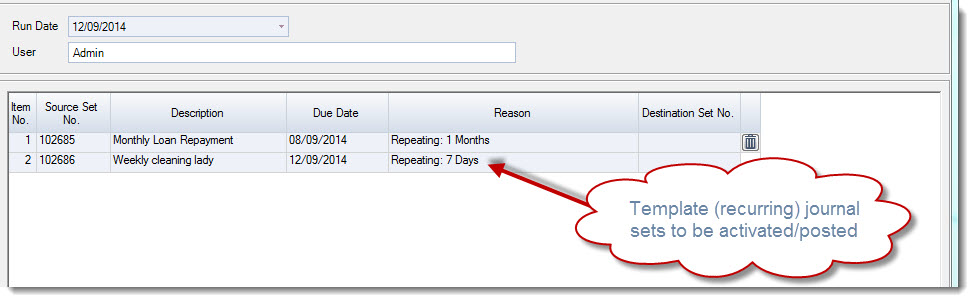
Review the sets to post, if a set is not to be posted delete the line from the grid by clicking on the rubbish bin icon next to the applicable set.
Select Save to post your journal sets
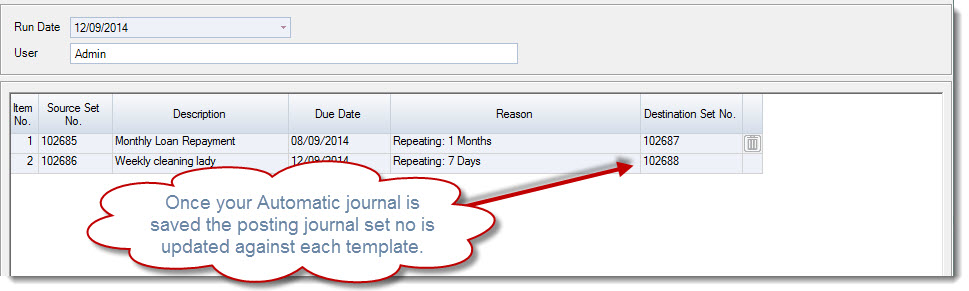
The next posting date on the Journal Set Template is updated to reflect when the template is next due to be activated/posted.