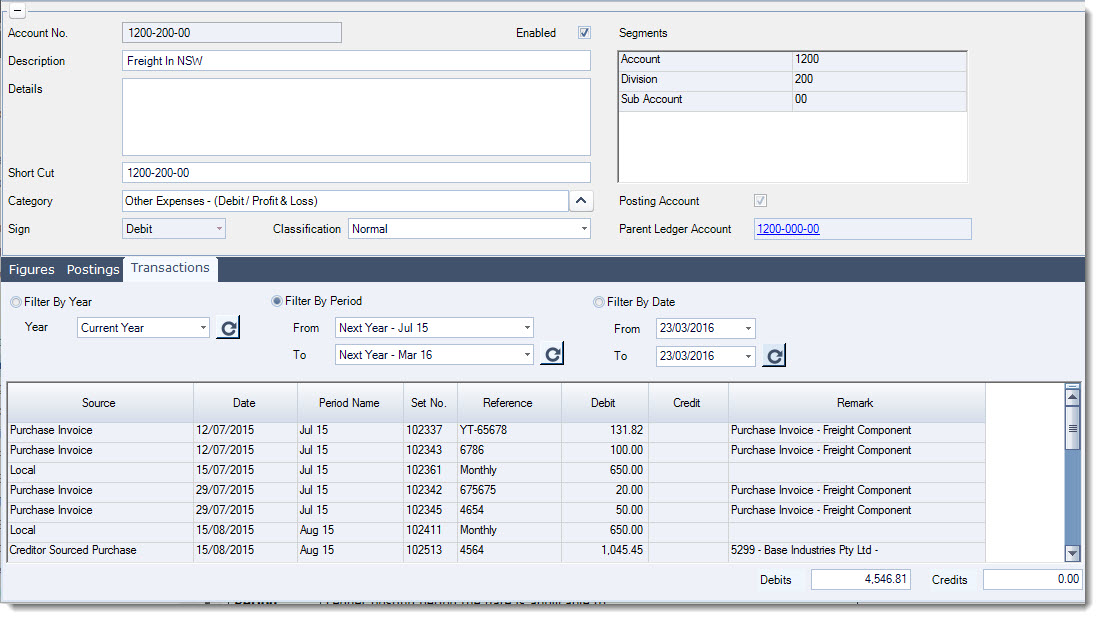
General Ledger Account Maintenance is used to create and maintain General Ledger accounts in Jiwa.
This article explains how to create a new General Ledger account, including entering the account number and description, selecting the account category, reviewing the account classification, and saving the account so it can be used for posting, reporting, and financial analysis.
Before creating new accounts, we recommend reviewing Understanding General Ledger Account Structure so that you understand how account segments, parent accounts, posting accounts, and control accounts work in Jiwa.
Creating GL Accounts
Before creating a new account you should consider the following;
-
Where in the ledger is the account required, in the Profit & Loss or Balance Sheet section?
-
If the new account is a Balance Sheet account what type of account is it eg. Current Asset, Fixed Asset, Current Liability
-
What is the new account number
If you are not sure on any of these details discuss your account requirements with your Accountant.
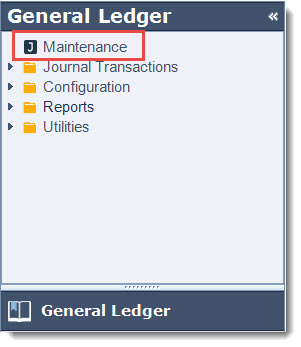
From the menu select General Ledger | Maintenance
From the menu ribbon select New

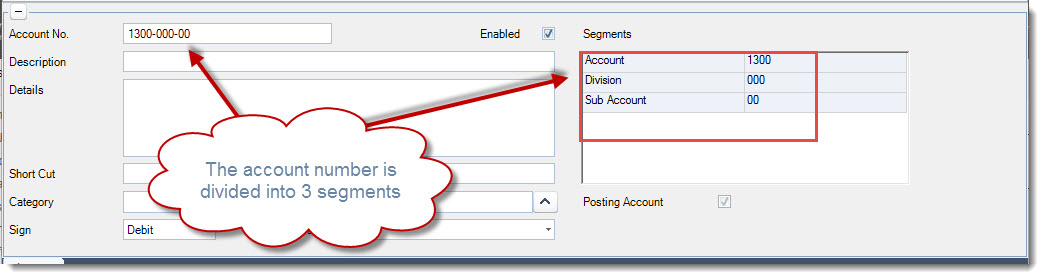
In the Account No. field enter in your account number.
Use the segments section of the account to confirm the structure your account number must take.
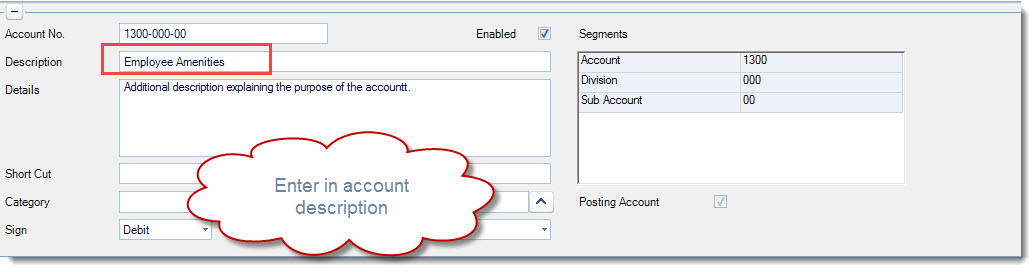
In the Description field enter in a description for your account, this is the description that will appear on all General Ledger reports.
The Details field can be used to provide an additional description of the account or to provide an explanation as to the purpose of the account.
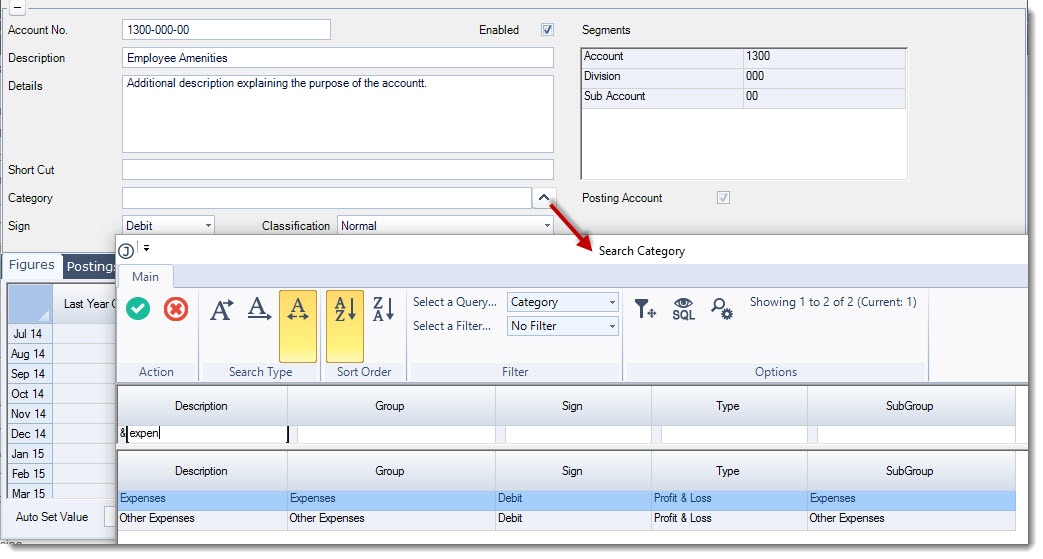
Assign your account to a Category by clicking on the lookup icon next to the field to open the Category Search form.
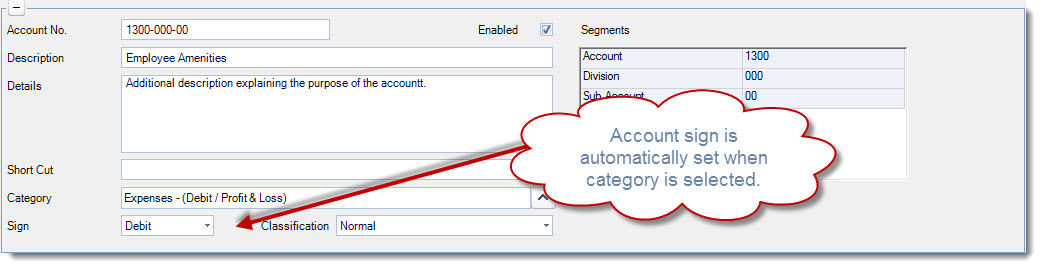
The account Sign is automatically set when the category is selected this should not be changed.
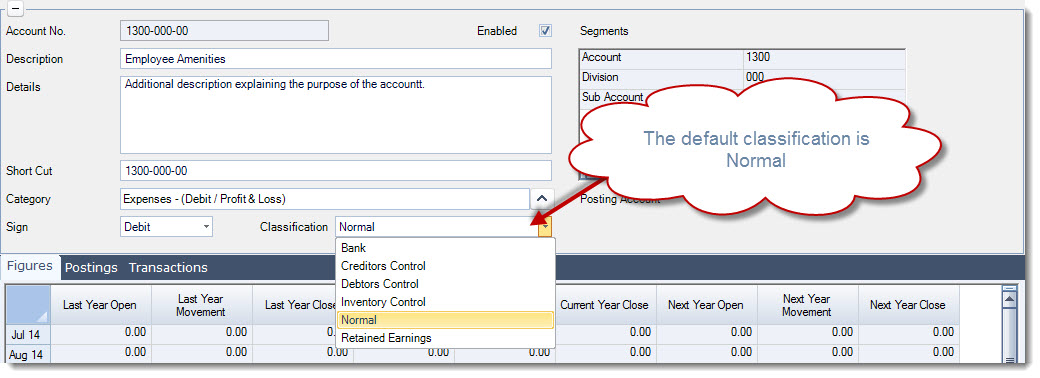
Confirm the account Classification
|
Classification |
Description |
|
Normal |
All accounts will fall into this classification with the exception of ;
|
|
Bank |
This classification should only be used for accounts that you want to pay into or out of. Only accounts with the classification of Bank will appear for selection in the Cashbook, Bank Reconciliation and in the Creditor EFT/Cheque Payment and Creditor Payment forms. |
|
Creditors Control |
Used for Trade Creditor control accounts only. This classification is currently not used by Jiwa and is only a reference. |
|
Debtors Control |
Used for Trade Debtor control accounts only. This classification is currently not used by Jiwa and is only a reference. |
|
Inventory Control |
Used for Inventory Value control accounts only. This classification is currently not used by Jiwa and is only a reference. |
|
Retained Earnings |
Account that undistributed profits or losses are posted to during the yearly roll-over process |
From the menu ribbon select Save to create your new account.
Parent Accounts
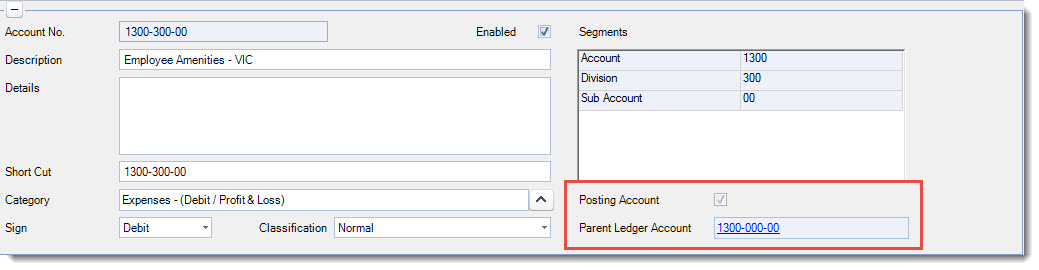
Jiwa will automatically create the parent account/(s) when a new account is created at a posting level.
If we follow on from the example above a new account will be created for Employee Amenities VIC 1300-300-00
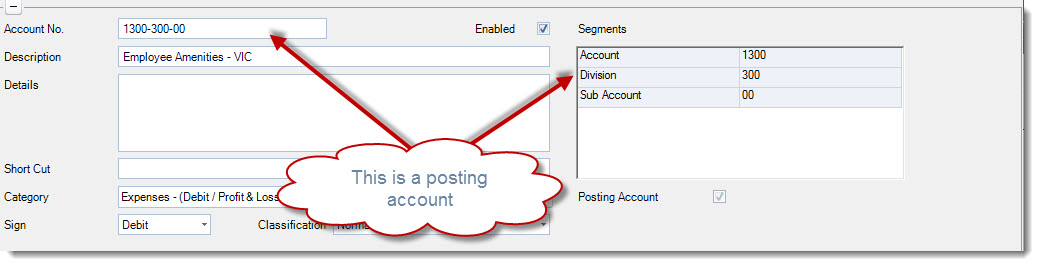
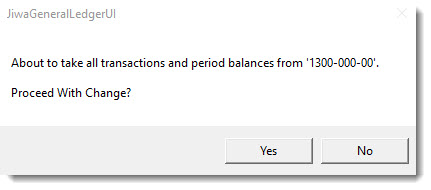
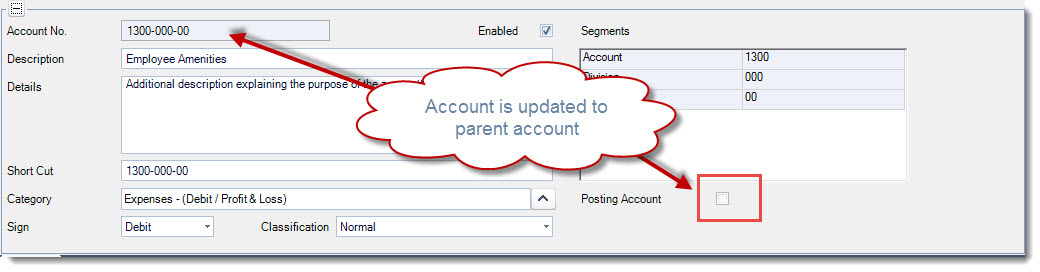
When the account is saved the following message will appear indicating that the main account will now become a parent account.
Select Yes at the prompt if you are happy to proceed
The account is now created and updated with the parent account details
The main account is now updated to a parent account
GL Account Tabs
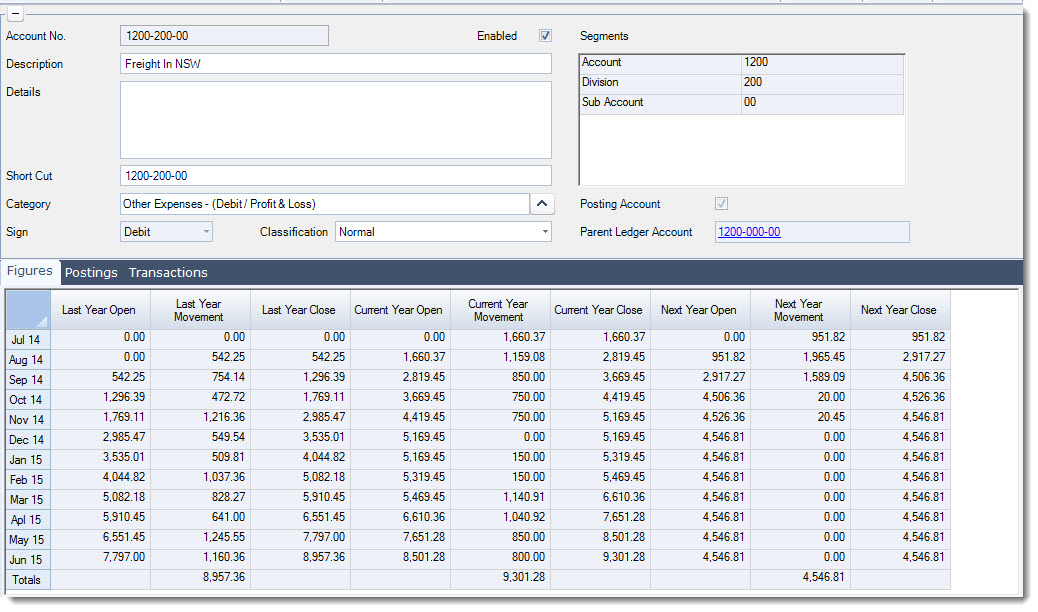
Figures Tab
This tab displays a summary of the accounts opening and closing balances as well as the monthly movement.
General Ledger Budgets are also maintained in this tab, up to 3 different budgets can be entered. Creating and maintaining budgets are covered in a separate article.
Postings Tab
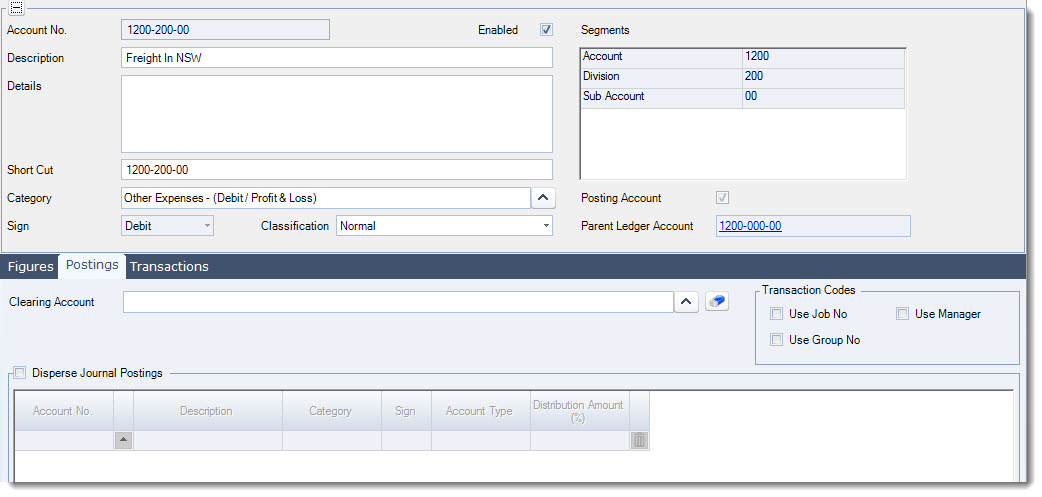
The posting tab is where specific information relating to how the account used.
The options available are described in the table below. If you are considering using any of these options please contact your Jiwa Consultant to discuss your requirements.
|
Option |
Description |
|
Clearing Account |
Used to transfer the balance in the account to another account. |
|
Transaction Codes |
Used for additional reporting purposes where journal postings must be assigned to a transaction code. |
|
Disperse Journal Postings |
Enables the apportionment of journal postings across multiple accounts based on the pre-set percentage, for example dispersing rent expense across multiple branches or divisions automatically. |
Transactions Tab
All transactions relating to the account can be viewed from this tab.