
In this article we will be looking at emailing Debtor statements and how to use contact groups and positions when emailing statements.
Contact Groups & Positions
Contact Groups
Contact groups assigned to Debtor accounts can be used to filter out Debtors in a statement run.
Debtors are assigned to one or more groups in the Debtor Maintenance form under Main | Groups
In the example below Brown's Computer Centre is assigned to multiple contact groups including the Statement - Email group.
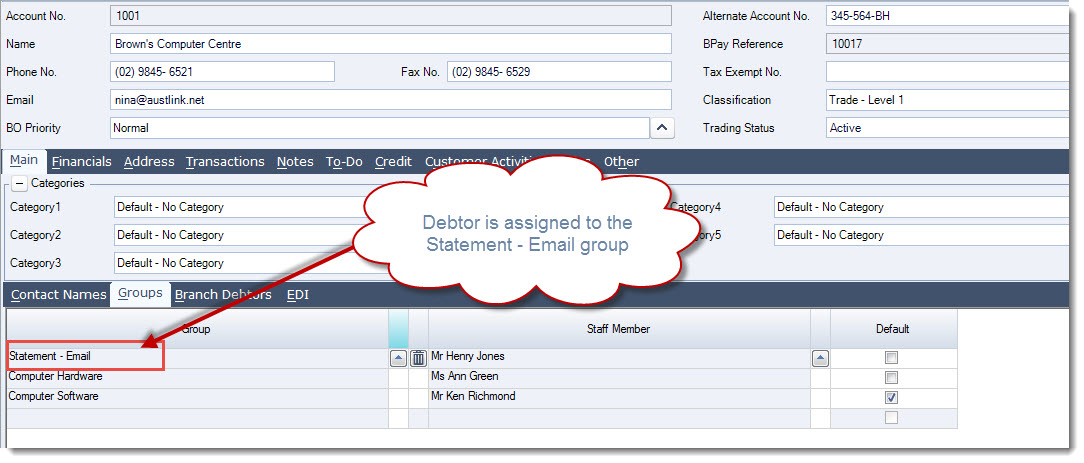
If you wanted a customer to receive both a printed statement in the mail as well as an email statement add the Statement - Print group to the Debtor account.
Contact Positions
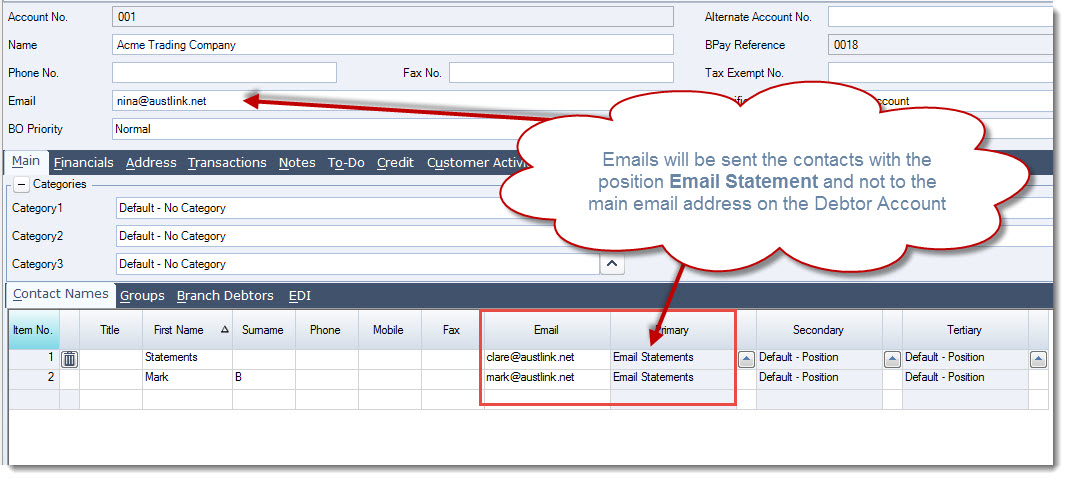
In cases where statements are to be sent to an email address other than the main email address on the Debtor account then the contact position of Email Statements is applied to the applicable Debtor contact.
When the position of Email Statements is assigned to a Debtor contact statements will not be emailed to the main email address on the Debtor account.
The Email Statements position can be assigned to the contact in any one of the three(3) available positions Primary, Secondary or Tertiary.
Emailing Statements
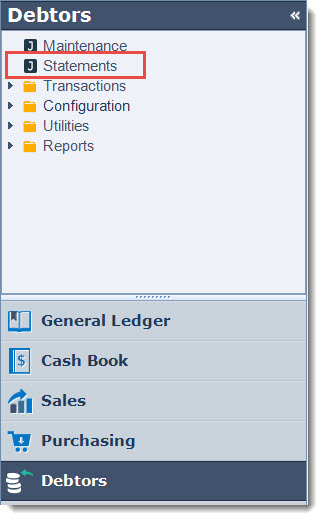
From the menu select Debtors | Statements
Email Settings
To change the email message details from the menu ribbon select Email Settings

This will activate Email Settings form where changes to the outgoing email can be made.
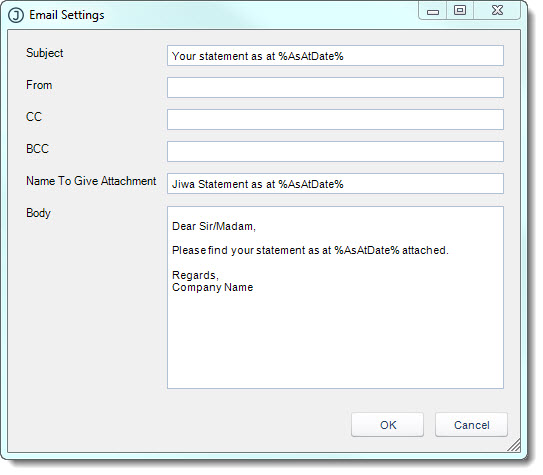
Select OK when you have made your changes.
Statement Layout
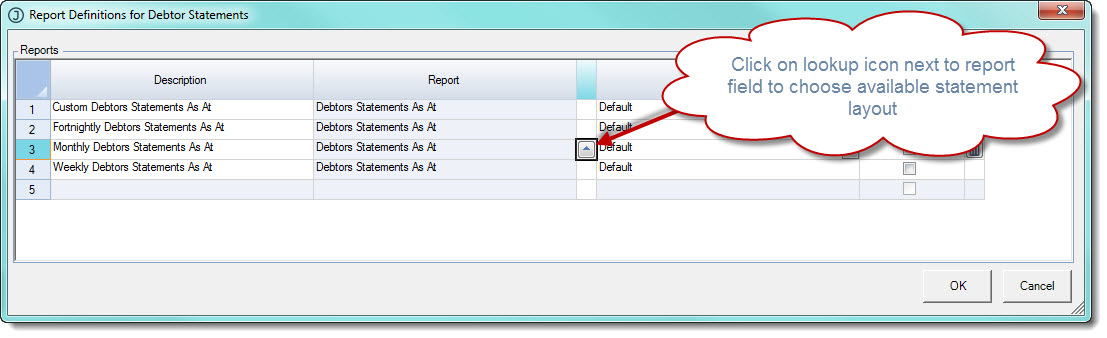
To check or change the statement layout click on the Printer Setup icon from the menu ribbon.

From here we can confirm or change which statement report layout is going to be used for the required statement period.
Statement Parameters
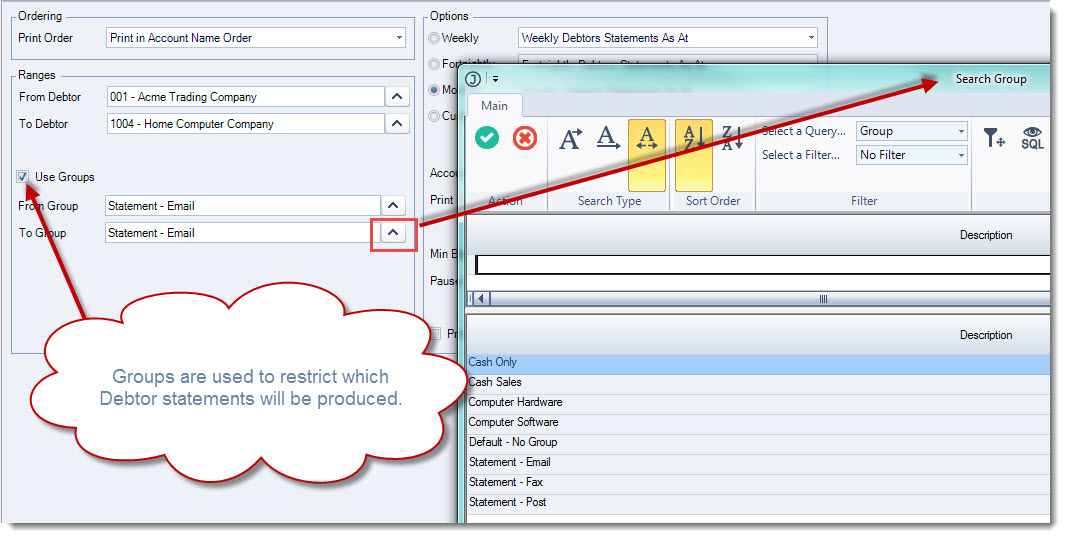
Select the From Debtor / To Debtor if emailing statements to a single Debtor or a range of Debtors.
Select Use Groups to apply the group filter to your statement run and select the applicable from/to group by clicking on the lookup icon next to the fields.
In this example we only want to send statements to Debtors that are in the Statement - Email group
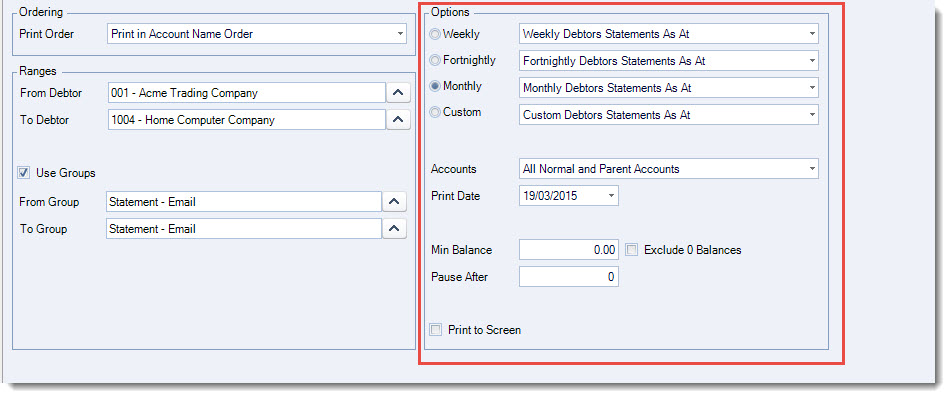
Set the required Options
|
Option |
Description |
|
Statement Period |
Select the statement period to be run available options are Weekly / Fortnightly / Monthly / Custom |
|
Accounts |
If you have parent and child (head office / branch) Debtor accounts set up this option allows you to print Debtor statements for either the parent account or just the children accounts |
|
Print Date |
This is the statement print date and will be the date that appears on your statements. This date also restricts the transactions that will appear on the statement when the Debtors Statement As At report is used |
|
Min Balance |
Enter in a minimum statement balance. To produce statements with credit balances set the minimum balance to the highest Debtor credit balance, for example if you have a Debtor with a credit balance of $500 then enter in -500 in this field |
|
Exclude 0 Balance |
Check this box to exclude statements with a zero balance from the run |
|
Pause After |
Any value entered into this field will pause the statement run to allow other jobs to print |
|
Print to Screen |
When ticked statements will be printed to screen first |
When you have completed setting the required options select Email from the menu ribbon.

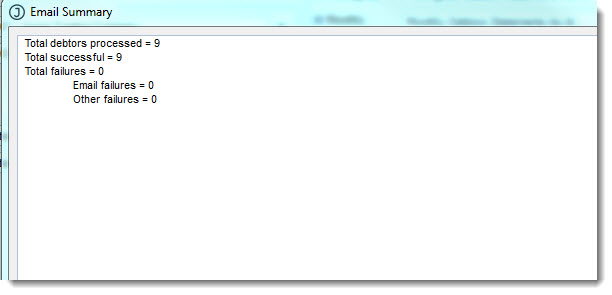
When the emails have been sent out the Email Summary will be displayed.
This video is best seen on the full screen. Just click on the icon at the bottom right of the video (see image below).
To exit full screen just press escape