In this article we will be looking at how to record and process Creditor recurring transactions also referred to as auto transactions in Jiwa.
For entering non recurring purchases please refer to our article Jiwa Creditors - Purchases (Non-Recurring)
Creating your Recurring Transactions
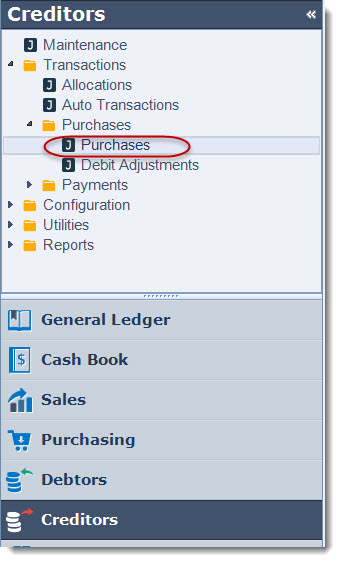
From the Creditors menu select Transactions | Purchases | Purchases
From the menu ribbon select New to create a new batch

Change your batch Type to Template (Not Posted)
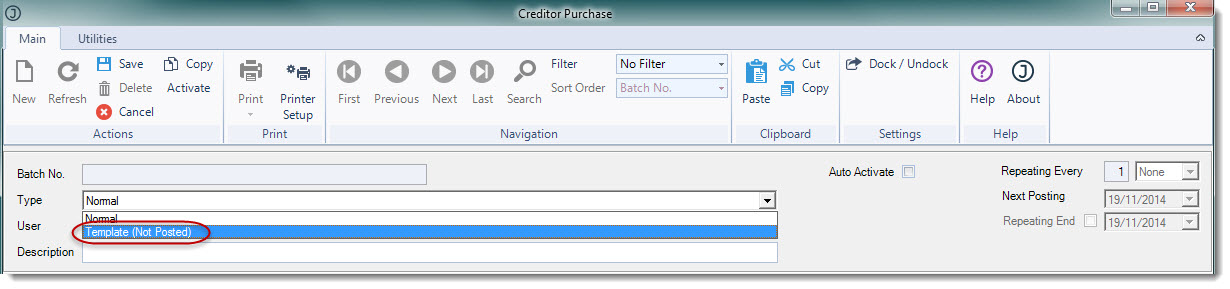
When you change your batch type to Template the Repeating fields to the right of your batch header will become active allowing you to set your recurring cycle.
In the following example I have set this batch for once a month and to end 31-12-14.

|
Field |
Description |
|
Repeat Every |
This option allows you to set the frequency of your auto transactions in Days or Months. If you have an entry that is repeated each fortnight you would set the frequency to 14 Days. |
|
Next Posting |
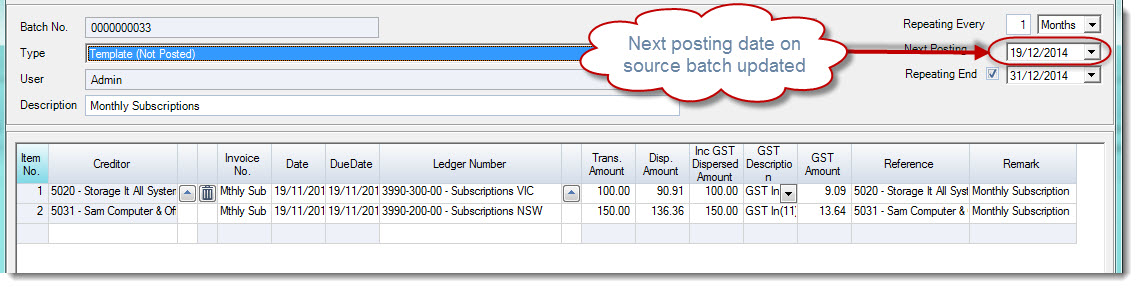
When first creating your recurring purchases batch this field is set manually and represents the date when the batch is to be posted next. This field is then automatically updated when each cycle is run but can be manually changed if required. |
|
Repeating End |
When unchecked indicates that the recurring batch will continue indefinitely. When checked indicates that the recurring batch has an end date as entered in the Repeating End Date field |
|
Repeating End Date |
Recurring batch end date and is only applied when the Repeating End check box is ticked. |
Enter in a description for your batch, this is the description you will see when you go to run your Auto Transactions.

Enter in your supplier invoice details. A batch can contain a single creditor invoice or multiple creditor invoices as in the example below as long as the repeat cycle is the same.
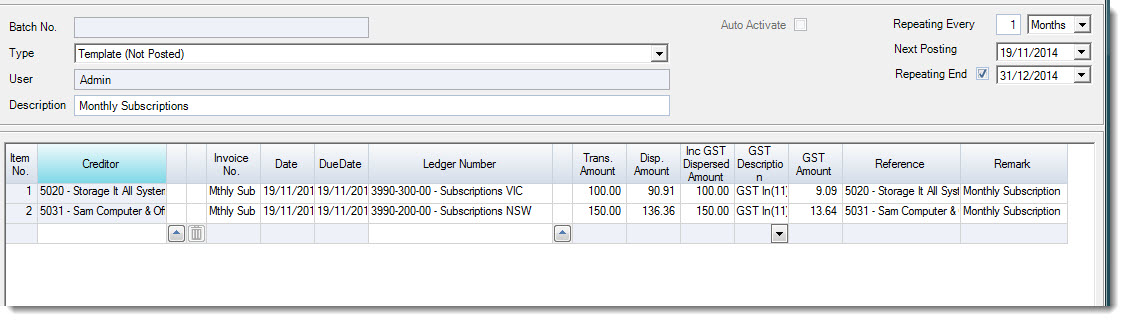
Once you have entered in all your invoices from the menu ribbon select Save.
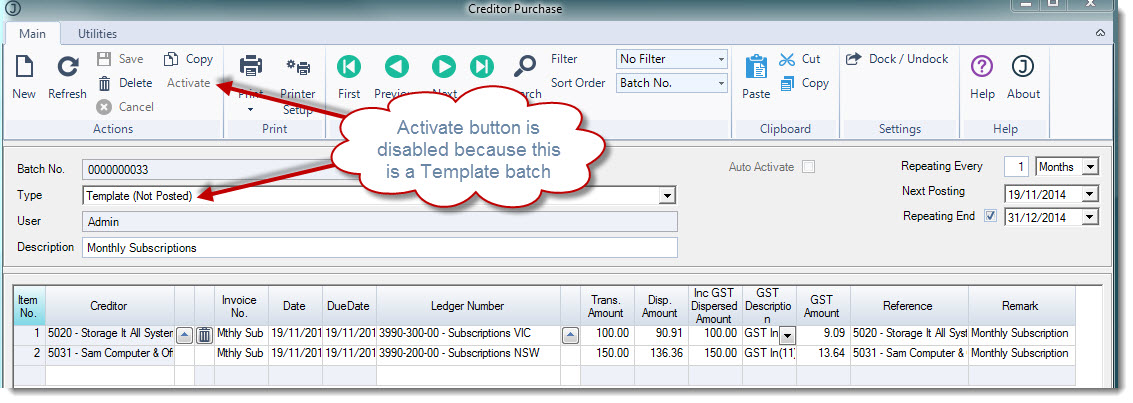
You will notice that because the batch type is set to Template the activate button on the menu ribbon has been disabled.
Posting your Auto Transactions
Creditor auto or recurring transactions are activated and posted to the General Ledger using the Auto Transactions process in Jiwa.
When a new batch is created all templates due for posting on or before the current system date are selected for posting.
NOTE
|
The Auto Transactions process does not create all missing transactions if you have missed running the process for 2 or more cycles. A new Auto Transactions batch will need to be created for each missed cycle. |
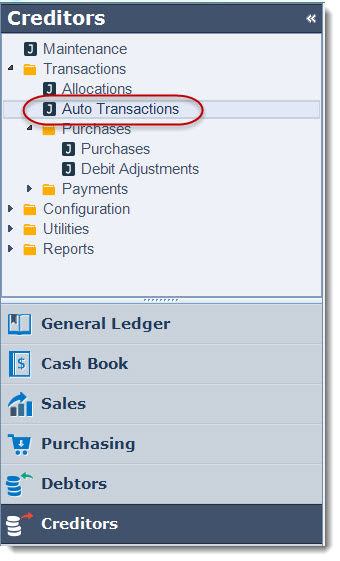
From the Creditors menu select Transactions | Auto Transactions
From the menu ribbon select New to create a new batch Auto Transaction Batch

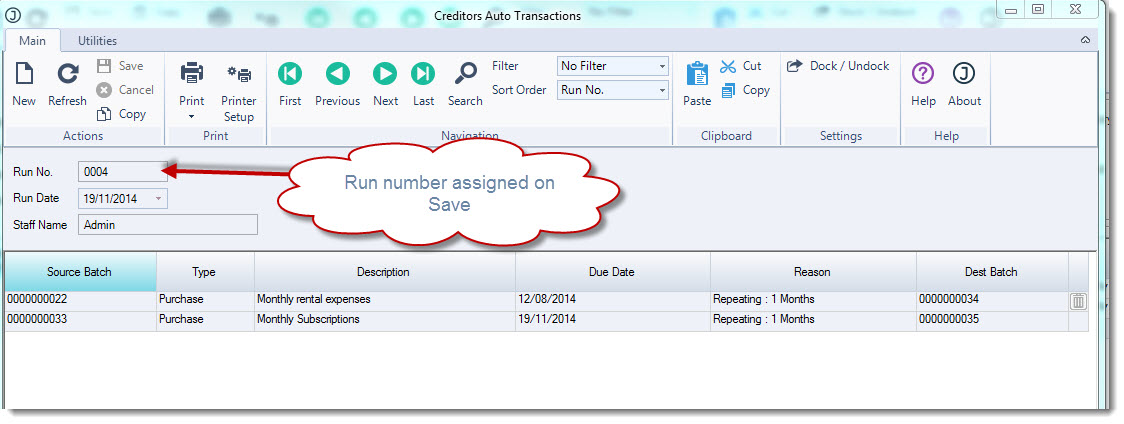
A new batch is created listing all the templates due for processing.
Remove any batches that you do not want processed by clicking on the rubbish bin icon next to the batch.
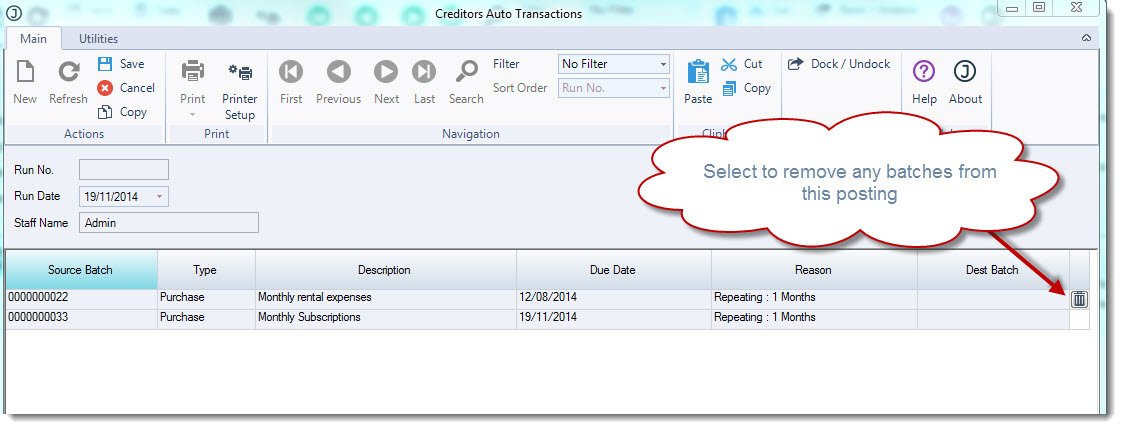
To process the auto transactions select Save from the menu ribbon.
Once you have saved the batch the following updates are completed
-
Creditors transactions are created
-
General Ledger is updated
-
The Next Posting Date on the source batch is updated
-
Auto Transaction batch run number is assigned and the batch is longer editable