In this article we will be looking at how to enter non inventory related creditor purchases such as utilities and service invoices into Jiwa.
For recording invoices that relate to locally purchased or imported inventory please refer to the following articles.
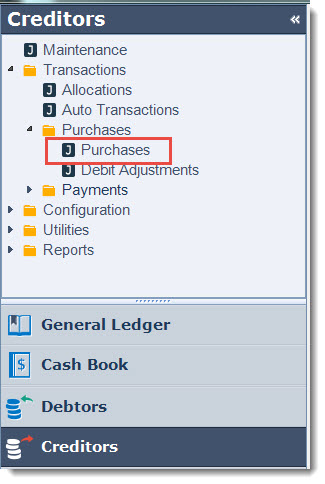
From the Creditors menu select Transactions | Purchases | Purchases
From the menu ribbon select New to create a new batch

Add a comment about the batch in the Description field

|
Field |
Description |
|
Batch No. |
The batch number field will be automatically assigned when the batch is first saved |
|
Type |
There are 2 types of batches that can be created
|
|
User |
This field is automatically populated with the logged in users name. This field is not editable |
|
Description |
Free text field where you can add a brief description about your batch |
|
Auto Activate |
When this box is ticked the batch is automatically activated when saved and the Creditors and General Ledgers are updated. Once activated the batch cannot be edited. Left unticked the batch can be saved for further editing, the Creditors and General Ledgers are then only updated when the batch is manually activated. |
|
Repeating Every |
This option is only enabled when the batch type is set to Template this field is where the recurring cycle is set. |
|
Next Posting |
When enabled allows you to set the recurring start date. This field is automatically update each time the Auto Transactions process is run however it can still be changed manually if required. |
|
Repeating End |
When unchecked indicates that the cycle will continue indefinitely. When checked indicates that the cycle has an end date as entered in the End Date field |
Make sure that the Auto Activate check box is unticked as you want to be able to save your batch without activating it on save.
To begin select your Creditor account by clicking on the lookup icon next to the Creditor field to bring up the Creditor search form.
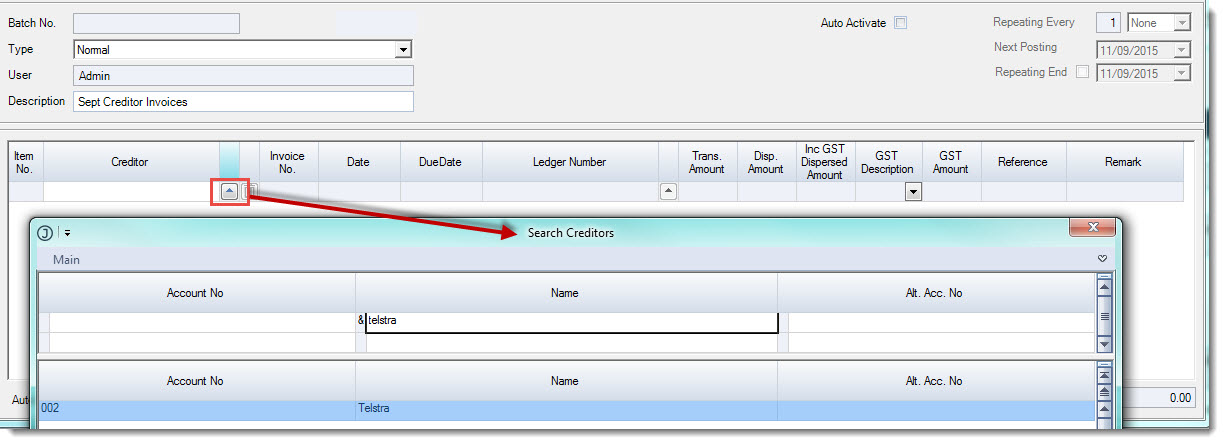
In the Invoice No. field enter in your creditor/supplier invoice number.
And in the Date field enter in the invoice date, you will notice that the Due Date is automatically calculated this is based on the trading terms set against the Creditor account.

The Ledger Number will default to the Creditor Purchases control account from Creditor Maintenance.
Note: From Jiwa version 7.0.175 the ledger number is taken from the Creditor Sourced Purchase control account in Creditor Maintenance.
To change the default account click on the lookup icon next to the field to bring up your General Ledger Account search form.
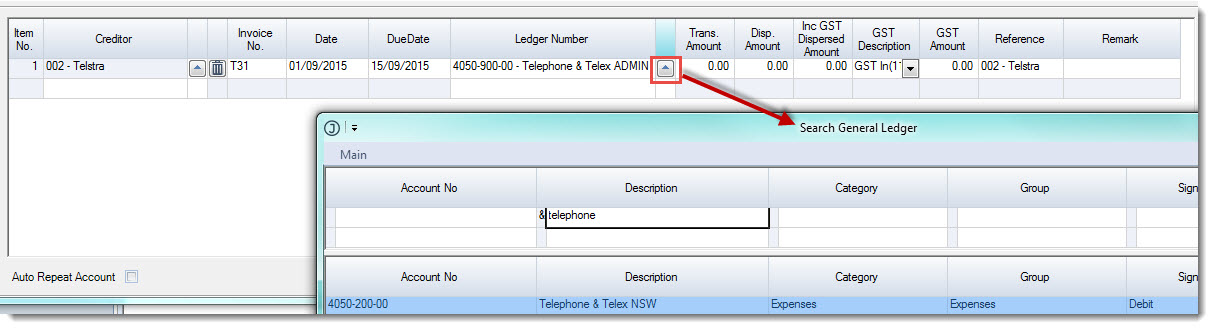
In the Trans Amount field enter in the total GST Inclusive invoice value.

The Disp. Amount field is automatically populated with the GST exclusive value and represents the value that is being allocated to the selected ledger account.
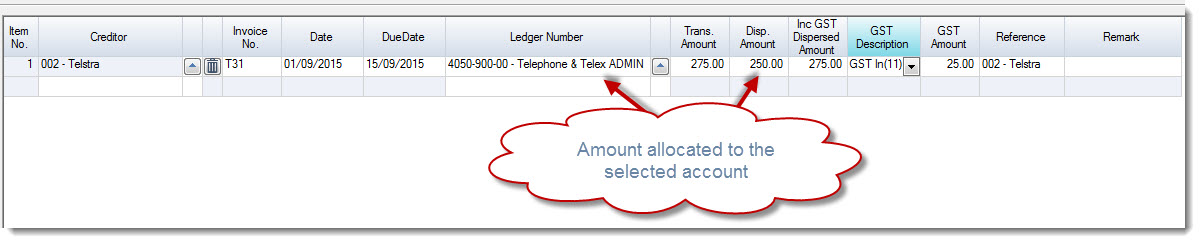
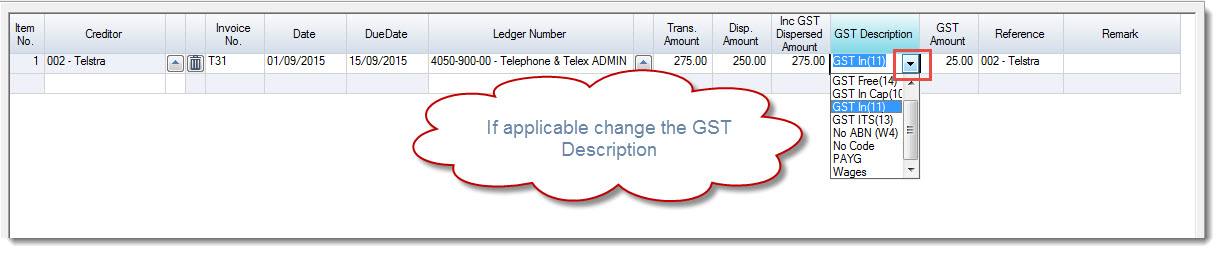
Confirm the GST amount, if there is no GST applicable for the line then click on the drop down arrow to select the applicable GST code.
From the menu ribbon select Save to save your batch.
Invoices with Mixed Supply or Multiple Account Allocations
Where you have invoices with mixed supply (GST and GST free items) or costs that need to be allocated across a number of different ledger accounts then we use the Disp. Amount or Inc GST Dispersed Amount fields to control the value that gets posted to each account and/or tax code.
Select your creditor account and enter in the following details;
-
Invoice number,
-
Invoice date,
-
Confirm your ledger number, and
-
Enter in your total invoice value in the Trans. Amount field
Enter in the amount to be allocated to the ledger account in either the Disp. Amount or Inc GST Dispersed Amount field, this will depend on whether your dispersed value is GST inclusive or exclusive.
Change the GST description on the line if applicable.
When the Inc GST Dispersed Amount value is different to the Trans. Amount you will notice that the line will change to red. This is indicating that the total invoice amount has not yet been fully dispersed.
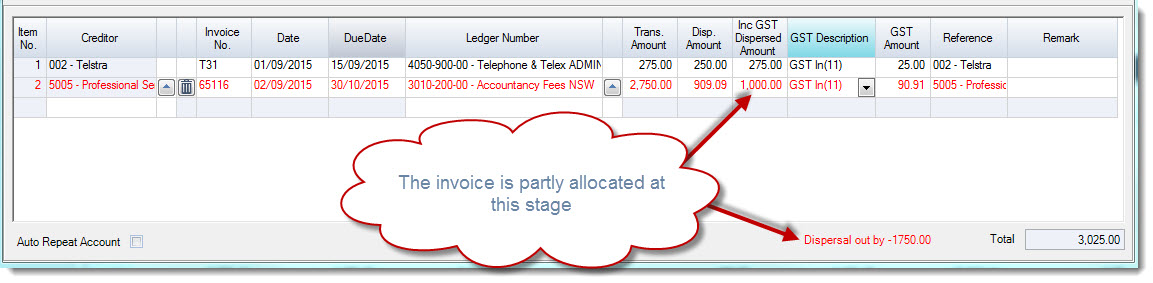
To continue allocating your invoice across multiple ledger accounts and/or GST codes move to the next line down and
-
Select your ledger number,
-
Enter the dispersal amount, and
-
Change your GST if applicable by updating the GST Description
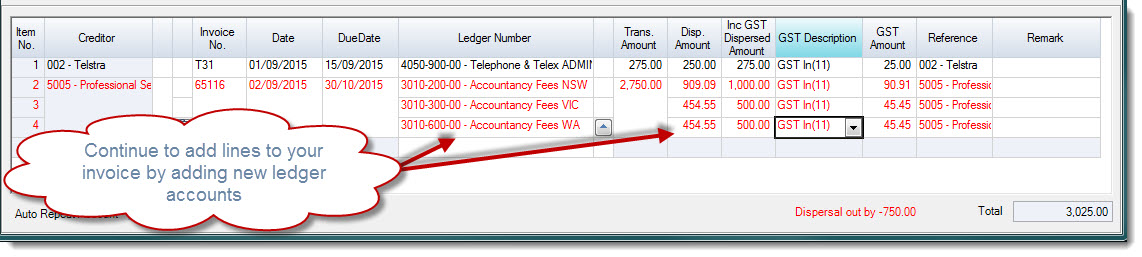
When you have fully dispersed your invoice the lines will change back to black.
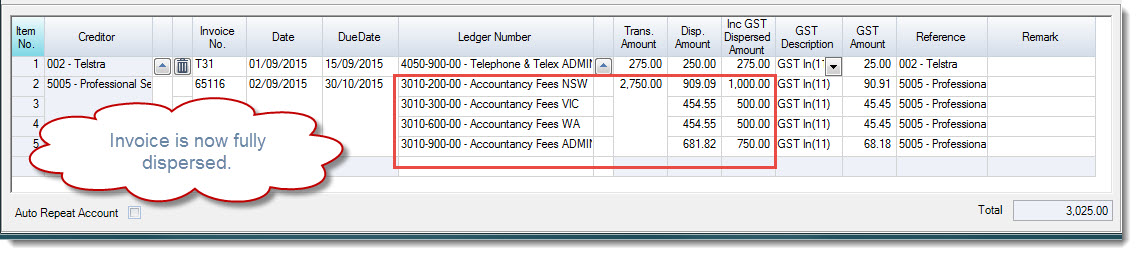
Remember to save as you are entering your remaining invoices into the batch.
Once you have completed your batch and are ready to update the Creditors and General Ledgers from the menu ribbon select Activate.

Once your batch is activated the status is updated to Closed and the batch is locked from further editing.

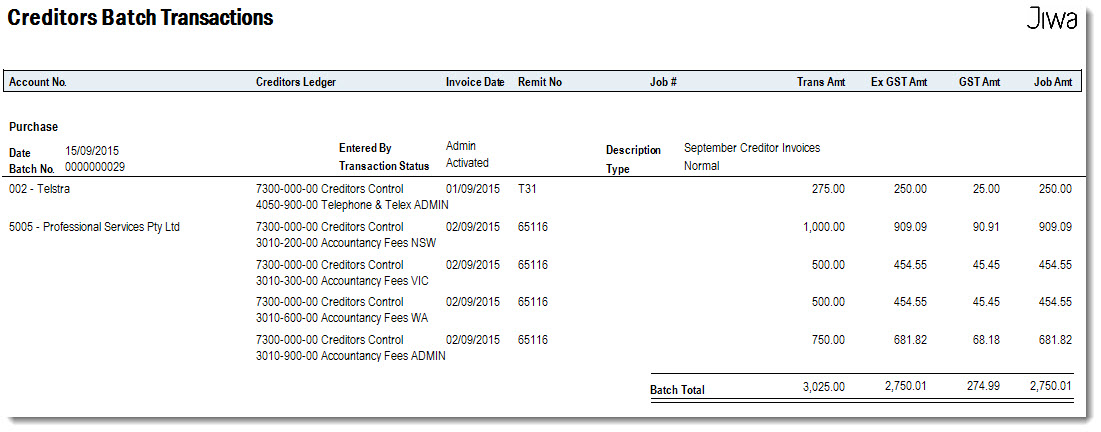
Creditor Batch Transactions Report
The Creditor Batch Transactions report can be printed before or after the batch has been activated.
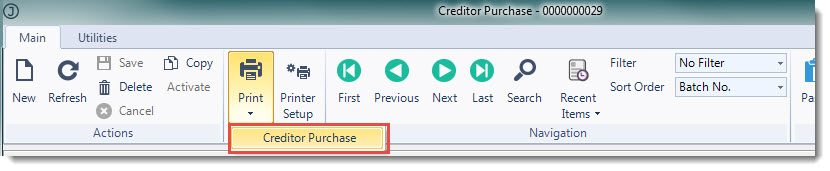
From the menu ribbon click on the Print icon then select Creditor Purchase
This video is best seen on the full screen. Just click on the icon at the bottom right of the video (see image below). To exit full screen just press escape