
Debtor Specific pricing is used when a special price, discount, or substitute price applies to a specific customer for a specific inventory item.1
This article explains how to create and maintain Debtor Specific pricing elements in Jiwa. Debtor Specific pricing is usually used where pricing has been negotiated with an individual customer for one product, or for a small number of related or unrelated products.
The Debtor Specific matrix is one of the inventory item specific pricing matrices available in Jiwa. If the same pricing rule applies to a broader group of customers or products, another price matrix may be more suitable, such as Debtor Classification, Debtor Group, Inventory Debtor Classification, Inventory Debtor Price Group, or Selling Prices.
We cover two methods for creating and maintaining Debtor Specific pricing:
-
using the Inventory Maintenance form, and
-
using the Sell Prices form.
Bulk updates to Debtor Specific pricing can also be completed using the Debtor Class Batch and Debtor Class Entry forms. These options are covered in separate articles.
Before you begin
Before creating Debtor Specific pricing, we recommend reviewing the article Understanding Price Schemes so that you understand how pricing elements are applied through a price scheme.
Inventory Maintenance Form
From the Inventory menu select Inventory Maintenance
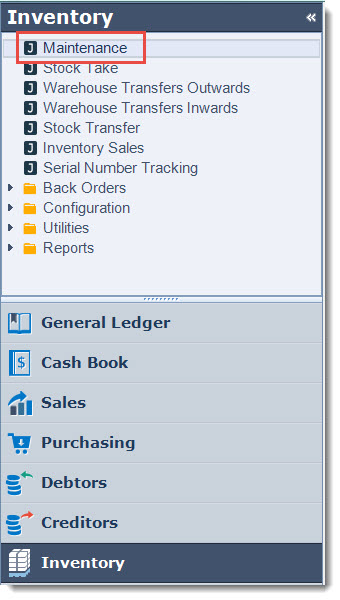
Load the inventory item that the discount is applicable for into the form.
Move to the Prices | Debtor Specific tab
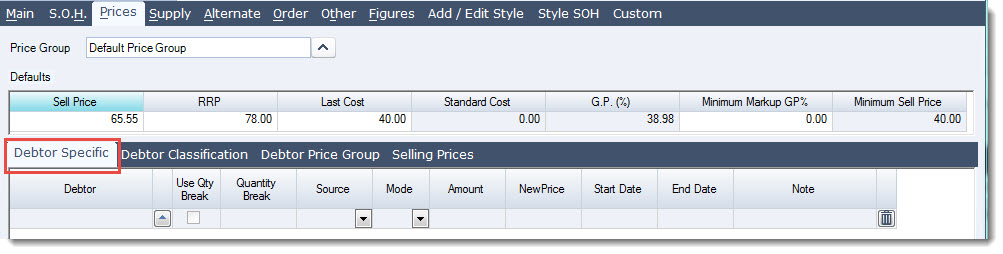
Select the Debtor that the discount is applicable to by clicking on the lookup icon next to the Debtor field to bring up the Debtors search window.
Enter in the pricing details.
|
Field |
Description |
|
Debtor |
Select the Debtor account that the pricing element is applicable to. When entering price elements in this form the Debtor field cannot be left blank. |
|
Use Qty Break |
Tick this option if the discounted price is based on a quantity break |
|
Quantity Break |
This field is enabled when the Use Qty Break field is ticked. Enter in the quantity break that is applicable. If tiered quantity breaks have been agreed to create a new line for each quantity break applicable |
|
Source |
Which price is to be used when calculating the new Debtor Specific Price. This field is only applicable when applying a percentage or actual amount discount. The options available include Sell Price, Last Cost, RRP and Sell Prices 1 - 10 (P1-P10) |
|
Mode |
The mode determines how the Debtor Specific Price is calculated, the available options are;
|
|
Amount |
The value entered into this field is used to calculate the NewPrice. When entering in a percentage or actual discount amount the value entered into this field must be entered in as a negative value. For example 10% discount or $25 discount is entered as -10.0, -25.0 respectively. When basing your Debtor Specific Price on the Last Cost + margin then the value entered into this field must be entered in as a positive value. For example 25% or $50 dollar increase is entered as 25.0, 50.0 respectively. When using the mode None the value entered into this field is the new price |
|
New Price |
This field displays the calculated new Debtor Specific price that will be applicable to this item. The field is a read only field and is calculated based on the options selected in the preceding fields . |
|
Start Date |
This is the date that the specific price is to apply from. The field automatically defaults to the current login date however can be overridden if required. |
|
End Date |
This is the date that the specific price is to end. The field automatically defaults to the 20 years from the login date however can be overridden if required. |
|
Note |
Comment relating to price element. |
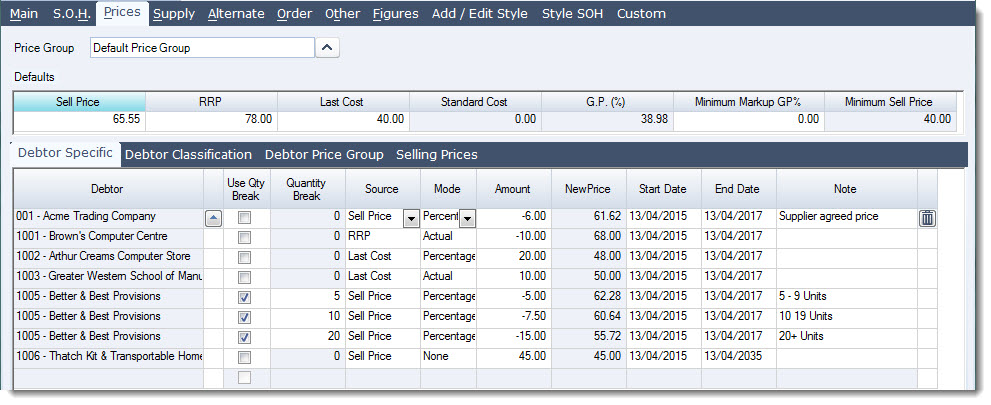
The following example demonstrates the different ways in which Debtor specific prices can be set up.
Sell Prices Form
The Sell Prices form was introduced in Jiwa version 7.0.115, this form provides a central location were all pricing elements can be viewed and updated from.
New pricing elements can also be created in this form.
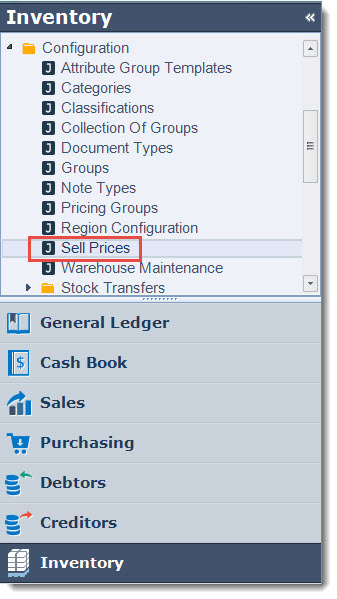
To access the form from the menu module select Inventory | Configuration | Sell Prices
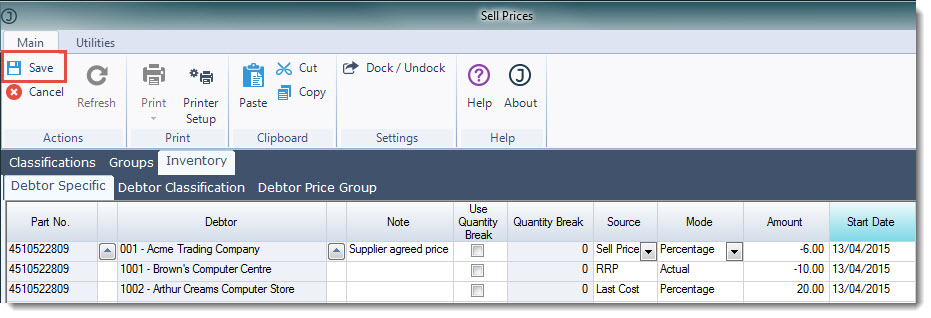
Move to the Inventory | Debtor Specific tab
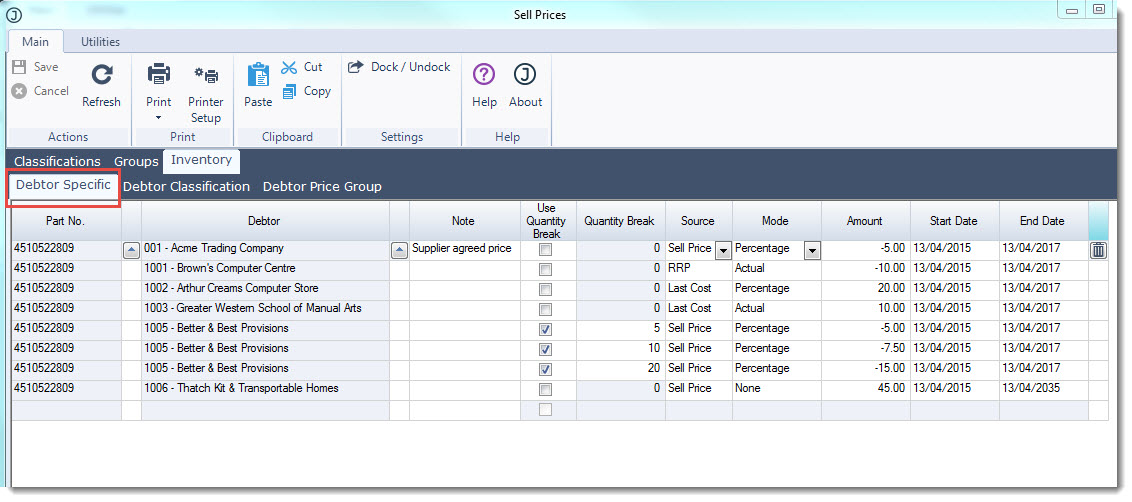
Debtor specific price elements can be created, updated or deleted from this form.
To add a new price element in this matrix move to the last blank line and start entering the details.
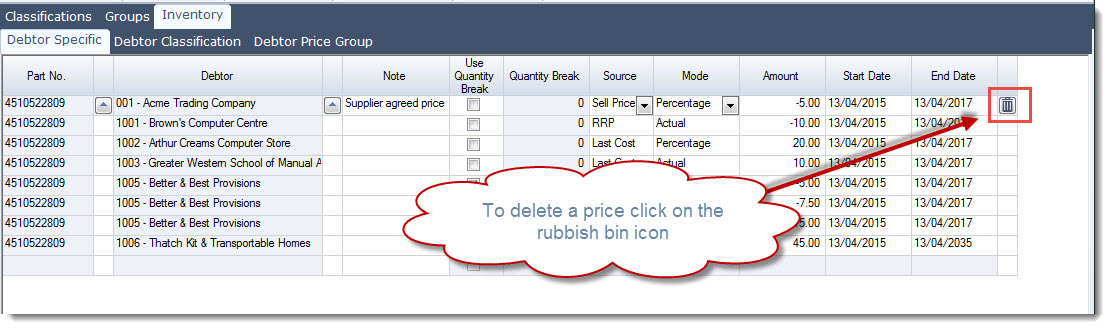
To delete a price simply click on the rubbish bin icon next to the price
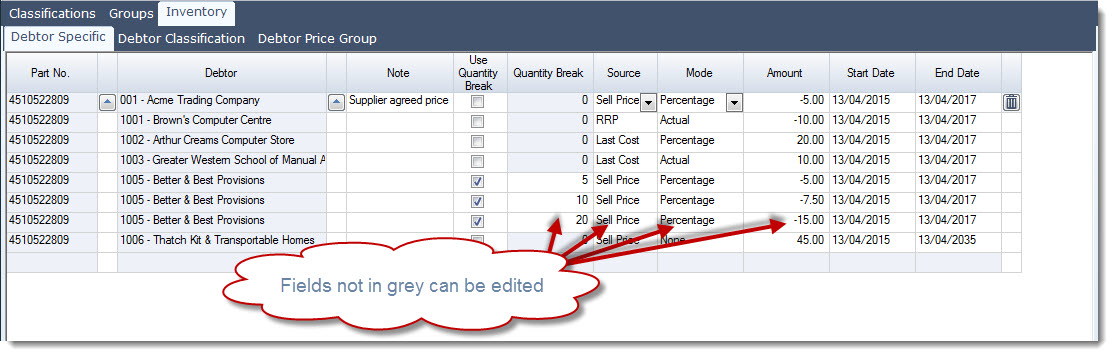
To update a price simply change the required fields. Fields that are not greyed out are editable.
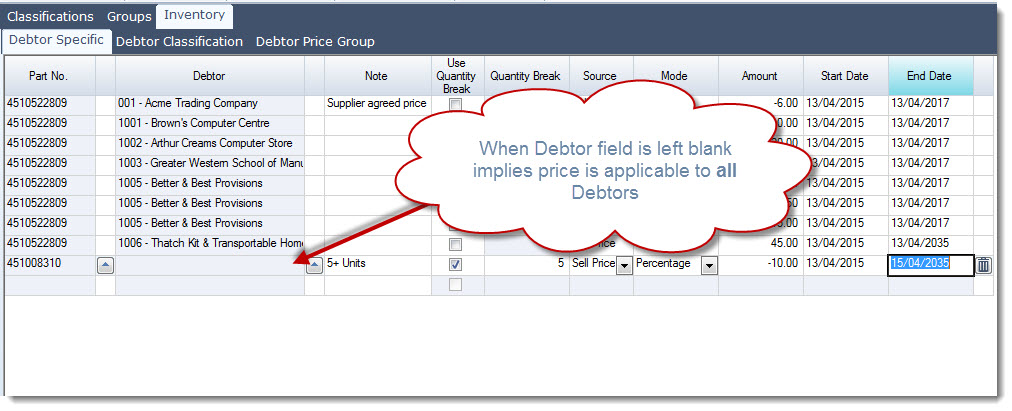
When the Debtor field is left blank in this form it implies that the price is applicable to all Debtors.
To save any changes made in this form and update the inventory ledger click on Save from the menu ribbon.
The contents of the grid can be copied to Excel by selecting the Select All option
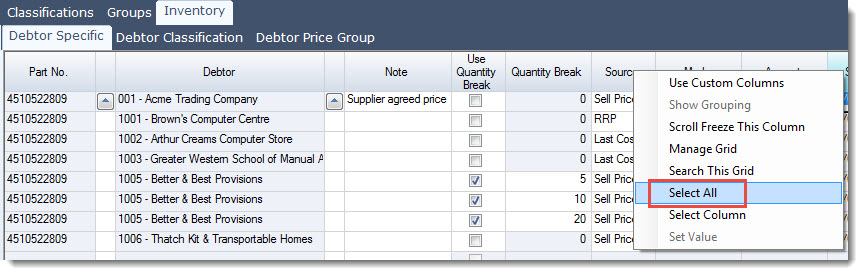
Pressing Ctrl + C on your keyboard then pasting into Excel.
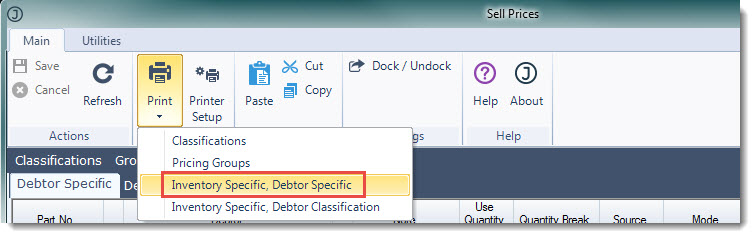
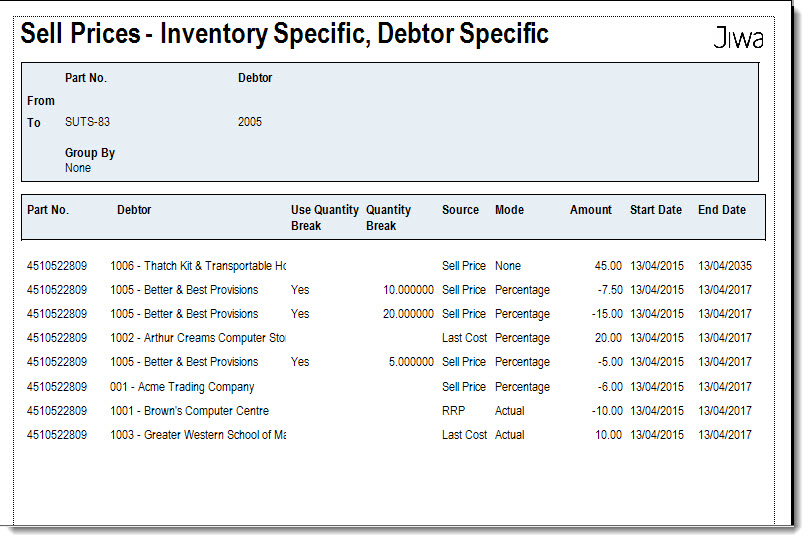
Alternatively a report is available from the menu ribbon select Print | Inventory Specific, Debtor Specific
This report is also available from Inventory | Reports | Sell Prices - Inventory Specific, Debtor Specific
Video walkthrough