In this article we will be looking at the Cash Book Receipts function in Jiwa.
Cash Book Receipts
The Cash Book Receipts function in Jiwa is used to process the following types of transactions;
-
Debtor payments (including allocation of payments against transactions), and
-
Miscellaneous receipts that can be posted directly to a General Ledger account e.g. Interest received, refunds, etc
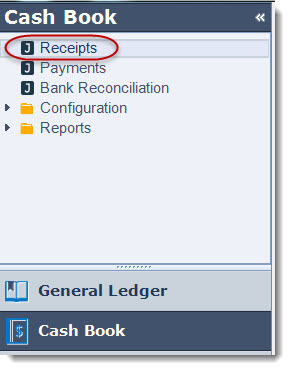
From menu select Cash Book | Receipts
From the menu ribbon select New to create a new batch

Enter in a description that describes the purpose of your batch entry and select your bank account.

Set your batch options;
|
Option |
Description |
|
Auto Sub Total The Bank |
Automatically subtotals the bank totals based on the Remit No. field which then controls the journal posting to the bank account |
|
Inherit Ref/Remark |
Automatically inherits the reference / remark from the line above |
|
Suggest Remit No. |
The remittances number is automatically inserted when the batch is saved |
|
Inherit Payment Type |
Automatically inherits the payment type from the line above |

Recording & Allocating Debtor Payments
To record your debtor payment in the Debtor/Creditor field enter in your Debtor account number or press the search button to bring up your Debtors search screen

Once you have selected your Debtor, enter in the payment value in the Home Amount field

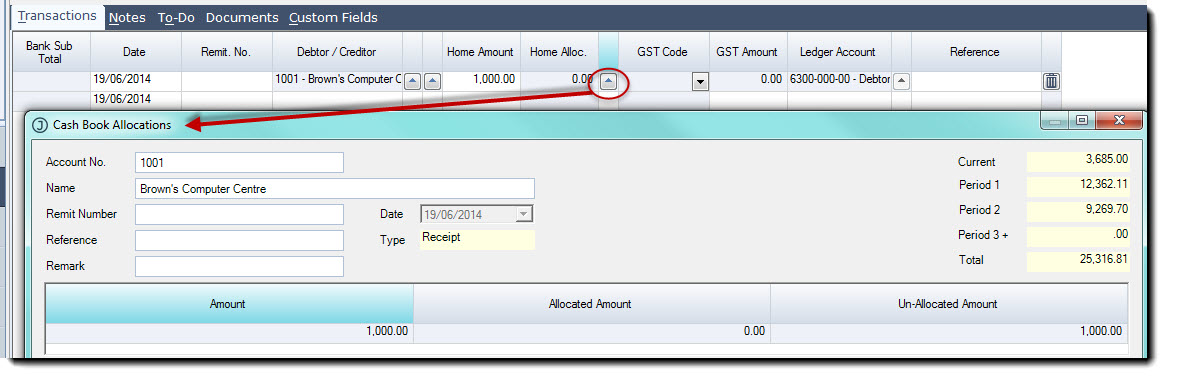
To allocate the payment to existing invoices press the search button next to the Home Alloc. field to activate the Cash Book Allocation screen
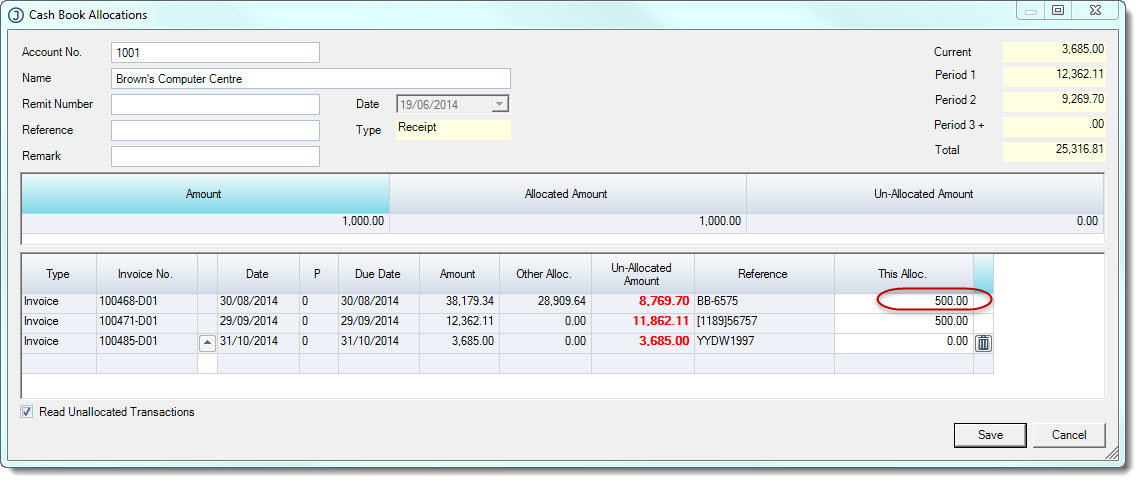
Allocate your payment to the applicable invoices by entering in the payment value in the This Alloc. field against each invoice, then press the Save button to save your allocation.
When you have saved your allocation the Home Alloc. field on the cash book entry will display the amount of the payment that has been allocated. Confirm the payment type and banking details if applicable.

Recording Miscellaneous Receipts
To record miscellaneous receipts such as bank interest received and refunds not related to a creditor account enter;
-
The refund amount in the Home Amount column
-
Confirm the GST rate to be applied to the transaction if applicable
-
Update the LedgerAccount that the income is to be posted to as required
-
Confirm the payment type
-
If the payment type is a cheque then confirm the banking details
-
Use the Reference field to add details about the miscellaneous income

Finalising your Cash Book Receipts Batch
Once you have entered in all of your receipts for this batch press the Save button If you have selected Suggest Remit No. it is at this point that the Remit.No. field is populated and the batch assigned a Batch No.
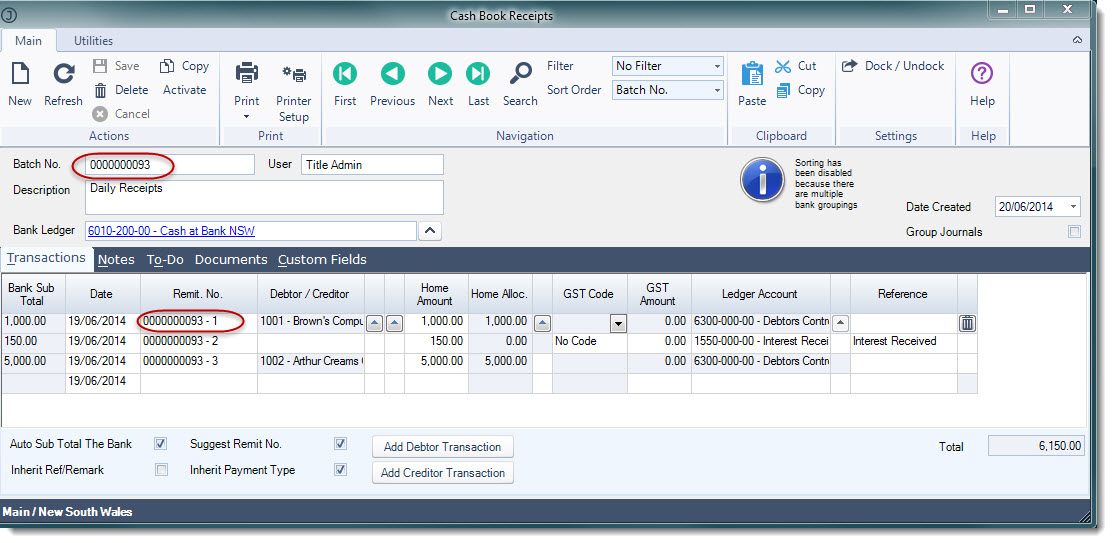
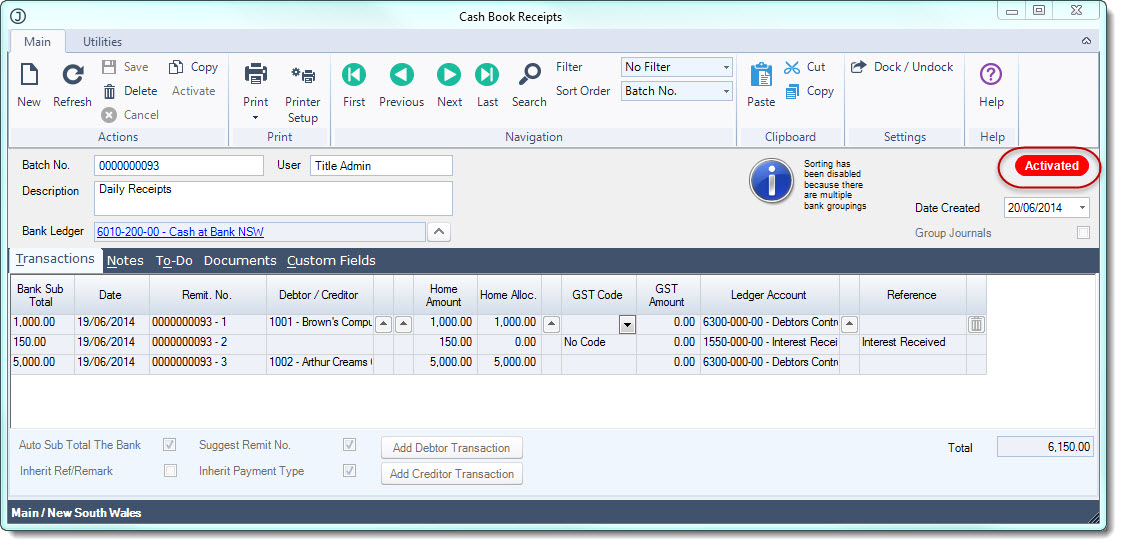
When you have completed your batch and no further changes are to be made select the Activate button to close the batch and update the General Ledger No further changes can be made to the batch.
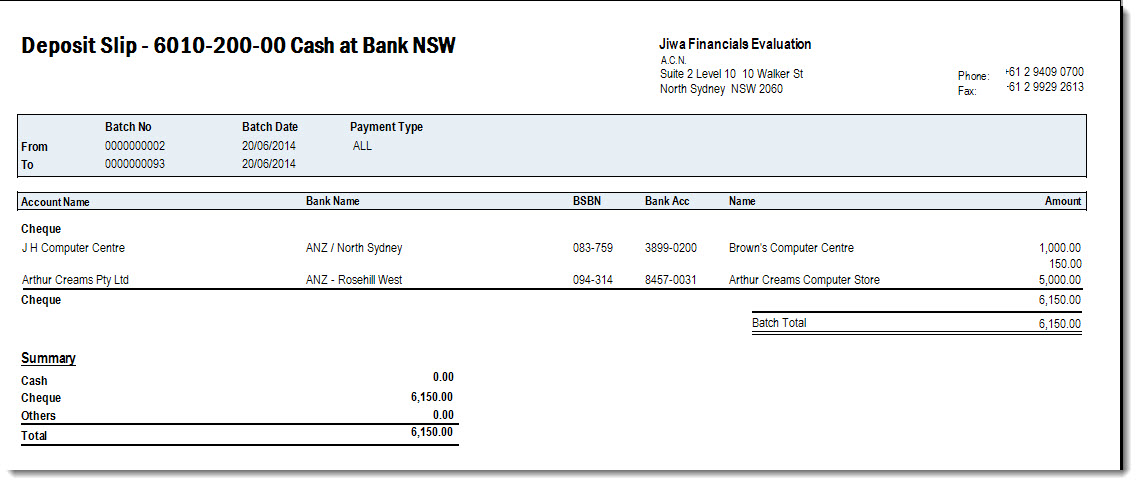
A deposit slip can be printed by selecting the Print button from the menu ribbon.

This video is best seen on the full screen. Just click on the icon at the bottom right of the video (see image below). To exit full screen just press escape