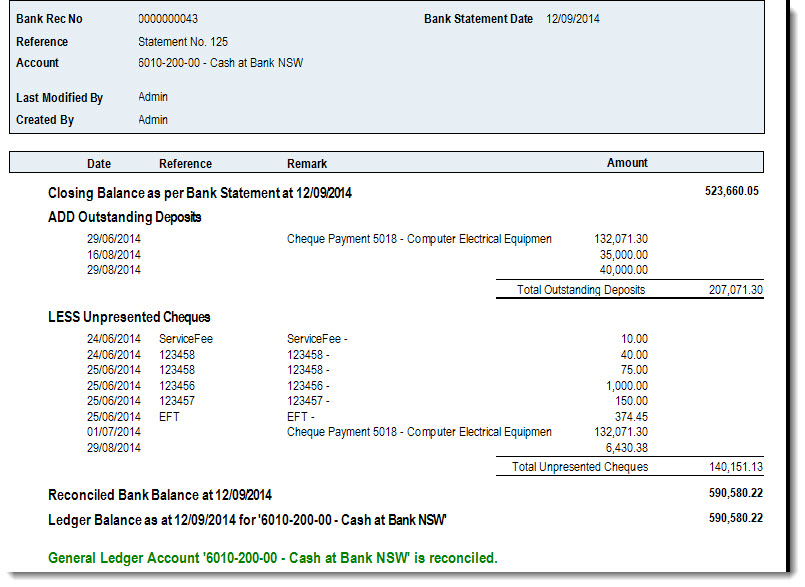
Bank Reconciliation is used in Jiwa to match bank account transactions recorded in Jiwa against the transactions shown on the bank statement.
This article explains how to complete a bank reconciliation in Jiwa, including reviewing transactions, matching statement activity, identifying differences, and finalising the reconciliation.
Although commonly used for bank accounts, this function can also be used to reconcile clearing accounts where transactions need to be reviewed and matched off in a similar way.
Bank Reconciliation
The Bank Reconciliation function in Jiwa is not only used to complete your bank reconciliation's the feature also allows you to enter in the following transaction types;
-
General Ledger transactions such as bank fees and charges
-
Debtor receipts and refunds
-
Creditor payments and refunds
-
Opening balance transactions - this transaction type is only used to bring in unpresented transactions into your first Jiwa bank reconciliation
A new bank reconciliation can only be created where;
-
The last bank reconciliation for the nominated account has been Activated, and
-
The bank reconciliation date is the same of after the most recent reconciliation for the nominated account
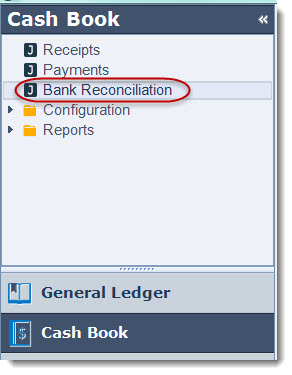
To begin from the menu select Cash Book | Bank Reconciliation
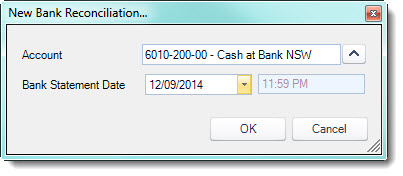
From the menu ribbon select New to start a new bank reconciliation

Select the General Ledger bank account you wish to reconcile. You will note that the General Ledger search screen only returns those accounts that have been flagged as bank accounts.
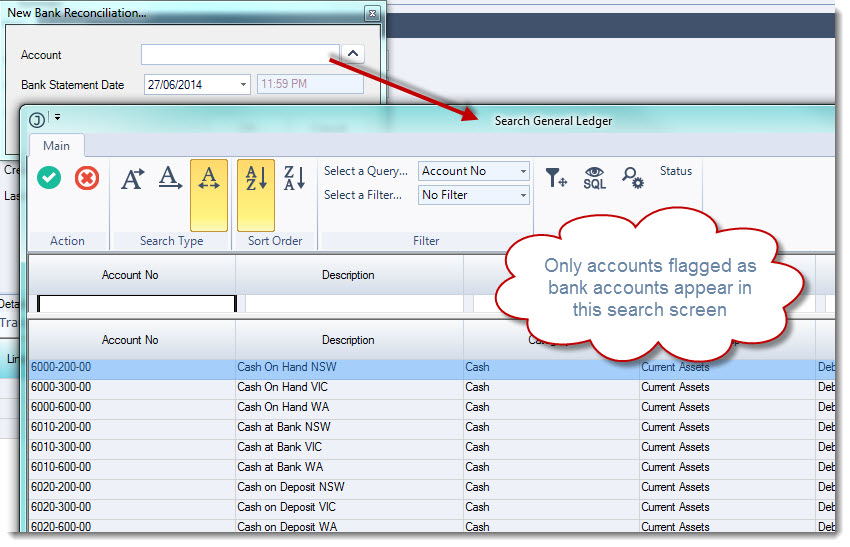
Enter in the bank statement date that you are reconciling to
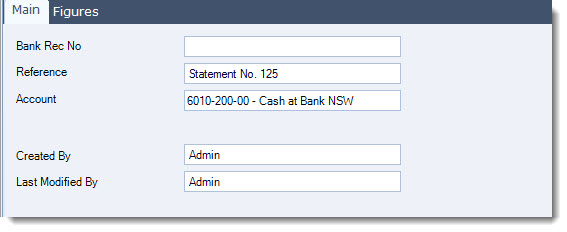
Enter in a reference for your bank reconciliation if applicable
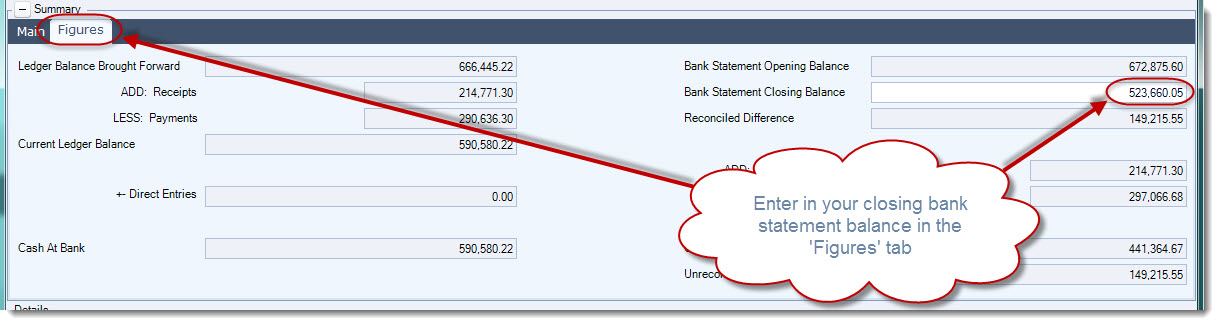
Click on the Figures tab and enter in your closing bank statement balance in the 'Bank Statement Closing Balance' field
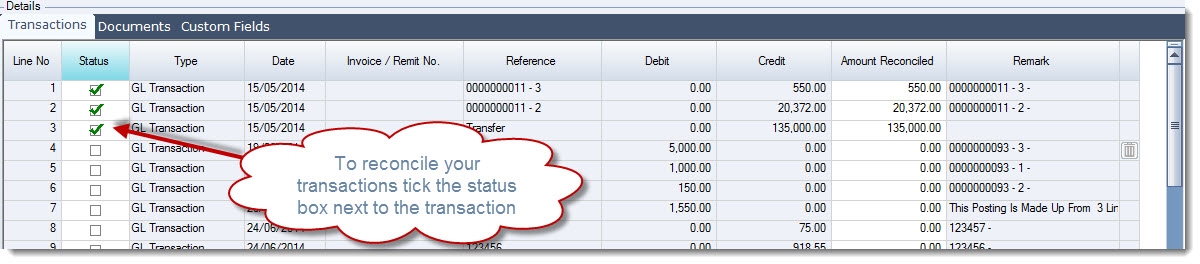
In the Transactions tab select the transactions that are on the bank statement by ticking the transaction Status check box
Adding Transactions to your Bank Reconciliation
Transactions can be entered into Jiwa from within the Bank Reconciliation, these could be bank fees and charges or direct debit payments that have come out of your bank account such as loan repayments. To add a transactions from within the bank reconciliation move to a blank line on your transactions tab, and click on the select icon on the Type field
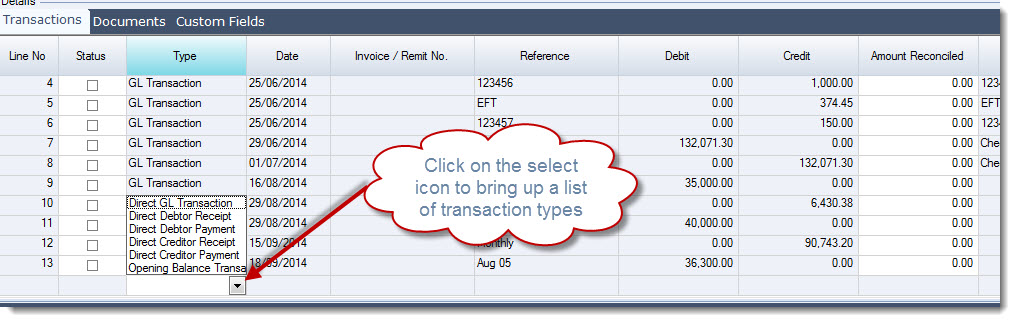
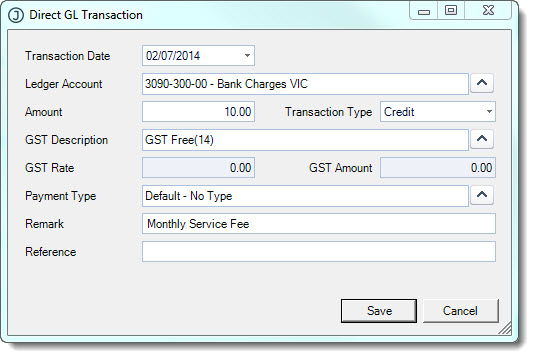
Select the type of transaction you want to process. For bank fees and charges select 'Direct GL Transaction' this will open the direct GL transaction form. Enter in your details ensuring that you select the correct GST code applicable to the transaction
|

|
When entering in your Direct GL Transaction the transaction type is from the perspective of your GL bank account and not the account the transaction is being posted to. In the example below the bank charge is a credit out of my bank account. If my entry was for interest received then it would be a debit into my bank account. |
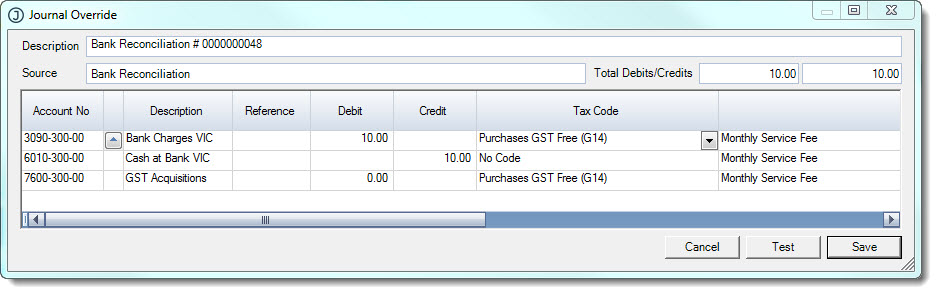
This transaction will generate the following journal entry, as you can see the credit entry is to the bank account and the expense is taken up as a correctly as a debit entry
Finalising the Bank Reconciliation
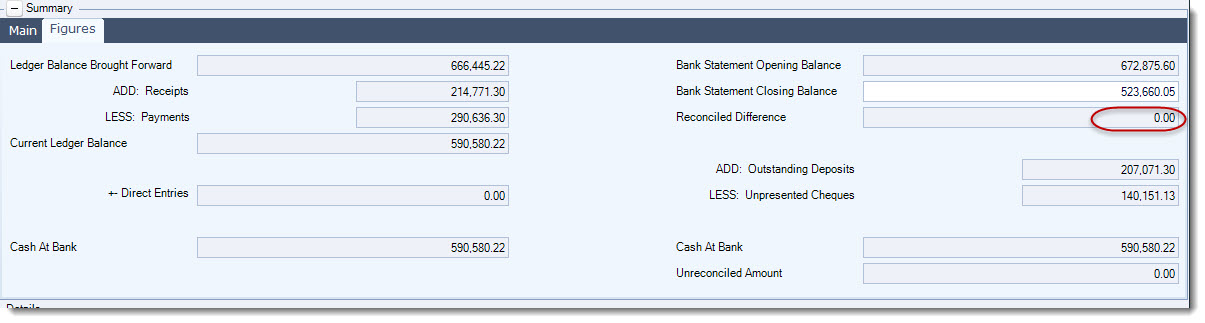
Once you have reconciled your transactions check to ensure your reconciled difference is zero
Save your bank reconciliation by selecting the Save icon

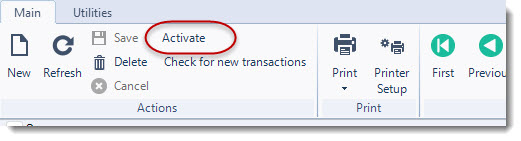
When you have completed your reconciliation and no further changes will be made activate your reconciliation by selecting the 'Activate' icon
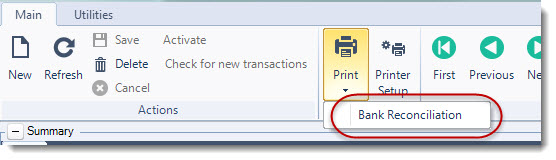
To print your bank reconciliation report from the printer icon select 'Bank Reconciliation'