
Activity codes are used in Activity Tracker to group and report income and expenses against a specific activity, task, group, or simple job.
This article explains how to create a new activity code and how to use the key sections of the Activity Maintenance form. The form is used to record the main activity details, review related transactions, manage parent and child activity relationships, add notes, and record to-do items.
Creating activity codes correctly helps ensure that transactions can be assigned, reviewed, and reported accurately in Activity Tracker.
|
Section |
Purpose |
|---|---|
|
Header section |
Records the activity code and core activity details. |
|
Main tab |
Stores the main setup and reporting details for the activity. |
|
Children tab |
Shows child activities linked to the selected parent activity. |
|
Transactions tab |
Shows transactions assigned to the activity code. |
|
Notes tab |
Records notes or supporting information for the activity. |
|
To-Do tab |
Records follow-up tasks or reminders related to the activity. |
Header Section
To create a new Activity from the menu ribbon select New.
Enter your activity name in the Activity Name field and a description of the activity in the Description field.
Set your activity Start and end Dates.
Save your changes.
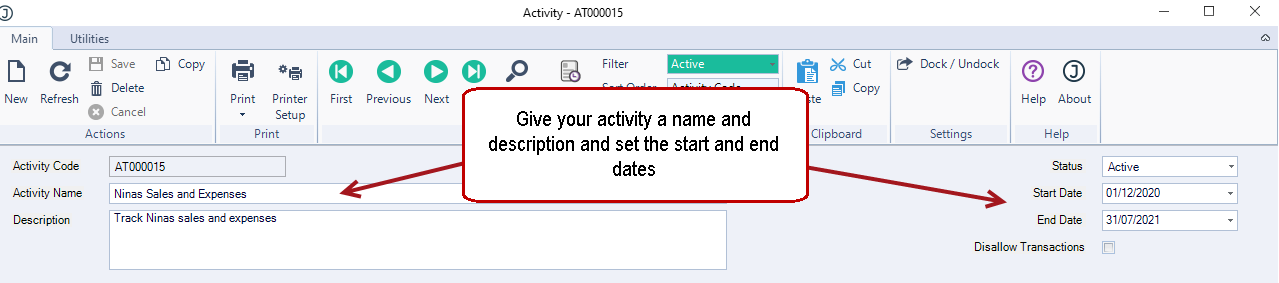
|
Field |
Description |
|
Activity Code |
This is a system generated code. Activity code numbers are manged in System Numbers. |
|
Activity Name |
Field to enter a brief activity description. |
|
Description |
Additional description field to add a more detailed description of the activity. |
|
Status |
Active - activity is active and can be used. This is the default status when a new activity is created. Inactive - Activity has been closed and new transactions cannot be assigned to the activity. All fields are disabled except for the status field. Users can change the status back to Active if required. |
|
Start Date |
Activity start date. This is a reference field only. |
|
End Date |
Activity end date. This is a reference field only. |
|
Disallow Transactions |
This flag controls if the parent activity can have transactions assigned to it. When ticked transactions cannot be assigned to this activity. When unticked transactions can be assigned to this activity. |
Main Tab
The Main tab allows you to link a Debtor record to the activity if required.
In this example our activity is related to tracking the sales and expenses for a specific salesperson, in this case the customer field is not populated as the activity is not customer specific.
If your activity is related to a specific job or project then you can link the activity to the required Debtor account, select the contact and applicable address.
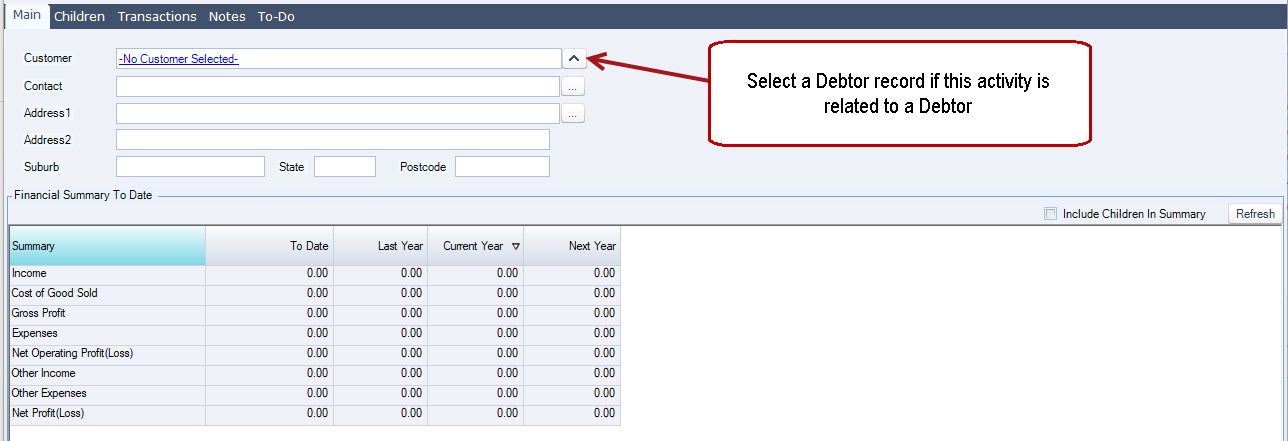
|
Field |
Description |
|
Customer |
This is a lookup field to Search Debtors.
|
|
Contact |
This is a lookup field to Search Debtor Contacts.
|
|
Address 1
|
A lookup field to Search Debtor Delivery Addresses.
|
|
Include Children in Summary |
This flag is only active if the activity has child activities.
|
|
Financial Summary To Date |
This grid provides a P&L overview of the transactions that are displayed on the Transactions tab.
|
Children Tab
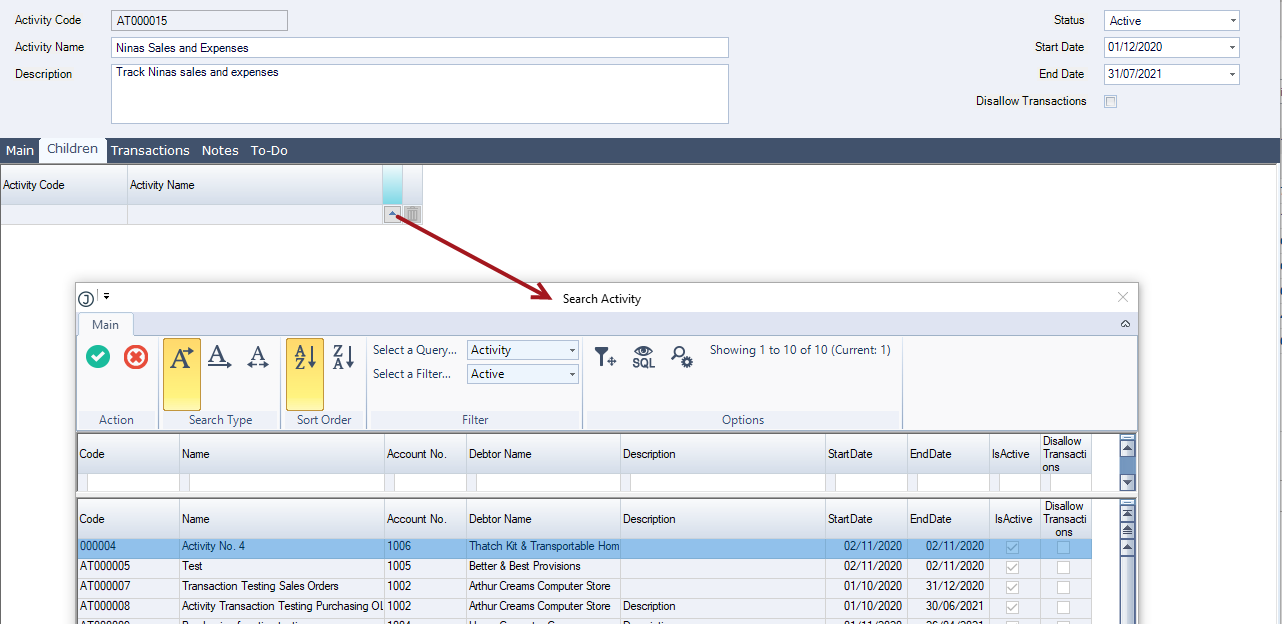
The Children tab allows you to link activities together in a parent / child relationship for reporting purposes, similar to the way in which Branch Debtors works in Jiwa.
-
A parent activity is deemed a parent when a child activity is added to the Children tab.
-
A parent activity cannot become a child of another activity.
-
A child activity can only belong to 1 parent activity, it cannot be added to another parent.
-
A child activity cannot become a parent activity.
To add an activity to a parent simply click on the lookup button next to the activity name to bring up the Activity Search form.
Transaction Tab
The Transaction tab displays all transactions that have been linked to the Activity.
The grid display has the standard Jiwa grid functions which include transaction drill down, filtering and sorting.
This grid only displays transactions that have been activated or processed.
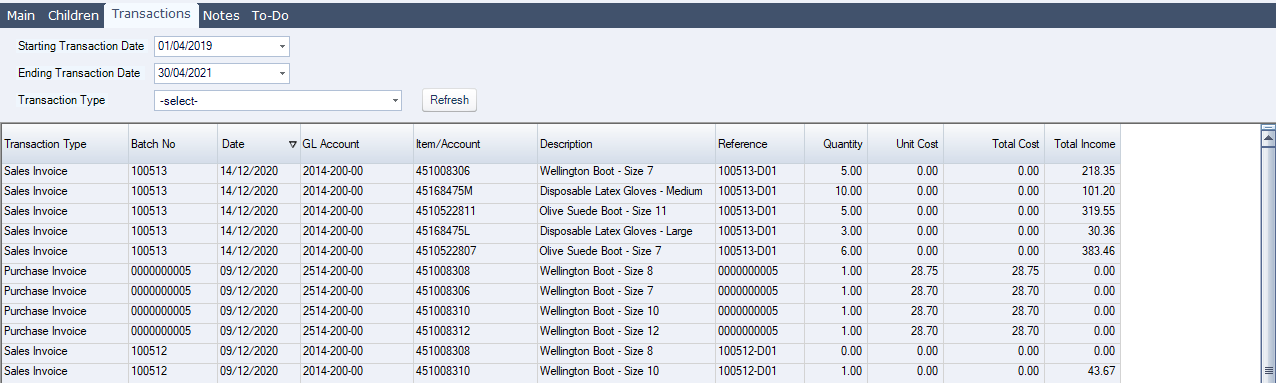
|
Field |
Description |
|
Starting Transaction Date |
Date picker allowing users to filter transactions displayed on the grid. Default date is set to the activities start date. |
|
Ending Transaction Date |
Date picker allowing users to filter transactions displayed on the grid. Default date is set to the activities end date. |
|
Transaction Type |
Drop down list of transaction types to filter grid on. Default is set to -Select- |
Notes Tab
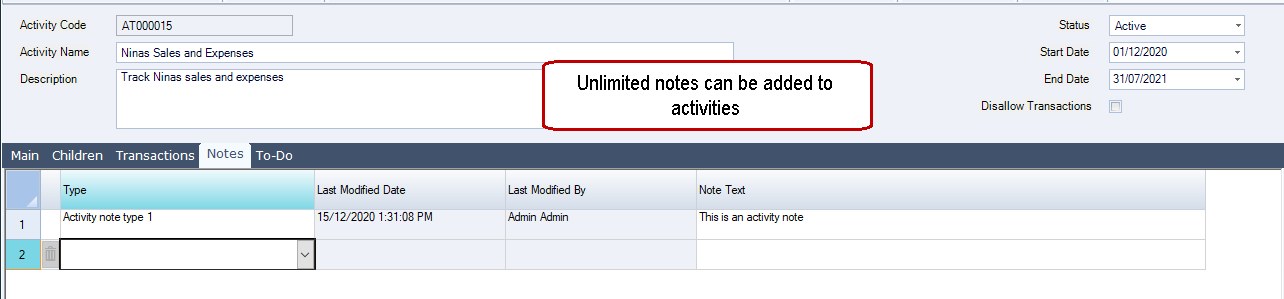
The Notes tab works in the same way as all other Notes in Jiwa.
Activity Note Types are maintained in the Activity Note Maintenance form which is available from the Activity Tracker menu.
To-Do Tab
The To-Do tab works in the same way as all other To-Do's in Jiwa.
