
This is the first in a series of articles that looks at price schemes and special pricing in Jiwa.
In this first article we look at the purpose of price schemes in Jiwa and how they are set up.
Overview
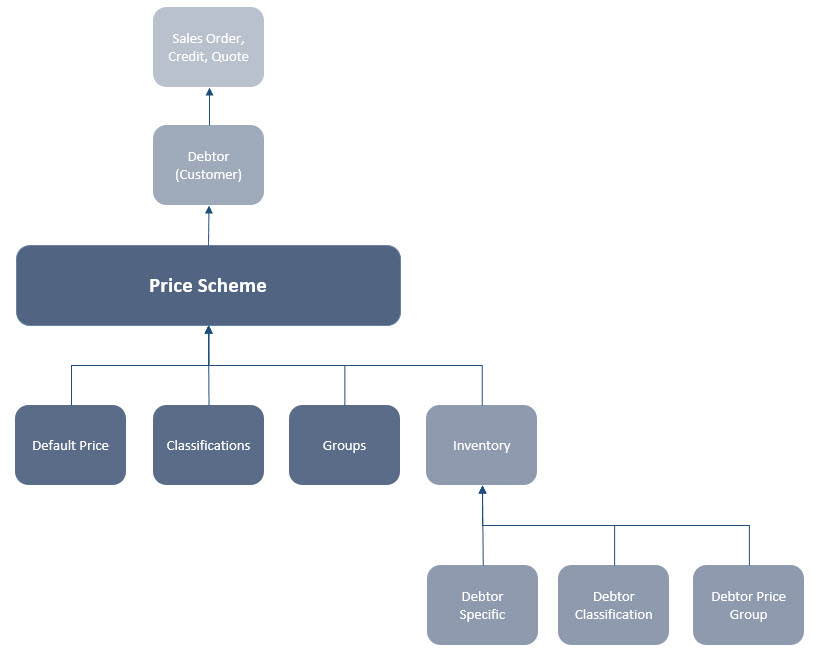
In Jiwa price schemes are made up of one or more price matrices and each price matrix is made up of one or more pricing elements.
A price scheme is then attached to each Debtor (Customer) record. The price scheme linked to the Debtor account is then applied to new sales orders, credit notes and quotes created for the Debtor. The price scheme then controls;
-
The default selling price that is to be applied,
-
What discounts and/or promotional prices are applicable if any, and
-
Is the cheapest price applied or not
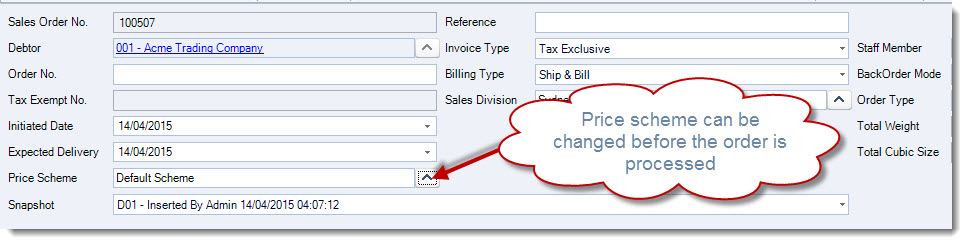
The price scheme if required can then be changed on a specific sales order, credit note or quote before it has been processed.
Before setting up a price scheme consider the following;
What is the default price for the price scheme?
The default price is the catch all price in a price scheme it is the price applied if no other pricing elements are applicable. In the examples below the default price is in bold print.
What price elements/matrices are applicable to the scheme?
Determining what pricing elements are applicable to the scheme will assist in determining what price matrices need to be contained within the scheme. For example if you intend to have a special price for a specific class of Debtor (Customer) then the Debtor Classification matrix needs to be included in the price scheme.
Is the cheapest price or best price to be applied?
When setting up a price scheme and the cheapest or best price is applied then the order of the prices within the scheme is not relevant. However, if the cheapest price is not to be applied then the order in which prices are to be applied is critical when setting up your price scheme.
To demonstrate the points above following are some examples of different price schemes
|
Price Scheme Description |
Prices |
Cheapest Price |
Default Price Scheme
This price scheme takes the cheapest price from all available discounts/promotions that have been set up against an inventory item. |
Default Inventory Price Debtor Specific Price Debtor Classification Price Debtor Parent Price Debtor Parent Classification Price Special Price Group Matrix Price Classification Price |
Yes |
Wholesale Price Scheme
In this example the Wholesale price has been set up as Sell Price 1 and this scheme will be attached to wholesale customers. As the cheapest price is not applicable the order of the prices becomes critical. In this example we’re saying that;
|
Debtor Specific Price Debtor Group Price Sell Price 1 |
No |
Distributor Price
In this example the Distributor Price has been set up as Sell Price 2. Distributors are not entitled to any discounts so only the sell price is included in this scheme. The cheapest price option is ticked allowing for future promotional prices to be added to the scheme if required. |
Sell Price 2 |
Yes |
Setting Up Price Schemes
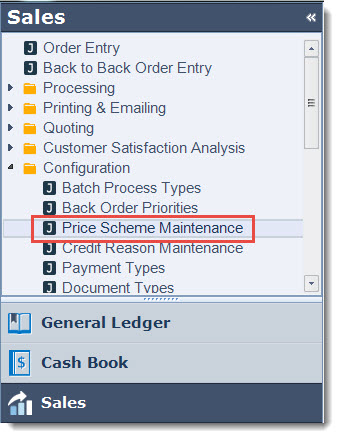
From the Sales module select Configuration | Price Scheme Maintenance
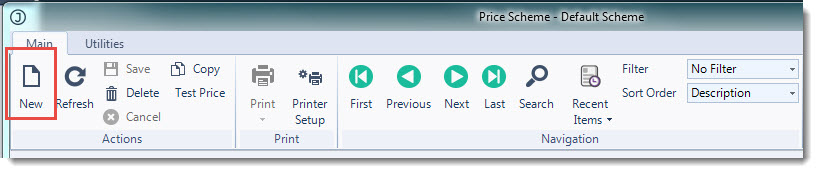
From the menu ribbon select New
In the Description field enter in your price scheme name
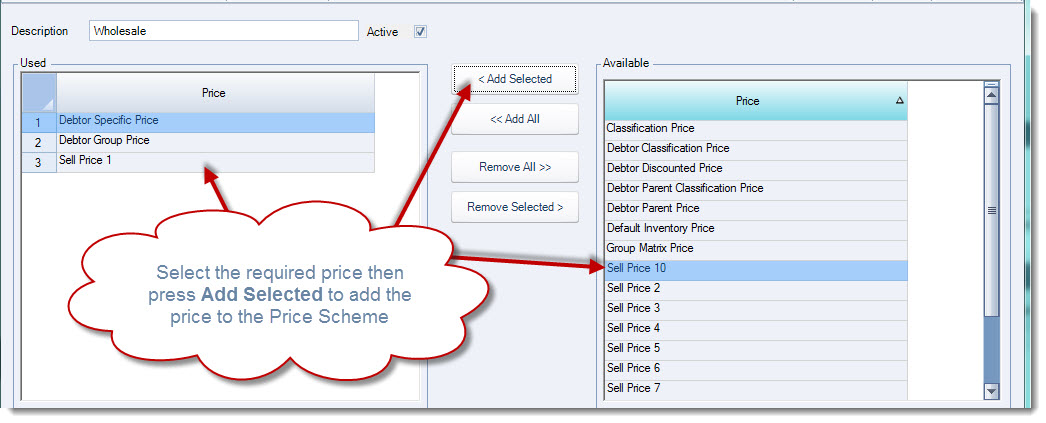
From the Available Price grid select the prices that are applicable to the price scheme.
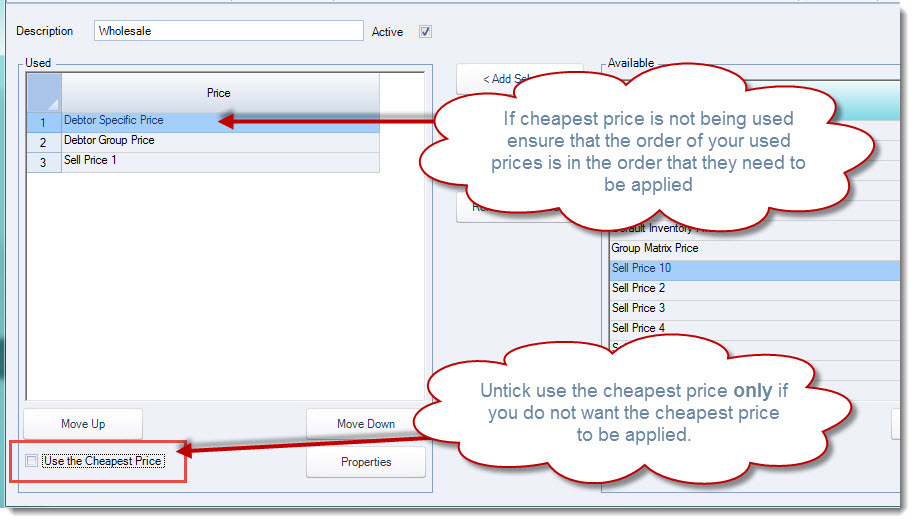
The option Use the Cheapest Price is ticked by default, if the cheapest price is not to be used in this price scheme un-tick this option and ensure that the prices to be applied are in the correct order.
Use the Move Up and Move Down buttons to change the order of the prices listed.
From the menu ribbon select Save to save your price scheme.
Testing Price Schemes
To test the new or updated price scheme from the menu ribbon select Test Price

In the Test Price popup set the;
-
Inventory item to test,
-
Debtor (the Debtor does not need to be linked to the price scheme to test),
-
Test Date,
-
Quantity, and
-
Origin
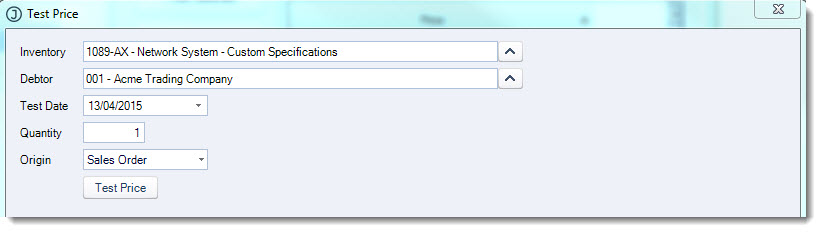
When you have entered in the required details click on Test Price
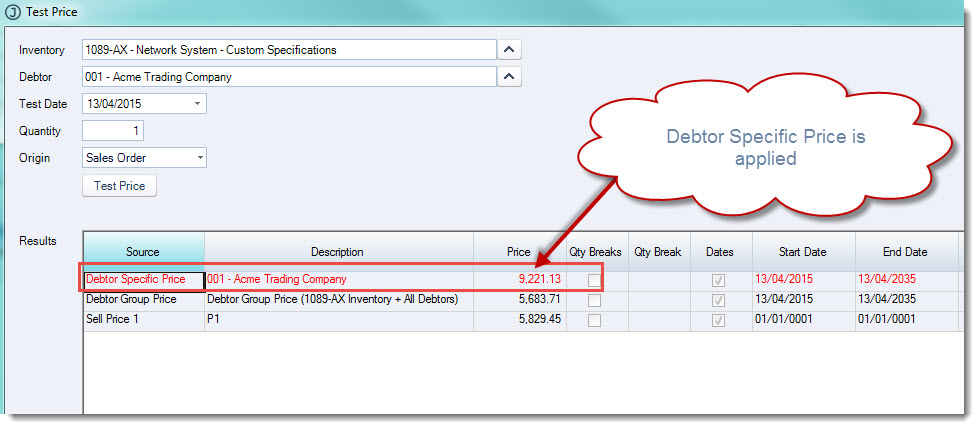
The results grid displays all available prices
The price that will be applied is displayed in red
In this example the Debtor Specific price is applied because;
-
The cheapest price is not applied, and
-
It is the first available price that is applicable
If required amend the price scheme and retest.
Once the price scheme has been set up as required it can be applied to the applicable Debtor accounts.
Updating Price Schemes
Price schemes may need to be updated at times to reflect updates and/or changes to your business, for example you may need to
-
Add additional price elements,
-
Remove existing price elements, or
-
Retiring a price scheme
To update your price scheme:
-
Load the price scheme into the Price Scheme Maintenance form
-
Make your required changes
-
Test the updates to the price scheme
-
Save your changes
Retiring a Price Scheme
A price scheme cannot be deleted if it has been used on a sales order or quote.
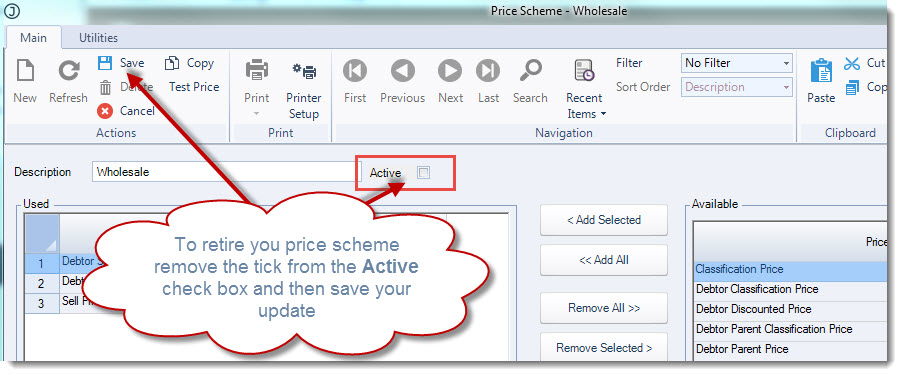
To retire a price scheme it is made inactive
Load the price scheme to retire into the Price Scheme Maintenance form and untick the Active checkbox and then Save.
NOTE: Before retiring a price scheme ensure that any Debtors that are linked to the price scheme are moved to another price scheme.