In this article we will look at how to create and close or cancel Sales Order Quotes in Jiwa.
Creating a Sales Order Quote
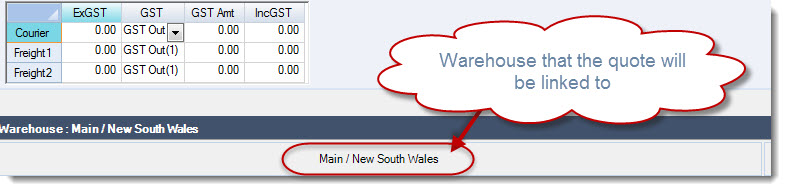
Before creating your new quote make sure you are working with the correct warehouse as you will not be able to change the warehouse on the quote itself or on the sales orders that are created from the quote.
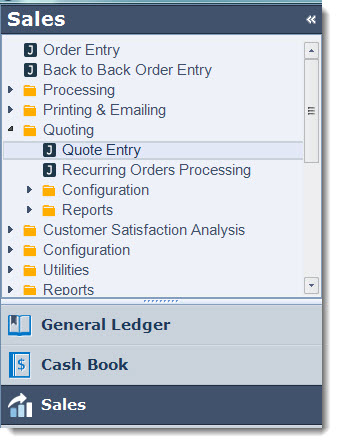
Select Sales | Quoting | Quote Entry
From the menu ribbon select New | New Quote

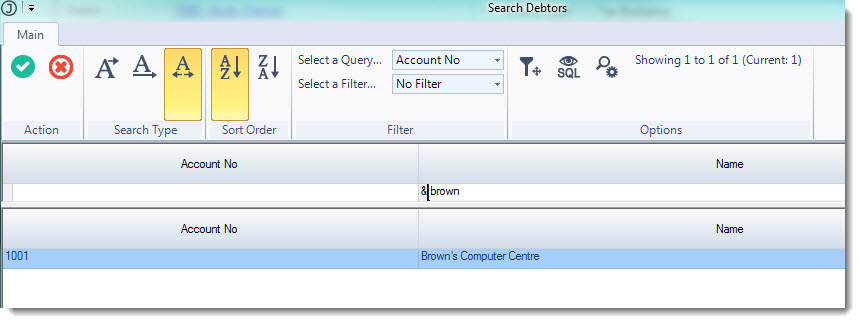
The Debtors search form will be activated, select your Debtor/Customer that the quote is for.
Quote Header
The quote header provides you with key information about the quote and is almost identical to the sales order entry form.

|
Field |
Description |
|
Sales Quote No. |
The quote number is automatically applied to the quote when it is first saved |
|
Order No |
Customer order number |
|
Tax Exempt No. |
This field is only available if tax exemption in invoicing has been turned on. Please contact your Jiwa consultant for further information on this feature |
|
Initiated Date |
Defaults to the login data and represents the date the quote was created |
|
Expected Delivery |
Defaults to the login data but can be overridden if required |
|
Price Scheme |
The customers default price scheme however can be changed if required. Any change is only applicable to the selected quote / sales order |
|
Reference |
Additional reference field |
|
Invoice Type |
Allows you to set the type of report to be printed eg. Tax Invoice GST Excl. or GST Incl. For further information or to discuss your requirements please contact your Jiwa consultant |
|
Billing Type |
Controls how goods are to be shipped and billed. The default billing type is set in System Configuration. Ship & Bill - Goods are delivered and invoiced when available Bill / Complete - Goods are delivered with each snapshot, but the invoice is not raised until the order is completed Ship / Complete - Goods are only delivered and invoiced when the order can be fulfilled in full |
|
Sales Division |
This field is only displayed if branch invoicing has been enabled |
|
Staff Member |
Individual linked to the sale |
|
BackOrder Mode |
Controls how back-orders are filled for the order. The default back-order mode is set in System Configuration. Automatic - Order is filled by the function Process Back Orders Manual - Order is filled by manually creating a new snapshot |
|
Order Type |
Default order type is set in System Configuration. Available order types are Reserve, Invoice, Foward and Active. Contact your Jiwa consultant to discuss your specific requirements. |
|
Total Weight / Cubic Size |
Total weight and cubic size of the lines on the quote / sales order and is based on teh weight and cubic size against the inventory item. |
Quote Tabs

|
Field |
Description |
|
Main |
Inventory and non inventory items, comments and freight are added to the Quote on the Main tab |
|
Delivery |
Customer delivery address, notes, courier and freight forwarder details default from the Debtor master record to this tab. The delivery and freight forwarder addresses can be changed if required by either manually overriding the address or clicking on the lookup icon to select an alternative address. |
|
Cash Sales |
This tab allows you to record customer details for quotes/sales that are recorded against a generic debtor account for example Cash Sales or Trade Counter Sales |
|
Totals |
This tab maintains a record of the changes to a quote. It is updated when a quote or a snapshot of a quote is saved or edited. The quote total displayed is GST Inclusive. |
|
Recurring |
This tab displays the recurring details by snapshot for quotes that are templates for recurring sales orders. |
|
Debtor |
Displays customer details including postal address, credit limit and current balance |
|
Custom |
All custom fields relating to quotes are held in this tab. If you need to capture additional information on a quote please discuss your requirements with your Jiwa consultant. |
|
Documents |
Documents and emails specific to the quote can be added to this grid by either attaching the document or using the Windows drag and drop function to add documents to this tab. These documents are stored in the Jiwa database. Documents can be extracted, opened or emailed from this tab. |
|
Notes |
Notes specific to the quote are added on this tab |
|
To Do |
Action items specific to the quote are added on this tab |
Main Tab
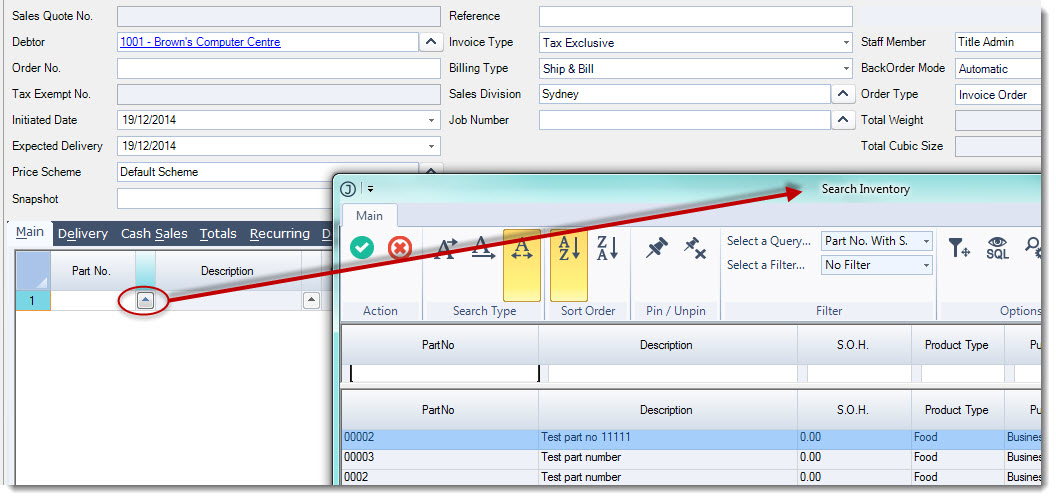
Enter in the parts to be ordered in the Main tab by either keying in the part number in the Part No field or selecting the lookup icon next to the field to bring up your Inventory Search form.
Using the Inventory search form select the items to be added to the quote.
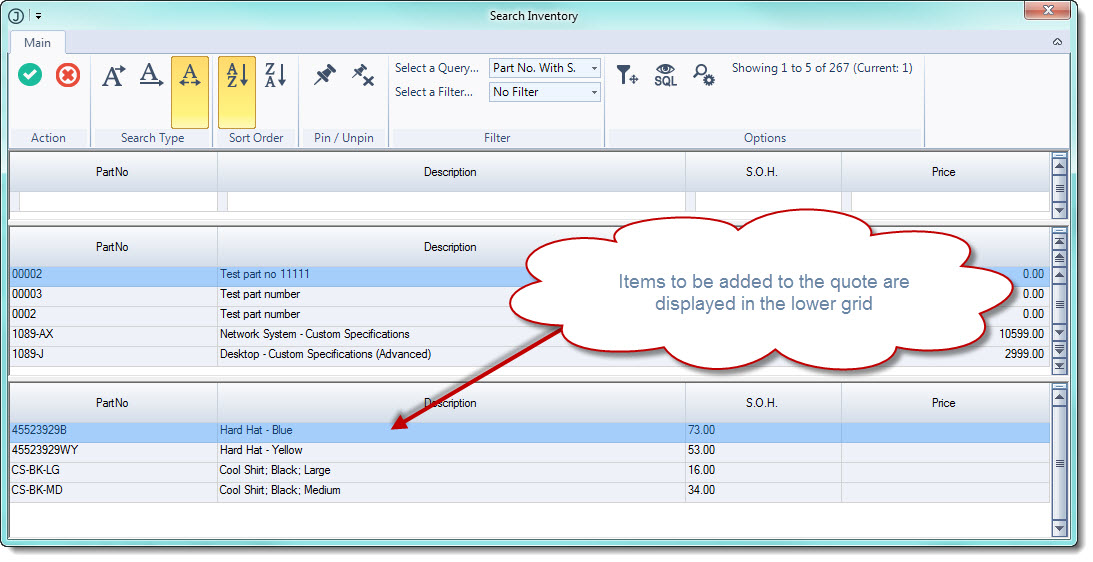
Click on the Select & Close icon from the menu ribbon to return to the Quote form.
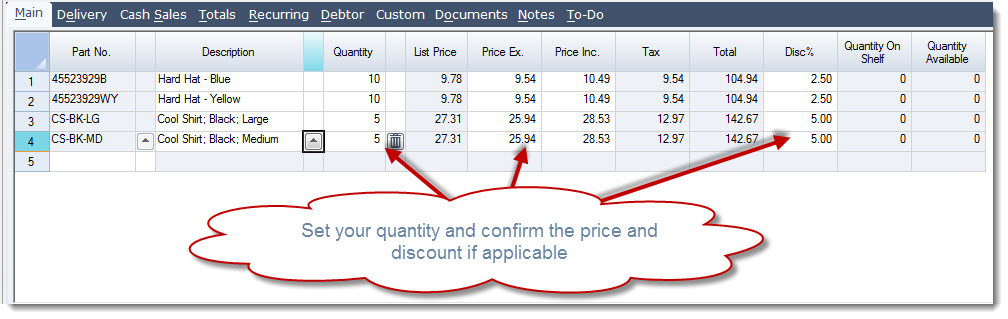
Enter in the quoted quantity in the Quantity field and confirm the quoted price and or discount.
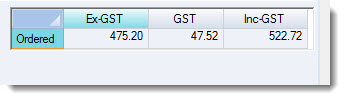
Freight & Quote Totals
Add freight or courier charges to the quote if applicable in the freight grid.

Confirm the quote total
Completing your Quote
Once you have completed your quote press Save from the menu ribbon, at this point the quote number will be applied.
To print your quote from the menu ribbon select Print | Quote

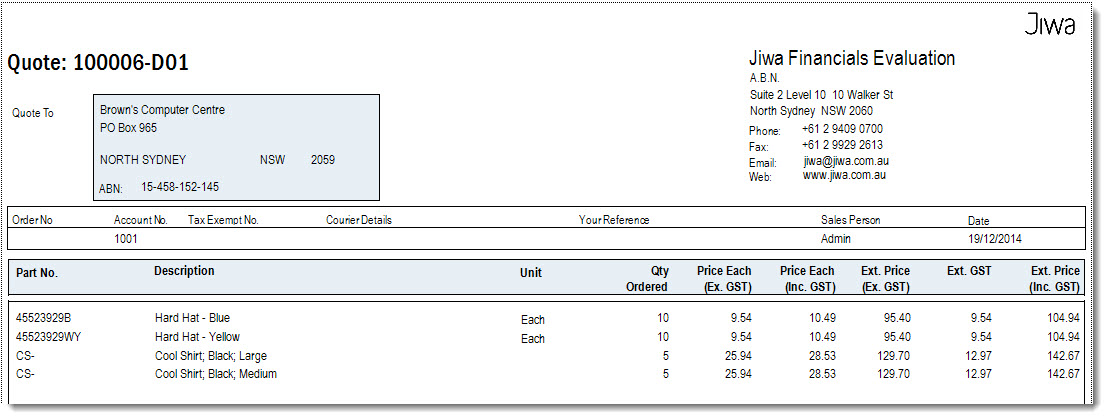
Once you have printed your quote you will notice that the quote status will be updated with Printed.
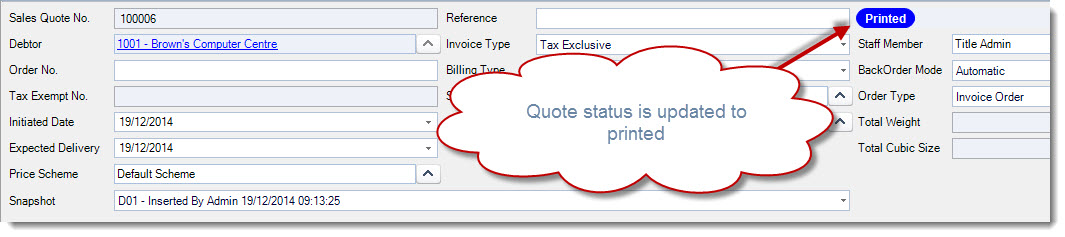
To email your quote select Email from the menu ribbon, this will activate the Email Options pop-up where you can confirm the email address and amend the message if required.
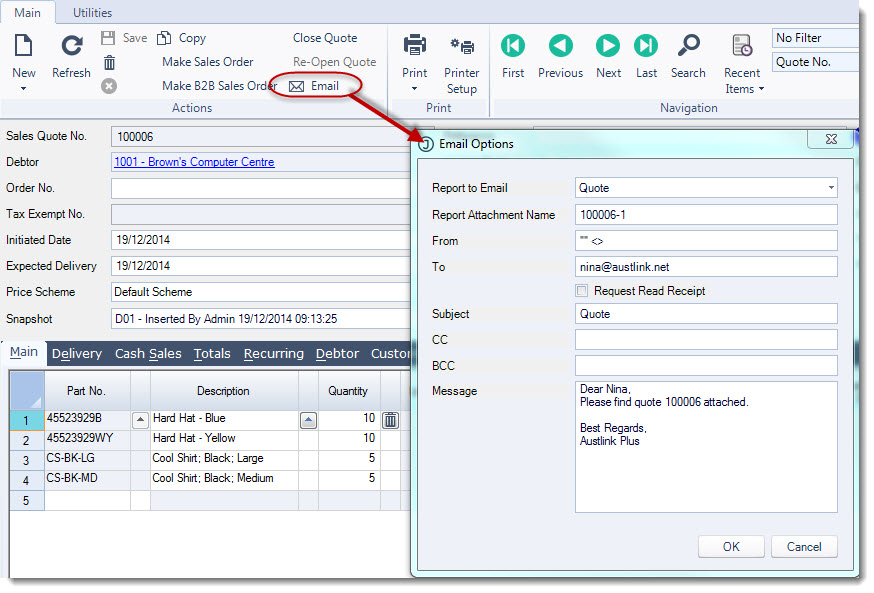
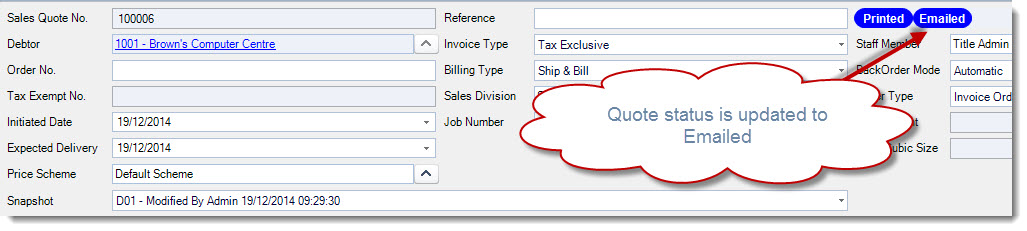
Once you have emailed your quote you will notice that the quote status will be updated with Emailed.
Closing / Cancelling a Sales Order Quote
When a quote is converted to a sales order it is not automatically closed, this is because Jiwa has no limit on the number of sales orders that can be created from a single quote.
If you do not want to create multiple sales orders from a single quote then you may want to close the quote once it has been converted to a sales order.
The following process can also be used for cancelling sales order quotes.
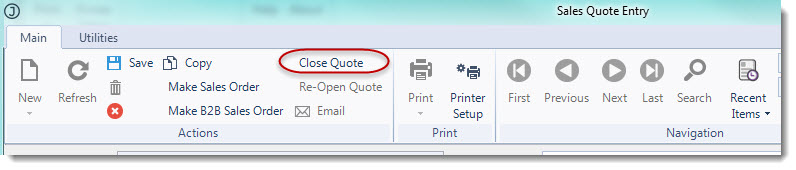
To close or cancel a Quote you need to load the quote into the Sales Quote Entry form.
From the menu ribbon select Close Quote
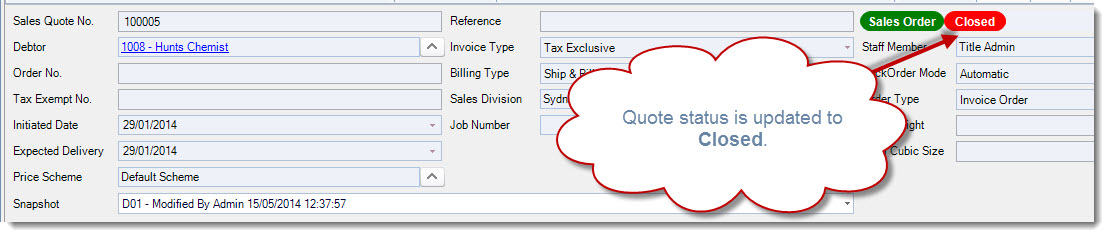
Once you have closed the quote you will notice that the quote status will be updated with Closed.
Re-Opening a Sales Order Quote
Jiwa gives you the ability to re-open a closed quote if required. This can be useful in circumstances where a quote has been closed in error or the customer has returned and asked for the quote to be re-issued.
Load the required quote into the Sales Quote Entry form.
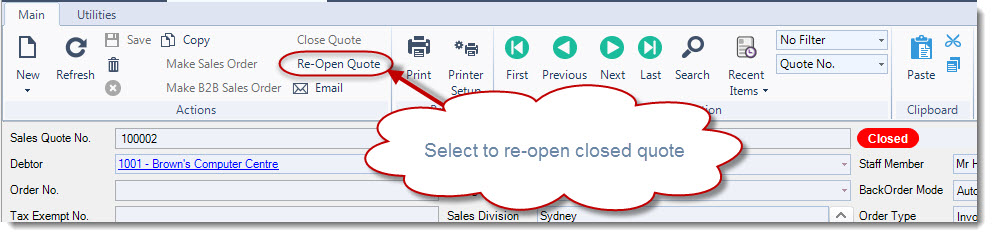
From the menu ribbon select Re-Open Quote
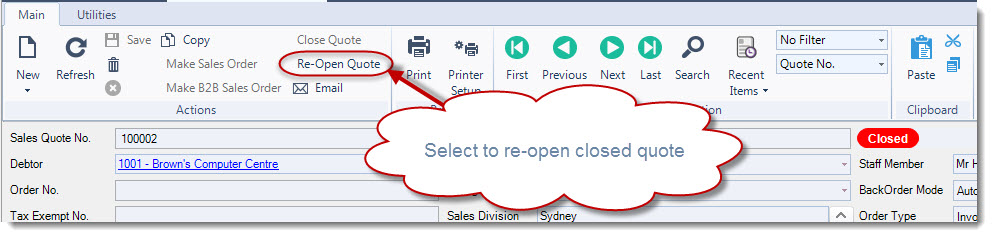
Once you have re-opened the quote you will notice that the quote status will be updated (Closed status is removed) and the quote is available for editing.