
The Rebate Allocation form is used to record customer payments where automatic rebate credit notes need to be created.
For automatic rebate credit notes to be created your rebate claim method must be set to Invoice Accrual.

The form is available from the Rebates menu

It is also available from the Debtor Maintenance form by clicking on the Rebate Allocation button on the menu ribbon.

Rebate Allocation Form
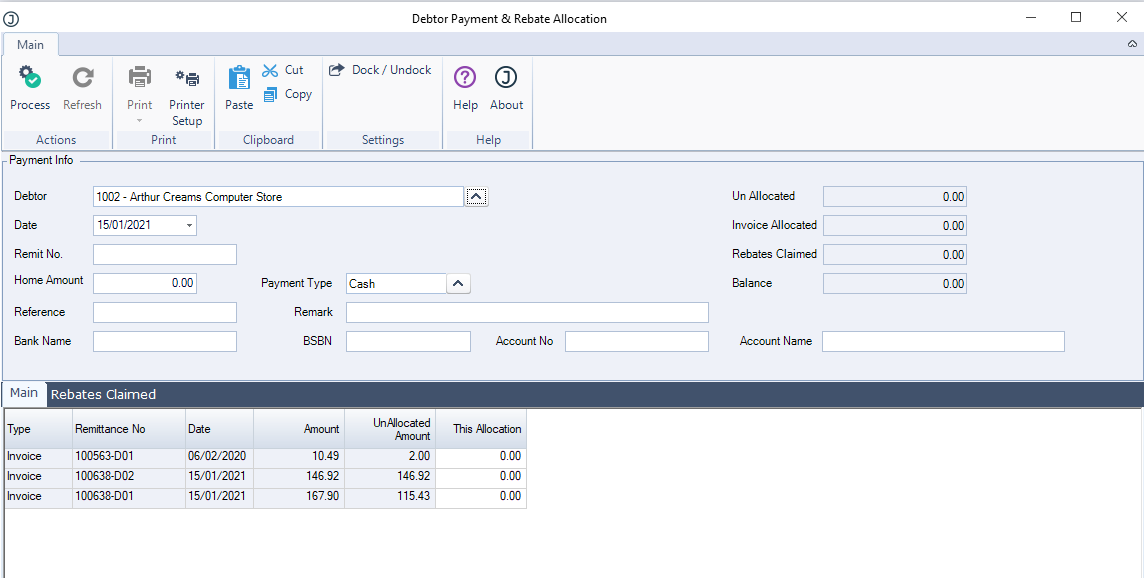
The Rebate Allocation form is comprised of three (3) key components which we will look at in more detail in this article.
Before using this form it is important that all credit notes for stock have been applied to the applicable invoice.
|
Section |
Description |
|
Payment Info |
This section of the form is used to record the payment details |
|
Main Tab |
This tab displays all outstanding invoices against the Debtor account |
|
Rebates Claimed |
This tab is updated with the unclaimed rebate values once an invoice is selected for payment |
Payment Info
In the following example we have received a payment for a total of $236.85 which includes a rebate amount claimed of $27.50 including GST.
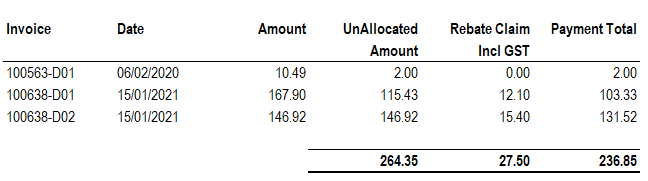
In the payment section select the customer that you are receiving the payment from. If you have accessed the form from the Debtor Maintenance form then this field will be automatically populated for you.
Set the payment date and enter a Remit No. you will not be able to process the payment if the remittance number field is left blank.
Enter in the payment amount and set your payment details.
Main Tab
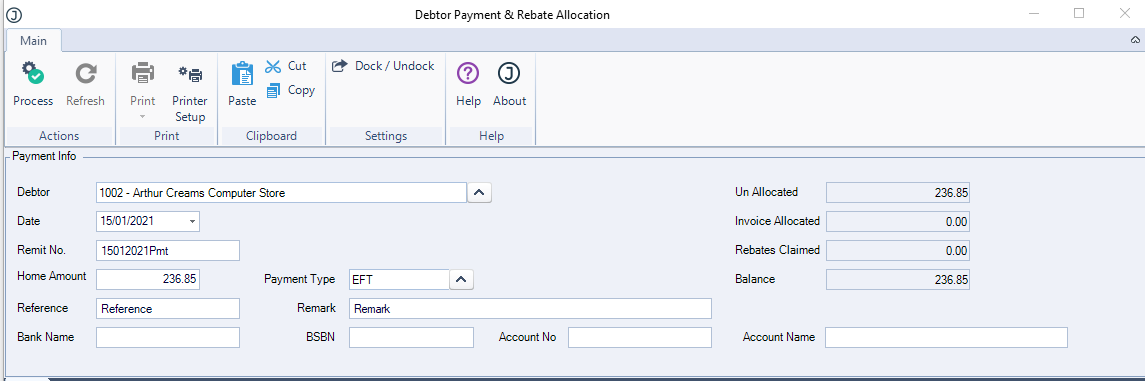
On the main tab select the invoices that are being paid, this can be done by clicking on the UnAllocated Amount, the This Allocation amount field will be populated automatically with the outstanding invoice value.

Rebates Claimed Tab
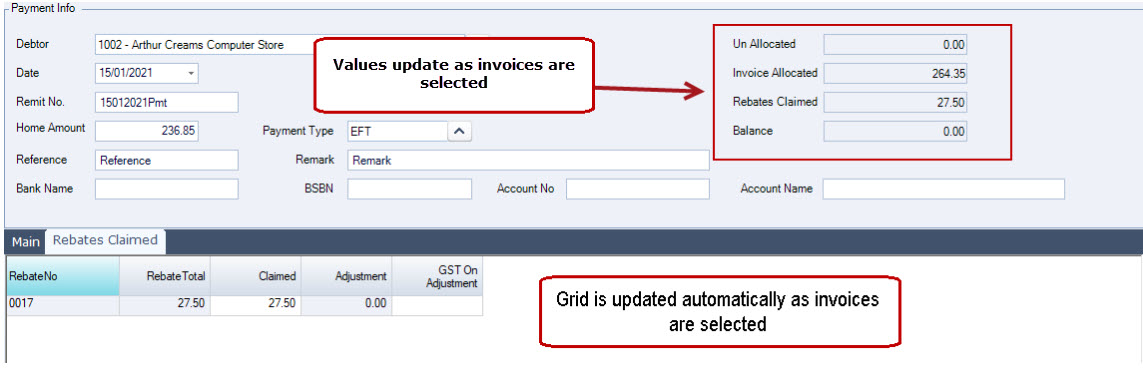
The rebates tab is updated automatically with unclaimed rebates as invoices are selected for payment.
You will also notice that the value fields in the Payment Info section are automatically updated as invoices are selected and rebate claims taken up.
The rebate amount claimed can be overridden if the customer has either over or underclaimed a rebate amount.
To record the payment select the Process button on the menu ribbon. On processing the following transactions are created.
-
Cashbook receipt batch, and
-
Credit note/(s) for rebates claimed
Payment & Rebate Claim Credit Note
Cashbook Receipt Batch
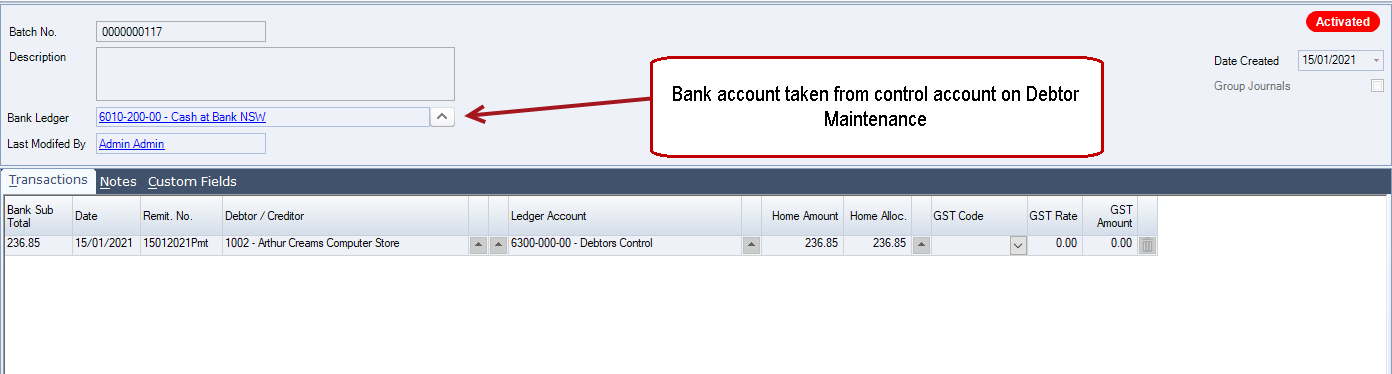
Once the payment is processed a Cashbook Receipt batch is automatically created and activated for the payment amount.
The bank account used for the batch is taken from the control account against the Debtor account in Debtor Maintenance.

Rebate Claimed Credit Notes
For each rebate campaign a separate credit note is created and processed.
Note: GST is only taken up on the rebate when it is being claimed. The rate applied to each rebate accrual is taken from the GST rate that has been applied to the applicable inventory item in Inventory Maintenance.

Payment & Rebate Claim Allocations
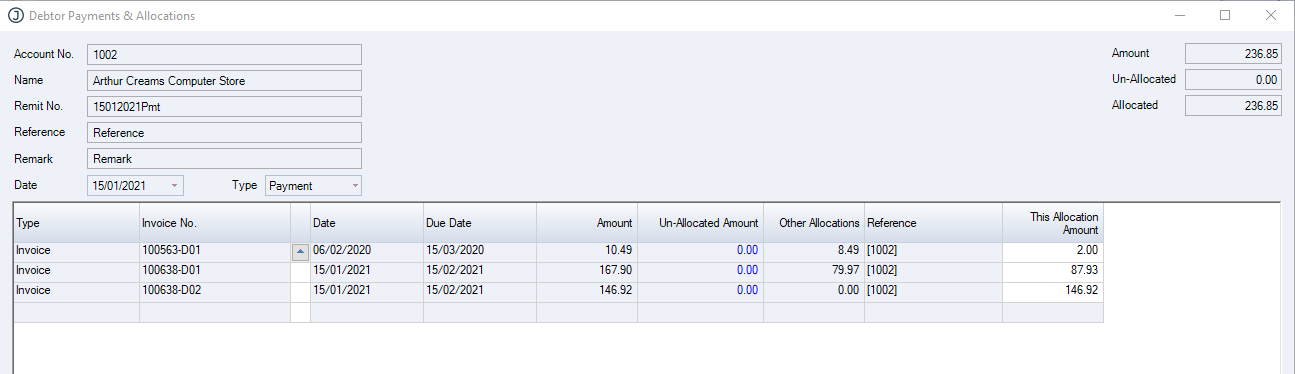
On processing of the payment, the payment is first allocated to the invoices selected for payment on the Rebate Allocation.
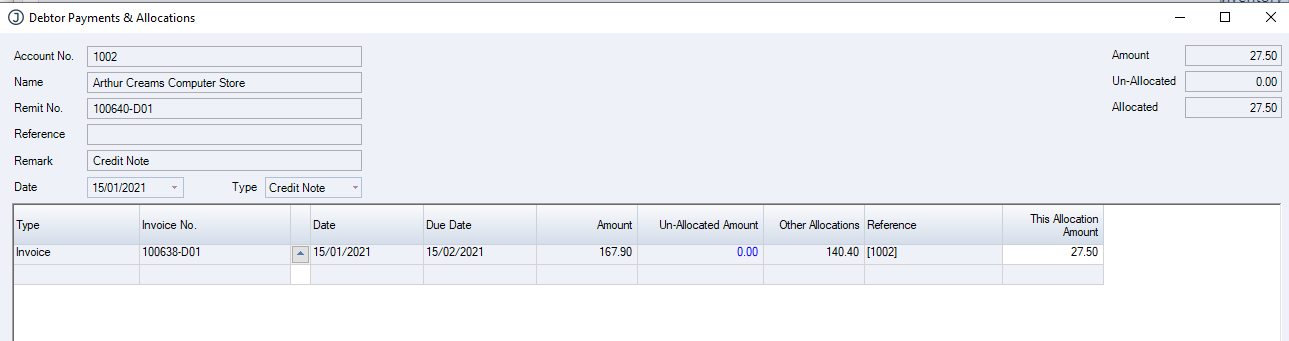
Each automatically generated credit note is then allocated to the paid invoices that have an outstanding balance.
Part Payments
When an invoice is part paid the full rebate value is claimed. This is because a payment is applied to the invoice and not the individual lines on the invoice so it cannot be determined which rebates are being taken up.
Rebates Over Claimed
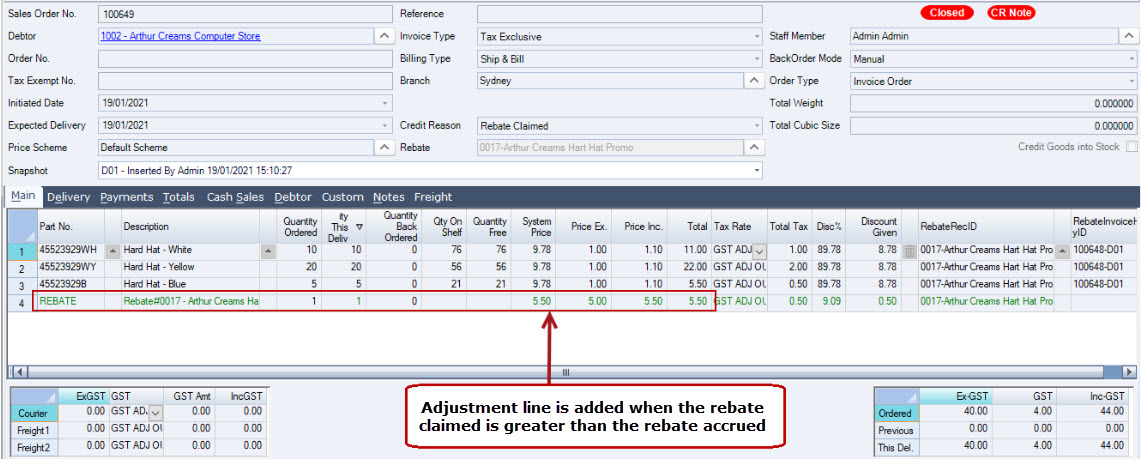
In cases where the payment value is less than the amount due after rebates as a result of an over claim of rebates the user can enter the actual rebate value claimed against the rebate on the Rebate Claimed tab by manually updating the Claimed value.

When the rebate credit note is created a non-inventory line is added to the credit note to take up the additional rebate value claimed, this adjustment is posted to the rebate expense account.
Payment Value Greater than Amount Due After Rebates
In cases where the payment value is greater than the amount due after rebates no adjustment is made. All invoices will be fully
allocated and the amount paid will have an un-allocated balance which is the over payment value.