
In this article we will be looking at the Supplier Returns feature in Jiwa specifically the Supplier Return Credit function.
Before proceeding please ensure you have reviewed the article Jiwa-PO's - Supplier Return Codes
If you are raising Supplier Request Shipping documents this article is the next and final step in the returns process.
If you do not raise Supplier Return Shipping documents this article will take you through the process of creating Supplier Return Requests without a shipping document.
|
Supplier Return Request (Optional step) |
This step is the first in creating a request for the return, replacement or pricing credit with your supplier. There is no impact on the Stock ledger at this stage hence no journal entries are created. |
|
Supplier Return Shipping (Optional step) |
This is the next step in the process and related to goods being returned or exchanged this step transfers the stock to the In Transit location where it will sit until the supplier credit note is received and processed. The stock ledger is updated to reflect the transfer to the In Transit location and journal entries created for the movement. |
|
Supplier Return Credit (Mandatory) |
This is the final step in the process and the only mandatory step as it is the process in Jiwa for raising credit notes with suppliers for local and imported stock. |
Supplier Return Credit - No Shipping Document
Here we will be looking at creating a supplier return credit without a shipping document.
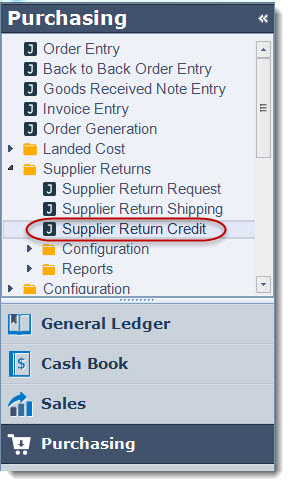
From the menu select Purchasing | Supplier Returns | Supplier Return Credit from the menu
From the menu ribbon select New

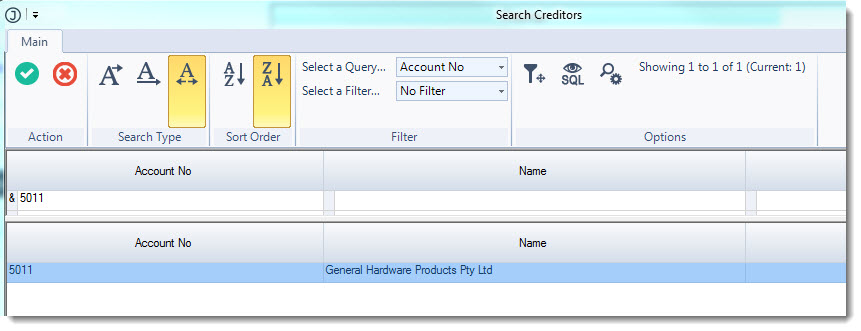
Select your required creditor from the Creditors search form
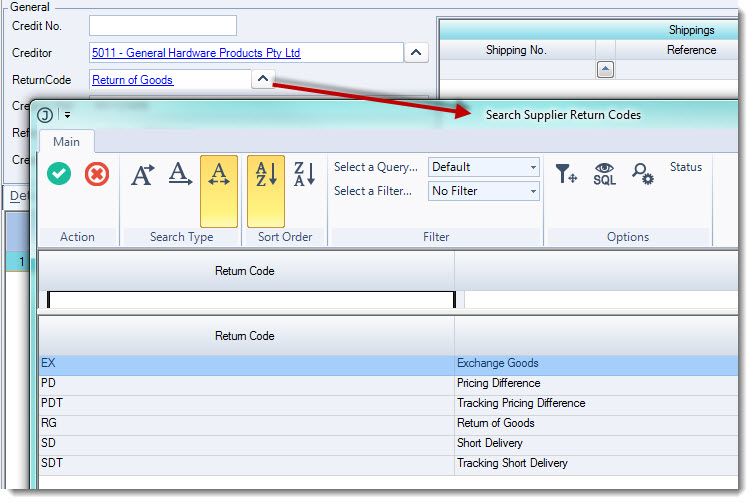
Select the return code applicable to the supplier credit, use the lookup icon next to the ReturnCode field to bring up the list of available codes.
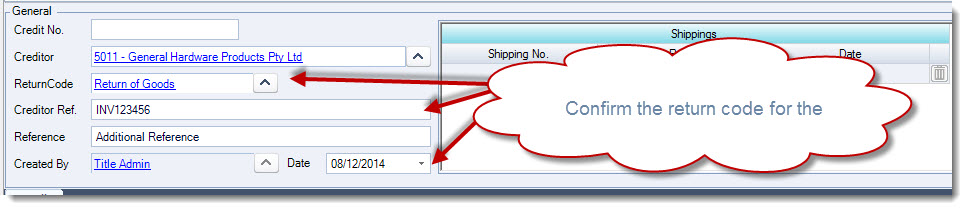
In the Creditor Ref. field enter in your creditor's credit note number.
Additional references can be added in the Reference field
Confirm the transaction date
Enter in your parts in the Details tab grid
In the Quantity To Credit field enter in the number of units the credit note is for, this will activate the cost batch selection form
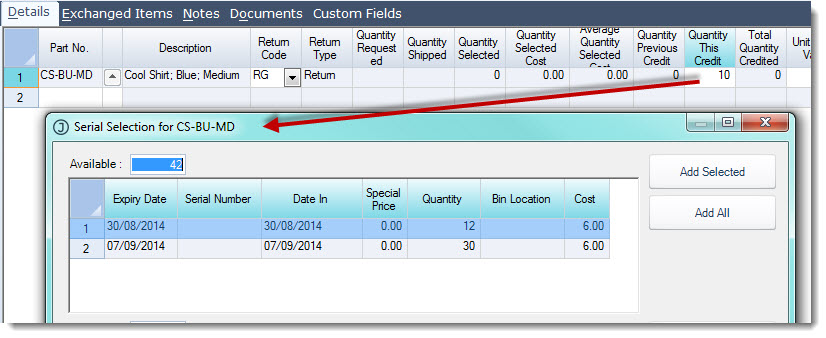
Select the batch the that stock is to be taken from by double clicking on the batch, this will activate the quantity dialog box.
Enter in the quantity to be returned from the selected batch and select OK
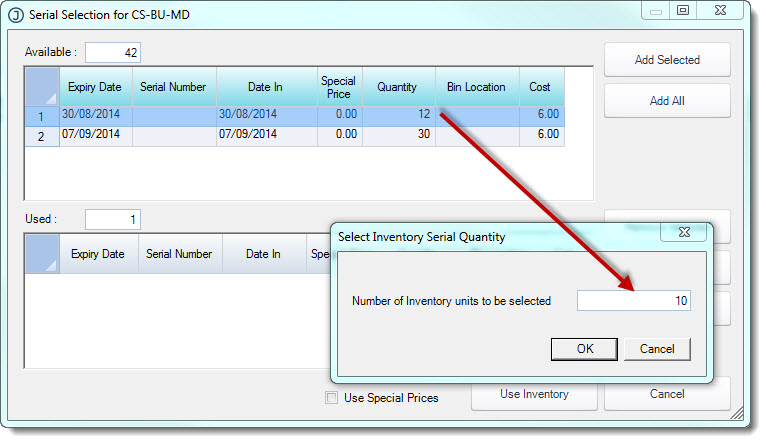
This will add the item to the selection area of your dialog box.
Repeat the above process for the item selected until you have the required return quantity.
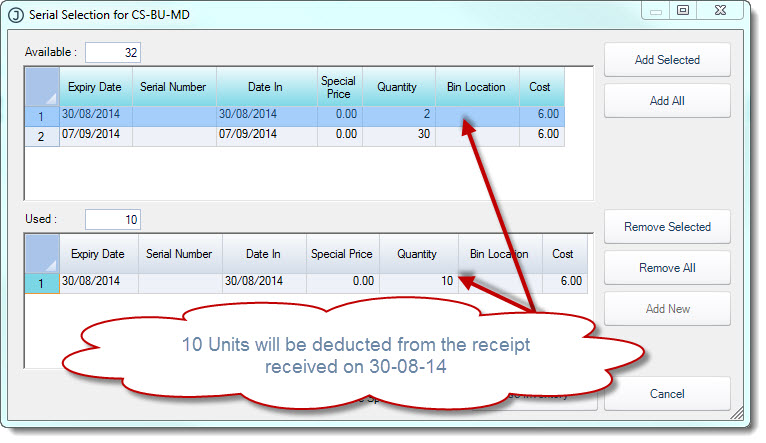
Select Use Inventory to return to the Details tab grid.
Confirm the credit value amend the Unit Credit Value if required
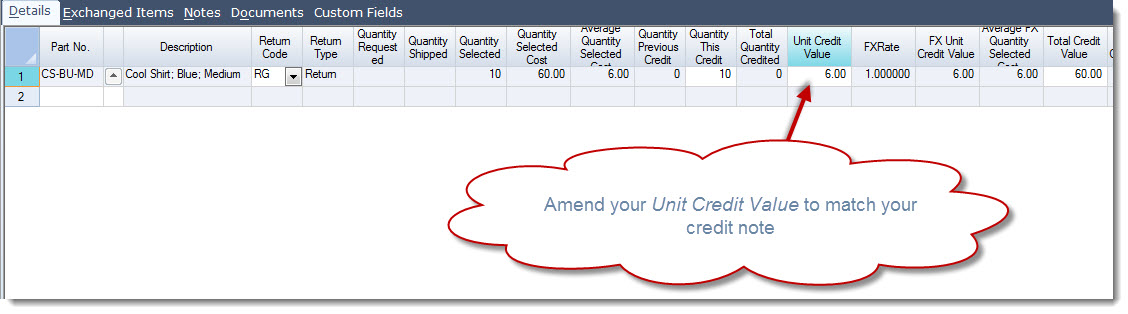
Repeat this process for each item on the credit note.
The total credit value is displayed at the bottom of your form.
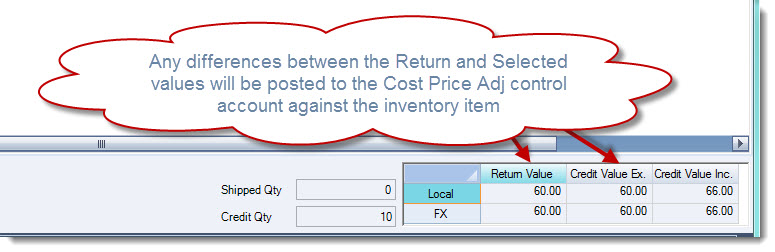
Select Save and Activate when you have completed your return credit.
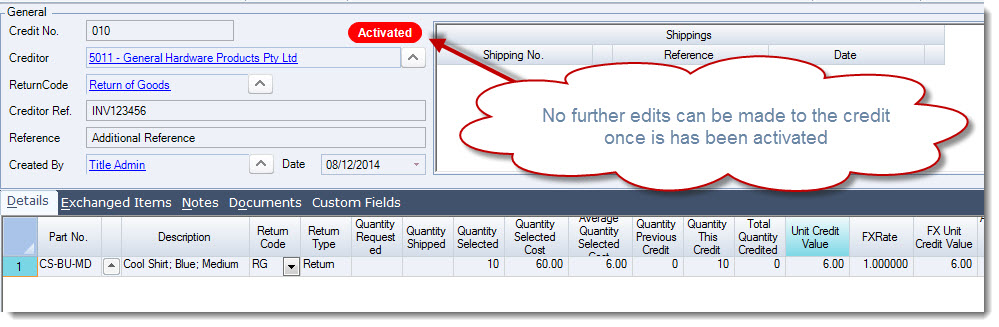
On activation the Inventory, Creditors and General Ledgers will be updated and the supplier return credit is locked from further editing.
Supplier Return Credit - Using Shipping Document
Here we will be looking at creating a Supplier Return Credit based on a Supplier Return Shipping document.
Create your new Supplier Return Credit and complete the General information section.

Bring in your shipping document by clicking on the lookup icon next to the Shipping No field to activate the Supplier Return Requests search form.
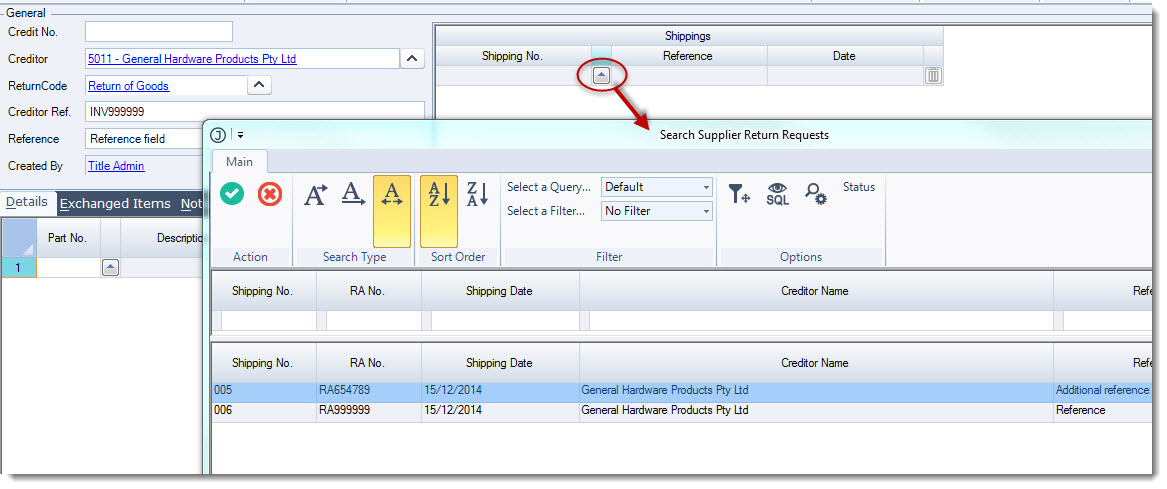
Select the required return request and from the menu ribbon click on Select and Close to load the request into your details grid
Add additional return requests to the credit if required.
You will notice that the Shippings grid will be populated with the return requests that have been added to this Supplier Return Credit.
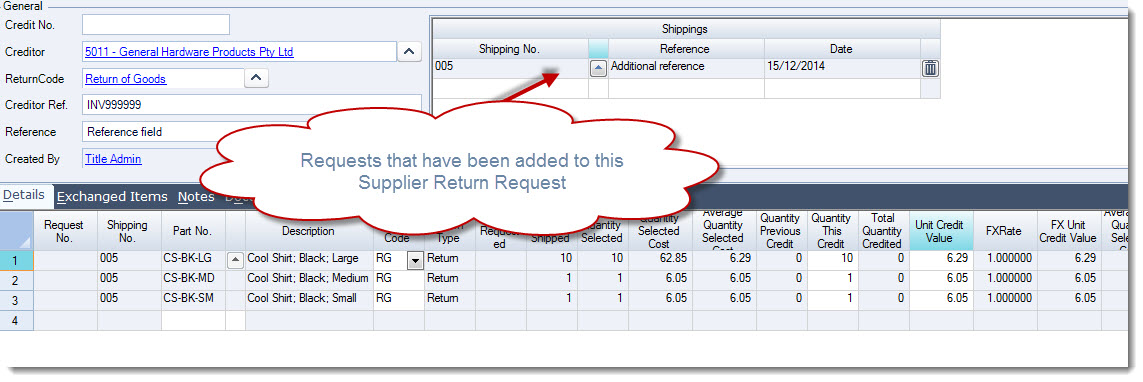
Amend the Quantity this Credit and Unit Credit Value as required.
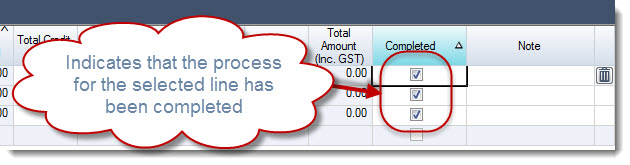
Tick the Completed check box against each line, this will indicate the the return for this part is complete and no further credits are expected.
Save and Activate your return credit when complete.