
Job credit notes are used in Jiwa when a customer needs to be credited for charges that were previously invoiced from a job.
This article explains how to create full and partial credit notes against a job in Jiwa Job Costing. Job credit notes are created from the original job invoice so that the credited values are returned to the same job, cost centre, and stage they were invoiced from.
A job credit note can be created from Sales Order Entry or from the Transactions tab on the job record. Before creating a job credit note, review the original job invoice and confirm the cost centre and stage details that need to be credited.
Full Credit
In this example we look at how an invoice can be credited in full.
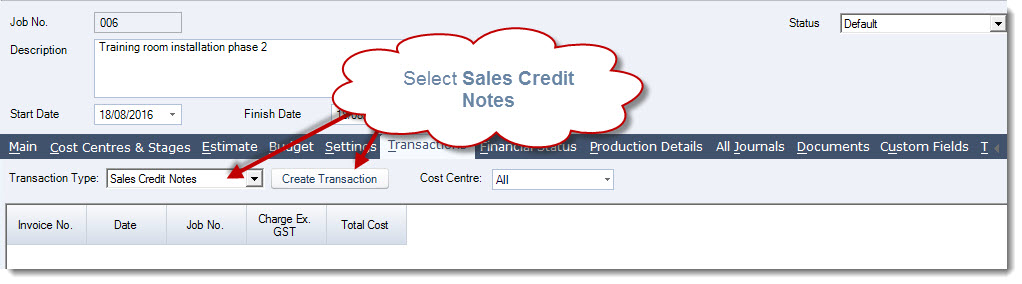
From the Transaction tab on the job select the transaction type of Sales Credit Notes and then click on the Create Transaction icon
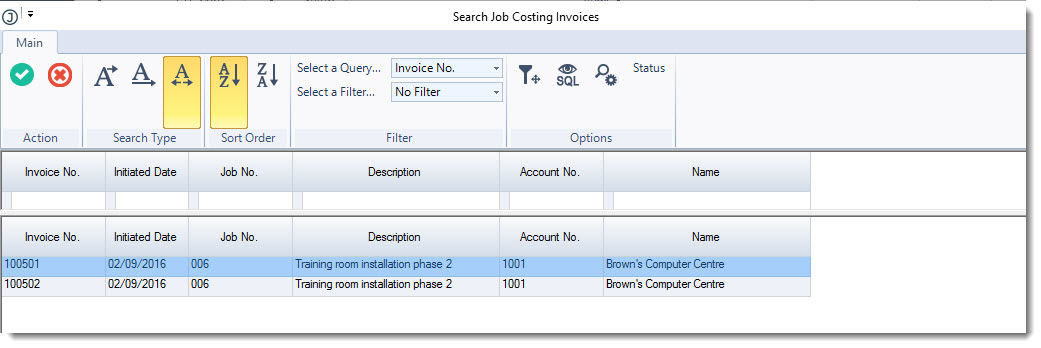
From the Job Costing Invoices popup select the invoice to be credited
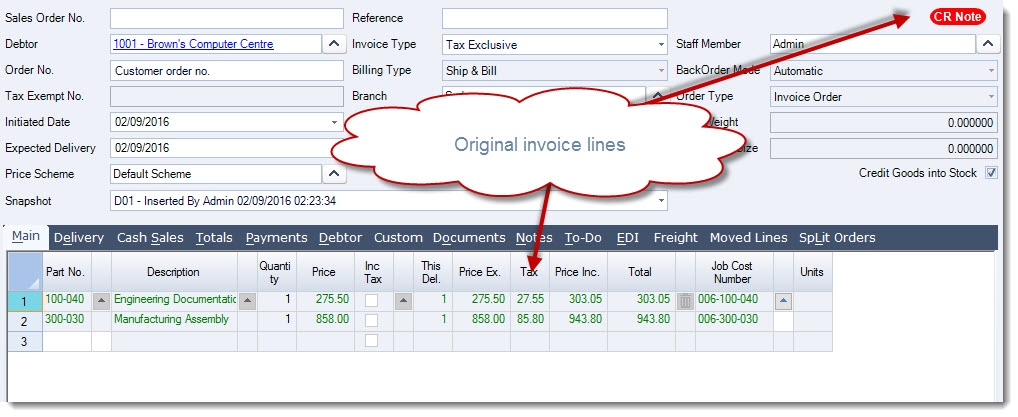
The Sales Order entry form will be populated with the invoice details to be credited
Save and Process your credit note
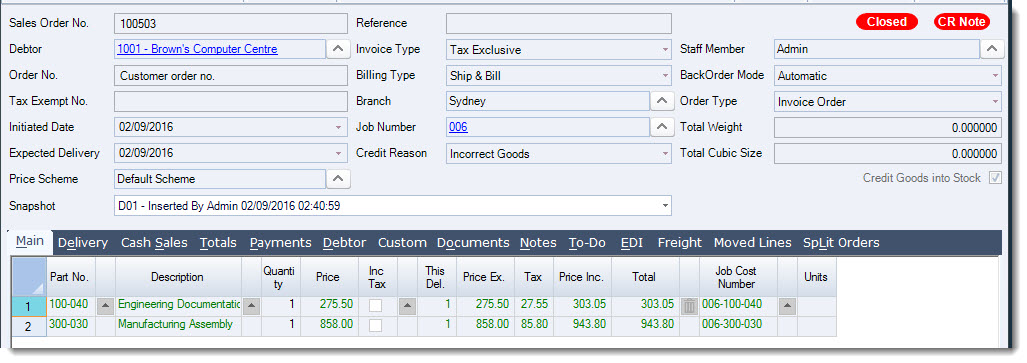
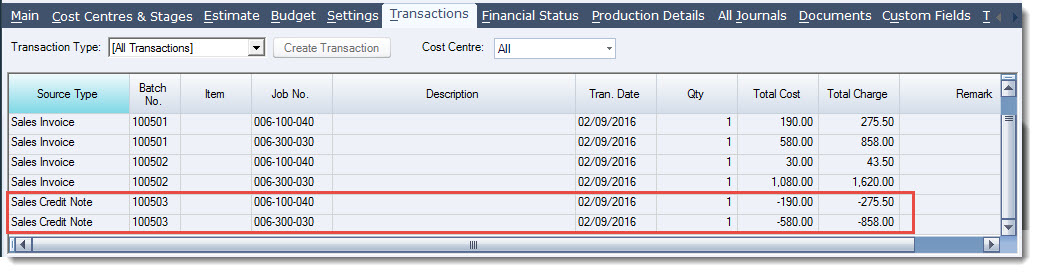
The job is updated with the credit note details
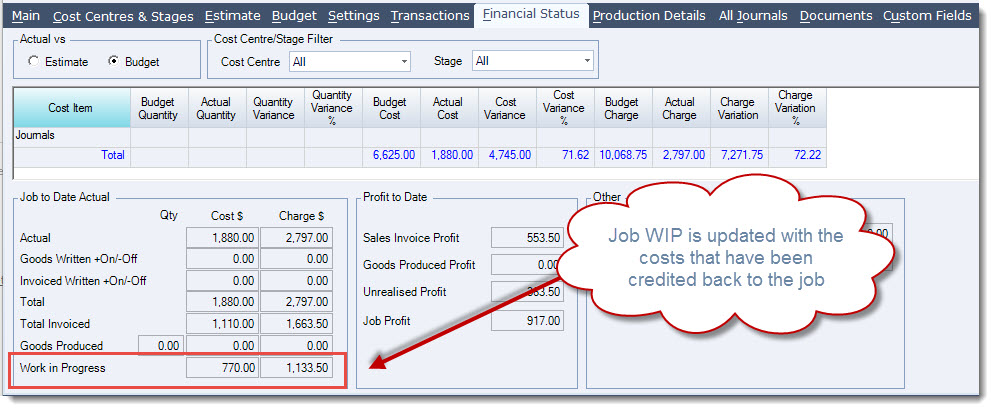
On the Financial Status tab the costs are put back into Work in Progress to be re-invoiced later, written off or cancelled from the job.
Partial Credit
In this example we look at how an invoice can be credited in part.
From the Transaction tab on the job select the transaction type of Sales Credit Notes and then click on the Create Transaction icon
Select the invoice to be credited.
To remove a line from the credit note right mouse click over the line number and then select Cut or click on the rubbish bin icon on the line
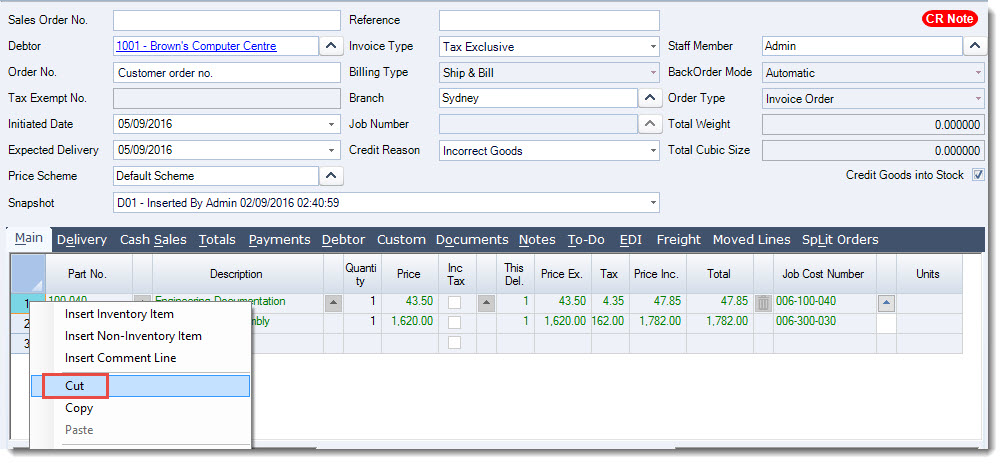
To change the line amount to be credited click on the lookup icon next to the Job Cost Number field, this will open the cost allocation form
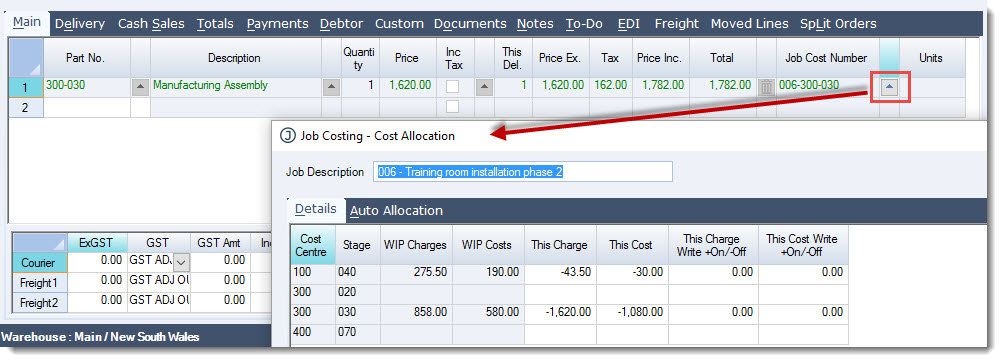
Change your credit values by cost centre or transaction by changing the This Charge and This Cost amounts to the value required or zero
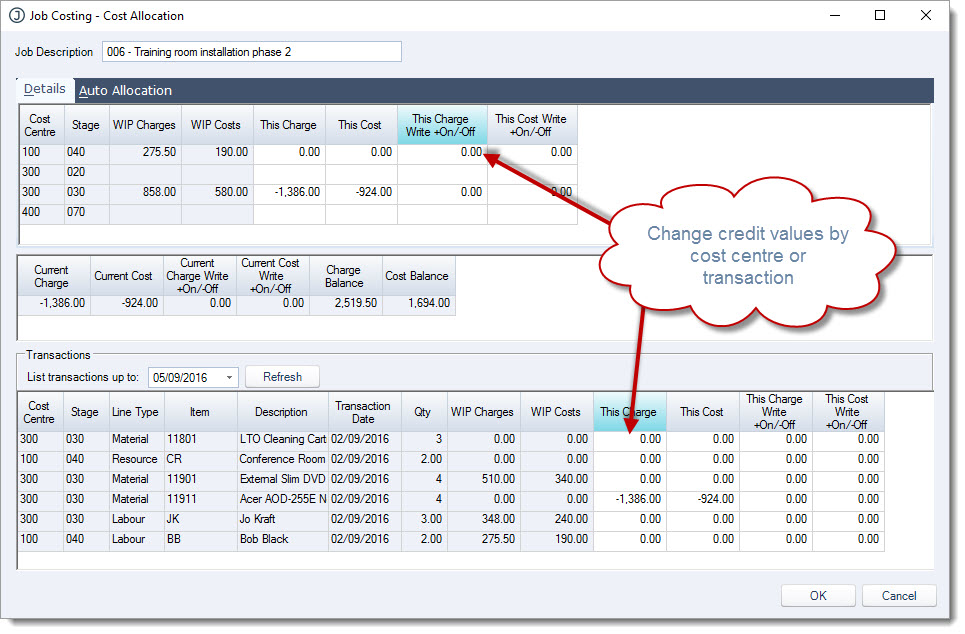
When you have made your changes press OK
Your credit note is updated
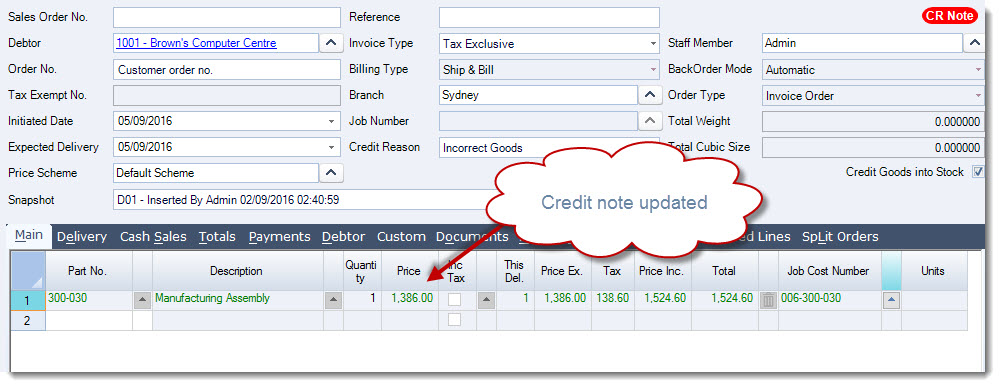
Save and Process your credit note
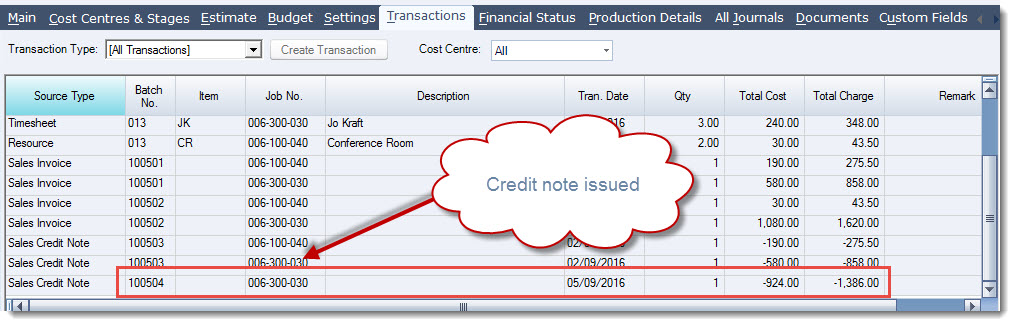
The job is updated with the credit note details
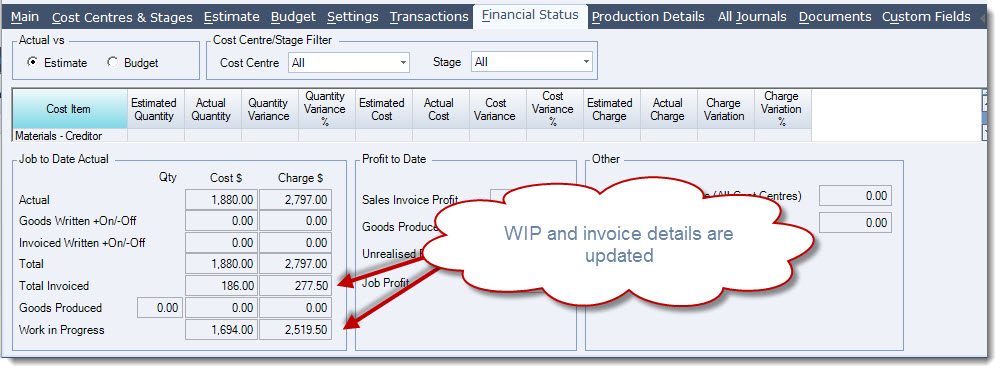
On the Financial Status tab the costs are put back into Work in Progress to be re-invoiced later, written off or cancelled from the job.
Video walkthrough